2.0 Beta is here!

A little while ago, we issued an alpha release of Rubberduck 2.0, just because, well, v1.4.3 had been around since July 2015, and we wanted to say “look, this is what we’ve been working on; it’s not nearly stable yet, but we still want to show you what’s coming”.

Time flies. 6 whole weeks, 353 commits (plus a few last-minute ones), 142* pull requests from 8 contributors, 143* closed issues, 60* new ones, 129,835 additions and 113,388 deletions in 788* files later, Rubberduck still has a number of known issues, some involving COM interop, most involving COM reflection and difficulties in coming up with a host-agnostic way of identifying the exact types we’re dealing with.

It might seem obvious, but knowing that ThisWorkbook is a Workbook object is anything but trivial – at this point we know that Workbook implements a WorkbookEvents interface; we also know what events are exposed: we’re this close to connect all the dots and have a resolver that works the way we need it to.

So what does this mean?

It means a number of false positives for a number of inspections. It means false negatives for a number of others.

Other than that, if the last version you used was 1.4.3, you’re going to be blown away. If the last version you used was 2.0.1a, you’ll appreciate all the work that just went into this beta build.

There are a number of little minor issues here and there, but the major issues we’re having pretty much all revolve around resolving identifier references, but I have to admit I don’t like unit test discovery working off the parser – it just doesn’t feel right and we’re going to fix that soon.

Speaking of unit testing… thanks to @ThunderFrame’s hard work, Rubberduck 2.0 unit tests now work in Outlook, Project, Publisher and Visio.

@Hosch250 If you get unit testing to work in outlook I’ll eat my hat.

– @RubberDuck 2016-05-13

So Chris, how’s the hat?

Stay tuned, things are going to snowball from this point on – we’ll be releasing much more often than we have been.

*From the GitHub “Pulse” page between May 7 and June 7, 2016.

VBA Rubberducking (Part 4)

This post is the fourth in a series of post that walk you through the various features of the Rubberduck open-source VBE add-in.

  • Part 1 introduced the navigation features.
  • Part 2 covered the code inspections.
  • Part 3 featured the unit testing feature.

Refactorings

At first we were happy to just be able to inspect the code.

fizzbuzz-inspections

Quickly we realized “inspection quick-fixes” could be something else; some of the inspections’ quick-fixes are full-fledged automated refactoring operations. Renaming an identifier – and doing it right – is very different than just Ctrl+H/replace an identifier. Manually removing an uneeded parameter in an existing method breaks all call sites and the code no longer even compiles; Rubberduck sees all call sites, and knows which argument to remove everywhere to keep the code compiling.. and it’s much faster than doing it by hand!

Rubberduck 1.3 had Rename and Extract Method refactorings; v1.4.3 also had Remove Parameters and Reorder Parameters refactorings.

Rubberduck 2.0 introduces a few more.

refactor-menu

The context menu commands are enabled depending on context; be it the current parser state, or the current selection.

Rename

That’s a pretty well-named refactoring. It deals with the impacts on the rest of the code base, of renaming pretty much any identifier.

Extract Method

Pretty much completely rewritten, v2.0 Extract Method refactoring is becoming pretty solid. Make a valid selection, and take that selection into its own member, replacing it with a call to the extracted code, all parameters and locals figured out for you.

Extract Interface

VBA supports interface inheritance; Rubberduck makes it easy to pull all public members of a module into a class that the original module then Implements. This is VBA’s own way of coding against abstractions. Unit tests love testing code that’s depending on abstractions, not concrete implementations, because then the tests can provide (“inject”) fake dependencies and test the applicative logic without triggering any unwanted side-effects, like displaying a message box, writing to a file, or to a database.

Implement Interface

Implementing all members of an interface (and all members of an interface must be implemented) can be tedious; Rubberduck automatically creates a stub method for every member of the interface specified in an Implements statement.

Remove/Reorder Parameters

Reworking a member’s signature is always annoying, because then you have to cycle through every single call site and update the argument list; Rubberduck knows where every call site is, and updates all call sites for you.

Move Closer to Usage

Variables should have the smallest possible scope. The “scope too wide” inspection uses this refactoring to move a declaration just above its first usage; it also works to rearrange “walls of declarations” at the top of a huge method you’re trying to cut into more manageable pieces.

Encapsulate Field

Fields are internal data, implementation details; objects shouldn’t expose public fields, but rather, encapsulate them and expose them as properties. Rubberduck turns a field into a property with only as much effort as it takes to name the new property.

Introduce Parameter/Field

Pretty much the antagonist of move closer to usage, this refactoring promotes a local variable to a parameter or a field, or a parameter to a field; if a new parameter is created, call sites will be updated with a “TODO” bogus argument that leaves the code uncompilable until an argument is supplied for the new parameter at all call sites.


More refactorings are planned for 2.1 and future versions, including Inline Method (the inverse of Extract Method), to move the body of a small procedure or function into all its call sites. Ideas for more refactorings and inspections? Suggest a feature!


VBA Rubberducking (Part 3)

This post is the third in a series of post that walk you through the various features of the Rubberduck open-source VBE add-in.

  • Part 1 introduced the navigation features.
  • Part 2 covered the code inspections.

Unit Testing

If you’ve been following Rubberduck since its early days, you already know that this is where and how the project started. Before Rubberduck was a VBE add-in, it was an Excel add-in completely written in VBA, that started with this Code Review post; before Rubberduck was even named “Rubberduck”, it was a C# port of this VBA code – the idea being to enable writing and running unit tests beyond Excel, in Access and Word VBA as well, without having to replicate all that code in multiple add-in projects.

Zero Boilerplate

There are other VBA unit testing solutions out there. A lot require quite a bit of boilerplate setup code; those written in VBA require programmatic access to the VBIDE object model, which may be a security concern (you’re allowing VBA to execute code that can generate and run VBA code after all). Rubberduck unit tests require neither. Because it’s a VBE add-in, Rubberduck already has programmatic access to the code in the IDE, and the ability to scan, modify, generate and execute VBA code – without requiring a dent in your corporate security policy.

Rubberduck requires pretty much zero boilerplate. This is a fully working test module:

 '@TestModule
 Private Assert As Rubberduck.AssertClass
 
 '@TestMethod
 Public Sub FooIs42()
 
     'Arrange
     Const expected As Integer = 42
     Dim actual As Integer
 
     'Act
     actual = Module1.GetFoo
 
     'Assert
     Assert.AreEqual expected, actual, "Nope, not 42."
 
 End Sub

Okay, it’s just an example. But still, it shows how little is required for it to work:

  • A @TestModule annotation in the declarations section of a standard module.
  • Rubberduck.AssertClass instance, which can be late or early-bound.
  • @TestMethod annotation to formally identify a test method.

That’s all. And up until recently, the @TestMethod annotation was optional – in Rubberduck 1.x, if you had a public parameterless method with a name that starts with “Test”, in a standard module, Rubberduck treated it as a test method. This is changing in 2.0, as we are making the @TestMethod annotation mandatory, favoring explicitness over implicit naming conventions. Test methods still need to be public and parameterless, and in a standard module though.

xcrux

Now, let’s say GetFoo returning 42 is a business requirement, and that something needs to change in Module1 or elsewhere and, inadvertently, GetFoo starts returning 0. If you don’t have a unit test that documents and verifies that business requirement, you’ve introduced a bug that may take a while to be discovered. However if you do have a test for it, and that you’ve made it a habit to run your test suite whenever you make a change just to be sure that all the business requirements are still met…

p6txc

Then you have a failing test, and you know right away that your modification has subtly introduced a change in behavior that will be reported as a bug sooner or later.

If you’ve already written unit tests, I’m probably preaching to the choir here. If you’ve only ever written VBA code, it’s possible you’ve heard of unit testing before, but aren’t quite sure how you could make your code work with it.

Luckily, the key concepts are language-agnostic, and VBA definitely has support for everything you need for full-blown Test-Driven Development.

Code Against Abstractions

Whether you’re writing C#, Java, PHP, Python, Ruby, or VBA, if your code is tightly coupled with a UI, accessing the file system, a Web service, a database, …or a worksheet, then it’s not fit for a unit test, because a unit test…

  • Should be fast
  • Should not have side-effects
  • Should not depend on (or impact) other tests
  • Should have all dependencies under control
  • Should test one thing, and have one reason to fail

Wait. My code is accessing a worksheet. Does that mean I can’t write tests for it?

Yes and no. I’ll tell you a secret. Quite a lot of VBA posts I see on Code Review are asking for tips to get their code to run faster with large data sets. Something I often say in my reviews, is that the single slowest thing you can do in VBA is access a worksheet.

Don’t code your logic against the worksheet, code your logic against an abstraction of the worksheet. An array is often all you need: refactor your logic to work with an array instead of a worksheet, and not only you’ll be able to write a test that gives it any array you want, your code will also perform better!

Encapsulate your logic in class modules, test the public interface; if the logic brings up a UI (even a message box!), extract that piece of code elsewhere – make it the responsibility of something else, get it out of the way so your tests can concentrate on the actual important things that they’re testing for.


A whole book could be written about reducing coupling in code, increasing cohesion, and writing tests in general. Poke around, research a bit. You’ll see where Rubberduck wants to take your VBA code.


The Test Explorer

Rubberduck’s Test Explorer offers two main “sets” of commands: “Run”, and “Add”.

The “Add” menu lets you easily add a test module to your project, and from there you can just as easily add a test method, one of two templates:

  • Test Method is the standard Arrange-Act-Assert deal, with error handling that ensures the test will correctly fail on error and report that error.
  • Test Method (Expected Error) is the same AAA deal, except this template is for writing tests that are expected to raise a specific runtime error; such tests fail if the expected error isn’t raised.

The “Run” menu lets you easily run all, or a subset of the tests – e.g. you might want to only run the tests that failed the last time you ran them.

Results can be regrouped either by outcome or by location (project/module), and again can be copied to the clipboard with a single click.

Test settings let you control the contents of the test module template:

4b3mb

Binding mode determines whether the AssertClass instance is going to be declared “As Object” (late-bound, default) or “As New Rubberduck.AssertClass” (early-bound).

Type safety determines whether the Assert variable is going to be a Rubberduck.AssertClass (strict) or a Rubberduck.PermissiveAssertClass (permissive); the permissive asserts differs with the strict (original and default) version in that equality checks are more closely modeled on VBA equality rules: with a permissive assert, an Integer value of 254 can be compared to a Byte value of 254 and deemed equal. Strict equality requires the types to match, not just the value.

Test Module Template checkboxes determine whether the @TestInitialize@TestCleanup@ModuleInitialize and @ModuleCleanup method stubs are going to be generated, and also whether creating a new test module creates a test method by default.

All these settings only affect new test modules, not existing ones.


The Assert Class

Tests assert things. Without assertions, a Rubberduck test can’t have a meaningful result, and will simply pass. The IAssert interface (implemented by both AssertClass and PermissiveAssertClass) exposes a number of members largely inspired by MS-Tests in Visual Studio:

Name Description
AreEqual Verifies that two specified objects are equal. The assertion fails if the objects are not equal.
AreNotEqual Verifies that two specified objects are not equal. The assertion fails if the objects are equal.
AreNotSame Verifies that two specified object variables refer to different objects. The assertion fails if they refer to the same object.
AreSame Verifies that two specified object variables refer to the same object. The assertion fails if they refer to different objects.
Fail Fails the assertion without checking any conditions.
Inconclusive Indicates that the assertion cannot be verified.
IsFalse Verifies that the specified condition is false. The assertion fails if the condition is true.
IsNothing Verifies that the specified object is Nothing. The assertion fails if it is notNothing.
IsNotNothing Verifies that the specified object is not Nothing. The assertion fails if it isNothing.
IsTrue Verifies that the specified condition is true. The assertion fails if the condition is false.

To be continued…

VBA Rubberducking (Part 2)

This post is the second in a series of post that walk you through the various features of the Rubberduck open-source VBE add-in. The first post was about the navigation features.

Code Inspections

vbe

Back when the project started, when we started realizing what it meant to parse VBA code, we knew we were going to use that information to tell our users when we’re seeing anything from possibly iffy to this would be a bug in their code.

The first one to be implemented was OptionExplicitInspection. The way Rubberduck works, a variable that doesn’t resolve to a known declaration simply doesn’t exist. Rubberduck is designed around the fact that it’s working against code that VBA compiles; is also needs to assume you’re working with code that declares its variables.

Without ‘Option Explicit’ on, Rubberduck code inspections can yield false positives.

Because it’s best-practice to always declare your variables, and because the rest of Rubberduck won’t work as well as it should if you’re using undeclared variables, this inspection defaults to Error severity level.

OptionExplicitInspection was just the beginning. As of this writing, we have implementations for 35 inspections, most with one or more one-click quick-fixes.

35 inspections?

And there’s a couple more left to implement, too. A lot of inspections rely on successful parsing and processing of the entire project and its references; if there’s a parsing error, then Rubberduck will not produce new inspection results. When parsing succeeds, inspections run automatically and the “status bar” indicates Ready when it’s completed.

  1. AssignedByValParameterInspection looks for parameters passed by value and assigned a new value, suggesting to either extract a local variable, or pass it by reference if the assigned value is intended to be returned to the calling code.
  2. ConstantNotUsedInspection looks for constant declarations that are never referenced. Quick-fix is to remove the unused declaration.
  3. DefaultProjectNameInspection looks for unnamed projects (“VBAProject”), and suggests to refactor/rename it. If you’re using source control, you’ll want to name your project, so we made an inspection for it.
  4. EmptyStringLiteralInspection finds “” empty strings and suggests replacing with vbNullString constants.
  5. EncapsulatePublicFieldInspection looks for public fields and suggests making it private and expose it as a property.
  6. FunctionReturnValueNotUsedInspection locates functions whose result is returned, with none of the call sites doing anything with it. The function is used as a procedure, and Rubberduck suggests implementing it as such.
  7. IdentifierNotAssignedInspection reports variables that are declared, but never assigned.
  8. ImplicitActiveSheetReferenceInspection is Excel-specific, but it warns about code that implicitly refers to the active sheet.
  9. ImplicitActiveWorkbookReferenceInspection is also Excel-specific, warns about code that implicitly refers to the active workbook.
  10. ImplicitByRefParameterInspection parameters are passed by reference by default; a quick-fix makes the parameters be explicit about it.
  11. ImplicitPublicMemberInspection members of a module are public by default. Quick-fix makes the member explicitly public.
  12. ImplicitVariantReturnTypeInspection a function or property getter’s signature doesn’t specify a return type; Rubberduck makes it return a explicit Variant.
  13. MoveFieldCloserToUsageInspection locates module-level variables that are only used in one procedure, i.e. its accessibility could be narrowed to a smaller scope.
  14. MultilineParameterInspection finds parameters in signatures, that are declared across two or more lines (using line continuations), which hurts readability.
  15. MultipleDeclarationsInspection finds instructions containing multiple declarations, and suggests breaking it down into multiple lines. This goes hand-in-hand with declaring variables as close as possible to their usage.
  16. MultipleFolderAnnotationsInspection warns when Rubberduck sees more than one single @Folder annotation in a module; only the first annotation is taken into account.
  17. NonReturningFunctionInspection tells you when a function (or property getter) isn’t assigned a return value, which is, in all likelihood, a bug in the VBA code.
  18. ObjectVariableNotSetInspection tells you when a variable that is known to be an object type, is assigned without the Set keyword – this is a bug in the VBA code, and fires a runtime error 91 “Object or With block variable not set”.
  19. ObsoleteCallStatementInspection locates usages of the Call keyword, which is never required. Modern form of VB code uses the implicit call syntax.
  20. ObsoleteCommentSyntaxInspection locates usages of the Rem keyword, a dinosaurian syntax for writing comments. Modern form of VB code uses a single quote to denote a comment.
  21. ObsoleteGlobalInspection locates usages of the Global keyword, which is deprecated by the Public access modifier. Global cannot compile when used in a class module.
  22. ObsoleteLetStatementInspection locates usages of the Let keyword, which is required in the ancient syntax for value assignments.
  23. ObsoleteTypeHintInspection locates usages of type hints in declarations and identifier references, suggesting to replace them with an explicit value type.
  24. OptionBaseInspection warns when a module uses Option Base 1, which can easily lead to off-by-one bugs, if you’re not careful.
  25. OptionExplicitInspection warns when a module does not set Option Explicit, which can lead to VBA happily compiling code that uses undeclared variables, that are undeclared because there’s a typo in the assignment instruction. Always use Option Explicit.
  26. ParameterCanBeByValInspection tells you when a parameter is passed ByRef (implicitly or explicitly), but never assigned in the body of the member – meaning there’s no reason not to pass the parameter by value.
  27. ParameterNotUsedInspection tells you when a parameter can be safely removed from a signature.
  28. ProcedureCanBeWrittenAsFunctionInspection locates procedures that assign a single ByRef parameter (i.e. treating it as a return value), that would be better off written as a function.
  29. ProcedureNotUsedInspection locates procedures that aren’t called anywhere in user code. Use an @Ignore annotation to remove false positives such as public procedures and functions called by Excel worksheets and controls.
  30. SelfAssignedDeclarationInspection finds local object variables declared As New, which (it’s little known) affects the object’s lifetime and can lead to surprising/unexpected behavior, and bugs.
  31. UnassignedVariableUsageInspection locates usages of variables that are referred to before being assigned a value, which is usually a bug.
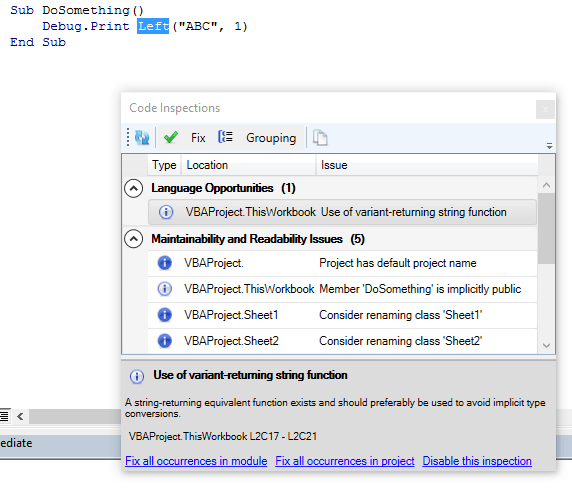
  32. UntypedFunctionUsageInspection recommends using String-returning functions available, instead of the Variant-returning ones (e.g. Mid$ vs. Mid).
  33. UseMeaningfulNamesInspection finds identifiers with less than 3 characters, without vowels, or post-fixed with a number – and suggests renaming them. Inspection settings will eventually allow “white-listing” common names.
  34. VariableNotAssignedInspection locates variables that are never assigned a value (or reference), which can be a bug.
  35. VariableNotUsedInspection locates variables that might be assigned a value, but are never referred to and could be safely removed.
  36. VariableTypeNotDeclaredInspection finds variable declarations that don’t explicitly specify a type, making the variable implicitly Variant.
  37. WriteOnlyPropertyInspection finds properties that expose a setter (Property Let or Property Set), but no getter. This is usually a design flaw.

Oops, looks like I miscounted them… and there are even more coming up, including host-specific ones that only run when the VBE is hosted in Excel, or Access, or whatever.

The Inspection Results toolwindow

If you bring up the VBE in a brand new Excel workbook, and then bring up the inspection results toolwindow (Ctrl+Shift+I by default) you could be looking at something like this:

8owq4

Most inspections provide one or more “quick-fixes”, and sometimes a quick-fix can be applied to all inspection results at once, within a module, or even within a project. In this case Option Explicit can be automatically added to all modules that don’t have it in the project, using the blue Fix all occurrences in project link at the bottom.

Or, use the Fix drop-down menu in the top toolbar to apply a quick-fix to the selected inspection result:

fdqhe

Each inspection has its own set of “quick-fixes” in the Fix menu. A common one is Ignore once; it inserts an @Ignore annotation that instructs the specified inspection to skip a declaration or identifier reference..

InspectionResults

The bottom panel contains information about the selected inspection result, and fix-all links that always use the first quick-fix in the “Fix” menu. Disable this inspection turns the inspection’s “severity” to DoNotShow, which effectively disables the inspection.

You can access inspection settings from the Rubberduck | Settings menu in the main commandbar, or you can click the settings button in the inspection results toolwindow to bring up the settings dialog:

wqtok

If you like using the Call keyword, you can easily switch off the inspection for it from there.

The Copy toolbar button sends inspection results into the clipboard so they can be pasted into a text file or an Excel worksheet.

As with similar dockable toolwindows in Rubberduck, the way the grid regroups inspection results can be controlled using the Grouping menu:

54ur0

The refresh button causes a re-parse of any modified module; whenever parser state reaches “ready”, the inspections run and the grid refreshes – just as it would if you refreshed from the Rubberduck command bar, or from the Code Explorer toolwindow.

To be continued…


VBA Rubberducking (Part 1)

The VBE editor was last updated in 1998 – back when VB6 was all the rage, and the .NET framework was probably just a little more than a nice idea.

Vanilla VBA editor

The VBE was just slightly less full-featured than its standalone counterpart, Visual Studio 6.0; however years went by, and the latest Visual Studio versions make the VBE look like an odd beast from another century.

Enter Rubberduck.

RubberduckVBE

There are other VBE add-ins out there. For many years, VBA (and VB6) devs have loved using MZ-Tools and Smart Indenter – perhaps the two most popular add-ins ever written for the VBE. One has a lightning-fast analyzer that is capable of finding unused declarations, and even locates references in commented-out code; the other offers a highly configurable indenter that lets you instantly apply an indenting style to an entire module, or more surgically to a single procedure. What does Rubberduck bring to the table?

Lots, lots, lots of things.

This post is the first in a series of post that walk you through the various features of the Rubberduck open-source VBE add-in.

Navigation Tools

One of the most frustrating aspects of the VBE, is its limited set navigation tools. Let’s recap what the vanilla VBE gives us:

  • Ctrl+F / “Find” is a little more than a basic text search, that lets you search and replace text in the current procedure, module, project, or selection. Although VBA isn’t case-sensitive, you can match case, and use pattern matching, which isn’t exactly a regex search, but better than nothing.
  • Shift+F2 / “Go to Definition”, is actually fantastic: you can right-click any identifier and jump to its declaration – and if it’s an identifier defined in a referenced library, it takes you to its entry in the Object Browser.
  • Ctrl+R / “Project Explorer” is a dockable toolwindow that lists all opened projects and the modules under them, in a convenient TreeView where you can double-click on a node and navigate there.
  • Ctrl+Shift+F2 / “Last Position” is also fantastic: the VBE keeps a little stack of recent places you’ve been, and works like a “back” browser button that takes you back to where you were before. Quite possibly my personal favorite of all.
  • Bookmarks is under-used… for a reason. You can toggle any line as a bookmark, and cycle through them, but there’s no place to see them all at once.

And… that’s about it. Let’s see what Rubberduck has to offer.

Code Explorer

CodeExplorer

This isn’t the final version (we haven’t released it in 2.0 yet). When it grows up, it wants to be a full-fledged replacement for the Project Explorer. Its default hotkey even hijacks the Ctrl+R shortcut. Here’s what it does that the Project Explorer doesn’t do:

  • Drill down to module members, and then further down to list enum and user-defined type members.
  • See constant values as they appear in code.
  • Navigate not only to any module, but any field, enum member, constant, procedure, property get/let/set accessor, function, imported library functions and procedures.
  • Rename anything.. without breaking the code that references what you’re renaming.
  • Find all references to anything.
  • Indent an entire project, or a selected module.

But the coolest thing is that Rubberduck’s Code Explorer takes special comments like this:

 '@Folder("ProgressIndicator.Logic")

And then renders the module like this:

CodeExplorer-Folders.png

That’s right. Folders. In VBA. Sure, okay, they’re not real folders – it’s a trick, an illusion… but that trick now means that with a simple annotation in every module, you can organize your VBA project the way you want to; you’re no longer forced to search for a class module among 80 others in a large project, you’re free to regroup forms together with their related classes!

This feature alone is a game changer: with it, class modules can become first-class citizen; you don’t have to fear drowning in a sea of modules, and you don’t have to give them funky prefixes to have them sorted in a way that makes it anywhere near decent to navigate.

Find Symbol

One of my favorite ReSharper features, is Ctrl+T / “go to anything”. When I realized we could have this feature in the VBE, I went ahead and did it. This simple feature lets you type the name of any identifier, and locate a specific instance of it:

FindSymbol.png

This includes any variable, constant, type, enum, procedure, function, property, library function/procedure, parameter, …even line labels can be navigated to.

Just Ctrl+T, type something, hit ENTER, and you’re there. Or browse the dropdown list and click that “go” button.

Find all references

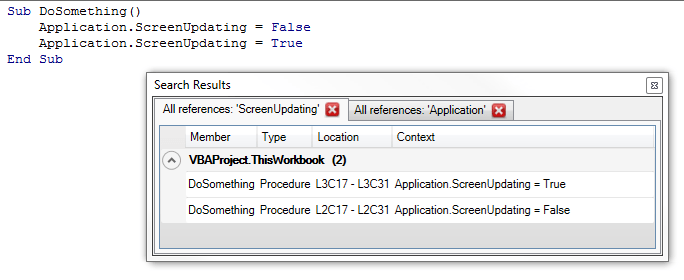
Whether you’re looking for all call sites of a procedure in your code, or you’re just curious about how many times you’re using the vbNullString built-in constant, you can right-click any identifier (at the declaration, or any of its references) and Find all references will give it to you, in a convenient tabbed search results toolwindow:

FindAllReferences.png

Double-click any result to navigate there.

Find all implementations

Similar to find all references (its results use the same toolwindow), this one is also one of my favorite ReSharper features, that Rubberduck simply had to implement. It’s only useful when you’re coding against abstractions and implementing interfaces (if you didn’t know… yes, VBA code can do that!) – but then, it’s the best way of navigating to implementations of an interface class or member.

For example, here I added two new class modules, added this line in each, and then implemented the members:

Implements ProgressIndicator

After refreshing the parser state, I can right-click the Execute method in my ProgressIndicator class, select “Find all implementations”, and get this:

FindAllImplementations.png

TODO Explorer

Rubberduck can (well, does actually) spot special markers in comments, and lets you navigate them in a dockable toolwindow – again, double-click navigates there:

todo-explorer.png

Take that, bookmarks! You can group them by marker or by location.

By default, Rubberduck will mark NOTETODO and BUG as interesting, but you can always configure it to whatever suits your needs in the Todo Settings tab of the settings dialog:

todo-settings.png

Regex Search & Replace

Okay, that one’s not really there yet. But it’s totally on the roadmap, and definitely coming in a future version of Rubberduck. Take that, search with pattern!


Whew! That covers Rubberduck’s navigation features. What do you think?

To be continued…

Preview Build is Here!

We couldn’t hold it much longer. (was about time!)

So we issued a preview build. Keep in mind that this is a preview build – we know it’s not completed, there are little glitches and issues left and right, things to polish a bit more, it may hang or crash your host application.

And it’s missing features: the Code Explorer (and its “virtual folders”) aren’t part of this release – that’s really not ready.

The Smart Indenter port is there though, and although the preview box doesn’t show it in the settings dialog, it works pretty well.

IDE-Integrated Git Source Control is there too, and works nicely as well.

A brand new shiny WPF UI for all docked toolwindows, a new settings dialog, “why?” rationale for every inspection result, “fix ’em all” across the project/module, or disable inspections with a single click.

Our parser/resolver is much more powerful now – all known parser issues (as of v1.4.3) are now fixed, and new ones you never encountered too.

Unit testing works in AutoCAD and CorelDRAW now, and although the settings have no effect, the API is there and you can use a new PermissiveAssertClass that evaluates Equals in a less strict type-safe way, to work more like VB6 would do it.

There’s a lot to say and a lot will be said I’m sure.

Poke around, play with it – by all means, break it – and if you do break it, make sure you let us know how, so we can fix it by the time we ship the “real” 2.0 build.

Apparently there’s still a few inspection false positives (although it should be much better than in 1.x), so make sure you double-check before you fix all occurrences in project.

vbe2.PNG

To be continued…

A Reflection on VBA Reflection

The idea has always been floating around, and a number of feature requests had been made to support something like it.

Not to mention all the Stack Overflow questions asking how to iterate the members of a module, with answers explaining how to use the VBIDE API to achieve some level of “reflection”.

The VBIDE API works: it gives you the members of a module rather easily. But if you need anything more granular, like iterating the local variables in a given member, you’ll have to write code to manually parse that member’s code, and if you’re trying to programmatically access all references to a global variable, you’re in for lots of “fun”.

Truth is, the VBIDE API is bare-bones, and if you want to do anything remotely sophisticated with it, you basically need to write your own parser.

Rubberduck 2.0 will expose [some of] its guts to VBA clients, through COM reflection – using the ParserState API, you’ll be able to write code like this:

api1

..and leverage the richness of Rubberduck’s own API to iterate not only module members, but any declaration Rubberduck is aware of – that includes everything from modules and their members, down to variables, constants, events, Declare statements, and even line labels. You can also iterate the references of any declaration, so in theory you could implement your own code inspections with VBA and, in conjunction with the VBIDE API, you could even implement your own refactorings

This API can easily grow TONS of features, so the initial 2.0 release will only include a minimalist, basic functionality.

One can easily imagine that this API will eventually enable surgically parsing a given specific class module, and then iterating its public properties to create form controls for each one, e.g. a Boolean property maps to a checkbox, a String property maps to a textbox, etc. – takes dynamic UI generation to a whole new level.

What will you do with that power?

IDE-Integrated Git Source Control

It was merged just yesterday. When Rubberduck 2.0 is released, VBA devs will have a new tool in their arsenal: full-fledged Git source control, seamlessly integrated into their IDE, in a dockable toolwindow:

sc-panel.PNG

Why use Source Control?

How many of you keep version and change tracking information in comments? Does this look any familiar?


'modified 2014-04-27, ticket #173

Or this perhaps?

'version 1.2
' - added CalculateRangePrices macro
' - fixed bug in SalesByCustomerReport

These things don’t belong in code, they belong in your commit history. Using source control gives you that, so you can have code files that contain, well, code.

Collaborative work in VBA is pretty annoying anyway – you have to manually merge changes, and import/export modules manually, if you’re not outright copy/pasting code. This is error-prone and, let’s face it, nobody does it.

With Rubberduck and your GitHub repository two clicks away, you can now work on your code even if you don’t have the macro-enabled workbook with you right now. Because Rubberduck doesn’t just dump the .xlsm file into a GitHub repo – it actually exports each individual code file (yes, including workbooks and worksheets and UserForms) into an actual working directory, so you can work in VBA just like you would in VB6.. or C#, or Java.

You can create a branch, and work on a feature while shielding your “master” branch from these changes, issue a bug-fix on “master”, merge the bug-fix into your dev branch, finalize your work, then merge your dev branch into master, and release a new version: that’s how devs work, and that’s how VBA devs can work too, even if they’re a lone wolf.

Source Control integration was issue #50 in Rubberduck’s repository (we’re now at #1219, some 3,000 commits later) – we wanted this feature all along. And we’re delivering it next release, promise.

Special thanks to @Hosch250, who worked astonishingly hard to make this happen.

See how it works on our wiki (yes, that’s work in progress).


v2.0: 75% there

At least according to our issues list.

I’ve been working on quite a lot of things these past few weeks, things that open up new horizons and help stabilize the foundations – the identifier reference resolver.

Precompiler Directives

And we’ve had major contributions too, from @autoboosh: Rubberduck’s parser now literally interprets precompiler directives, which leaves only the “live” code path for the parsing and resolving to work with. This means you can scratch what I wrote in an earlier post about this snippet:

[…] Not only that, but a limitation of the grammar makes it so that whatever we do, we’ll never be able to parse the [horrible, awfully evil] below code correctly, because that #If block is interfering with another parser rule:

Private Type MyType 
  #If DEBUG_ Then
    MyMember As Long
  #Else
    MyMember As Integer
  #End If
End Type

And this (thoroughly evil) one too:

  #If DEBUG_ Then
    Sub DoSomething()
  #Else
    Sub DoSomethingElse()
  #End If
      '...
    End Sub

Rubberduck 2.0 will have no problem with those… as long as DEBUG_ is defined with a #Const statement – the only thing that’s breaking it is project-wide precompiler constants, which don’t seem to be accessible anywhere from the VBIDE API. Future versions might try to hook up the project properties window and read these constants from there though.

Isn’t that great news?

But wait, there’s more.


Project References

One of the requirements for our resolver to correctly identify which declaration an identifier might be referring to, is to know what the declarations are. Take this code:

  Dim conn As New ADODB.Connection
  conn.ConnectionString = "..."
  conn.Open

Until I merged my work last night, the declarations for “ADODB” and “Connection” were literally hard-coded. If your code was referencing, say, the Scripting Runtime library to use a Dictionary object, the resolver had no way of knowing about it, and simply ignored it. The amount of work involved to hard-code all declarations for the “most common” referenced libraries was ridiculously daunting and error-prone. And if you were referencing a less common library, it was “just too bad”. Oh, and we only had (parts of) the Microsoft Excel object model in there; if you were working in Access or Word, or AutoCAD, or any other host application that exposes an object model, the resolver simply treated all references to these types and their members, as undeclared identifiers – i.e. they were completely ignored.

I deleted these hard-coded declarations. Every single one of them. Oh and it felt great!

Instead, Rubberduck will now load the referenced type libraries, and perform some black magic COM reflection to discover all the types and their members, and create a Declaration object for the resolver to work with.

This enables things like code inspections specific to a given type library, that only run when that library is referenced:

ht6vq

It also enables locating and browsing through references of not only your code, but also built-in declarations:

7wp4x

Doing this highlighted a major performance issue with the resolver: all of a sudden, there was 50,000 declarations to iterate whenever we were looking for an identifier – and the resolver did an awful job at being efficient there. So I changed that, and now most identifier lookups are O(1), which means the resolver now completes in a fraction of the time it took before.

There’s still lots of room for improvement with the resolver. I started to put it under test – the unit tests for it are surprisingly easy to write, so there’s no excuse anymore; with that done, we’ll know we’re not breaking anything when we start refactoring it.

One of the limitations of v1.x was that project references were being ignored. Well, the resolver is now equipped to start dealing with those – that’s definitely the next step here.


Module/Member Attributes

Another limitation of v1.x was that we couldn’t see module attributes, so if a class had a PredeclaredId, we had no way of knowing – so the resolver essentially treated classes and standard modules the same, to avoid problems.

Well, not anymore. The first time we process a VBComponent, we’re silently exporting it to a temporary file, and give the text file to a specialized parser that’s responsible for picking up module and member attributes – then we give these attributes to our “declarations” tree walker, which creates the declaration objects. As a result, we now know that a UserForm module has a PredeclaredId. And if you have a VB_Description attribute for each member, we pick it up – the Code Explorer will even be able to display it as a tooltip!


What about multithreading?

I tried hard. Very hard. I have a commit history to prove it. Perhaps I didn’t try hard enough though. But the parser state simply isn’t thread-safe, and with all the different components listening for parser state events (e.g. StateChanged, which triggers the code inspections to run in the background and the code and todo explorers to refresh), I wasn’t able to get the parser to run a thread-per-module and work in a reliable way.

Add to that, that we intend to make async parsing be triggered by a keyhook that detects keypresses in a code pane, parsing on multiple threads and getting all threads to agree on the current parser state is a notch above what I can achieve all by myself.

So unless a contributor wants to step in and fix this, Rubberduck 2.0 will still be processing the modules sequentially – the difference with 1.x is the tremendous resolver performance improvements, and the fact that we’re no longer blocking the UI thread, so you can continue to browse (and modify!) the code while Rubberduck is working.

What’s left to do for this to work well, now that the parsing and resolving is stabilized, is to allow graceful cancellation of the async task – because if you modify code that’s being parsed or resolved, the parser state is stale before the task even completes.

To be continued…
(hint: IDE-integrated source control)

What’s the big deal with folders?

If you’re a seasoned VBA developer, you probably have your “VBA Toolbox” – a set of classes that you systematically include in pretty much every single new VBA project.

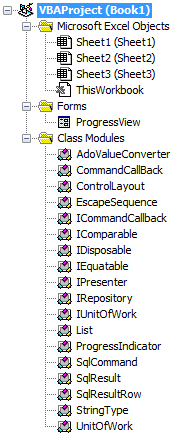
Before you’ve even written a single line of code, your project might look something like this already:

ProjectExplorer

The VBE’s Project Explorer gives you folders that regroup components by component type: forms in a folder, standard modules in another, and classes in another.

That’s great ok for small projects, perhaps. But as your toolbox grows, the classes that are specific to your project get drowned in a sea of class modules, and if you’re into object-oriented programming, you soon end up finding needles in a haystack. “But they’re sorted alphabetically, it’s not that bad!” – sure. And then you come up with all kinds of prefixes and naming schemes to keep related things together, to trick the sorting and actually manage to find things in a decent manner.

The truth is, this sucks.

Now picture this:

You shouldn’t have to care about a component’s type. Since forever, the VBE has forced VBA developers to accept that it could possibly make sense to have completely unrelated forms grouped together, and completely unrelated classes together, just because they’re the same type of VBA objects.

But it doesn’t have to be this way. I like how Visual Studio /.net lets you organize things in folders, which [can] define namespaces, which are a scope on their own.

There’s not really a concept of namespaces inside a VBA project: you could simulate them with standard modules that expose global objects that regroup functionality, but still every component in a project is accessible from anywhere in that project anyway. And who needs namespaces anyway?

Rubberduck 2.0 will not give you namespaces – that would be defying the VBA compiler (you can’t have two classes with the same name in the same project). What it will give you though, is folders.

Cool! How does it work?

Since the early versions of Rubberduck, we’ve been using @annotations (aka “magic comments”) in the unit testing feature, to identify test modules and test methods. Rubberduck 2.0 simply expands on this, so you can annotate a module like this:

'@Folder Foo.Bar

And that module will be shown under a “Bar” folder, itself under a “Foo” folder. How simple is that! We’ll eventually make the delimiter configurable too, so if you prefer this:

'@Folder Foo/Bar

Then you can have it!

With the ability to easily organize your modules into a “virtual folder hierarchy”, adhering to the Single Responsibility Principle and writing object-oriented code that implies many small specialized classes, is no longer going to clutter up your IDE… now be kind, give your colleagues a link to Rubberduck’s website 😉


The Code Explorer

The goal behind the Code Explorer feature, is to make it easier to navigate your VBA project. It’s not just about organizing your code with folders: since version 1.21, the Code Explorer has allowed VBA devs to drill down and explore a module’s members without even looking at the code:

CodeExplorer-expanded

The 2.0 Code Explorer is still under development – but it’s coming along nicely. If you’re using the latest release (v1.4.3), you’ll notice that this treeview has something different: next release every dockable toolwindow will be an embedded WPF/XAML user control, which means better layouts, and an altogether nicer-looking UI. This change isn’t being done just because it’s prettier: it was pretty much required, due to massive architectural changes.

Stay tuned!