Today I learned that VB.NET does in fact support Default properties. For years I was under the impression that dismissing the Set keyword meant default members couldn’t possibly exist in .NET, and I was wrong: dismissing the Set keyword meant that parameterlessdefault members couldn’t exist in .NET, but VB.NET can still implicitly invoke a Public Property Get Item(index) default member, just like its VB6 ancestor.
Rewind to their inception, and default members/properties have all the looks of a language feature that’s considered a nice convenient way to type code faster (in 20/20 hindsight, that was at the cost of readability). That’s why and how Debug.Print Application can compile, run, and output Microsoft Excel in the debug pane; it’s why and how an ADODB.Connection object and its ConnectionString properties can be impossible to tell apart… as a convenience; how a Range “is” its value(s), a TextBox “is” its text, or an OptionButton “is” True or False.
Default properties can result in a small reduction in source code-characters, but they can make your code more difficult to read. If the calling code is not familiar with your class […], when it makes a reference to the class […] name it cannot be certain whether that reference accesses the class […] itself, or a default property. This can lead to compiler errors or subtle run-time logic errors. […] Because of these disadvantages, you should consider not defining default properties. For code readability, you should also consider always referring to all properties explicitly, even default properties.
I cannot think of a single valid reason for any of these considerations to not be applicable to modern VBA, or even VB6 code. VB.NET removed the need for a disambiguating Set keyword by making a parameterless default member throw a compiler error. For contrast consider this code, and imagine the Set keyword doesn’t exist:
Dim things(9)
things(0) = New Thing
If the Thing class defines a parameterless default member, then who can tell what’s at index 0 of the things array? A Thing object reference? A SomethingElse object reference? The String representation of a Thing instance? 42?
Default members are hopefully not side-effecting magic invisible stardust code that is by definition invoked implicitly, by code that says one thing and does another, and requires looking up the documentation or the object browser definition of a type to remember what member we’re actually invoking – and even then, it can be obscured; the Excel type library is a prime example, with a hidden _Default property being the (drumroll) default property of the Range class, for example. Lastly, an implicit default member call is not 100% equivalent to an explicit one, and that tiny little difference can go as far as instantly crashing Excel.
Sounds terrible. Why would Rubberduck have a @DefaultMember annotation then?
With Rubberduck’s annotation and inspection/quick-fix system, you can easily define default members for your class modules; simply decorate the procedure with a '@DefaultMember annotation, synchronize member attributes, and done.
It’s not because you can, that you should. If you’re like me and someone gave you a knife, you’d probably at least try not to cut yourself. If you’re writing a custom collection class and you want it to be usable with the classic things(i) syntax rather than an explicit things.Item(i) member call, Rubberduck’s job is to help you do exactly that without needing to remove/export the code file, tweak it manually in Notepad++, then re-import it back into the project – that’s why the @DefaultMember annotation exists: because for the rare cases where you do want a default member, your ducky doesn’t let you down.
Currently, Rubberduck won’t complain if you make a parameterless procedure a default member. There’s an inspection idea that’s up-for-grabs to flag them though, if you’re looking for a fun contribution to an open-source project!
As was shared a week or two ago on social media, Rubberduck contributor and supporter Andrew “ThunderFrame” Jackson passed away recently – but his love for VBA, his awesomely twisted ways of breaking it, his insights, the 464 issues (but mostly ideas, with 215 still open as of this writing) and 30 pull requests he contributed to Rubberduck, have shaped a large part of what this project is all about, and for this release we wanted to honor him with a special little something in Rubberduck, starting with the splash screen.
Last December we lost a very valued contributor and friend. Next release the Rubberduck splash screen will be in his memory: that devil ducky was his online avatar.
— Rubberduck VBIDE add-in (@rubberduckvba) March 14, 2019
Andrew joined the project very early on. He gave us the signature spinning duckies and the SVG icon of the project; he once implemented a very creative way to make unit testing work in Outlook (and I know a certain duck that had to eat their hat because of it!), before the feature was made host-agnostic. He gave us the weirdest, most completely evil-but-still-legal VBA code we could possibly test Rubberduck’s parser/resolver with – and we’re very proud to have a ThunderCode-proof parser now!
What’s New?
This isn’t an exhaustive list. See the release notes for more information.
¡Rubberduck ahora habla español!
This release introduces Spanish language support. German, French, and Czech translations have also been updated.
Rubberduck doesn’t speak your language yet? Nothing would make us happier than helping you help us translate Rubberduck! See contributing.md for all the details, and don’t hesitate to ask any questions you have – go on, fork us!
The project’s many resource files are easily handled with the ResX Manager add-in for Visual Studio.
UI Enhancements
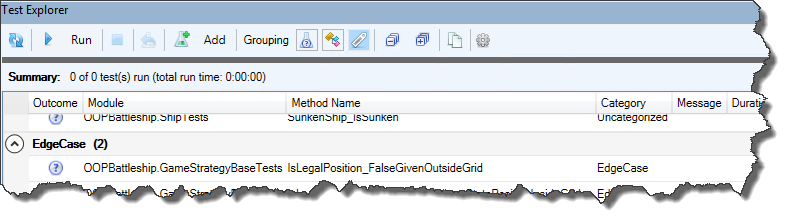
The Test Explorer has had a rather impressive facelift, Inspection Results are now much easier to review, navigate and filter. There is a known issue about the GroupingGrid control expanding/collapsing all groupings together, but we weren’t going to hold back the release for this – we will definitely address it in a near-future release though.
Toggle buttons in the toolbar now allow filtering inspection results by severity, and grouping by inspection type, by module, by individual inspection, or by severity. Similar toggle buttons in the Test Explorer allow grouping tests by outcome, module, or category. Tests can be categorized by specifying a category name string as an argument to the @TestMethod annotation.
Parser performance has improved, especially for the most common usages of “bang” (foo!bar) notation, which remain a difficult language construct to handle. But they’re also late-bound, implicit, default member calls that would probably be better off made explicit and early-bound.
Self-Closing Pair completion works rather nicely now, with only two known, low-priority edge cases that don’t behave quite as nicely as they should.
Easter Is Coming
And with Easter comes… White WalkersEaster Eggs, so all I’m going to say, is that they’ll be flagging ThunderCode – the kind of code our friend loved to test & push the limits of Rubberduck’s parser with. If your code trips a ThunderCode inspection, …nah, it can’t happen.
Woopsie, might happen after all. We’ll eventually figure out a way to hide them from the settings!
Also it’s apparently not impossible that there’s no way noother Easter Eggs werenever notadded to Rubberduck. For the record I don’t know if this means what I think I mean it to say, and that’s perfect.
What’s Next?
Some very important changes have been waiting for this release and will be merged in the next few weeks – these changes won’t necessarily be visible from a user standpoint, but they will greatly enhance our internal API – refactorings, COM object management, and we’ll be leveraging more of the TypeLibs API, which in turn should end up translating into greatly enhanced user experience and feature set.
Next release will include a few new inspections, including one that locates obsolete While...Wend loops, and suggests to rewrite them as Do While...Loop blocks, which can be exited with an Exit Do statement, whereas While loops can only be prematurely exited (without throwing an error) by an inelegant GoTo jump.
We really want to tighten our release cycle, so we’ll be shooting for the end of April for what should be version 2.4.2.
Unlike quite a number of Rubberduck releases, this time we’re not boasting a thousand commits though: we’re looking at well under 300 changes, but if the last you’ve seen of Rubberduck was 2.3.0 or prior, …trying this release you’ll quickly realize why we originally wanted to release it around Christmas.
So, here’s your belated Christmas gift from the Rubberduck dev team!
VBE Project References: CURED!
You may have seen the Introducing the Reference Explorer announcement post last autumn – well, the new feature is now field-tested, works beautifully, instinctively, and is ready for prime time. It’s a beauty!
The add/remove references dialog has seen a number of enhancements since its pre-release: thanks everyone for your constructive feedback!
Quickly locate any type library by name and/or description.
Pin your favorite references, and Rubberduck will keep them handy for all your VBA/VB6 projects.
You’ll never want to use the vanilla-VBE references dialog again!
If you’ve been following the Rubberduck project for quite some time, you may remember something about using annotations together with inspections and quick-fixes to document the presence of module & member attributes. You may also remember when & why the idea was dropped. Keeping in tradition with including new inspections every release… Surprise, it’s coming back!
German, French, and Czech translations have been updated, a number of bugs were fixed in a few inspections, the Code Explorer has seen a number of subtle enhancements, and WPF binding leaks are all but gone.
Code Explorer Enhancements
Adding the Reference Explorer made a perfect opportunity to revisit the Code Explorer toolwindow – our signature navigation feature. Behold, the new Code Explorer:
The new ‘Sync with code pane’ toolbar button (the left/right arrows icon) selects the treeview node closest to the current code pane selection.
There’s a new ‘Library References’ node that shows your project’s library dependencies …whether they’re in use or not:
Find all references can now be used to locate all uses of a given type library – including the built-in standard libraries! Note that rendering lots of search results in a toolwindow will require confirmation if there are too many results to display.
The project reference nodes get new icons:
Classes with a VB_PredeclaredID attribute set to True now have their own icon too (and their names now say (Predeclared) explicitly), and class modules marked with an @Interface annotation now appear with an “interface” icon, like IGameStrategy here:
Annotations & Attributes
They’re back, and this time it does work, and it’s another game changer: Rubberduck users no longer need to export any code file to modify module & member attributes!
Module & Member Annotations
At module level, the @ModuleDescription annotation can be given a string argument that controls the value of the module’s VB_Description attribute; the @Exposed annotation controls the value of the VB_Exposed attribute; the presence of a @PredeclaredId annotation signals a VB_PredeclaredId attribute with a value of True.
At member level, @Description annotations can be given a string argument that controls the value of the member’s VB_Description attribute.
Through inspections, Rubberduck is now able to warn about attributes that don’t have a corresponding annotation, and annotations that don’t have a corresponding attributes. Look for inspection results under the “Rubberduck Opportunities” category.
v2.4.x
The months to come will see further enhancements in several areas; there are several pull requests lined up already – stay tuned, and keep up with the pre-release builds by watching releases on GitHub!
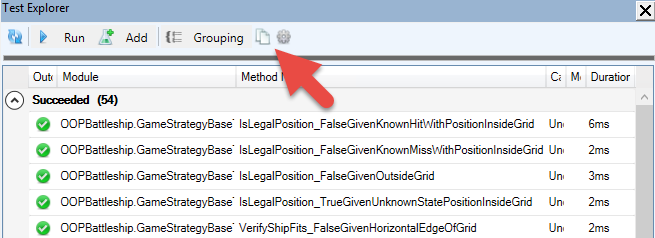
You’re writing a rather large VBA/VB6 project, and you’re starting to have a sizable amount of passing unit tests. Did you know you can copy the test results to the clipboard with a single click?
…and then paste them onto a new worksheet and turn it into a data table:
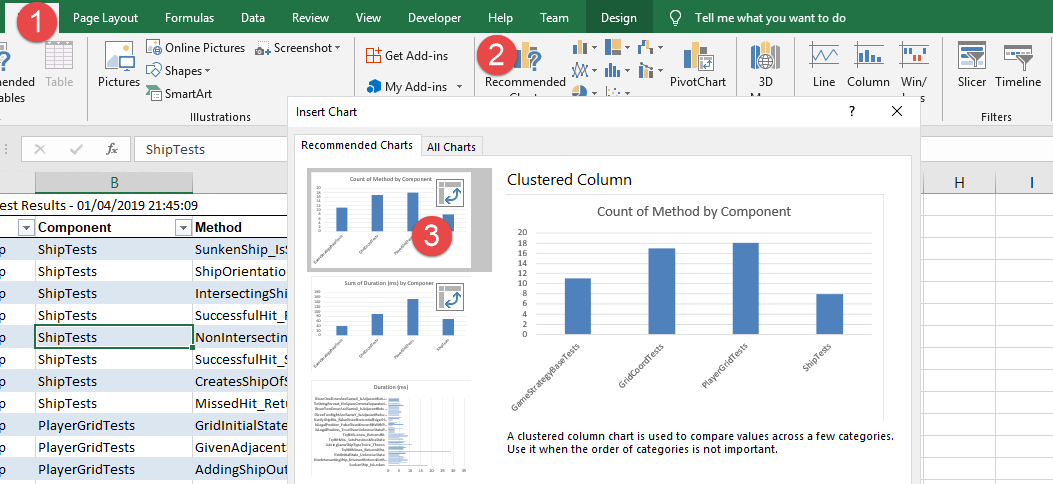
If you’re not sure what to do next, you can even let Excel give you ideas – you’ll find the Recommended Charts button under the Insert Ribbon tab:
With the count of method by component chart, we can see what test modules have more test methods; the sum of duration by component chart can show us which test modules take the longer to execute – or we could average it across test categories, or archive test results and later aggregate them… and then use this data to performance-profile problematic test scenarios.
Similarly, the “Copy to Clipboard” button from the Code Explorer can be used to export a table into Excel, and using the recommended pivot tables feature, we can get a detailed breakdown of the project – for example count of names by declaration type creates a pivot table that lists all Rubberduck declaration types, so you can easily know how many line labels your project has, or how many Declare Function imports are used:
With a little bit of filtering and creativity, we can regroup all Constant, Function, PropertyGet and Variable declarations by return type, and easily identify, say, everything that returns a Variant:
The possibilities are practically endless: the data could be timestamped and exported to some Access or SQL Server database, to feed some dashboard or report showing how a project grows over time.
How would you analyze your VBA projects? What code metrics would you like to be able to review and pivot like this? Share your ideas, or implement them, and send a pull request our way!
Back in the 2.1.x announcement post over a whole year ago, one of the bullet points about the upcoming roadmap said we were going to “make you never want to use the VBE’s Project References dialog ever again“; it took a bit longer than expected, but as far as we can tell, this feature does exactly that.
If you’ve been following the project on social media recently, you already know that the next version of Rubberduck will introduce a very exciting, unique new feature: the Reference Explorer dialog, and the addition of a references node in the Code Explorer tree.
Vanilla-VBE
Since forever, adding a reference to the active project in the VBE is a rather… vanilla experience. Functional, but somewhere between bland and tedious.
What’s wrong with it?
Regardless of what we think of the very 1998-era buttons docked on the side, the dialog works. There’s a list of available libraries (sorted alphabetically), we can browse for unlisted ones, cancel or accept changes, and the libraries that are selected when the dialog is displayed, are conveniently shown at the top of the list!
On a closer look though…
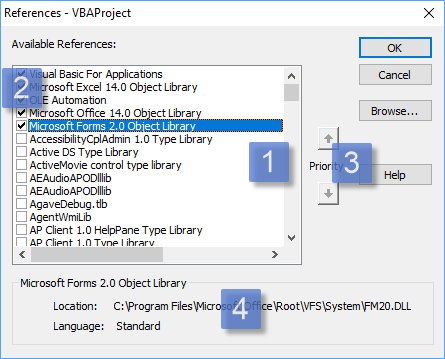
The vanilla-VBE project references dialog
The list of available libraries has the available libraries listed in alphabetical order. You can’t resize the dialog to show more, but you get first-key search. The Scripting runtime’s library name starts with “Microsoft”… which happens to also be the case for a few other libraries; this makes the extremely useful Scripting.Dictionary and Scripting.FileSystemObject classes pretty much hidden until you stumble upon a blog post or a Stack Overflow answer that introduces them.
The selected libraries show up at the top of the list, in priority order. Locked libraries are stacked at the top. You use the up/down arrow buttons to move the selected library up or down, but you can’t move the locked ones.
The priority buttons are used to determine the identifier resolution order; if an identifier exists in two or more libraries, VBA/VB6 binds to the type defined in the library with the highest priority. There’s no visual cue in the list itself to identify the locked-in type libraries, so the Enabled state of these buttons is used to convey that information: you can’t move the locked-in, default references.
The bottom panel is useful… but the path gets cropped if it’s longer than the rather narrow dialog can fit, and you can’t select or copy the text. The actual library version number isn’t shown.
Visual Studio
Let’s take a look at what adding a project reference using the latest version of Microsoft Visual Studio feels like:
The Microsoft Visual Studio 2017 Reference Manager dialog
The dialog can be resized, search is no longer limited to a single character, but still limited to the beginning of the [Name]. The library info is now richer; it moved to the right side, and a panel on the left side determines the contents of the list. Other than that, besides a new [Version] column and a nice dark theme, …the mechanics are pretty much the same as they were 20 years ago: check boxes in a list. Priority is no longer relevant in .NET though – namespaces fixed that.
Rubberduck
This screenshot was taken shortly before the pull request was opened:
The Rubberduck ‘Add/Remove References’ dialog (work in process: release build may differ)
Available libraries appear in a list on the left-hand side of the dialog. Like in Visual Studio, the version number appears next to the library name, and the list is sorted alphabetically. There is no checkbox: instead, the selected library can be moved into the list of referenced libraries.
Referenced libraries appear in a list on the right-hand side of the dialog. Since there is no checkbox, the selected library can be moved back into the list of available libraries.
Priority up/down buttons appear for the selected referenced library, unless it’s locked.
Icons differentiate locked libraries, libraries that were already referenced when the dialog was shown, and libraries that were newly added. In the list of available libraries, recent and pinned libraries have an icon too.
Search works on a “contains” basis, and matches the library name, description, and path. It immediately filters the list of available libraries.
Tabs for quickly accessing type libraries recently referenced, or pinned libraries, or registered. Host-specific project types are in a separate tab, as applicable.
Bottom panel displays the full name and path of the selected type library. The text can be selected and copied into the clipboard.
Browse button allows referencing any project/library that isn’t listed anywhere. If a library can’t be loaded, it will appear in the list as a broken reference, before it’s even tentatively added to the project.
If you haven’t seen it in action yet, here’s a sneak peek:
Of course that’s just the beginning: layout is not completely final, drag-and-drop functionality remains to-do, among other enhancements.
A first iteration of this feature will likely be merged some time next week, and since this is a major, completely new feature, we’ll bump the minor version and that will be Rubberduck 2.4.0, to be released by the end of 2018…
…not too long after the imminent 2.3.1 hotfix release.
If you think this is one of the coolest things a VBE add-in could possibly do, you’re probably not alone. Share the news, and star us on GitHub!
Version 2.2.0 was released in April 2018. Well over 1,700 commits and 2,185 modified files later, Rubberduck is now more stable than ever, and well overdue for a new release. November 25th will see Rubberduck 2.3 issued – as of this writing, we’re ironing a few wrinkles, but everything looks like we’re on track to release some time this Sunday.
A tremendous amount of effort went into the core, the engine, and the brain: the number of situations causing inspection false positives is on a serious decline, and we’ve taken very important steps towards ensuring proper tear-down of every component. Rubberduck 2.3 is by far the most stable release to date, and all the invisible work lays the foundation for the very exciting things to come.
We’re all extremely proud to present the results of so many months of hard work! Here’s a non-exhaustive overview of the new features (versus 2.2.0).
Official VB6 IDE Support
As of v2.3.0 (with special thanks to @mansellan), Rubberduck officially works in Visual Studio 6.0, the glorious, the… legendary VB6 IDE.
That’s right: code inspections, code metrics, all navigation enhancements, unit testing, refactorings, …all your favorite Rubberduck features, in the Visual Basic 6.0 editor.
This is without a doubt the biggest improvement to ever come to the VB6 IDE this century, from an open-source project.
As is the case for VBA hosts, if you already have Smart Indenter installed, Rubberduck will detect the legacy 32-bit add-in and prompt to import your settings – note that configuring Rubberduck’s indenter will not affect your Smart Indenter settings.
Autocompletion Enhancements
Rubberduck now changes how typing code in the editor feels. If you ever edited VBA/VB6 code in Notepad++ (let alone VB.NET code in the latest Visual Studio), you know that the VBE shows its age when you type a " double quote or open a ( parenthesis. With Rubberduck, typing code in the VBE will now feel radically different than without, in a very good way. A new dedicated settings page makes it easy to enable/disable each feature separately, and leaves room for future customization and enhancements.
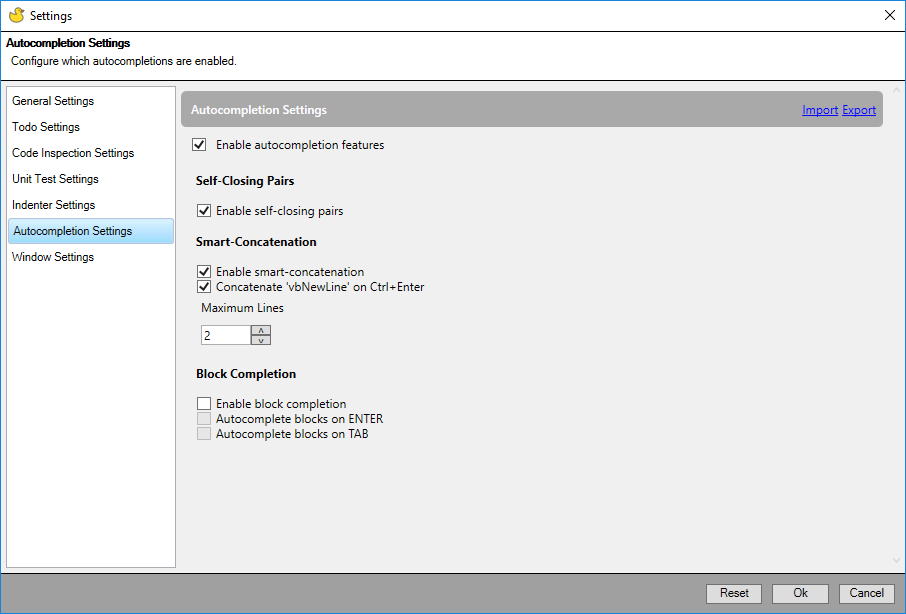
Due to its rather invasive nature, a design decision was made to ship autocompletion features disabled by default; these features must be enabled manually, in the autocompletion settings tab of Rubberduck’s “Settings” dialog:
Self-Closing Pairs
It’s hard to describe everything enabling SCP completion does. A picture is worth a thousand words, so… how about seeing them in action?
When {BACKSPACE} is pressed and the caret immediately follows any opening token, Rubberduck attempts to locate and remote the matching closing token, wherever it is on the current logical line of code – nested or not.
Smart Concatenation
When enabled, Rubberduck will step in when the {ENTER} key is pressed while the caret is inside a string literal, to automatically append ” & _” to the current line.
The feature can also be configured so that when the {CTRL} key is held down when {ENTER} is pressed, ” & vbNewLine & _” will be appended to the current line.
{BACKSPACE} cleanly reverts smart-concatenation when the caret is on the last line of the logical code line and the caret line contains nothing but the opening & closing quotes.
Block Completion
Block completion will be implemented early in the 2.3.x cycle: these settings have no effect whatsoever for now.
The vision for this feature, is to capture “trigger” keywords (e.g. For), select them; if {TAB} or {ENTER} is pressed (as configured) when the “trigger” is selected (among other conditions), then the block expands, and Rubberduck automatically highlights a placeholder expression; hitting {TAB} again selects the next placeholder, {SHIFT}+{TAB} the previous. Providing a value for the last placeholder places the caret inside the block, indented as per indenter settings.
Auto-correct
Later in the 2.3.x cycle, auto-completion will be further enhanced with an “auto-correct” feature, which will enable automatically expanding e.g. foo++ into foo = foo + 1, among other ideas… including automatic fixing of a configurable list of “frequent typos”.
New Inspections
As with every new Rubberduck release, the team implemented a number of new inspections. This release introduces an internal API for code path analysis, which allows us to start implementing the more involved inspections on our plate!
These new inspections bring the total number to 75!
AssignmentNotUsed
The first inspection to leverage code path analysis, will now flag this code:
foo = 42 ' <~ value is never used
foo = 10
Debug.Print foo
When an assignment is subsequently discarded before the stored value is accessed, Rubberduck will notify about the redundant assignment, as a code quality issue.
DuplicatedAnnotation
This inspection, spliced from the existing “illegal annotation” inspection, helps validate/sanitize Rubberduck annotations – for example, contradicting @Folder annotations:
'@Folder("Foo")
'@Folder("Bar")
ExcelUdfNameIsValidCellReference
An Excel-specific inspection that flags public functions that are visible as worksheet user-defined functions (UDF), but shadowed by a cell reference. This inspection is particularly useful with recent 64-bit versions of Microsoft Excel, where 16,384 columns effectively reserve every 3-letter combination up to “XFC”.
Public Function Foo123() As String
'FOO123 is a valid cell reference; function cannot be invoked!
End Function
This first iteration only inspects public functions in standard procedural modules.
IsMissingOnInappropriateArgument
A rather specific inspection validating usages of IsMissing, flagging instances where the function is given a non-Variant argument.
Public Sub DoSomething(Optional ByVal foo As String)
If IsMissing(foo) Then ' condition is always false
End If
End Sub
IsMissingWithNonArgumentParameter
Another inspection validating usages of IsMissing, flagging instances where the function is given a non-parameter argument.
Public Sub DoSomething()
Dim foo As Variant
If IsMissing(foo) Then ' condition is always false
End If
End Sub
ObsoleteCallingConvention
CDecl calling convention isn’t supported on Windows; Declare statements using it should be wrapped with conditional compilation directives so as to only compile in a Mac environment.
Private Declare Sub Beep CDecl Lib "kernel32" (dwFreq As Any, dwDuration As Any)
ObsoleteMemberUsage
Rubberduck 2.3 introduces a new @Obsolete annotation, which can be used for annotating “obsolete” procedures – the inspection flags usages of procedures marked with this annotation.
OnLocalError
The Local token is redundant in On Error statements. This inspection flags usages.
Private Sub DoSomething()
On Local Error GoTo ErrHandler
'...
Exit Sub
ErrHandler:
End Sub
The rationale being, runtime errors are always local; the two syntaxes look different but do exactly the same thing.
v2.3.x
There are a number of features that were intended to be developed for 2.2.x, that didn’t make it into this release – not because the ideas were dropped, but because of mere time constraints. The add/remove references dialog is one such feature. Keep an eye out on 2.3.x pre-release builds and announcements; the v2.4 announcement will recap everything that happened in 2.3.x, but every new feature will very likely see its own dedicated blog post as it is merged and pre-released.
A few months ago I merrily announced the first Rubberduck feature that actively interfered with typing code in the VBE. It wasn’t the first opportunity though: a rather long time ago, I flirted with the idea of triggering a parse task at every keypress, so that Rubberduck’s parse trees would always be up-to-date – but back then the parse task cancellation mechanics weren’t as fine-tuned as they are now, and it ended up being a bad idea. Interfering with typing in any way that introduces any kind of lag, or exacerbates a memory leak, can only be a bad idea.
But auto-completion was different. If done right, it would be the single best thing to happen to the VBE since Smart Indenter came along, two decades ago. So in less than two weeks I whipped up something I thought would work, got ecstatic over how awesome seeing blocks automatically completing, I announced the feature… and as feedback from the pre-release builds started coming in as bug reports, I started to realize the reason why no other VBE add-in offered a feature like this: the feature is far from trivial, and any mistake or oversight means interfering with typing code in an utterly annoying and disrupting way – the margin for error is very thin, as is the fine line between being incredibly intuitive & helpful, and being a complete pain in the neck.
The VBIDE API wasn’t made for this. The VBE wasn’t made to be extended that way.
But I’m not letting that stop me.
So I scrapped most of my hasty work, went back to the drawing board, rolled up my sleeves, and started over. At the time of this writing, block completion still hasn’t gotten the attention it deserves, for I decided to start round 2 with self-closing pairs.
As of this writing, I can confidently say that the feature is going to be rock-solid.
Fighting the VBE
The Visual Basic Editor has a soul of its own. And when you twist its arm, it slaps you back at every chance it has. To fight it, you need to know how it moves. You can’t prevent its mischievous deeds; to win, you need to embrace them, anticipate them. The extensibility API won’t let us inject a single character on the current line of code: we need to replace the entire line – and then dance with the devil.
With the code panes subclassed to pick up keystrokes, VBENativeServices fires up an event that the AutoCompleteService handles (assuming settings have autocompletion enabled – failing which the event isn’t even fired). At this point if the IntelliSense drop-down is shown or the current selection isn’t at a single-character position, we immediately bail out. Otherwise, we run the self-closing pairs feature proper.
Cue Eye of the Tiger backing track…
Know where you are
We need to get the integral text of the current logicalline of code (i.e. accounting for line continuations), take note of the caret position relative to the beginning of this logical line of code; take note of the line position relative to line 1 of the module as well – we encapsulate this data into a CodeString – a class that represents a logical line of code, a caret position in that logical line, with the position of this logical line in the module: that’s the original, and only the first real punch…
Know where the VBE is
The original is a trap though. If you don’t tread carefully here, you’ll take a serious one in the ribs. The problem is that because the original code is currently being edited, it’s e.g. “msgbox|” (where | would be the caret), if the keypress was " then when you mean to write “msgbox"|"” by replacing the entire current line of code, the VBE inserts that string but then the caret is now on the next line and you need to explicitly set the ICodePane.Selection value. Now dodge this: between the moment you replace the current line msgbox with msgbox"" and by the next moment you want to place the caret back to msgbox"|", if you skipped a step you have an uppercut to dodge, for at that point what’s really in the VBE is MsgBox "", so the caret ends up here: MsgBox |"". If you counter with offsetting the caret position by one, you just broke the case where the user would have typed that whitespace: msgbox "" would be off by one also: MsgBox ""|.
The solution is Judoesque: let the VBE come at you with everything it can. Embrace the flames. Fight fire with fire. The whole “prettification” trick is encapsulated in a specialized ICodeStringPrettifier object, whose role is to tell the VBE to bring it.
Hit me with your best shot. To work out the “prettified” version of the code, we determine the original caret position in terms of non-whitespace character count. Then we make the VBE modify the code, get the new prettifiedCode, and the caret position we want to be at should be at the index of the nth non-whitespace character, where n is the original count. And that should get us out of trouble.
The only problem is that we don’t know which self-closing pair we’re dealing with, so it’s too early do intervene now – now that we know where the VBE stands, we need to know if we want to deliver a left or a right.
Find an opening
Once we know which SelfClosingPair to test for a result, it’s still too early to pull the prettifier trick – first we need to be sure our pair produces an output given the input, so we Execute it once, against the original code. If the pair returns a result, then we get the prettified original caret position… that way we don’t ruin the show by swinging into the void 3 times for every one time we land a hit.
One-Two
If we just hit once with everything we’ve got, the VBE will beat us again. We need a combo. First we replace the current logical line (“snippet”) with the result we got from the second Execute of the pair, which ran off the prettifier code:
result = scpService.Execute(selfClosingPair, prettified, e.Character);
module.DeleteLines(result.SnippetPosition);
module.InsertLines(result.SnippetPosition.StartLine, result.Code);
Here the VBE will prettify again, so you need to take it by surprise with a second blow – if the re-prettified code isn’t the code we’ve just written to the code pane, then we’re likely off by one and the final Selection will have to be offset:
var reprettified = module.GetLines(result.SnippetPosition);
var offByOne = result.Code != reprettified;
var finalSelection = new Selection(result.SnippetPosition.StartLine,
result.CaretPosition.StartColumn + 1)
.ShiftRight(offByOne ? 1 : 0);
pane.Selection = finalSelection;
If we dodged every bullet up to this point, we win… round 1.
Round 2: Backspace
Handling the pair-opening character is one thing, handling the pair-closing character is trivial. Handling backspace is fun though: we get to locate the matching character for our pair, and make both the opening and closing characters to be removed from the logical code line that we write back. Round 2 is just as riveting as round 1!
So if you have this:
foo = (| _
(2 + 2) + 42
)
If the next keypress is BACKSPACE then you get this:
foo = | _
(2 + 2) + 42
Or given this:
foo = ( _
(|2 + 2) + 42
)
You’d get:
foo = ( _
2 + 2 + 42
)
We won’t be handling the DELETE key, but we’re not done yet: we can deliver another blow.
Round 3: Smart Concatenation
By handling the ENTER key and knowing whether the CTRL key was also pressed, we can turn this:
MsgBox "Lorem ipsum dolor sit amet,|"
if the next keypress is ENTER, into this:
MsgBox "Lorem ipsum dolor sit amet," & _
"|"
and if the next keypress is CTRL+ENTER, into this:
MsgBox "Lorem ipsum dolor sit amet," & vbNewLine & _
"|"
The VBE will only fight back with a compile error if the logical line of code contains too many line continations. We don’t have anything to do: the VBIDE API will throw an error, but Rubberduck’s wrappers simply catch that COM exception, making the line-insert operation no-op: the new line ends up not being added, no annoying message box, and the caret ends up on the next line, at the same indent.
Ding Ding Ding!
Rubberduck wins this fight for self-closing pairs, but the VBE will be back for more soon enough: it is anticipated to put up a good fight for block completion as well…
If you recall the AIPlayer class from Part 2, the Create factory method takes an IGameStrategy parameter:
Public Function Create(ByVal gridId As Byte, ByVal GameStrategy As IGameStrategy) As IPlayer
With New AIPlayer
.PlayerType = ComputerControlled
.GridIndex = gridId
Set .Strategy = GameStrategy
Set .PlayGrid = PlayerGrid.Create(gridId)
Set Create = .Self
End With
End Function
An AIPlayer can be created with an instance of any class that implements the IGameStrategy interface.
In any OOP language that supports class inheritance, we could have a base class e.g. GameStrategyBase, from which we could derive the various implementations, and with that we would have a place to write all the code that’s common to all implementations, …or that all implementations would possibly need to use… or not. See, class inheritance is the most important language feature that the “VBA can’t do OOP” or “VBA is not a real language” crowd love to bring up. And yet, more often than not, class inheritance isn’t the ideal solution – composition is.
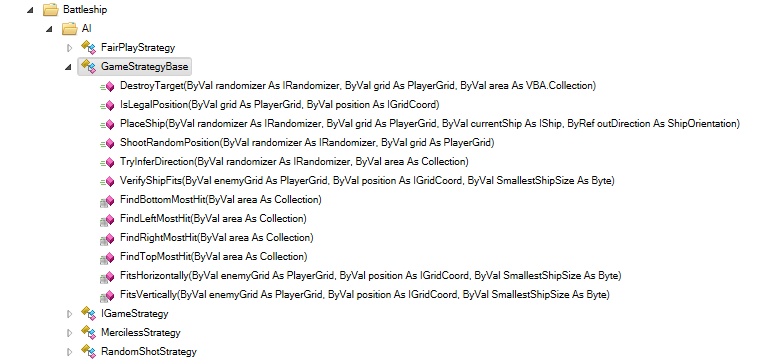
And we’re going to do exactly that, by composing all IGameStrategy implementations with a GameStrategyBase class:
Coupling a game strategy with this “base” class isn’t an issue: the class is specifically meant to be used by IGameStrategy implementations. So we can shamelessly do this:
Option Explicit
Implements IGameStrategy
Private base As GameStrategyBase
Private Sub Class_Initialize()
Set base = New GameStrategyBase
End Sub
And then proceed with implementing the PlaceShip method, given that AI player’s own PlayerGrid and the IShip the game controller is asking us to place on the grid. The base.PlaceShip method simply returns the first legal position+direction it can find.
Then we can implement the Play function to return an IGridCoord position and let the controller know what position this player is shooting at. We have a number of helper functions in GameStrategyBase we can use for that.
Random
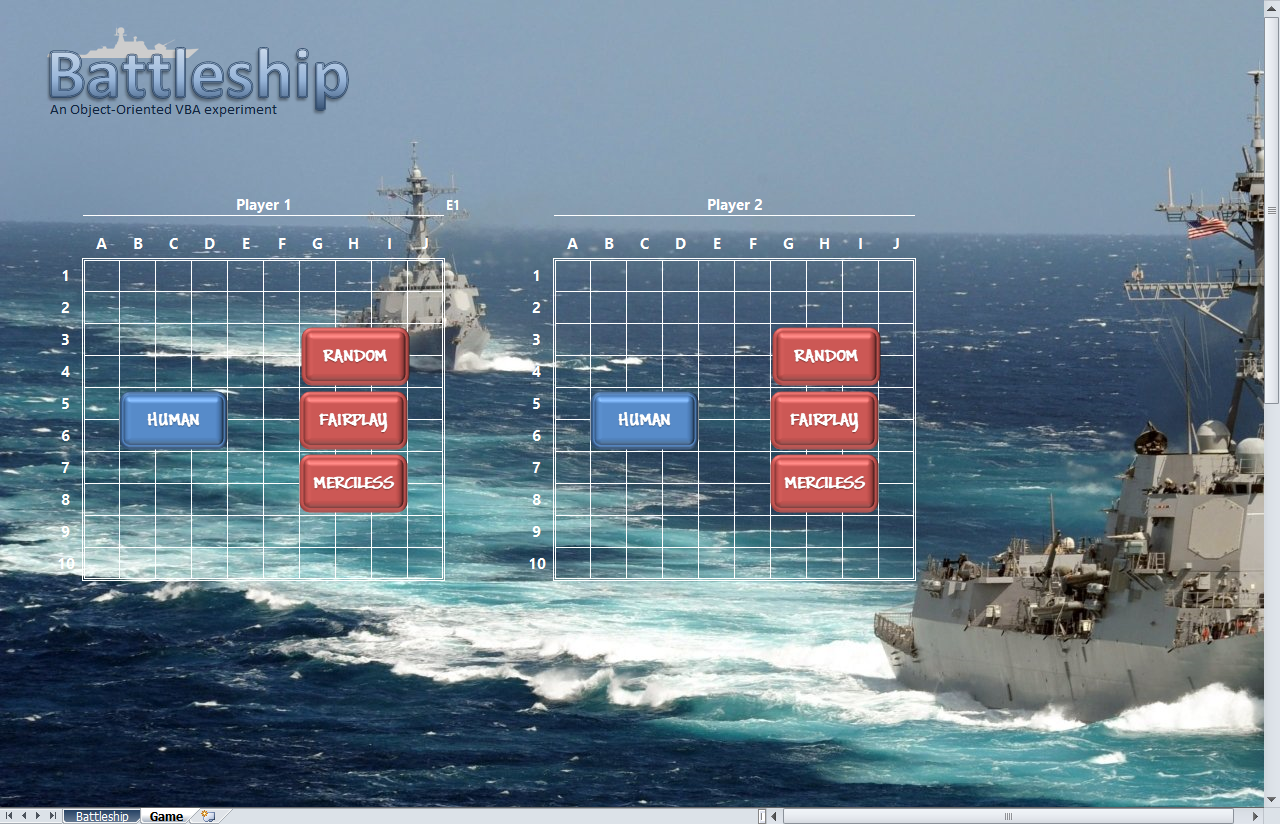
The RandomShotStrategy shoots at random coordinates until it has located all enemy ships …then proceeds to sink them all, one after the other. It also places its ships randomly, regardless of whether the ships are adjacent or not.
Private Sub IGameStrategy_PlaceShip(ByVal grid As PlayerGrid, ByVal currentShip As IShip)
Dim direction As ShipOrientation
Dim position As IGridCoord
Set position = base.PlaceShip(Random, grid, currentShip, direction)
grid.AddShip Ship.Create(currentShip.ShipKind, direction, position)
If grid.shipCount = PlayerGrid.ShipsPerGrid Then grid.Scramble
End Sub
Private Function IGameStrategy_Play(ByVal enemyGrid As PlayerGrid) As IGridCoord
Dim position As IGridCoord
Do
If EnemyShipsNotAcquired(enemyGrid) 0 Then
Set position = base.ShootRandomPosition(Random, enemyGrid)
Else
Set position = base.DestroyTarget(Random, enemyGrid, enemyGrid.FindHitArea)
End If
Loop Until base.IsLegalPosition(enemyGrid, position)
Set IGameStrategy_Play = position
End Function
Here the double-negative in the statement “the number of enemy ships not acquired, is not equal to zero” (WordPress is having a hard time with rendering that operator, apparently), will probably be end up being inverted into a positive statement, which would make it read better. Perhaps If EnemyShipsToFind = 0 Then, and invert the Else logic. Or…
Private Function IGameStrategy_Play(ByVal enemyGrid As PlayerGrid) As IGridCoord
Dim position As IGridCoord
Do
If EnemyShipsToFind(enemyGrid) > 0 Then
Set position = base.ShootRandomPosition(Random, enemyGrid)
enemyGrid.FindHitArea)
Else
Set position = base.DestroyTarget(Random, enemyGrid,
End If
Loop Until base.IsLegalPosition(enemyGrid, position)
Set IGameStrategy_Play = position
End Function
That EnemyShipsToFind function should probably be a member of the PlayerGrid class.
FairPlay
The FairPlayStrategy is similar, except it will proceed to destroy an enemy ship as soon as it’s located. It also takes care to avoid placing ships adjacent to each other.
Private Sub IGameStrategy_PlaceShip(ByVal grid As PlayerGrid, ByVal currentShip As IShip)
Do
Dim direction As ShipOrientation
Dim position As IGridCoord
Set position = base.PlaceShip(Random, grid, currentShip, direction)
Loop Until Not grid.HasAdjacentShip(position, direction, currentShip.Size)
grid.AddShip Ship.Create(currentShip.ShipKind, direction, position)
If grid.shipCount = PlayerGrid.ShipsPerGrid Then grid.Scramble
End Sub
Private Function IGameStrategy_Play(ByVal enemyGrid As PlayerGrid) As IGridCoord
Dim position As GridCoord
Do
Dim area As Collection
Set area = enemyGrid.FindHitArea
If Not area Is Nothing Then
Set position = base.DestroyTarget(Random, enemyGrid, area)
Else
Set position = base.ShootRandomPosition(Random, enemyGrid)
End If
Loop Until base.IsLegalPosition(enemyGrid, position)
Set IGameStrategy_Play = position
End Function
Merciless
The MercilessStrategy is more elaborate: it doesn’t just shoot at random – it shoots in patterns, targeting the edges and/or the center areas of the grid. It will destroy an enemy ship as soon as it’s found, and will avoid shooting in an area that couldn’t possibly host the smallest enemy ship that’s still afloat. And yet, it’s possible it just shoots a random position, too:
Private Sub IGameStrategy_PlaceShip(ByVal grid As PlayerGrid, ByVal currentShip As IShip)
Do
Dim direction As ShipOrientation
Dim position As IGridCoord
Set position = base.PlaceShip(Random, grid, currentShip, direction)
Loop Until Not grid.HasAdjacentShip(position, direction, currentShip.Size)
grid.AddShip Ship.Create(currentShip.ShipKind, direction, position)
If grid.shipCount = PlayerGrid.ShipsPerGrid Then grid.Scramble
End Sub
Private Function IGameStrategy_Play(ByVal enemyGrid As PlayerGrid) As IGridCoord
Dim position As GridCoord
Do
Dim area As Collection
Set area = enemyGrid.FindHitArea
If Not area Is Nothing Then
Set position = base.DestroyTarget(Random, enemyGrid, area)
Else
If this.Random.NextSingle < 0.1 Then
Set position = base.ShootRandomPosition(this.Random, enemyGrid)
ElseIf this.Random.NextSingle < 0.6 Then
Set position = ScanCenter(enemyGrid)
Else
Set position = ScanEdges(enemyGrid)
End If
End If
Loop Until base.IsLegalPosition(enemyGrid, position) And _
base.VerifyShipFits(enemyGrid, position, enemyGrid.SmallestShipSize) And _
AvoidAdjacentHitPosition(enemyGrid, position)
Set IGameStrategy_Play = position
End Function
In most cases (ScanCenter and ScanEdges do), the AI doesn’t even care to “remember” the last hit it made: instead, it asks the enemy grid to give it a “hit area”. It then proceeds to analyze whether that area is horizontal or vertical, and then attempts to extend it further.
I got nerd-sniped. A Rubberduck user put up a feature request on the project’s repository, and I thought “we need this, yesterday”… so I did it, and the result crushed all the expectations I had – the prerelease build is here!
There are a few quirks – but rule of thumb, it’s fairly stable and works pretty well. Did you see it in action?
This feature rather impressively enhances the coding experience in the VBE – be it only with how it honors your Rubberduck/Smart Indenter settings to literally auto-indent code blocks as you type them.
Writing auto-completing VBA code, especially with auto-completing double quotes and parentheses, gives an entirely fresh new feel to the good old VBE… I’m sure you’re going to love it.
And in case you don’t, you could always cherry-pick which auto-completions you want to use, and which ones you want to disable:
Inline Completion
These work with the current line (regardless of whether you’re typing code or a comment, or whether you’re inside a string literal), by automatically inserting a “closing” token as soon as you type an “opening” token – and immediately puts the caret between the two. These include (pipe character | depicts caret position):
String literals: " -> "|"
Parentheses: ( -> (|)
Square brackets: [ -> [|]
Curly braces: { -> {|}
Block Completion
These work with the previous line, immediately after committing it: on top of the previous line’s indentation, a standard indent width (per indenter settings) is automatically added, and the caret is positioned exactly where you want it to be. These include (for now):
Do -> Do [Until|While]...Loop
Enum -> Enum...End Enum
For -> For [Each]...Next
If...Then -> If...Then...End If
#If...Then -> #If...Then...#End If
Select Case -> Select Case...End Select
Type -> Type...End Type
While -> While...Wend
With...End With
On top of these standard blocks, On Error Resume Next automatically completes to ...On Error GoTo 0.
Quirks & Edge Cases
It’s possible that parenthesis completion interferes with e.g. Sub() statements (an additional opening parenthesis is sometimes added). This has been experienced and reproduced, but not consistently. If you use the feature and can reliably reproduce this glitch, please open an issue and share the repro steps with us!
On Error Resume Next will indent its body, but there currently isn’t any indenter setting for this: we need to add an indenter option to allow configuring whether this “block” should be indented or not.
Deleting or back-spacing auto-completed code may trigger the auto-complete again, once.
Line numbers are ignored, and an opening token found on the last line of a line-continuated comment will trigger a block auto-complete.
Lastly, care was taken to avoid completing already-completed blocks, however if you try hard enough to break it, you’ll be able to generate non-compilable code. Auto-completion cannot leverage the parser and only has a very limited string view of the current/committed line of code. The nice flipside of this limitation, is very nice performance and no delays in your typing.
None of these issues outweight the awesomeness of it, so all auto-completions are enabled by default.
The last “green” release was a couple of months ago already – time to take a step back, look at all we’ve done, and call it a “minor” update.
What’s up duck?
Functionality-wise, not much. Bug fixes, yes; this means fewer inspection false positives, fewer caching accidents, overall more stable usage. But this time some serious progress was also made in the COM & RCW management area, and Rubberduck 2.2 no longer crashes on exit, or leave a dangling host process, or brick the VBE on reload. Some components are still stubbornly refusing to properly release, so unload+reload is still a not-recommended thing to do, but doing so no longer causes access violations. Which is neat, because this particular problem had been plaguing Rubberduck since the early days of 2.0.
Source Control Disintegration
If you haven’t been following the project since v2.1 was released, you may be disappointed to learn that we are officially dropping the source control integration feature. Not saying it’ll never resurface, but the feature was never really stable, and rather than drain our limited resources on a nice but non-essential feature, we focused on the “core” stuff for now. So instead of keeping the half-baked, half-broken thing in place, we removed it – entirely, so there’s 0 chance any part of it interferes with anything else (there were hooks in place, handling parser state changes and some VBE events).
The “Export Project” functionality remains though, so you can still use your favorite source control provider (Git, SVN, Mercurial, etc.) – Rubberduck just isn’t providing a UI to wrap that provider’s functionality anymore.
Shiny & New
We have new inspections! Rubberduck can now tell you when a Case block is semantically unreachable. Or when For loops specify a redundant Step 1, or if you prefer having an explicit Step clause everywhere, it can tell you about that too. Another inspection warns about error-handling suppression (On Error Resume Next) that is never restored (On Error GoTo 0). If you’re unfortunate enough to encounter the thoroughly evil Def[Type] statements, you’ll be relieved to know that Rubberduck will now warn you about implicitly typed identifiers.
Code Metrics is an entirely new tool, that evaluates cyclomatic complexity and nesting levels of each method and module. The feature clearly needs some UI work (wink wink, nudge nudge, C#/WPF reader), and enhancement ideas are always welcome.
The unit test execution engine no longer invokes the host application. There’s a bit of black magic going on here, but to keep it simple, the unit testing feature now works in every single VBE host application.
But the most spectacular changes aren’t really tangible, user-facing things. We’ve streamlined settings, upgrated our grammars from Antlr4.3 to Antlr4.6 – which fixed a number of parser issues, including significant performance improvements when parsing long Boolean expressions; the IInspection interface was fine-tuned again, COM object references were removed in a number of critical places. If you have a fork of the project, you already know that we’ve split Rubberduck.dll into Rubberduck.Core.dll and Rubberduck.Main.dll, with the entry point and IoC configuration in ‘Main’.
Oh, I lied. One of the most spectacular changes is atangible, user-facing thing. It’s just not exactly in the main code base, is all. Poor installer, always gets left behind.
Administrative Privileges no longer needed!
Since a couple of pre-release builds, the Rubberduck installer supports per-user installs that no longer require admin privs. This means Rubberduck can now be installed on a locked-down workstation, without requiring IT intervention! This revamped installer also detects and properly uninstalls a previous Rubberduck install (admin elevation would be required to uninstall a per-machine installation of a previous build though), so manually uninstalling through the control panel before upgrading, is no longer recommended/needed. Doesn’t hurt, but shouldn’t change anything, really.
The “installating / instructions” and “contributing / initial setup” wiki pages have been updated accordingly on GitHub.
This new installer no longer assumes Microsoft Office is present, and registers for both 32 and 64-bit host applications.
That’s it? What happened to the rest of 2.1.x?
I did say “minor update”, yeah? The previously announced roadmap for 2.1.x was too ambitious, and not much of it is shipping in this release. In fact, that roadmap should have said “2.x”… versioning is hard, okay? If we stuck to 2.1.x, then a v2.2 would have been moot, since by then we would have had much of 3.0 in place.
Anyway, 2.2 is a terrific improvement over 2.1, on many levels – and that can only mean one thing: that the current development cycle will inevitably lead to even more awesomeness!