Model, View, ViewModel

100% VBA, 100% OOP

We’ve seen in UserForm1.Show what makes a Smart UI solution brittle, and how to separate the UI concerns from rest of the logic with the Model-View-Presenter (MVP) UI pattern. MVP works nicely with the MSForms library (UserForms in VBA), just like it does with its .NET Windows Forms successor. While the pattern does a good job of enhancing the testability of application logic, it also comes with its drawbacks: the View’s code-behind (that is, the code module “behind” the form designer) is still littered with noisy event handlers and boilerplate code, and the back-and-forth communication between the View and the Presenter feels somewhat clunky with events and event handlers.

Rubberduck’s UI elements are made with the Windows Presentation Foundation (WPF) UI framework, which completely redefines how everything about UI programming works, starting with the XML/markup-based (XAML) design, but the single most compelling element is just how awesome its data binding capabilities are.

We can leverage in VBA what makes Model-View-ViewModel (MVVM) awesome in C# without going nuts and writing a whole UI framework from scratch, but we’re still going to need a bit of an abstract infrastructure to work with. It took the will to do it and only costed a hair or two, but as far as I can tell this works perfectly fine, at least at the proof-of-concept stage.

This article is the first in a series that revolves around MVVM in VBA as I work (very much part-time) on the rubberduckdb content admin tool. There’s quite a bit of code to make this magic happen, so let’s kick this off with what it does and how to use it – subsequent articles will dive into how the MVVM infrastructure internals work. As usual the accompanying code can be found in the examples repository on GitHub (give it a star, and fork it, then make pull requests with your contributions during Hacktoberfest next month and you can get a t-shirt, stickers, and other free stuff, courtesy of Digital Ocean!).

Overview

The code in the examples repository isn’t the reason I wrote this: I mentioned in the previous post that I was working on an application to maintain the website content, and decided to explore the Model-View-ViewModel pattern for that one. Truth be told, MVVM is hands-down my favorite UI pattern, by far. This is simply the cleanest UI code I’ve ever written in VBA, and I love it!

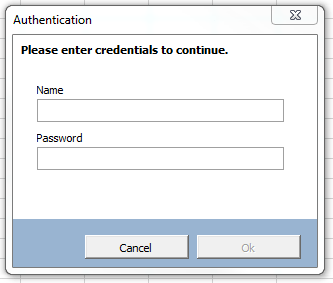
A screenshot of a carefully-crafted dialog form for managing content served by rubberduckvba.com. A modal prompts the user for SQL Server credentials, all commands but the "reload" button are disabled.
The app is work in progress, but the property and command bindings work!

The result is an extremely decoupled, very extensible, completely testable architecture where every user action (“command”) is formally defined, can be programmatically simulated/tested with real, stubbed, or faked dependencies, and can be bound to multiple UI elements and programmatically executed as needed.

MVVM Quick Checklist

These would be the rules to follow as far a relationships go between the components of the MVVM pattern:

  • View (i.e. the UserForm) knows about the ViewModel, but not the Model;
  • ViewModel knows about commands, but nothing about a View;
  • Exactly what the Model actually is/isn’t/should/shouldn’t be, is honestly not a debate I’m interested in – I’ll just call whatever set of classes is responsible for hydrating my ViewModel with data my “model” and sleep at night. What matters is that whatever you call the Model knows nothing of a View or ViewModel, it exists on its own.

Before we dive into bindings and the infrastructure code, we need to talk about the command pattern.

Commands

A command is an object that implements an ICommand interface that might look like this:

'@Folder MVVM.Infrastructure
'@ModuleDescription "An object that represents an executable command."
'@Interface
'@Exposed
Option Explicit

'@Description "Returns True if the command is enabled given the provided binding context (ViewModel)."
Public Function CanExecute(ByVal Context As Object) As Boolean
End Function

'@Description "Executes the command given the provided binding context (ViewModel)."
Public Sub Execute(ByVal Context As Object)
End Sub

'@Description "Gets a user-friendly description of the command."
Public Property Get Description() As String
End Property

In the case of a CommandBinding the Context parameter is always the DataContext / ViewModel (for now anyway), but manual invokes could supply other kinds of parameters. Not all implementations need to account for the ViewModel, a CanExecute function that simply returns True is often perfectly fine. The Description is used to set a tooltip on the target UI element of the command binding.

The implementation of a command can be very simple or very complex, depending on the needs. A command might have one or more dependencies, for example a ReloadCommand might want to be injected with some IDbContext object that exposes a SelectAllTheThings function and the implementation might pull them from a database, or make them up from hard-coded strings: the command has no business knowing where the data comes from and how it’s acquired.

Each command is its own class, and encapsulates the logic for enabling/disabling its associated control and executing the command. This leaves the UserForm module completely devoid of any logic that isn’t purely a presentation concern – although a lot can be achieved solely with property bindings and validation error formatters.

The infrastructure code comes with AcceptCommand and CancelCommand implementations, both useful to wire up [Ok], [Cancel], or [Close] dialog buttons.

AcceptCommand

The AcceptCommand can be used as-is for any View that can be closed with a command involving similar semantics. It is implemented as follows:

'@Exposed
'@Folder MVVM.Infrastructure.Commands
'@ModuleDescription "A command that closes (hides) a View."
'@PredeclaredId
Option Explicit
Implements ICommand

Private Type TState
    View As IView
End Type

Private this As TState

'@Description "Creates a new instance of this command."
Public Function Create(ByVal View As IView) As ICommand
    Dim result As AcceptCommand
    Set result = New AcceptCommand
    Set result.View = View
    Set Create = result
End Function

Public Property Get View() As IView
    Set View = this.View
End Property

Public Property Set View(ByVal RHS As IView)
    GuardClauses.GuardDoubleInitialization this.View, TypeName(Me)
    Set this.View = RHS
End Property

Private Function ICommand_CanExecute(ByVal Context As Object) As Boolean
    Dim ViewModel As IViewModel
    If TypeOf Context Is IViewModel Then
        Set ViewModel = Context
        If Not ViewModel.Validation Is Nothing Then
            ICommand_CanExecute = ViewModel.Validation.IsValid
            Exit Function
        End If
    End If
    ICommand_CanExecute = True
End Function

Private Property Get ICommand_Description() As String
    ICommand_Description = "Accept changes and close."
End Property

Private Sub ICommand_Execute(ByVal Context As Object)
    this.View.Hide
End Sub

CancelCommand

This command is similar to the AcceptCommand in that it simply invokes a method in the View. This implementation could easily be enhanced by making the ViewModel track “dirty” (modified) state and prompting the user when they are about to discard unsaved changes.

'@Folder MVVM.Infrastructure.Commands
'@ModuleDescription "A command that closes (hides) a cancellable View in a cancelled state."
'@PredeclaredId
'@Exposed
Option Explicit
Implements ICommand

Private Type TState
    View As ICancellable
End Type

Private this As TState

'@Description "Creates a new instance of this command."
Public Function Create(ByVal View As ICancellable) As ICommand
    Dim result As CancelCommand
    Set result = New CancelCommand
    Set result.View = View
    Set Create = result
End Function

Public Property Get View() As ICancellable
    Set View = this.View
End Property

Public Property Set View(ByVal RHS As ICancellable)
    GuardClauses.GuardDoubleInitialization this.View, TypeName(Me)
    Set this.View = RHS
End Property

Private Function ICommand_CanExecute(ByVal Context As Object) As Boolean
    ICommand_CanExecute = True
End Function

Private Property Get ICommand_Description() As String
    ICommand_Description = "Cancel pending changes and close."
End Property

Private Sub ICommand_Execute(ByVal Context As Object)
    this.View.OnCancel
End Sub

This gives us very good indications about how the pattern wants user actions to be implemented:

  • Class can have a @PredeclaredId annotation and expose a factory method to property-inject any dependencies; here a IView object, but a custom SaveChangesCommand would likely get injected with some DbContext service class.
  • All commands need a description; that description is user-facing as a tooltip on the binding target (usually a CommandButton).
  • CanExecute can be as simple as an unconditional ICommand_CanExecute = True, or as complex as needed (it has access to the ViewModel context); keep in mind that this method can be invoked relatively often, and should perform well and return quickly.

It’s a simple interface with a simple purpose: attach a command to a button. The EvaluateCanExecute method invokes the command’s CanExecute function and accordingly enables or disables the Target control.

By implementing all UI commands as ICommand objects, we keep both the View and the ViewModel free of command logic and Click handlers. By adopting the command pattern, we give ourselves all the opportunities to achieve low coupling and high cohesion. That is, small and specialized modules that depend on abstractions that can be injected from the outside.

Property Bindings

In XAML we use a special string syntax (“markup extensions”) to bind the value of, say, a ViewModel property, to that of a UI element property:

<TextBox Text="{Binding SomeProperty, Mode=TwoWay, UpdateSourceTrigger=PropertyChanged}" />

As long as the ViewModel implements INotifyPropertyChanged and the property fires the PropertyChanged event when its value changes, WPF can automatically keep the UI in sync with the ViewModel and the ViewModel in sync with the UI. WPF data bindings are extremely flexible and can also bind to static and dynamic resources, or other UI elements, and they are actually slightly more complex than that, but this captures the essence.

Obviously MVVM with MSForms in VBA isn’t going to involve any kind of special string syntax, but the concept of a PropertyBinding can very much be encapsulated into an object (and XAML compiles down to objects and methods, too). At its core, a binding is a pretty simple thing: a source, a target, and a method to update them.

Technically nothing prevents binding a target to any object type (although with limitations, since non-user code won’t be implementing INotifyPropertyChanged), but for the sake of clarity:

  • The binding Source is the ViewModel
  • The SourcePropertyPath is the name of a property of the ViewModel
  • The binding Target is the MSForms control
  • The binding TargetProperty is the name of a property of the MSForms control

Note that the SourcePropertyPath resolves recursively and can be a property of a propertyof a property – as long as the string ultimately resolves to a non-object member.

.BindPropertyPath ViewModel, "SourcePath", Me.PathBox, _
    Validator:=New RequiredStringValidator, _
    ErrorFormat:=AggregateErrorFormatter.Create(ViewModel, _
        ValidationErrorFormatter.Create(Me.PathBox) _ 
            .WithErrorBackgroundColor _
            .WithErrorBorderColor, _
        ValidationErrorFormatter.Create(Me.InvalidPathIcon) _
            .WithTargetOnlyVisibleOnError("SourcePath"), _                
        ValidationErrorFormatter.Create(Me.ValidationMessage1) _
            .WithTargetOnlyVisibleOnError("SourcePath"))

The IBindingManager.BindPropertyPath method is pretty flexible and accepts a number of optional parameters while implementing sensible defaults for common MSForms controls’ “default property binding”. For example, you don’t need to specify a TargetProperty when binding a ViewModel property to a MSForms.TextBox: it will automatically binds to the Text property, but will accept to bind any other property.

The optional arguments are especially useful for custom data validation, but some of them also control various knobs that determine what and how the binding updates.

ValueBehavior
TwoWayBindingBinding will update the source when the target changes, and will update the target when the source changes.
OneWayBindingBinding will update the target when the source changes.
OneWayToSourceBinding will update the source when the target changes.
OneTimeBindingBinding will only update the target once.
The BindingMode enum values
ValueBehavior
OnPropertyChangedBinding will update when the bound property value changes.
OnKeyPressBinding will update the source at each keypress. Only available for TextBox controls. Data validation may prevent the keypress from reaching the UI element.
OnExitBinding will update the source just before target loses focus. Data validation may cancel the exit and leave the caret inside. This update source trigger is the most efficient since it only updates bindings when the user has finished providing a value.
The UpdateSourceTrigger enum values

Property Paths

The binding manager is able to recursively resolve a member path, so if your ViewModel has a ThingSection property that is itself a ViewModel with its own bindings and commands, that itself has a Thing property, know that the binding path can legally be “ThingSection.Thing“, and as long as the Source is the ViewModel object where a ThingSection property exists, and that the ThingSection porperty yields an object that has a Thing property, then all is good and the binding works. If ThingSection were to be Nothing when the binding is updated, then the target is assigned with a default value depending on the type. For example if ThingSection.Thing was bound to some TextBox1 control and the ThingSection property of the ViewModel was Nothing, then the Text property would end up being an empty string – note that this default value may be illegal, depending on what data validation is in place.

Data Validation

Every property binding can attach any IValueValidator implementation that encapsulates specialized, bespoke validation rules. The infrastructure code doesn’t include any custom validator, but the example show how one can be implemented. The interface mandates an IsValid function that returns a Boolean (True when valid), and a user-friendly Message property that the ValidationManager uses to create tooltips.

'@Folder MVVM.Example
Option Explicit
Implements IValueValidator

Private Function IValueValidator_IsValid(ByVal Value As Variant, ByVal Source As Object, ByVal Target As Object) As Boolean
    IValueValidator_IsValid = Len(Trim$(Value)) > 0
End Function

Private Property Get IValueValidator_Message() As String
    IValueValidator_Message = "Value cannot be empty."
End Property

The IsValid method provides you with the Value being validated, the binding Source, and the binding Target objects, which means every validator has access to everything exposed by the ViewModel; note that the method being a Function strongly suggests that it should not have side-effects. Avoid mutating ViewModel properties in a validator, but the message can be constructed dynamically if the validator is made to hold module-level state… although I would really strive to avoid making custom validators stateful.

While the underlying data validation mechanics are relatively complex, believe it or not there is no other step needed to implement custom validation for your property bindings: IBindingManager.BindPropertyPath is happy to take in any validator object, as long as it implements the IValueValidator interface.

Presenting Validation Errors

Without taking any steps to format validation errors, commands that can only execute against a valid ViewModel will automatically get disabled, but the input field with the invalid value won’t give the user any clue. By providing an IValidationErrorFormatter implementation when registering the binding, you get to control whether hidden UI elements should be displayed when there’s a validation error.

The ValidationErrorFormatter class meets most simple scenarios. Use the factory method to create an instance with a specific target UI element, then chain builder method calls to configure the formatting inline with a nice, fluent syntax:

Set Formatter = ValidationErrorFormatter.Create(Me.PathBox) _
                                        .WithErrorBackgroundColor(vbYellow) _
                                        .WithErrorBorderColor
MethodPurpose
CreateFactory method, ensures every instance is created with a target UI element.
WithErrorBackgroundColorMakes the target have a different background color given a validation error. If no color is specified, a default “error background color” (light red) is used.
WithErrorBorderColorMakes the target have a different border color given a validation error. If no color is specified, a default “error border color” (dark red) is used. Method has no effect if the UI control isn’t “flat style” or if the border style isn’t “fixed single”.
WithErrorForeColorMakes the target have a different fore (text) color given a validation error. If no color is specified, a default “error border color” (dark red) is used.
WithErrorFontBoldMakes the target use a bold font weight given a validation error. Method has no effect if the UI element uses a bolded font face without a validation error.
WithTargetOnlyVisibleOnErrorMakes the target UI element normally hidden, only to be made visible given a validation error. Particularly useful with aggregated formatters, to bind the visibility of a label and/or an icon control to the presence of a validation error.
The factory and builder methods of the ValidationErrorFormatter class.

The example code uses an AggregateErrorFormatter to tie multiple ValidationErrorFormatter instances (and thus possibly multiple different target UI controls) to the the same binding.

Value Converters

IBindingManager.BindPropertyPath can take an optional IValueConverter parameter when a conversion is needed between the source and the target, or between the target and the source. One useful value converter can be one like the InverseBooleanConverter implementation, which can be used in a binding where True in the source needs to bind to False in the target.

The interface mandates the presence of Convert and ConvertBack functions, respectively invoked when the binding value is going to the target and the source. Again, pure functions and performance-sensitive implementations should be preferred over side-effecting code.

'@Folder MVVM.Infrastructure.Bindings.Converters
'@ModuleDescription "A value converter that inverts a Boolean value."
'@PredeclaredId
'@Exposed
Option Explicit
Implements IValueConverter

Public Function Default() As IValueConverter
    GuardClauses.GuardNonDefaultInstance Me, InverseBooleanConverter
    Set Default = InverseBooleanConverter
End Function

Private Function IValueConverter_Convert(ByVal Value As Variant) As Variant
    IValueConverter_Convert = Not CBool(Value)
End Function

Private Function IValueConverter_ConvertBack(ByVal Value As Variant) As Variant
    IValueConverter_ConvertBack = Not CBool(Value)
End Function

Converters used in single-directional bindings don’t need to necessarily make both functions return a value that makes sense: sometimes a value can be converted to another but cannot round-trip back to the original, and that’s fine.

String Formatting

One aspect of property bindings I haven’t tackled yet, is the whole StringFormat deal. Once that is implemented and working, the string representation of the target control will be better separated from its actual value. And a sensible default format for some data types (Date, Currency) can even be inferred from the type of the source property!

Another thing string formatting would enable, is the ability to interpolate the value within a string. For example there could be a property binding defined like this:

.BindPropertyPath ViewModel, "NetAmount", Me.NetAmountBox, StringFormat:="USD$ {0:C2}"

And the NetAmountBox would read “USD$ 1,386.77” given the value 1386.77, and the binding would never get confused and would always know that the underlying value is a numeric value of 1386.77 and not a formatted string. Now, until that is done, string formatting probably needs to involve custom value converters. When string formatting works in property bindings, any converter will get invoked before: it’s always going to be the converted value that gets formatted.

ViewModel

Every ViewModel class is inherently application-specific and will look different, but there will be recurring themes:

  • Every field in the View wants to bind to a ViewModel property, and then you’ll want extra properties for various other things, so the ViewModel quickly grows more properties than comfort allows. Make smaller “ViewModel” classes by regrouping related properties, and bind with a property path rather than a plain property name.
  • Property changes need to propagate to the “main” ViewModel (the “data context”) somehow, so making all ViewModel classes fire a PropertyChanged event as appropriate is a good idea. Hold a WithEvents reference to the “child” ViewModel, and handle propagation by raising the “parent” ViewModel’s own PropertyChanged event, all the way up to the “main” ViewModel, where the handler nudges command bindings to evaluate whether commands can execute. One solution could be to register all command bindings with some CommandManager object that would have to implement IHandlePropertyChanged and would relieve the ViewModel of needing to do this.

Each ViewModel should implement at least two interfaces:

  • IViewModel, because we need a way to access the validation error handler and this interface makes a good spot for it.
  • INotifyPropertyChanged, to notify data bindings when a ViewModel property changes.

Here is the IViewModel implementation for the example code – the idea is really to expose properties for the view to bind, and we must not forget to notify handlers when a property value changes – notice the RHS-checking logic in the Property Let member:

'@Folder MVVM.Example
'@ModuleDescription "An example ViewModel implementation for some dialog."
'@PredeclaredId
Implements IViewModel
Implements INotifyPropertyChanged
Option Explicit

Public Event PropertyChanged(ByVal Source As Object, ByVal PropertyName As String)

Private Type TViewModel
    
    'INotifyPropertyChanged state:
    Handlers As Collection
    
    'CommandBindings:
    SomeCommand As ICommand
    
    'Read/Write PropertyBindings:
    SourcePath As String
    SomeOption As Boolean
    SomeOtherOption As Boolean
    
End Type

Private this As TViewModel
Private WithEvents ValidationHandler As ValidationManager

Public Function Create() As IViewModel
    GuardClauses.GuardNonDefaultInstance Me, ExampleViewModel, TypeName(Me)
    
    Dim result As ExampleViewModel
    Set result = New ExampleViewModel
    
    Set Create = result
End Function

Public Property Get Validation() As IHandleValidationError
    Set Validation = ValidationHandler
End Property

Public Property Get SourcePath() As String
    SourcePath = this.SourcePath
End Property

Public Property Let SourcePath(ByVal RHS As String)
    If this.SourcePath <> RHS Then
        this.SourcePath = RHS
        OnPropertyChanged "SourcePath"
    End If
End Property

Public Property Get SomeOption() As Boolean
    SomeOption = this.SomeOption
End Property

Public Property Let SomeOption(ByVal RHS As Boolean)
    If this.SomeOption <> RHS Then
        this.SomeOption = RHS
        OnPropertyChanged "SomeOption"
    End If
End Property

Public Property Get SomeOtherOption() As Boolean
    SomeOtherOption = this.SomeOtherOption
End Property

Public Property Let SomeOtherOption(ByVal RHS As Boolean)
    If this.SomeOtherOption <> RHS Then
        this.SomeOtherOption = RHS
        OnPropertyChanged "SomeOtherOption"
    End If
End Property

Public Property Get SomeCommand() As ICommand
    Set SomeCommand = this.SomeCommand
End Property

Public Property Set SomeCommand(ByVal RHS As ICommand)
    Set this.SomeCommand = RHS
End Property

Public Property Get SomeOptionName() As String
    SomeOptionName = "Auto"
End Property

Public Property Get SomeOtherOptionName() As String
    SomeOtherOptionName = "Manual/Browse"
End Property

Public Property Get Instructions() As String
    Instructions = "Lorem ipsum dolor sit amet, consectetur adipiscing elit."
End Property

Private Sub OnPropertyChanged(ByVal PropertyName As String)
    RaiseEvent PropertyChanged(Me, PropertyName)
    Dim Handler As IHandlePropertyChanged
    For Each Handler In this.Handlers
        Handler.OnPropertyChanged Me, PropertyName
    Next
End Sub

Private Sub Class_Initialize()
    Set this.Handlers = New Collection
    Set ValidationHandler = ValidationManager.Create
End Sub

Private Sub INotifyPropertyChanged_OnPropertyChanged(ByVal Source As Object, ByVal PropertyName As String)
    OnPropertyChanged PropertyName
End Sub

Private Sub INotifyPropertyChanged_RegisterHandler(ByVal Handler As IHandlePropertyChanged)
    this.Handlers.Add Handler
End Sub

Private Property Get IViewModel_Validation() As IHandleValidationError
    Set IViewModel_Validation = ValidationHandler
End Property

Private Sub ValidationHandler_PropertyChanged(ByVal Source As Object, ByVal PropertyName As String)
    OnPropertyChanged PropertyName
End Sub

Nothing much of interest here, other than the INotifyPropertyChanged implementation and the fact that a ViewModel is really just a fancy word for a class that exposes a bunch of properties that magically keep in sync with UI controls!

View

In a Smart UI, that module is, more often than not, a complete wreck. In Model-View-Presenter it quickly gets cluttered with many one-liner event handlers, and something just feels clunky about the MVP pattern. Now, I’m trying really hard, but I can’t think of a single reason to not want UserForm code-behind to look like this all the time… this is absolutely all of it, there’s no cheating going on:


'@Folder MVVM.Example
'@ModuleDescription "An example implementation of a View."
Implements IView
Implements ICancellable
Option Explicit

Private Type TView
    'IView state:
    ViewModel As ExampleViewModel
    
    'ICancellable state:
    IsCancelled As Boolean
    
    'Data binding helper dependency:
    Bindings As IBindingManager
End Type

Private this As TView

'@Description "A factory method to create new instances of this View, already wired-up to a ViewModel."
Public Function Create(ByVal ViewModel As ExampleViewModel, ByVal Bindings As IBindingManager) As IView
    GuardClauses.GuardNonDefaultInstance Me, ExampleView, TypeName(Me)
    GuardClauses.GuardNullReference ViewModel, TypeName(Me)
    GuardClauses.GuardNullReference Bindings, TypeName(Me)
    
    Dim result As ExampleView
    Set result = New ExampleView
    
    Set result.Bindings = Bindings
    Set result.ViewModel = ViewModel
    
    Set Create = result
    
End Function

Private Property Get IsDefaultInstance() As Boolean
    IsDefaultInstance = Me Is ExampleView
End Property

'@Description "Gets/sets the ViewModel to use as a context for property and command bindings."
Public Property Get ViewModel() As ExampleViewModel
    Set ViewModel = this.ViewModel
End Property

Public Property Set ViewModel(ByVal RHS As ExampleViewModel)
    GuardClauses.GuardExpression IsDefaultInstance, TypeName(Me)
    GuardClauses.GuardNullReference RHS
    
    Set this.ViewModel = RHS
    InitializeBindings

End Property

'@Description "Gets/sets the binding manager implementation."
Public Property Get Bindings() As IBindingManager
    Set Bindings = this.Bindings
End Property

Public Property Set Bindings(ByVal RHS As IBindingManager)
    GuardClauses.GuardExpression IsDefaultInstance, TypeName(Me)
    GuardClauses.GuardDoubleInitialization this.Bindings, TypeName(Me)
    GuardClauses.GuardNullReference RHS
    
    Set this.Bindings = RHS

End Property

Private Sub BindViewModelCommands()
    With Bindings
        .BindCommand ViewModel, Me.OkButton, AcceptCommand.Create(Me)
        .BindCommand ViewModel, Me.CancelButton, CancelCommand.Create(Me)
        .BindCommand ViewModel, Me.BrowseButton, ViewModel.SomeCommand
        '...
    End With
End Sub

Private Sub BindViewModelProperties()
    With Bindings
        
        .BindPropertyPath ViewModel, "SourcePath", Me.PathBox, _
            Validator:=New RequiredStringValidator, _
            ErrorFormat:=AggregateErrorFormatter.Create(ViewModel, _
                ValidationErrorFormatter.Create(Me.PathBox).WithErrorBackgroundColor.WithErrorBorderColor, _
                ValidationErrorFormatter.Create(Me.InvalidPathIcon).WithTargetOnlyVisibleOnError("SourcePath"), _
                ValidationErrorFormatter.Create(Me.ValidationMessage1).WithTargetOnlyVisibleOnError("SourcePath"))
        
        .BindPropertyPath ViewModel, "Instructions", Me.InstructionsLabel
        
        .BindPropertyPath ViewModel, "SomeOption", Me.OptionButton1
        .BindPropertyPath ViewModel, "SomeOtherOption", Me.OptionButton2
        .BindPropertyPath ViewModel, "SomeOptionName", Me.OptionButton1, "Caption", OneTimeBinding
        .BindPropertyPath ViewModel, "SomeOtherOptionName", Me.OptionButton2, "Caption", OneTimeBinding
        
        '...
        
    End With
End Sub

Private Sub InitializeBindings()
    If ViewModel Is Nothing Then Exit Sub
    BindViewModelProperties
    BindViewModelCommands
    Bindings.ApplyBindings ViewModel
End Sub

Private Sub OnCancel()
    this.IsCancelled = True
    Me.Hide
End Sub

Private Property Get ICancellable_IsCancelled() As Boolean
    ICancellable_IsCancelled = this.IsCancelled
End Property

Private Sub ICancellable_OnCancel()
    OnCancel
End Sub

Private Sub IView_Hide()
    Me.Hide
End Sub

Private Sub IView_Show()
    Me.Show vbModal
End Sub

Private Function IView_ShowDialog() As Boolean
    Me.Show vbModal
    IView_ShowDialog = Not this.IsCancelled
End Function

Private Property Get IView_ViewModel() As Object
    Set IView_ViewModel = this.ViewModel
End Property

Surely some tweaks will be made over the next couple of weeks as I put the UI design pattern to a more extensive workout with the Rubberduck website content maintenance app – but having used MVVM in C#/WPF for many years, I already know that this is how I want to be coding VBA user interfaces going forward.

I really love how the language has had the ability to make this pattern work, all along.

To be continued…
Builder Walkthrough

Note: this article was updated 2021-04-13 with screenshots from the latest v2.5.1.x pre-release build; the extract interface enhancements shown will green-release with v2.5.2.

We’ve seen how to leverage the default instance of a class module to define a stateless interface that’s perfect for a factory method. At the right abstraction level, most objects will not require more than just a few parameters. Often, parameters are related and can be abstracted/regrouped into their own object. Sometimes that makes things expressive enough. Other times, there’s just nothing we can do to work around the fact that we need to initialize a class with a dozen or more values.

The example code for this article can be found in our Examples repository.

A class with many properties

Such classes are actually pretty common; any entity object representing a database record would fit the bill. Let’s make a User class. We’re using Rubberduck, so this will be quick!

We start with a public field for each property we want:

Option Explicit
Public Id As String
Public UserName As String
Public FirstName As String
Public LastName As String
Public Email As String
Public EmailVerified As Boolean
Public TwoFactorEnabled As Boolean
Public PhoneNumber As String
Public PhoneNumberVerified As Boolean
Public AvatarUrl As String

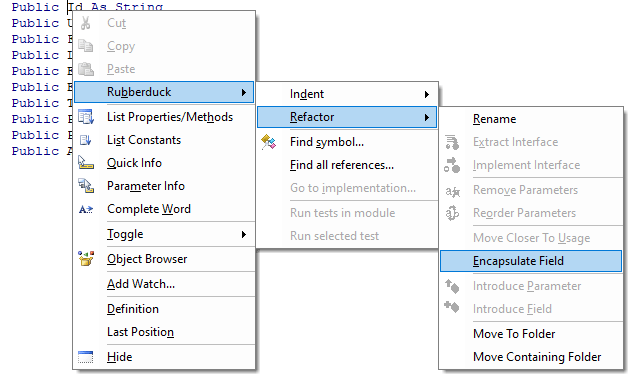
Now we hit Ctrl+` to trigger a parse, right-click any of the variables and select Encapsulate Field from the Refactor menu (or Ctrl+Shift+F if you haven’t tweaked the default hotkeys):

The command will be disabled if the caret/selection isn’t on a public field, or if the module has been modified since the last time Rubberduck parsed it.

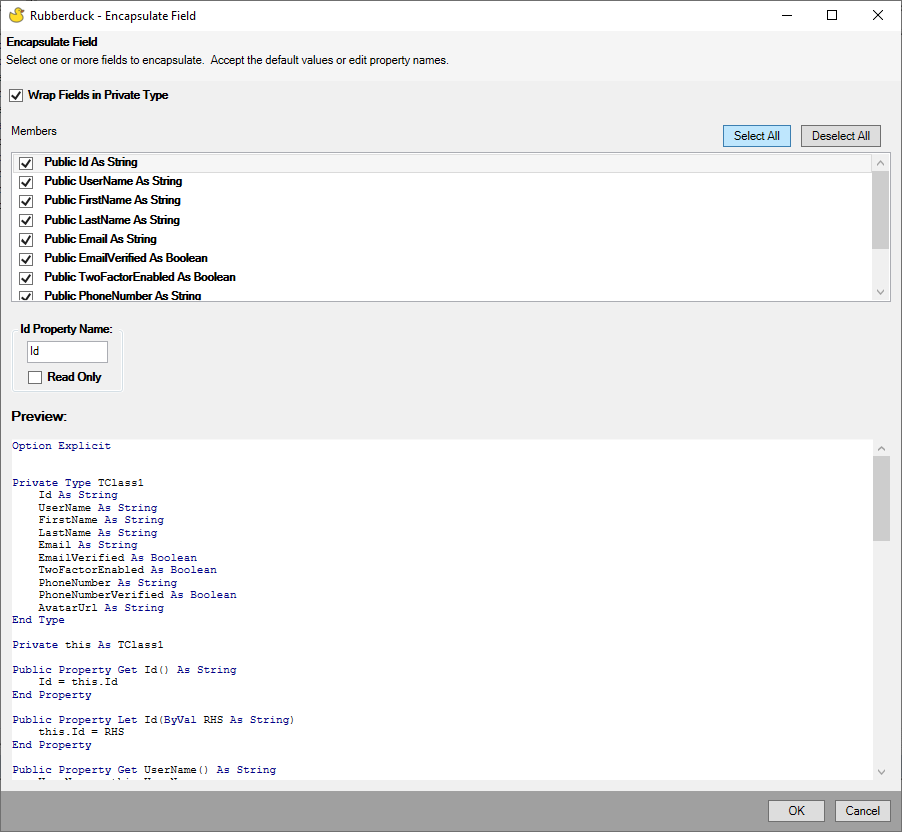
Check the wrap fields in private type box, then click the Select all button and hit OK.

The Encapsulate Field refactoring also lets you rename the properties and their respective backing field.

Now the module looks like this, and all you had to do was to declare a bunch of public fields:

Option Explicit
Private Type TUser
    Id As String
    UserName As String
    FirstName As String
    LastName As String
    Email As String
    EmailVerified As Boolean
    TwoFactorEnabled As Boolean
    PhoneNumber As String
    PhoneNumberVerified As Boolean
    AvatarUrl As String
End Type
Private this As TUser
Public Property Get Id() As String
    Id = this.Id
End Property
Public Property Let Id(ByVal value As String)
    this.Id = value
End Property
Public Property Get UserName() As String
    UserName = this.UserName
End Property
Public Property Let UserName(ByVal value As String)
    this.UserName = value
End Property
Public Property Get FirstName() As String
    FirstName = this.FirstName
End Property
Public Property Let FirstName(ByVal value As String)
    this.FirstName = value
End Property
Public Property Get LastName() As String
    LastName = this.LastName
End Property
Public Property Let LastName(ByVal value As String)
    this.LastName = value
End Property
Public Property Get Email() As String
    Email = this.Email
End Property
Public Property Let Email(ByVal value As String)
    this.Email = value
End Property
Public Property Get EmailVerified() As Boolean
    EmailVerified = this.EmailVerified
End Property
Public Property Let EmailVerified(ByVal value As Boolean)
    this.EmailVerified = value
End Property
Public Property Get TwoFactorEnabled() As Boolean
    TwoFactorEnabled = this.TwoFactorEnabled
End Property
Public Property Let TwoFactorEnabled(ByVal value As Boolean)
    this.TwoFactorEnabled = value
End Property
Public Property Get PhoneNumber() As String
    PhoneNumber = this.PhoneNumber
End Property
Public Property Let PhoneNumber(ByVal value As String)
    this.PhoneNumber = value
End Property
Public Property Get PhoneNumberVerified() As Boolean
    PhoneNumberVerified = this.PhoneNumberVerified
End Property
Public Property Let PhoneNumberVerified(ByVal value As Boolean)
    this.PhoneNumberVerified = value
End Property
Public Property Get AvatarUrl() As String
    AvatarUrl = this.AvatarUrl
End Property
Public Property Let AvatarUrl(ByVal value As String)
    this.AvatarUrl = value
End Property

I love this feature! Rubberduck has already re-parsed the module, so next we right-click anywhere in the module and select the Extract Interface refactoring, and check the box to select all Property Get accessors (skipping Property Let):

Extract Interface can automatically implement the extracted interface for you, and you can extract a public interface out of a private class.

Having a read-only interface for client code that doesn’t need the Property Let accessors makes an objectively cleaner API: assignments are recognized as invalid at compile time.

We get a read-only IUser interface for our efforts (!), and now the User class has an Implements IUser instruction at the top, …and these new members at the bottom:

Private Property Get IUser_ThingId() As String
    IUser_ThingId = ThingId
End Property

Private Property Get IUser_UserName() As String
    IUser_UserName = UserName
End Property

Private Property Get IUser_FirstName() As String
    IUser_FirstName = FirstName
End Property

Private Property Get IUser_LastName() As String
    IUser_LastName = LastName
End Property

Private Property Get IUser_Email() As String
    IUser_Email = Email
End Property

Private Property Get IUser_EmailVerified() As Boolean
    IUser_EmailVerified = EmailVerified
End Property

Private Property Get IUser_TwoFactorEnabled() As Boolean
    IUser_TwoFactorEnabled = TwoFactorEnabled
End Property

Private Property Get IUser_PhoneNumber() As String
    IUser_PhoneNumber = PhoneNumber
End Property

Private Property Get IUser_PhoneNumberVerified() As Boolean
    IUser_PhoneNumberVerified = PhoneNumberVerified
End Property

Private Property Get IUser_AvatarUrl() As String
    IUser_AvatarUrl = AvatarUrl
End Property

The scary part is that it feels as though if Extract Interface accounted for the presence of a Private Type in a similar way Encapsulate Field does, then even the TODO placeholder bits could be fully automated. Might be something to explore there… Update: automagic implementation completed!

Now we have our read-only interface worked out, if we go by previous posts’ teachings, , that is where we make our User class have a predeclared instance, and expose a factory method that I’d typically name Create:

'@Description "Creates and returns a new user instance with the specified property values."
Public Function Create(ByVal Id As String, ByVal UserName As String, ...) As IUser
    '...
End Function

Without Rubberduck, in order to have a predeclared instance of your class you would have to export+remove the class module, locate the exported .cls file, open it in Notepad++, edit the VB_PredeclaredId attribute value to True, save+close the file, then re-import it back into your VBA project.

With Rubberduck, there’s an annotation for that: simply add '@PredeclaredId at the top of the class module, parse, and there will be a result for the AttributeValueOutOfSync inspection informing you that the class’ VB_PredeclaredId attribute value disagrees with the @PredeclaredId annotation, and then you apply the quick-fix you want, and you just might have synchronized hidden attributes across the with a single click.

'@PredeclaredId
Option Explicit

When it’s a factory method for a service class that takes in dependencies, 2-3 parameters is great, 5+ is suspicious. But here we’re taking in values, pure data – not some IFileWriter or other abstraction. And we need quite a lot of them (here 10, but who knows how many that can be!), and that’s a problem, because this is very ugly:

Set identity = User.Create("01234", "Rubberduck", "contact@rubberduckvba.com", False, ...)

Using named parameters can help:

Set identity = User.Create( _
    Id:="01234", _
    UserName:="Rubberduck", _
    Email:="contact@rubberduckvba.com", _
    EmailVerified:=False, _
    Phone:="555-555-5555", _
    PhoneVerified:=False, _
    ...)

But the resulting code still feels pretty loaded, and that’s with consistent line breaks. Problem is, that limits the number of factory method parameters to 20-ish (if we’re nice and stick to one per line), since that’s how many line continuations the compiler will handle for a single logical line of code.

Surely there’s a better way.

Building the Builder

I wrote about this pattern in OOP Design Patterns: The Builder, but in retrospect that article was really just a quick overview. Let’s explore the builder pattern.

I like to design objects from the point of view of the code that will be consuming them. In this case what we want to end up with, is something like this:

Set identity = UserBuilder.Create("01234", "Rubberduck") _
    .WithEmail("contact@rubberduckvba.com", Verified:=False) _
    .WithPhone("555-555-5555", Verified:=False) _
    .Build

This solves a few problems that the factory method doesn’t:

  • Optional arguments become explicitly optional member calls; long argument lists are basically eliminated.
  • Say Id and UserName are required, i.e. a User object would be invalid without these values; the builder’s own Create factory method can take these required values as arguments, and that way any User instance that was built with a UserBuilder is guaranteed to at least have these values.
  • If we can provide a value for EmailVerified but not for Email, or for PhoneVerified but not for Phone, and neither are required… then with individual properties the best we can do is raise some validation error after the fact. With a UserBuilder, we can have WithEmail and WithPhone methods that take a Verified Boolean parameter along with the email/phone, and guarantee that if EmailVerified is supplied, then Email is supplied as well.

I like to start from abstractions, so let’s add a new class module – but don’t rename it just yet, otherwise Rubberduck will parse it right away. Instead, copy the IUser interface into the new Class1 module, select all, and Ctrl+H to replace “Property Get ” (with the trailing space) with “Function With” (without the trailing space). Still with the whole module selected, we replace “String” and “Boolean” with “IUserBuilder”. The result should look like this:

'@Interface
Option Explicit
Public Function WithId() As IUserBuilder
End Function
Public Function WithUserName() As IUserBuilder
End Function
Public Function WithFirstName() As IUserBuilder
End Function
Public Function WithLastName() As IUserBuilder
End Function
Public Function WithEmail() As IUserBuilder
End Function
Public Function WithEmailVerified() As IUserBuilder
End Function
Public Function WithTwoFactorEnabled() As IUserBuilder
End Function
Public Function WithPhoneNumber() As IUserBuilder
End Function
Public Function WithPhoneNumberVerified() As IUserBuilder
End Function
Public Function WithAvatarUrl() As IUserBuilder
End Function

We’re missing a Build method that returns the IUser we’re building:

Public Function Build() As IUser
End Function

Now we add the parameters and remove the members we don’t want, merge the related ones into single functions – this is where we define the shape of our builder API: if we want to make it hard to create a User with a LastName but without a FirstName, or one with TwoFactorEnabled and PhoneNumberVerified set to True but without a PhoneNumber value… then with a well-crafted builder interface we can make it do exactly that.

Once we’re done, we can rename the class module to IUserBuilder, and that should trigger a parse. The interface might look like this now:

'@Interface
'@ModuleDescription("Incrementally builds a User instance.")
Option Explicit
'@Description("Returns the current object.")
Public Function Build() As IUser
End Function
'@Description("Builds a user with a first and last name.")
Public Function WithName(ByVal FirstName As String, ByVal LastName As String) As IUserBuilder
End Function
'@Description("Builds a user with an email address.")
Public Function WithEmail(ByVal Email As String, Optional ByVal Verified As Boolean = False) As IUserBuilder
End Function
'@Description("Builds a user with SMS-based 2FA enabled.")
Public Function WithTwoFactorAuthentication(ByVal PhoneNumber As String, Optional ByVal Verified As Boolean = False) As IUserBuilder
End Function
'@Description("Builds a user with an avatar at the specified URL.")
Public Function WithAvatar(ByVal Url As String) As IUserBuilder
End Function

Then we can add another class module, and type Implements IUserBuilder under Option Explicit, then hit Ctrl+` to parse. Unless you disabled the “check if code compiles before parsing” setting (it’s enabled by default), you should be seeing this warning:

The project can’t compile, because the interface isn’t implemented.

Click Yes to parse anyway (normally we only want compilable code, but in this case we know what we’re doing, I promise), then right-click somewhere in the Implements IUserBuilder statement, and select the Implement Interface refactoring:

Creating all these method stubs manually, or… letting Rubberduck create them all at once in a split-second?

The result is as follows, and makes a good starting point:

Option Explicit
Implements IUserBuilder
Private Function IUserBuilder_Build() As IUser
    Err.Raise 5 'TODO implement interface member
End Function
Private Function IUserBuilder_WithName(ByVal FirstName As String, ByVal LastName As String) As IUserBuilder
    Err.Raise 5 'TODO implement interface member
End Function
Private Function IUserBuilder_WithEmail(ByVal Email As String, Optional ByVal Verified As Boolean = False) As IUserBuilder
    Err.Raise 5 'TODO implement interface member
End Function
Private Function IUserBuilder_WithTwoFactorAuthentication(ByVal PhoneNumber As String, Optional ByVal Verified As Boolean = False) As IUserBuilder
    Err.Raise 5 'TODO implement interface member
End Function
Private Function IUserBuilder_WithAvatar(ByVal Url As String) As IUserBuilder
    Err.Raise 5 'TODO implement interface member
End Function

We’re “building” an IUser object. So we have a module-level User object (we need the class’ default interface here, so that we can access the Property Let members), and each With method sets one property or more and then returns the current object (Me). That last part is critical, it’s what makes the builder methods chainable. We’ll need a Build method to return an encapsulated IUser object. So the next step will be to add a @PredeclaredId annotation and implement a Create factory method that takes the required values and injects the IUser object into the IUserBuilder instance we’re returning; then we can remove the members for these required values, leaving only builder methods for the optional ones. We will also add a value parameter of the correct type to each builder method, and make them all return the current object (Me). Once the class module looks like this, we can rename it to UserBuilder, and Rubberduck parses the code changes – note the @PredeclaredId annotation (needs to be synchronized to set the hidden VB_PredeclaredId attribute to True:

'@PredeclaredId
'@ModuleDescription("Builds a User object.")
Option Explicit
Implements IUserBuilder
Private internal As User
'@Description("Creates a new UserBuilder instance.")
Public Function Create(ByVal Id As String, ByVal UserName As String) As IUserBuilder
    Dim result As UserBuilder
    Set result = New UserBuilder
    
    '@Ignore UserMeaningfulName FIXME
    Dim obj As User
    Set obj = New User
    obj.Id = Id
    obj.UserName = UserName
    
    Set result.User = internal
    Set Create = result
End Function
'@Ignore WriteOnlyProperty
'@Description("For property injection of the internal IUser object; only the Create method should be invoking this member.")
Friend Property Set User(ByVal value As IUser)
    If Me Is UserBuilder Then Err.Raise 5, TypeName(Me), "Member call is illegal from default instance."
    If value Is Nothing Then Err.Raise 5, TypeName(Me), "'value' argument cannot be a null reference."
    Set internal = value
End Property
Private Function IUserBuilder_Build() As IUser
    If internal Is Nothing Then Err.Raise 91, TypeName(Me), "Builder initialization error: use UserBuilder.Create to create a UserBuilder."
    Set IUserBuilder_Build = internal
End Function
Private Function IUserBuilder_WithName(ByVal FirstName As String, ByVal LastName As String) As IUserBuilder
    internal.FirstName = FirstName
    internal.LastName = LastName
    Set IUserBuilder_WithName = Me
End Function
Private Function IUserBuilder_WithEmail(ByVal Email As String, Optional ByVal Verified As Boolean = False) As IUserBuilder
    internal.Email = Email
    internal.EmailVerified = Verified
    Set IUserBuilder_WithEmail = Me
End Function
Private Function IUserBuilder_WithTwoFactorAuthentication(ByVal PhoneNumber As String, Optional ByVal Verified As Boolean = False) As IUserBuilder
    internal.TwoFactorEnabled = True
    internal.PhoneNumber = PhoneNumber
    internal.PhoneNumberVerified = Verified
    Set IUserBuilder_WithTwoFactorAuthentication = Me
End Function
Private Function IUserBuilder_WithAvatar(ByVal Url As String) As IUserBuilder
    internal.AvatarUrl = Url
    Set IUserBuilder_WithAvatar = Me
End Function

Now, when I said default instances and factory methods (here too) are some kind of fundamental building block, I mean we’re going to be building on top of that, starting with this builder pattern; the Create method is intended to be invoked off the class’ default instance, like this:

Set builder = UserBuilder.Create(internalId, uniqueName)

The advantages are numerous, starting with the possibility to initialize the builder with everything it needs (all the required values), so that the client code can call Build and consume a valid User object right away.

Side note about this FIXME comment – there’s more to it than it being a signpost for the reader/maintainer:

    '@Ignore UserMeaningfulName FIXME
    Dim obj As User

By default only TODO, BUG, and NOTE markers are picked up, but you can easily configure Rubberduck to find any marker you like in comments, and then the ToDo Explorer lets you easily navigate them all:

Rubberduck has a ToDo Explorer toolwindow that can be configured (click the cogwheel icon) to pick up “FIXME” anywhere in comments, anywhere in the project. Or “HERE BE DRAGONS”.

Another noteworthy observation:

'@Ignore WriteOnlyProperty
'@Description("For property injection of the internal IUser object; only the Create method should be invoking this member.")
Friend Property Set User(ByVal value As IUser)
    If Me Is UserBuilder Then Err.Raise 5, TypeName(Me), "Member call is illegal from default instance."
    If value Is Nothing Then Err.Raise 5, TypeName(Me), "'value' argument cannot be a null reference."
    Set internal = value
End Property

Me is always the current object, as in, an instance of this class module, presenting the default interface of this class module: the If Me Is UserBuilder condition evaluates whether Me is the object known as UserBuilder – and right now there’s no such thing and the code doesn’t compile.

Synchronizing Attributes & Annotations

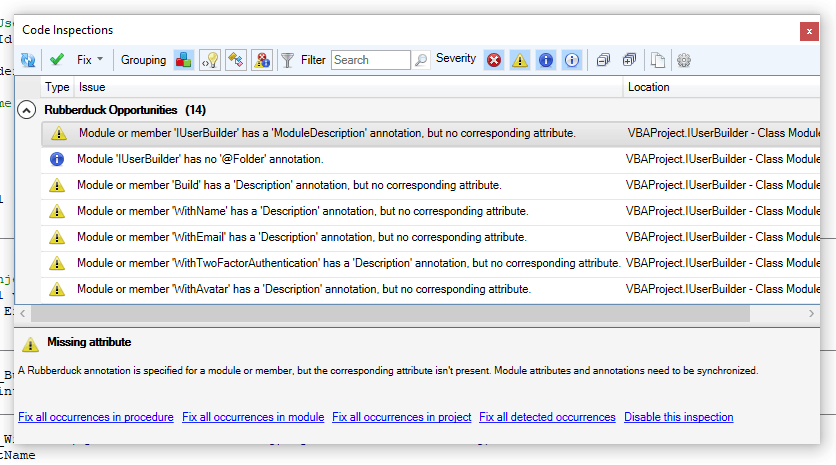
Rubberduck knows we mean that class to have a VB_PredeclaredId attribute value of True because of the @PredeclaredId annotation, but it’s still just a comment at this point. Bring up the inspection results toolwindow, and find the results for the MissingAttribute inspection under Rubberduck Opportunities:

Clicking Fix all occurrences in project will automatically add all the missing attributes.

That didn’t fix the VB_PredeclaredId attributes! Why?! The reason is that the attribute isn’t missing, only its value is out of sync. We’ll have to change this (pull requests welcome!), but for now you’ll find the AttributeValueOutOfSync inspection results under the Code Quality Issues group. If you group results by inspection, its miscategorization doesn’t matter though:

When attributes and annotations contradict each other, the AttributeValueOutOfSync inspection starts issuing results.

Adjust the attribute value accordingly (right-click the inspection result, or select “adjust attribute value(s)” from the “Fix” dropdown menu), and now your UserBuilder is ready to use:

Dim identity As IUser
Set identity = UserBuilder.Create(uniqueId, uniqueName) _
                          .WithName(first, last) _
                          .WithEmail(emailAddress) _
                          .Build

…and misuse:

Set UserBuilder.User = New User '<~ runtime error, illegal from default instance
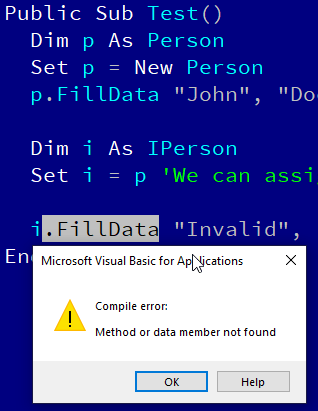
Debug.Print UserBuilder.User.AvatarUrl '<~ compile error, invalid use of property
Set builder = New UserBuilder
Set identity = builder.Build '<~ runtime error 91, builder state was not initialized
Set builder = New UserBuilder
Set builder = builder.WithEmail(emailAddress) '<~ runtime error 91

Conclusions

Model classes with many properties are annoying to write, and annoying to initialize. Sometimes properties are required, other times properties are optional, others are only valid if another property has such or such value. This article has shown how effortlessly such classes can be created with Rubberduck, and how temporal coupling and other state issues can be solved using the builder creational pattern.

Using this pattern as a building block in the same toolbox as factory methods and other creational patterns previously discussed, we can now craft lovely fluent APIs that can chain optional member calls to build complex objects with many properties without needing to take a gazillion parameters anywhere.

Secure ADODB

Unless you’re hosted in Access, your VBA project doesn’t have access to a database engine. If you’re in Excel, it’s easy to treat the host workbook as a database and each worksheet as a table. While we can build an application that uses Excel worksheets to store data, we probably shouldn’t do that. The reasons are many, but primarily (pun …yeah, intended), we want to be able to establish bullet-proof referential integrity between records/tables; while Excel is great for many things, it’s useless for that: it’s the job of a relational database system (RDBMS), not that of any worksheet software, no matter how powerful. Power Query is very much worth looking into, but if you’re building a small CRUD (Create/Read/Update/Delete) application in VBA, you’ll want VBA code responsible for the data access – enter ADODB, …and every pitfall that comes with it.

In this article we will explore a heavily object-oriented solution to querying a database securely with the ADODB library.


Securely?

Querying a database with ADODB is easy: just set up a connection, open it, then execute whatever SQL statement you need through the Connection, and you get the results in a Recordset object:

Dim conn As ADODB.Connection
Set conn = New ADODB.Connection
conn.Open "ConnectionString"

Dim rs As ADODB.Recordset
Set rs = conn.Execute("SELECT Field1, Field2 FROM Table1")

'...

rs.Close
conn.Close

That is great for one-timer, ad-hoc queries: things quickly get messy when you start needing multiple queries, or when your SQL statement needs to be invoked repeatedly with different values:

Dim conn As ADODB.Connection
Set conn = New ADODB.Connection
conn.Open "ConnectionString"

Dim i As Long
For i = 1 To 10
    Dim rs As ADODB.Recordset
    Set rs = conn.Execute("SELECT Field1, Field2 FROM Table1 WHERE Field3 = " & i)
    '...
    rs.Close
Next
conn.Close

This right here – WHERE SomeField = " & i, is making the database engine work harder than it needs to… and it’s costing server-side performance, because as far as the engine knows, it’s getting a different query every time – and thus computes the same execution plan over and over, every time… when it could just be reusing it. Databases are smart. Like, wicked smart… but yeah we still need to ask for the right thing!

Compare to something like this:

Const sql As String = "SELECT Field1, Field2 FROM Table1 WHERE Field3 = ?"
Dim conn As ADODB.Connection
Set conn = New ADODB.Connection
conn.Open "ConnectionString"

Dim i As Long
For i = 1 To 10
    Dim cmd As ADODB.Command
    Set cmd = New ADODB.Command
    cmd.CommandType = adCmdText
    cmd.CommandText = sql
    cmd.Parameters.Append cmd.CreateParameter(Type:=adInteger, Value:= i)

    Dim rs As ADODB.Recordset
    Set rs = cmd.Execute
    '...
    rs.Close
Next
conn.Close

Oh my, so much more code, so little gain – right?

Using ADODB.Command when queries involve a WHERE (and/or VALUES) clause and user-provided (directly or not) values is not only more efficient (the cached execution plan is reused because the command string is identical every time), it’s also more secure. Concatenating user inputs into SQL command strings is a common rookie mistake, and it’s a practice that is way more widespread than it should be (regardless of the language, paradigm, or platform); your code becomes vulnerable to SQL Injection Attacks – something that may or may not be in your threat model, but that inevitably turns into… easily avoidable bugs: think of what might happen if a user entered O'Connor in that LastName field. If you’re thinking “oh that’s easy! I’ll just double-up single quotes, and fixed!“, then you’re playing a needlessly exhausting game of cat-and-mouse with the next thing that will break your clever escaping: the mouse wins.

Abstract thoughts

Much simpler to just use an ADODB.Command every time, and when you need it parameterized, to Append any number of ADODB.Parameter objects to its Parameters collection. Except, it does make a lot of code to write, every time.

What do we do when we see repetitive patterns in code? If you’re thinking “we put it in a function!” then you’re thinking abstraction and that’s exactly the right train of thought.

We’re just going to take this abstraction… and make it an object. Then think of what objects it needs in order to do its job, and abstract these objects behind interfaces too, and take these abstractions in as constructor parameters of our Create “static” factory method. Rinse & repeat until all dependencies are property-injected and all responsibilities are nicely encapsulated into their own classes. It was fun!

I wrote an original version of this functionality little while ago – you can find the original version on Code Review, and see how different/similar it is to this simplified/improved version in our Examples repository on GitHub.

The original was just an ADODB wrapper class though, couldn’t really be unit-tested, and was annoying to maintain because it felt very repetitive. This version is separating the type mappings from the parameter-providing logic, which makes configuring these mappings is done through an object that’s solely responsible for these mappings; it also separates the command from the connection, and abstracts away that connection enough to enable unit testing and cover quite a large part of the API – but most importantly, this version exposes adequate abstractions for the calling code to use and stub in its own unit tests.

VBA code written with this API (and the principles it demonstrates) can easily be fully testable, without ever actually hitting any database.

I can do this in the immediate pane:

?UnitOfWork.FromConnectionString("connection string").Command.GetSingleValue("SELECT Field1 FROM Table1 WHERE Id=?", 1)

I mean, it’s a contrived example, but with a valid connection string, query, and arguments, that’s all we need to get an actual parameterized ADODB command sending that 1 as an actual ADODB parameter, …and the following debug output:

Begin connect...
Connect completed. Status: 1
Begin transaction completed. 
Begin execute...
Execute completed, -1 record(s) affected.
{whatever value was in Field1}
Rollback transaction completed.
Disconnect completed. Status: 1

I made DbConnection listen in on whatever events the ADODB connection is firing, pending the implementation of an adapter to expose some IDbConnectionEvents members – the idea is to end up with client code that can inject its own callbacks and do things like log such messages. In the meantime Debug.Print statements are producing this debug output, but that’s it’s an implementation detail: it doesn’t publicly expose any of these events. It couldn’t, either: the rest of the code needs to work with the IDbConnection interface, and interfaces unfortunately can’t expose events in VBA.


SecureADODB

Some might call it layered spaghetti. Others call it lasagna. I call it well-abstracted code that reads and maintains like a charm and provably works as intended. There is nothing, absolutely nothing wrong with having many class modules in a VBA project: the only problem is… well, the VBE itself:

Project Explorer is making OOP rather painful. In fact it makes any kind of modularization painful.
Code Explorer makes the VBE more OOP-friendly: now you can have folders regrouping modules by functionality rather than just by module type.

Nice, rich APIs involve many related objects, interfaces, methods – members that make up the object model the API’s client code will be working with. As long as we can keep all these classes organized, there’s no problem having many of them.

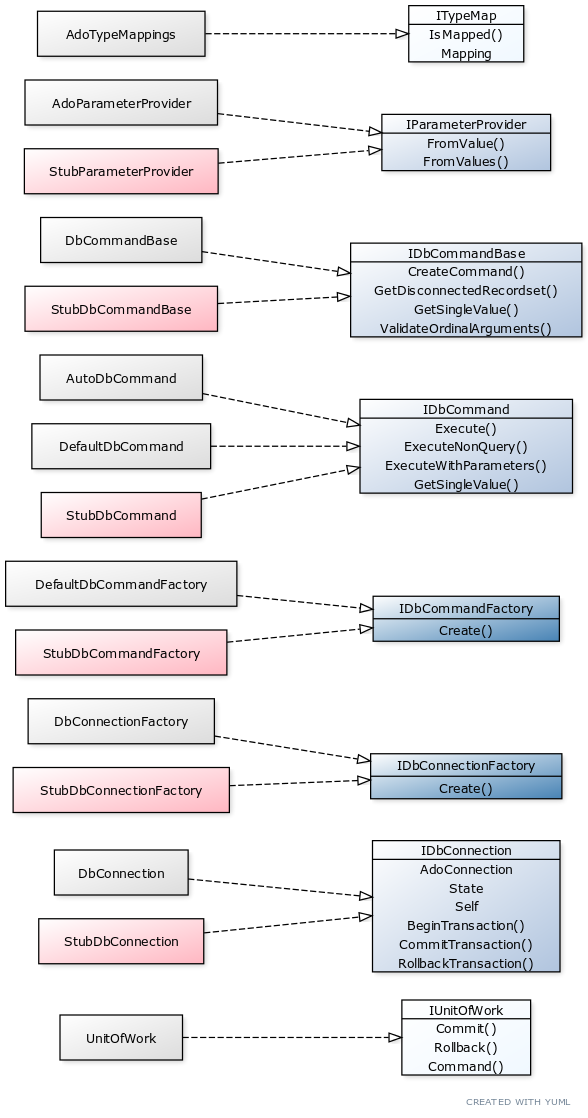
Before we look at the implementation, let’s review the interfaces and the overall structure.

Only two interfaces aren’t being stubbed for unit tests. IUnitOfWork because as the top-level object nothing in the object model consumes it. It is needed though, because client code can inject it as a dependency of some FooRepository class, and then tests can provide it with a StubUnitOfWork that implements IUnitOfWork.

The other “façade” interface is ITypeMap. This one isn’t really needed (neither is the predeclared instance of AdoTypeMappings or its Default factory method), something felt wrong with the client code without it. While the class is essentially just a dictionary / literally a map, there’s something rather elegant about depending on an ITypeMap rather than some Scripting.Dictionary.

The two dark blue interfaces are abstract factory interfaces, each with a “real” and a “stub” implementation for tests: these are very simple classes whose entire purpose is to create an object of a particular type.

If we consider IParameterProvider an implementation detail of IDbCommandBase, that leaves us with only the core stuff: IDbCommandBase, IDbCommand, and IDbConnection – everything else just revolves around these.

DbCommandBase

The old SqlCommand code had two sets of commands: “Execute” for methods you could pass a Connection to, and “QuickExecute” for methods that created a connection on-the-spot. I decided to split the two behaviors into two distinct implementation of the same interface, and that’s how I ended up with DefaultDbCommand and AutoDbCommand. As I was cleaning up the two new classes, I had to notice these two classes needed a number of common bits of functionality… as would any other implementation of IDbCommand.

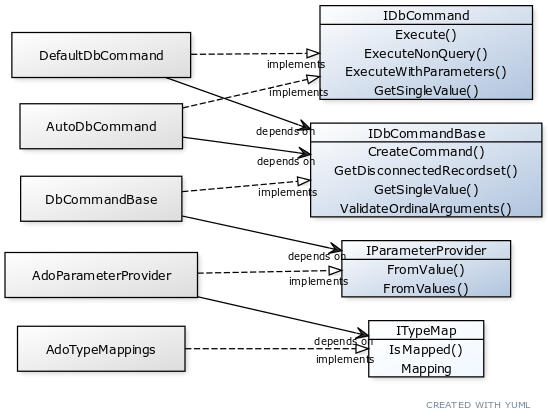
In a language that supports inheritance, I would probably make the two classes inherit a third abstract “base” class where I’d implement the IDbCommand interface. In VBA, we can’t derive a class from another, or inherit members from another class: inheritance is flat-out unavailable. There’s an alternative though, and it’s arguably even better than inheritance: composition. We can put the common functionality in a third class, and then have the two implementations take an instance of that “base” class as we would any other dependency – effectively achieving what we wanted out of inheritance, but through composition.

Code is said to be “decoupled” when none of its concrete components are inter-dependent, as is apparent with the solid black “depends on” arrows here. Decoupled components can easily be swapped for other implementations, like …test stubs.

What’s wrong with inheritance?

Don’t get me wrong, inheritance is very cool: with an abstract class you can have templated methods, where a method in the base class (typically a method that implements some interface member) invokes an abstract or virtual method (typically with protected scope) that the inherited class must override and provide an implementation for. Rubberduck uses this pattern in quite a few places (inspections, notably). Without inheritance, it’s just not something that’s possible.

Inheritance is described as a “is a” relationship, while composition is more of a “has a” relationship. This is important, because when the only consideration weighting in favor of inheritance is the need for two classes to share some functionality, it’s exactly why inheritance should not be used.


Decoupling FTW

The “base” class appeared as a need to have a place for IDbCommand implementations to access shared functionality. I wanted to return disconnected recordsets, and retrieving the value of the first field of the first record of a recordset isn’t something that’s glaringly implementation-specific. The other piece of functionality I needed, was a function that creates the ADODB.Command object and adds the parameters.

Because I wanted this class to create the ADODB.Command, I needed it to be able to turn a Variant into an ADODB.Parameter through some mapping, and since I didn’t want my class to be necessarily coupled with that mapping, or anything remotely related to configuring ADODB parameters… I’m property-injecting an IParameterProvider dependency:

Public Function Create(ByVal provider As IParameterProvider) As IDbCommandBase
    Errors.GuardNonDefaultInstance Me, DbCommandBase
    Errors.GuardNullReference provider
    
    Dim result As DbCommandBase
    Set result = New DbCommandBase
    Set result.ParameterProvider = provider
    
    Set Create = result

End Function

Validating the command string / arguments

Since the commands are given an SQL command string to execute, and a ParamArray array of arguments that should have the same number of items as there are ? ordinal parameters in the SQL command string, we have an opportunity to catch a missing or extraneous argument before we even send the command string to the database server. And because this validation logic would have to be the same regardless of what IDbCommand implementation we’re looking at, DbCommandBase makes the best place to put it.

This implementation is probably too naive for a number of edge cases, but sufficient for most: we’re simply counting the number of ? characters in the sql string, and comparing that with the number of elements in the args array. We need to handle errors here, because if the args array is empty, evaluating UBound(args) and/or LBound(args) will throw a “subscript out of range” run-time error 9.

Public Function ValidateOrdinalArguments(ByVal sql As String, ByRef args() As Variant) As Boolean
    On Error GoTo CleanFail
    Dim result As Boolean
    
    Dim expected As Long
    expected = Len(sql) - Len(Replace(sql, "?", vbNullString))
    
    Dim actual As Long
    On Error GoTo CleanFail 'if there are no args, LBound/UBound are both out of bounds
    actual = UBound(args) + (1 - LBound(args))
    
CleanExit:
    result = (expected = actual)
    ValidateOrdinalArguments = result
    Exit Function
CleanFail:
    actual = 0
    Resume CleanExit
End Function

Getting a disconnected Recordset

If we created a database connection, issued a command against it, and received the recordset from ADODB.Command.Execute, and then we close the connection and return that recordset, then the calling code can’t use the data anymore: a connected recordset only works if the calling code owns the connection. So we need a way to issue a disconnected recordset, while still using an ADODB.Command. The way to do this, is to pass the command as the Source argument to Recordset.Open, and to use a static, client-side cursor:

Private Function GetDisconnectedRecordset(ByVal cmd As ADODB.Command) As ADODB.Recordset
    Errors.GuardNullReference cmd
    Errors.GuardNullReference cmd.ActiveConnection
    
    Dim result As ADODB.Recordset
    Set result = New ADODB.Recordset
    
    result.CursorLocation = adUseClient
    result.Open Source:=cmd, CursorType:=adOpenStatic
    
    Set result.ActiveConnection = Nothing
    Set GetDisconnectedRecordset = result
End Function

Getting a single value result

With functions to validate the parameters, create commands and get a disconnected recordset, we have everything we need for IDbCommand implementations to do their job, but if we leave it like this, we’ll end up with all implementations copying the logic of IDbCommand.GetSingleValue: best have that logic in DbCommandBase and avoid as much repetition as possible.

Private Function GetSingleValue(ByVal db As IDbConnection, ByVal sql As String, ByRef args() As Variant) As Variant
    Errors.GuardEmptyString sql
    
    Dim cmd As ADODB.Command
    Set cmd = CreateCommand(db, adCmdText, sql, args)
    
    Dim results As ADODB.Recordset
    Set results = GetDisconnectedRecordset(cmd)
    
    GetSingleValue = results.Fields.Item(0).value
End Function

Creating the command

A few things can go wrong when creating the ADODB.Command object: we need an ADODB.Connection that’s open, and the parameters must be valid. Since we’re not executing the command just yet, we don’t have to worry about everything that could go wrong actually executing the command string and processing the parameters on the server. So the strategy here is to guard against invalid inputs as much as possible, and then to handle errors when we add the parameters, and return the Command object with whatever parameters were successfully added. We don’t need to try salvaging the rest of the parameters if one blows up, since that failing parameter will fail command execution anyway, but there isn’t much we can do about it, other than perhaps throw an error and have the caller not even try to run the command – but here I decided that the server-side errors would be more useful than any custom “invalid parameter” error.

Note that the ADODB.Command object is actually created by the method-injected IDbConnection dependency. This creates a seam between the class and ADODB, despite the inherent coupling with the ADODB.Command type: it makes the command’s ActiveConnection an implementation detail of IDbConnection.CreateCommand, and that’s all I needed to make this method work with a stub connection that isn’t actually connecting to anything:

Private Function CreateCommand(ByVal db As IDbConnection, ByVal commandType As ADODB.CommandTypeEnum, ByVal sql As String, ByRef args() As Variant) As ADODB.Command
    Errors.GuardNullReference db
    Errors.GuardEmptyString sql
    Errors.GuardExpression db.State <> adStateOpen, message:="Connection is not open."
    Errors.GuardExpression Not ValidateOrdinalArguments(sql, args), message:="Arguments supplied are inconsistent with the provided command string parameters."
    
    Dim cmd As ADODB.Command
    Set cmd = db.CreateCommand(commandType, sql)
    
    On Error GoTo CleanFail
    Dim arg As ADODB.Parameter
    For Each arg In this.ParameterProvider.FromValues(args)
        cmd.parameters.Append arg
    Next
    
CleanExit:
    Set CreateCommand = cmd
    Exit Function
CleanFail:
    Resume CleanExit
End Function

DbCommand

As mentioned before, there are two implementations for the IDbCommand interface: one that creates and owns its own IDbConnection, the other that takes it in as a dependency.

This abstraction represents an object that can take an SQL statement and parameters, and return the result(s) to its caller.

DefaultDbCommand receives its IDbConnection dependency through property injection in its Create factory method.

AutoDbCommand takes a connection string and an IDbConnectionFactory instead.

UnitOfWork uses a DefaultDbCommand because the unit of work needs to own the connection, but AutoDbCommand could be used instead of a unit of work, if we just need a quick SELECT and no transaction.

Abstract Factory

IDbConnectionFactory is an Abstract Factory here. This is needed, because unit tests need to be able to inject a stub factory that produces stub connections: an abstract factory is a factory interface that creates objects of a type that is also an abstraction – in this case, IDbConnectionFactory.Create returns an IDbConnection object. Implementing this factory class is exactly as simple as you’d think – here’s DbConnectionFactory:

'@Exposed
'@Folder("SecureADODB.DbConnection")
'@ModuleDescription("An implementation of an abstract factory that creates DbConnection objects.")
Option Explicit
Implements IDbConnectionFactory

Private Function IDbConnectionFactory_Create(ByVal connString As String) As IDbConnection
    Set IDbConnectionFactory_Create = DbConnection.Create(connString)
End Function

And here’s StubDbConnectionFactory:

'@Folder("Tests.Stubs")
'@ModuleDescription("A stub acting as a IDbConnectionFactory implementation.")
Option Explicit
Implements IDbConnectionFactory
Private Type TInvokeState
    CreateConnectionInvokes As Long
End Type
Private this As TInvokeState

Private Function IDbConnectionFactory_Create(ByVal connString As String) As IDbConnection
    this.CreateConnectionInvokes = this.CreateConnectionInvokes + 1
    Set IDbConnectionFactory_Create = New StubDbConnection
End Function

Public Property Get CreateConnectionInvokes() As Long
    CreateConnectionInvokes = this.CreateConnectionInvokes
End Property

The test stub is more “complex” because it tracks method invocations, so that tests can know whether & how many times any given member was invoked during a test run.

The Abstract Factory pattern is very useful with Dependency Injection: it gives us an abstraction to inject when a class needs a dependency that just cannot be injected when the object is created – the alternative would be tight coupling: if we weren’t injecting a connection factory, then the command class would’ve had to be the one invoking DbConnection.Create – tightly coupling it with the DbConnection class and instantly making unit testing impossible. An abstract factory removes the coupling and allows unit tests to inject an alternative/stub implementation of the factory that creates StubDbConnection objects.

Wrapping it all up

AutoDbConnection can very well be consumed as-is by the client code:

Dim results As ADODB.Recordset
Set results = AutoDbConnection.Create(connString, New DbConnectionFactory, DbCommandBase.Create(AdoParameterProvider.Create(AdoTypeMappings.Default))).Execute(sql)

The only problem is that, well, the dependencies need to be resolved somehow, and that means the client code is now responsible for wiring everything up. While each component has a clear purpose, explicitly creating all these objects quickly gets old and redundant: we need an object that simplifies this – enter IUnitOfWork, and now we can use this much simpler code:

Dim results As ADODB.Recordset
Set results = UnitOfWork.FromConnectionString(connString).Command.Execute(sql)

Unit of Work is a design pattern that encapsulates a transaction: each individual operation can succeed or fail, and the unit of work either succeeds or fails as a whole. These notions are abstracted in the IUnitOfWork interface:

'@Folder("SecureADODB.UnitOfWork")
'@ModuleDescription("Represents an object encapsulating a database transaction.")
'@Interface
'@Exposed
Option Explicit

'@Description("Commits the transaction.")
Public Sub Commit()
End Sub

'@Description("Rolls back the transaction.")
Public Sub Rollback()
End Sub

'@Description("Creates a new command to execute as part of the transaction.")
Public Function Command() As IDbCommand
End Function

When a UnitOfWork is created, it initiates a database transaction. When it is destroyed before the transaction is committed, the transaction gets rolled back and from the database’s point of view, it’s like nothing happened.

Transaction?

If you’re unfamiliar with database transactions, there’s an easy example to illustrate what they do: imagine you have an Accounts table, and you’re processing a transfer – you need to UPDATE the record for the source account to deduct the transfer amount, then UPDATE the record for the destination account to add the transferred amount. In a happy world where everything goes well that would be the end of it… but the world is a cruel place, and assuming the 1st command goes through, nothing guarantees nothing will blow up when sending the 2nd command. Without transactions, the funds would simply vanish: they’re gone from the first account, and they were never added to the second account. With a transaction, we can rollback everything when the 2nd operation completes, no funds vanish and the data is exactly the way it was before the transaction started.


Again, the implementation is pretty straightforward – the only peculiarity is that the class has two factory methods – one named Create that takes all the dependencies in, and another named FromConnectionString that conveniently wires up a default set of dependencies (and then passes them to the Create method to avoid duplicating code).

'@Folder("SecureADODB.UnitOfWork")
'@ModuleDescription("An object that encapsulates a database transaction.")
'@PredeclaredId
'@Exposed
Option Explicit
Implements IUnitOfWork
Private Type TUnitOfWork
    Committed As Boolean
    RolledBack As Boolean
    Connection As IDbConnection
    CommandFactory As IDbCommandFactory
End Type
Private this As TUnitOfWork

'@Description("Creates a new unit of work using default configurations.")
'@Ignore ProcedureNotUsed
Public Function FromConnectionString(ByVal connString As String) As IUnitOfWork
    
    Dim db As IDbConnection
    Set db = DbConnection.Create(connString)
    
    Dim provider As IParameterProvider
    Set provider = AdoParameterProvider.Create(AdoTypeMappings.Default)
    
    Dim baseCommand As IDbCommandBase
    Set baseCommand = DbCommandBase.Create(provider)
    
    Dim factory As IDbCommandFactory
    Set factory = DefaultDbCommandFactory.Create(baseCommand)
    
    Set FromConnectionString = UnitOfWork.Create(db, factory)
    
End Function

'@Inject: just an idea.. see #https://github.com/rubberduck-vba/Rubberduck/issues/5463
Public Function Create(ByVal db As IDbConnection, ByVal factory As IDbCommandFactory) As IUnitOfWork
    Errors.GuardNonDefaultInstance Me, UnitOfWork
    Errors.GuardNullReference factory
    Errors.GuardNullReference db
    Errors.GuardExpression db.State <> adStateOpen, message:="Connection should be open."
    
    Dim result As UnitOfWork
    Set result = New UnitOfWork
    Set result.CommandFactory = factory
    Set result.Connection = db
    
    Set Create = result
End Function

'@Inject: this member should only be invoked by Me.Create, where Me is the class' default/predeclared instance.
'@Ignore ProcedureNotUsed: false positive with v2.5.0.5418
Friend Property Set Connection(ByVal value As IDbConnection)
    Errors.GuardDoubleInitialization this.Connection
    Errors.GuardNullReference value
    Set this.Connection = value
    this.Connection.BeginTransaction
End Property

'@Inject: this member should only be invoked by Me.Create, where Me is the class' default/predeclared instance.
'@Ignore ProcedureNotUsed: false positive with v2.5.0.5418
Friend Property Set CommandFactory(ByVal value As IDbCommandFactory)
    Errors.GuardDoubleInitialization this.CommandFactory
    Errors.GuardNullReference value
    Set this.CommandFactory = value
End Property

Private Sub Class_Terminate()
    On Error Resume Next
    If Not this.Committed Then this.Connection.RollbackTransaction
    On Error GoTo 0
End Sub

Private Sub IUnitOfWork_Commit()
    Errors.GuardExpression this.Committed, message:="Transaction is already committed."
    Errors.GuardExpression this.RolledBack, message:="Transaction was rolled back."
    On Error Resume Next ' not all providers support transactions
    this.Connection.CommitTransaction
    this.Committed = True
    On Error GoTo 0
End Sub

Private Function IUnitOfWork_Command() As IDbCommand
    Set IUnitOfWork_Command = this.CommandFactory.Create(this.Connection)
End Function

Private Sub IUnitOfWork_Rollback()
    Errors.GuardExpression this.Committed, message:="Transaction is already committed."
    On Error Resume Next ' not all providers support transactions
    this.Connection.RollbackTransaction
    this.RolledBack = True
    On Error GoTo 0
End Sub

Errors

If you paid close attention to the code listings so far, you likely already noticed the many Errors.GuardXxxxx member calls scattered throughout the code. There are probably as many ways to deal with custom errors as there are VBA classes out there, this is one way. Probably not the best way, but it feels “just right” for me in this case and I think I like it enough to keep using it until the problems it creates become clearer (there’s always something). Errors is a standard private module in the project, that defines custom error codes. Okay I was lazy and deemed SecureADODBCustomError all I needed, but it could also have been an Enum with descriptive names for each custom error code.

The module simply exposes a small number of very simple Sub procedures that make it easy for the rest of the code to raise meaningful custom errors:

'@Folder("SecureADODB")
'@ModuleDescription("Global procedures for throwing common errors.")
Option Explicit
Option Private Module

Public Const SecureADODBCustomError As Long = vbObjectError Or 32

'@Description("Re-raises the current error, if there is one.")
Public Sub RethrowOnError()
    With VBA.Information.Err
        If .Number <> 0 Then
            Debug.Print "Error " & .Number, .Description
            .Raise .Number
        End If
    End With
End Sub

'@Description("Raises a run-time error if the specified Boolean expression is True.")
Public Sub GuardExpression(ByVal throw As Boolean, _
Optional ByVal Source As String = "SecureADODB.Errors", _
Optional ByVal message As String = "Invalid procedure call or argument.")
    If throw Then VBA.Information.Err.Raise SecureADODBCustomError, Source, message
End Sub

'@Description("Raises a run-time error if the specified instance isn't the default instance.")
Public Sub GuardNonDefaultInstance(ByVal instance As Object, ByVal defaultInstance As Object, _
Optional ByVal Source As String = "SecureADODB.Errors", _
Optional ByVal message As String = "Method should be invoked from the default/predeclared instance of this class.")
    Debug.Assert TypeName(instance) = TypeName(defaultInstance)
    GuardExpression Not instance Is defaultInstance, Source, message
End Sub

'@Description("Raises a run-time error if the specified object reference is already set.")
Public Sub GuardDoubleInitialization(ByVal instance As Object, _
Optional ByVal Source As String = "SecureADODB.Errors", _
Optional ByVal message As String = "Object is already initialized.")
    GuardExpression Not instance Is Nothing, Source, message
End Sub

'@Description("Raises a run-time error if the specified object reference is Nothing.")
Public Sub GuardNullReference(ByVal instance As Object, _
Optional ByVal Source As String = "SecureADODB.Errors", _
Optional ByVal message As String = "Object reference cannot be Nothing.")
    GuardExpression instance Is Nothing, Source, message
End Sub

'@Description("Raises a run-time error if the specified string is empty.")
Public Sub GuardEmptyString(ByVal value As String, _
Optional ByVal Source As String = "SecureADODB.Errors", _
Optional ByVal message As String = "String cannot be empty.")
    GuardExpression value = vbNullString, Source, message
End Sub

Most of these procedures are invoked as the first executable statement in a given scope, to raise an error given invalid parameters or internal state, such as these:

Private Sub IUnitOfWork_Commit()
    Errors.GuardExpression this.Committed, message:="Transaction is already committed."
    Errors.GuardExpression this.RolledBack, message:="Transaction was rolled back."
    On Error Resume Next ' not all providers support transactions
    this.Connection.CommitTransaction
    this.Committed = True
    On Error GoTo 0
End Sub

Consistently raising such errors is the single best way to ensure our objects are always in a known and usable state, because we outright forbid them to be invalid. These validation clauses are called guard clauses, hence the GuardXxxxx procedure names.

A lot of the unit tests simply verify that, given the specified conditions, the expected error is raised:

'@TestMethod("Factory Guard")
Private Sub Create_ThrowsIfNotInvokedFromDefaultInstance()
    On Error GoTo TestFail
    
    With New AutoDbCommand
        On Error GoTo CleanFail
        Dim sut As IDbCommand
        Set sut = .Create("connection string", New StubDbConnectionFactory, New StubDbCommandBase)
        On Error GoTo 0
    End With
    
CleanFail:
    If Err.Number = ExpectedError Then Exit Sub
TestFail:
    Assert.Fail "Expected error was not raised."
End Sub

If each guard clause has a unit test, then the tests are effectively documenting how the objects are meant to be used. With more specific custom errors, the tests would be more accurate, but there’s a point where you need to look at what you’ve got and say “I think I can work with that”, and move on.


Audience

Obviously, one doesn’t import 20 classes into their VBA project just to send one ADODB command to a database server. However if you’re maintaining a VB6 application that uses ADODB all over the place, leaks connections, leaves recordsets dangling, …then importing this API can really help tighten up the data access code in that legacy app. Or maybe you’re writing a complex data-driven system in VBA for Excel because that’s all you’ve got, and a UnitOfWork abstraction makes sense for you.

The goal here is mostly to 1) demonstrate proper usage of ADODB.Command for secure, parameterized queries, and 2) demonstrate that Classic VB (VB6/VBA) has always had everything everyone ever needed to write full-blown object-oriented code that leverages abstraction, encapsulation, and polymorphism – making it possible to write clean and fully unit-tested code.

…and of course, it makes a great practical application of the OOP concepts discussed in many other articles on this blog. Studying the code in this project gives you insight on…

  • OOP foundations: abstraction, encapsulation, polymorphism.
  • SOLID principles: single responsibility, dependency inversion, etc.
  • DI techniques: property injection, abstract factory.
  • Unit testing: what to test, how to test, stubbing dependencies, etc.
  • Using custom errors, guard clauses, input validation.
  • Leveraging Rubberduck annotations, minimizing inspection results.

VBA Class Modules: gateway to SOLID code

Core contributor to the Rubberduck project, co-author of Microsoft Access in a Sharepoint World (2011), Professional Access 2013 Development (2013), and Effective SQL: 61 Specific Ways to Write Better SQL (2016), 10-times Microsoft Access MVP award recipient (2009-2019), Ben Clothier wrote a paper about class modules and OOP that makes a great on-topic addition to this blog. Enjoy!


Introduction

There are popular misconceptions surrounding VBA and object-oriented programming (OOP), usually in 2 forms:

  1. VBA isn’t really OOP, so you can’t really use OOP principles with VBA
  2. OOP makes things too complicated; procedural programming is all you need anyway

Both are incorrect because OOP is not a language feature but rather a principle of how we should design our code. In modern programming languages and IDE, there are features that makes it easier to apply & enforce the principles. In the end, it is still up to us, the programmers, to actually apply & enforce the principle. Thus, the language of choice has no bearing on whether you can apply the principles of OOP or not. If you are still skeptical, consider that the C programming language predated the development of OOP but there is a demonstration on writing OOP code in C.

The 2nd objection is commonly raised because when looking at the OOP code, it can seem frustrating because it refers to several other objects and you find yourselves looking at more files in order to see what a program does. Coming from a procedural mindset, that can feel like you’re dealing with several layers of lasagna. That does require a change in how you perceive the code.

That is the goal of this article, to help you discover how applying OOP principle can help you write better code, not just for VBA but for any programming language. If you’ve worked on a complex project, you might have had an episode where when you fixed a bug in one spot, 2 new bugs appeared in 2 unrelated places. Surely, you’d find that quite frustrating, taking out all the fun in the programming. Procedural design enables you to solve business problems quickly so that you can get on with other stuff. However, what if it’s so successful, that they come back for more; asking you for more features? How many changes do you have to make? With procedural programming, the upkeep is cumulative; first few feature requests are easy and put in action quickly. Next few, it takes more time and more tweaking. Some more, then it feels a bit harder and harder. But coding should not be like that! Adding a new feature should not scale on an exponential scale! That is what the OOP promises; by keeping a clean codebase, it is easy to describe the new feature and integrate it into the codebase with minimum change.

In fact, most programmers nowadays should be emphasizing writing refactor-friendly code. What do we mean by refactor-friendly? Basically, it is a codebase that is easy to change because you are able to change only pieces that actually needs to change and no more than that. That is very difficult to do in a purely procedural system. For long time, refactoring has not been something on average VBA developers’ mind because there were no tools to refactor VBA. Rubberduck exists to provide those tools. To get the most from refactoring, we do need to raise our level of code writing and apply good design to our VBA codebase.

The other important aspect to learn is that we want to make the wrong code look obviously and blatantly wrong. I highly encourage you to also read Joel Spolsky’s article on that subject. His article deals with the Hungarian notations, but we want to go beyond just the naming conventions. Taking up on OOP principles can significantly help us with making wrong code look wrong which means it becomes easier for us to fix the code. You’ve probably had to deal with a giant hundreds-line procedure with the great wall of declarations and deeply nested code and had the thrill of debugging it and cursing while your minor change cascades into something catastrophic. Well, there’s a better way!

The article assumes that you are familiar with VBA and procedural programming but otherwise have never or rarely used classes or interfaces. It further assumes that you might have had heard of object-oriented programming but otherwise are unfamiliar with the design and use of such. Also, it assumes that you are familiar and comfortable with using code-behinds and events in the document modules. (e.g. Excel’s workbook or worksheet, Access’ form or reports, Word’s document, etc.) We will build up on the class design and eventually apply OOP principles in designing our classes. To reinforce the concepts, we will do a build-up starting with familiar approach and transforming it into a clean codebase that is very refactor-friendly. The benefit is that you end up with a codebase that is easy to read, understand and maintain. Because this assumes you are familiar with procedural procedure (e.g. writing small functions or routines that perform a complex task by breaking it down into small steps), we need to provide a good transition from procedural mindset to object-oriented mindset. For that reason, we will take a route around the town instead of a direct route. I believe the indirect route will be beneficial in seeing what we would accomplish with a clean object-oriented codebase. This is not intended to be an exhaustive treatise but rather provide enough of fundamentals for you to see the advantages of the OOP principles in a VBA codebase.

We will start with creating custom types, and doing work with it, then use it as a basis for our first class.

Creating your custom types

You may have already used a user-defined type (UDT), which is a convenient way to create a structure of closely related properties together. You may have used it before especially if you’ve ever had to use certain API functions via the Declare statements. Let’s start with a Person UDT. We can create a new standard module and define a UDT within the module:

Public Type Person
  FirstName As String
  LastName As String
  BirthDate As Date
End Type
'figure 2-1: a Person UDT

The UDT provides us with 3 members that tells us something about a Person; namely the first & last name and the birth date. Obviously, we can have more but we want the example to stay simple. The calling code to use a Person UDT could look something like this:

Public Sub Test()
  Dim p1 As Person
  Dim p2 As Person
  
  p1.FirstName = "John"
  p1.LastName = "Smith"
  p1.BirthDate = #1970-01-01#
  
  p2.FirstName = "Jane"
  p2.LastName = "Doe"
  p2.BirthDate = #1970-01-01#

  Debug.Print VarPtr(p1), VarPtr(p2)
End Sub
'figure 2-2: testing code for using a Person UDT

This should demonstrate clearly that with a UDT, we could create several “instances”, which are independent of one other. Our setting of p2.FirstName does not affect the p1.FirstName. Note the last line printing out the VarPtr(p1) and VarPtr(p2). This prints out the variable’s memory address, which demonstrates that the p1 and p2 variables resides in a different region of memory and thus do not share anything. As an exercise, you can check the VarPtr for members of p1 and p2. For example, you could look at VarPtr(p1.FirstName) or VarPtr(p2.LastName) and compare to their respective counterpart.

In typical cases, we might want to have a collection of persons so that we can work with them in bulk or something similar. You might have done this but using a worksheet or a database table as the backing data structure. There is one crucial difference between a UDT and a database table or worksheet; the UDT is always ethereal, resides in the memory whereas the same data saved into a worksheet, a database table, or XML file are persisted and requires a specific method to read or write data to those source.

One thing about a UDT is that it cannot have any methods. We’ll start with creating a new person. In the above code example, we declared a Person variable for each object we needed, but we can do better than that. Let’s have a procedure that returns a new Person instead, as demonstrated below:

Public Function Create( _
  FirstName As String, _
  LastName As String, _
  BirthDate As Date _
) As Person
  Dim NewPerson As Person
  
  NewPerson.FirstName = FirstName
  NewPerson.LastName = LastName
  NewPerson.BirthDate = BirthDate
  
  Create = NewPerson
End Function
'figure 2-3: a Create function for a Person UDT

Now the calling code looks like this:

Public Sub Test()
  Dim p1 As Person
  Dim p2 As Person
  
  p1 = Create("John", "Smith", #1970-01-01#)
  p2 = Create("Jane", "Doe", #1970-01-01#)

  Debug.Print VarPtr(p1), VarPtr(p2)
End Sub
'figure 2-4: calling code using a Create function to create Person UDTs

Much more compact code, yes? More importantly, when we read the code, it is easy to understand what it is doing because we separate the mechanics of the creation from the current context which just needs something created without knowing the particular details in the act of creation.

But it doesn’t have to be just about the creation. Let’s say we want to provide name change. Perhaps because Ms. Doe got married and is now Mrs. Holly. We could then write a new function to help us:

Public Function ChangeLastName( _
  Person As Person, _
  NewLastName As String _
) As String
  ChangeLastName = Person.LastName
  Person.LastName = NewLastName
End Function
'figure 2-5: a ChangeLastName function to mutate a Person UDT

Thus, we could have our calling code do the name change:

Public Sub Test()
  Dim p1 As Person
  Dim p2 As Person
  
  p1 = Create("John", "Smith", #1970-01-01#)
  p2 = Create("Jane", "Doe", #1970-01-01#)

  Debug.Print VarPtr(p1), VarPtr(p2)

  Dim OldName As String
  OldName = ChangeLastName(p2, "Holly")
  
  Debug.Print OldName, p2.LastName
  Debug.Print VarPtr(p1), VarPtr(p2)
End Sub
'figure 2-6: calling code using ChangeLastName on a Person UDT.

The calling code demonstrates that when we change the last name for Ms. Doe to Mrs. Holly, the variable p2 is still the same; only its content has changed. If you are now wondering why we couldn’t have just assigned the UDT member directly instead of calling ChangeLastName, that’s exactly one of the problems we face with using UDTs:

p2.LastName = "Holly" 'Overwriting the original "Doe" entry
'figure 2-7: bypassing the ChangeLastName function by writing directly to the UDT member.

There is no way for us to control the access. VBA does not allow us to create an UDT that cannot be edited once created. That is often referred to being “immutable”. So, when we pass around UDT, we are always trusting that everyone will follow the same convention we build around the type. However, as human beings, we excel at being inconsistent and forgetful, so it’s too easy to fail to follow the convention, especially because the compiler won’t care whether you do a p2.LastName = "Holly" or ChangeLastName(p2, "Holly"). Both are legal syntax; but we don’t want it to be that way.

If you are wondering why we should want to control access and require use of a ChangeLastName instead, consider that in a typical business process, nothing stays the same for very long. What may have been true yesterday may be no longer true today. To stick to our example, we could suppose that we have a requirement that name change must be approved and is restricted to only those who are 18 years or older, based on the birth date. If we directly set the LastName property, there’s no guarantee that the checks have been enforced. We can write down a sticky note “Use ChangeLastName”, but that won’t be enforced by the compiler. One key to writing a clean code base is to have the compiler do as much work as possible in telling you that some certain action is verboten.

To recap what we’ve learned so far. We’ve seen how we can define a custom user-defined type to group a set of closely related properties. We saw that the UDT can be instantiated multiple times, enabling us to juggle more than one instances of same type at the same time. We wrote some procedures that interacts with the UDT to compensate for the shortcomings of the UDT such as making creation easy or managing some sensitive change such as changing person’s last name which may have additional constraints beyond just the code itself. We saw that an UDT does not really do a good job of managing the access to properties, which requires us to follow conventions that are not enforced by the compiler, which can make the coding around an UDT highly prone to errors or omissions.


Creating our first class module

With all that information we’ve learned, we now have enough working knowledge to start creating a class. Let’s get started by creating a new class module. We’ll call it “Person”. We create a class module via the VBIDE’s toolbar and choosing the Class Module command.

Figure 3-1: “Insert” dropdown menu from the VBIDE main toolbar

The very first thing we want to do with our first class is to define the private data it needs to have to work correctly. We could start with nothing but public fields, like this:

Public FirstName As String
Public LastName As String
Public BirthDate As Date
'figure 3-2: initial class design with fields only.

The class module is probably still unnamed and may have a default name of Class1. To provide it with a name, you can fill in the name via the Properties toolwindow:

Figure 3-3: Specifying a name for a newly created class module

However, this is no better than the original UDT we started with in Figure 2‑1. We would still have the same problem with controlling the access. For example, we might not want to allow arbitrary changes to LastName but rather control it via a dedicated ChangeLastName procedure. We could use Property statements instead. If you’ve never used one before, they are a way to provide a procedural access to a member of the data structure, which grants us additional control on how the property may be accessed. We could revise the code accordingly:

Private mFirstName As String
Private mLastName As String
Private mBirthDate As Date

Public Property Get FirstName() As String
  FirstName = mFirstName
End Property

Public Property Let FirstName(NewValue As String)
  mFirstName = FirstName
End Property

Public Property Get LastName() As String
  LastName = mLastName
End Property

Public Property Let LastName(NewValue As String)
  mLastName = LastName
End Property

Public Property Get BirthDate() As String
  BirthDate = mBirthDate
End Property

Public Property Let BirthDate(NewValue As String)
  mBirthDate = BirthDate
End Property
'figure 3-4: a class design using Property statements instead of public fields.

This is still functionally equivalent to the original version of class and the UDT; all members are readable & writable. However, because property is a procedure, we can add additional logic beyond just setting a field. A typical example might be to require validation such as the code in Figure 3‑5:

Public Property Let FirstName(NewValue As String)
  If Len(NewValue) = 0 Then
    Err.Raise 5, Description:="First name cannot be blank"
  Else
    mFirstName = NewValue
  End If
End Property 
'figure 3-5: an example of a property procedure with validation enforced.

Note that we had to define 3 private fields (mFirstName, mLastName, and mBirthDate). We had to use prefixes because we don’t want name collisions with the public-facing properties of same name. However, this is problematic for two reasons:

  1. All private fields are now sorted together in the IntelliSense, requiring you to type in a “m” to locate the module level field. This becomes annoying when you have other public members that might start with the letter “M” but will now mingle with those various backing fields. That hampers the discoverability of the code.
  2. Because of intermingling, you can’t tell quickly whether a public member LastName has a backing field or not; you’d need to look in two different places to make that determination. While the examples above have shown us properties that provide data, we could create a get-only property that is calculated. For instance, we can create an Age property that is calculated based off the mBirthDate backing field rather than having its own mAge backing field.

We can do better! Let’s use a UDT instead of a bunch of fields. Since we are improving upon the original UDT, we will start with a UDT, but this time we’ll make it Private, and we will only need a single instance of it. We’ll also take the opportunity to make all properties read-only by not providing a Property Let like we did in the original example:

Private Type TPerson
  FirstName As String
  LastName As String
  BirthDate As Date
End Type
Private This As TPerson

Public Property Get FirstName() As String
  FirstName = This.FirstName
End Property

Public Property Get LastName() As String
  LastName = This.LastName
End Property

Public Property Get BirthDate() As String
  BirthDate = This.BirthDate
End Property
'figure 3-6: a class using an UDT as its backing field for several properties.

With this approach, we have only a single module-level variable, called This. This enables us to get a nicely filtered IntelliSense listing only the backing field, which can be now the same name as the public member and this is now much easier to enforce with compiler’s help.

This is obviously an improvement, but we now have no way of setting the data to the This instance. Let’s add a procedure to do just that:

Public Sub FillData( _
  FirstName As String, _
  LastName As String, _
  BirthDate As Date _
) 
  If Len(This.FirstName) = 0 Then
    This.FirstName = FirstName
    This.LastName = LastName
    This.BirthDate = BirthDate
  End If
End Sub
'figure 3-7: a FillData procedure to write to the private data of the class.

Now we can create the persons with this revised calling code:

Public Sub Test()
  Dim p1 As Person
  Dim p2 As Person
  
  Set p1 = New Person
  Set p2 = New Person
  
  p1.FillData "John", "Smith", #1970-01-01#
  p2.FillData "Jane", "Doe", #1970-01-01#

  Debug.Print VarPtr(p1), VarPtr(p2)
End Sub
'figure 3-8: revised testing code using the Person class.

Hopefully this illustrates how much cleaner the code is. More importantly, because the fields in the class are now private and can be only set via the FillData method, and exposed as read-only, we make it possible to leverage the compiler to help us enforce guarantees about the access to those fields. That becomes important in a more complex class where we need to be able to make safe assumptions about the class’ internal state. We would not have that with an UDT.

We also have a validation check that This.FirstName is not already a zero-length string, and throwing a runtime error to prevent erroneous use of the FillData procedure. However, this is a runtime validation, rather than compile-time validation. We want the compiler to do the work for us.

Can we do that? Absolutely! We will look at how we can achieve this using interfaces next to help us hide the methods.


Controlling access to methods via interfaces

Above, you saw how we could use a class module to protect the internal data structure and thus control the access to the data, which helps us write code that we can verify at the compile time to do the correct thing. However, we still need to deal with the methods themselves. As noted, we needed to create a FillData method to write data to the internal state. As it is, it would expose the procedure to all consumers and there’s nothing preventing them from inappropriately calling it. We can use a runtime validation but the objective of this paper is to convert as much errors we can from run-time to compile-time. So we need to do something about the FillData method. We want to basically hide the FillData member once the instance has been created. How do we do that? With interfaces. What are interfaces in VBA? They’re actually just class modules. VBA does not actually make a semantic distinction between a class and interface. To further muddy the water, all VBA classes also have a default interface – that is, the class itself (i.e. its Public members). To keep it simple, we will say that an interface is basically a VBA class module with no code. Here’s how we will set up our IPerson interface:

Public Property Get FirstName() As String
End Property

Public Property Get LastName() As String
End Property

Public Property Get BirthDate() As String
End Property

Public Function ChangeLastName(NewLastName As String) As String
End Function
'figure 4-1: IPerson interface.

You might note that this has similar properties like we saw in Figure 3‑6, with the addition of a modified version of ChangeLastName we saw in Figure 2‑5. More importantly, the FillData method is not present on the IPerson interface. By itself, it does not do much because there is no implementation for the interface. We will now make the Person class implement the IPerson interface. This is done with the Implements statement:

Implements IPerson

Private Type TPerson
  FirstName As String
  LastName As String
  BirthDate As Date
End Type
Private This As TPerson

Private Property Get IPerson_FirstName() As String
  IPerson_FirstName = This.FirstName
End Property

Private Property Get IPerson_LastName() As String
  IPerson_LastName = This.LastName
End Property

Private Property Get IPerson_BirthDate() As String
  IPerson_BirthDate = This.BirthDate
End Property

Private Function IPerson_ChangeLastName(NewLastName As String) As String
  IPerson_ChangeLastName = This.LastName
  This.LastName = NewLastName
End Function

Public Sub FillData( _
  FirstName As String, _
  LastName As String, _
  BirthDate As Date _
)
  If Len(This.FirstName) = 0 Then
    This.FirstName = FirstName
    This.LastName = LastName
    This.BirthDate = BirthDate
  End If
End Sub
'figure 4-2: Person class implementing the IPerson interface.

If you compare the original class in figure 3‑6 with the code above, you should note the following differences:

  • The members are now Private rather than Public.
  • The members now have the prefix IPerson_. You might have seen similar setup with event handlers. Obviously this is special in the sense that if you have an IPerson variable, you are able to access the implementation even though it’s Private because the IPerson interface defines the member as Public (see figure 4‑1).
  • The FillData procedure is not on the IPerson interface, but is still Public and doesn’t have an IPerson_ prefix.

Let’s set up some testing code to demonstrate that we’ve in fact hidden the FillData procedure:

Public Sub Test()
  Dim p As Person
  Set p = New Person
  p.FillData "John", "Doe", #1970-01-01#

  Dim i As IPerson
  Set i = p 'We can assign a Person to IPerson because of Implements
  
  i.FillData "Invalid", "Invalid", #9999-12-31#
End Sub
'figure 4-3: testing code to demonstrate that FillData on a IPerson variable is disallowed at compile-time.

Once we’ve set up the code above, we should try to compile the code. This should yield a compile-time error, like this:

Figure 4-4: Compile error: method or data member not found.

This is an immense improvement over the original code from the Figure 3‑7, which would only be enforced at run-time, not at compile-time. By writing code that we can get the compiler to aid us in checking, we reduce the likelihood of introducing bugs due to an incorrect use of methods.

However, you might be wondering if we have to create a Person variable, what’s there to stop us from accidentally using a Person variable when we should be using an IPerson variable? Indeed, the testing code in figure 4‑3 is suboptimal. Ideally we would have a method that will provide us with an IPerson variable so that we don’t actually need to create the Person variable at all. Thus, we need to learn about creating a factory, and also learn about separation of concerns.


Factory Design Pattern

We saw how we can use interfaces to hide the methods that shouldn’t be available to consumers but we also saw that it does little good if we create the implementation then cast it in the same routine. We need to be able to separate the creation so that we will get the interface, rather than creating the implementation ourselves. By separating the two concerns, or the scope of work, we achieve cleaner code. To that end, we will need to create a factory. There are few different ways we can create a factory, with their pros and cons. Because this article intends to build up on the lessons we learned, we will start with the most simple possible way to implement a factory.

One way to create a factory in VBA is to create a standard module and treat it like a class. By using a standard module in this manner, we avoid the need to create an instance of the factory itself and keep things straightforward. Let’s create a PersonFactory module:

Public Function Create( _
  FirstName As String, _
  LastName As String, _
  BirthDate As Date _
) As IPerson
  Dim NewPerson As Person
  Set NewPerson = New Person
  NewPerson.FillData FirstName, LastName, BirthDate
  Set Create = NewPerson
End Function
'figure 5-1: PersonFactory module.

We can then revise the calling code from figure 4‑3 to look like this:

Public Sub Test()
  Dim p As IPerson
  Set p = PersonFactory.Create("John", "Doe", #1970-01-01#)
End Sub 
'figure 5-2: revised calling code using a PersonFactory module.

Note that we now only have an IPerson variable; we don’t even need to know that it’s the Person class that is the implementation for the variable.  More importantly, we are able to hide the members of Person class:

Figure 5-3: the object is only exposing the IPerson members, not the Person members.

At this point, we’ve successfully hidden the FillData member and the changes we have introduced makes it much easier for us to analyze our codebase and make wrong code look obviously wrong. You may be wondering what’s stopping us from simply creating a new Person variable and casting to it. The answer is actually nothing, really. However, the same answer applies to preventing us from making a Private procedure a Public one or promoting a local variable to a global one: we know to not make a private procedure public because that breaks the encapsulation and makes for more messy codebase. By the same token, we want to become comfortable using abstractions (e.g. the interfaces) as a perfectly normal way to work with classes where we need to hide the implementation details from the consumers.

You might have noticed that in the figure 5-3, we used the syntax PersonFactory.Create(). A common misconception regarding naming of procedures in VBA is that they cannot be the same name when they are Public and in a standard module. Thus, a common approach would be to name the method something like CreatePerson, which is a OK name. However, trying to come up with unique names for everything can quickly become a hassle. However, there is nothing preventing us from creating a Public Create() As IPerson in a PersonFactory module and a Public Create() As IWidget in a WidgetFactory module! By qualifying our calls to the Create() methods with the module name, it immediately becomes obvious what we are using to create our objects and without the overhead of creating yet another class. This ought to illustrate why semantic naming matters much more than using notations which only add more noise without making wrong code look wrong.

As already has been mentioned, there are different ways we can create factories. It could be an actual class that you could allow the use of New on. It could be a member on the predeclared class module. It depends on what you need. The key takeaway here is that by separating the concern of creating objects from the code that consumes them, we are able to make good use of interfaces to hide the members of the implementations.


Conclusion

You’ve learned how to create a class module and apply some of the good design principle including encapsulating and separating the concerns. You’ve also learned how you can use interfaces to control the access to members that shouldn’t be used by the calling code promiscuously. All those combine up to enable us to write a codebase that compiler is able to validate and enforce for us. Having the compiler do the work for us means we have less work when we review and try to understand what the code is doing. You’ve seen that does require more objects. We’ve had to create 2 class modules, 1 standard module and another standard module to do the testing/calling. With the original UDT approach outlined in section 2, it might be possible to do all in one module. A number of VBA developers may feel that keeping everything in one module makes for easier porting of code from one project to another. They may also feel that protecting the internals is easier to do with Private methods. However, as you saw, sometimes that is simply not possible using a UDT which need public methods to provide “API” around it. Also, too many private members within a module usually makes the code untestable and brittle. Finally, using a Worksheet, UserForm, or an Access form as the “class” only encourages highly coupled code that itself cannot be verified at compile-time. It is possible to set up a convention of doing things but if the convention can’t be enforced by the compiler, we would have do additional work in analyzing the code to ensure it is doing what it is intended. We will analyze those issues in a future post.

By applying good OOP design principles, we are able to make it easier on ourselves to write verifiable and testable code. The concern with managing the number of modules and being able to easily refactor code is actually a problem with the IDE, not with the language. For that reason, Rubberduck exists to alleviate those shortcomings and make it easier to apply good OOP design principles to your VBA code.


Office-JS & Script Lab

Apparently this is this blog’s 100th article (!), and since Rubberduck is also about the future of Office automation in VBA, I wanted to write about what’s increasingly being considered a serious contender for an eventual replacement of Visual Basic for Applications. Just recently Mr.Excel (Bill Jelen) uploaded a video on YouTube dubbing it the “VBA killer”, and without being over-dramatic, I can’t help but to pragmatically agree with the sentiment… to an extent.

Forget VBA, think Win32 and COM: the Web has been “threatening” the future of Windows desktop applications of all kinds for about as long as VBA has been around. Windows desktop development went from COM-based to .NET, and now to cross-platform .NET Core, and there’s still COM interoperability built into .NET. It’s 2020 and Microsoft SQL Server runs perfectly fine on Linux, and you can use Microsoft Visual Studio on your Mac now, and a lot of what Microsoft does is open-sourced and accepts contributions, including .NET itself… and TypeScript is up there, too.

VBA isn’t going anywhere.

COM hasn’t gone anywhere either. If you used any Declare statements in VBA you probably know about user32.dll and kernel32.dll. The Win32 API is here to stay; COM is here to stay. My reading is that as long as the Windows plumbing exists to make it possible, VBA has no reason to go anywhere. The problem is that VBA and its COM-based Win32 infrastructure are essentially a dead end: it’s literally not going anywhere. The VBE has long been abandoned, and VBA as a language is stuck 20 years ago… but it’s likely going to stick around for a long time in desktop-land, even if (when?) the Excel COM type library stops getting new members – as the freezing of the GitHub repository holding the official VBA documentation suggests:

“This repo is no longer accepting PRs or new issues.”

Maybe (probably) I’m reading way too much into this, but to me that is a sign that we’ve reached a critical point in VBA’s history/lifetime. I do note that the repository wasn’t made read-only and that it’s still possible to submit a pull request, but the wording strongly suggests not to.

Meanwhile, the Office Extensibility team is hard at work getting the Excel Online automation capabilities of Office-JS on par with what can be achieved on Win32/desktop with VBA. As time marches forward, eventually we’ll reach a tipping point where Office-JS stabilizes while more and more enterprises embrace the Web as a platform: maybe I’m over-estimating how long that transition will take, but even well beyond that tipping point, COM and VBA will very likely still be around for a long, long time. It’s just that eventually the Excel team will have to stop updating (but not necessarily stop shipping) the COM type library, and focus on cross-platform extensibility.

Now, have you tried Excel Online? Personally, I don’t use it a lot (Rubberduck is Win32-only), but functions like XLOOKUP and SORT (and dynamic arrays in general) are a massive game-changer, and I will neither confirm nor deny that there are even more amazing capabilities to come. Things like this should make anyone seriously think twice before opting for a plain old perpetual desktop license: Excel 2016 isn’t going to get XLOOKUP anymore than Excel 2010 ever will…


This week I decided I was tired of seeing proof-of-concept “hello world” code demonstrating what Office-JS can do, and went on to explore and scratch more than just the surface. I found a Tetris game and decided to port my OOP Battleship from VBA to TypeScript… a language I know next to nothing about (and, looking at that Tetris game code and comparing it to mine… it shows!).

Script Lab

If you’re a VBA enthusiast, the first thing you notice in Excel Online, is the absence of a Developer tab. To automate Excel on the Web, you need to add Script Lab, a free add-on that brings up a task pane titled “Code”, that is very simple to use and that looks like this:

The default snippet merely sets up a “Run” UI button and wires it up to invoke a run async function that… does nothing but bring up a little banner at the top of the task pane that says “Your code goes here”.

As VBA developers, we’re used to having an actual IDE with an edit-and-continue debugger, dividing our projects into modules, and dragging and dropping controls onto a UserForm visual designer. So, your first impression of Script Lab might very well be that it’s even less of a code editor than the VBE is – especially with Rubberduck! You have to walk into it with an open mind, and with an open heart you just might discover a new friend, like I did.

Paradigm Shift

I’ve written code for a long time, but I’m not a web developer. HTML, JavaScript and CSS have scared me ever since they came into existence: too many things to think about, too many browsers, too many little things that break here but work there. I’ve been telling myself “I should try to do this” for years now, and I have to say that the project in the screenshot below is really my first [somewhat] serious attempt at anything web, …if we exclude what little ASP.NET/MVC I wrote for the rubberduckvba.com website (I’m more of a backend guy okay!).

So here’s the paradigm: that task pane is your playground, your sandbox – you have full control over everything that happens in there, the only limit is really just how bad you can be at CSS and HTML:

It’s not playable yet. I’ll definitely share it when it is …after a code review and a refactoring!

You can pop the code editor panel out into a separate browser window, which I warmly recommend doing – the code window docked on one side, the worksheet on the other. Another thing you’ll want to do is tweak your user settings to set editor.wordwrap: 'off', because for some reason the default setting is to word-wrap long lines of code, …which makes an interesting [CSS] tab when you have base-64 encoded .png image resources.

You’ll definitely want to pop the code editor into its own separate browser window.

There are a couple minor annoyances with the editor itself. Working with a single-file script for any decent-sized project, means you’re going to be scrolling up and down a lot. Hard to reliably reproduce, but I’m finding the editor tends to frequently (but thankfully, harmlessly) crash given a syntax error, like if you deleted a semicolon or something. Navigating between tabs loses your caret position, which means more scrolling. Could be just my machine (or my way-too-large-for-its-own-good script), but I’ve also experienced frequent and significant slow-downs and delays when typing.

Not having edit-and-continue debugging capabilities is a major paradigm shift as well, but then Script Lab isn’t meant to be a full-blown Integrated Development Environment… and the code that runs isn’t the code you’re editing; TypeScript compiles down to pure JavaScript, and mapping files need to get involved to help a TypeScript editor map the compiled JavaScript to the source TypeScript instructions.

On the bright side, like in Visual Studio { scopes } can be folded /collapsed, which does help reduce the amount of scrolling around and is a very useful and welcome editor feature. Also I couldn’t help but notice with utter glee that the editor auto-completes parentheses, braces, brackets, single and double quotes, …but while it does highlight matching parenthesis, unlike Rubberduck’s self-closing pair feature, backspacing onto a ( will not delete the matching closing ) character. One nice thing it does that Rubberduck autocompletion doesn’t, is that it wraps the selection: you can select an expression, type ( and instead of overwriting your selection with that character, it “wraps” the selected expression and you end up with (your selection).

As a programming language, TypeScript feels very much like the single best way to approach JavaScript: it supports strong types like a statically-typed language, and dynamic types, …like JavaScript (think Variant in VBA, but one to which you can tack-on any member you like at run-time). Coming from C# I’m finding myself surprisingly capable in this language that supports inherently object-oriented structures like classes and interfaces, and where even string literals have a ton of useful members (built-in support for regular expressions! lookbehinds in regex patterns!). Learning how string interpolation works will quickly make VBA concatenations feel clunky. Array methods will quickly become second-nature and you’ll realize just how much looping we do in VBA just because the types we’re dealing with have so little functionality.

But the most significant thing has to be how functions are now first-class citizens that can be passed around as parameters like any other object, just like we do in C# with delegates and lambda expressions. For example, in the constructor of my Ship class, I’m populating a Map<GridCoord, boolean> to hold the ship’s internal hit-state:

this.state = new Map<GridCoord, boolean>(
  new Array(this.size).fill(false).map((value: boolean, index: number): [GridCoord, boolean] => {
    let p = orientation === ShipOrientation.Horizontal 
      ? position.offset(index - 1, 0) 
      : position.offset(0, index - 1);
    return [p, false];
  }
);

We’re creating a ship of a particular size and orientation, and the state means to hold the hit-state (true: hit) of each individual grid coordinate occupied by the ship. new Array(this.size).fill(false) creates an array of the appropriate length, filled with false Boolean values; but I wanted to map the array indices to actual grid coordinates to make my life easier, so I simply use .map((value, index):[GridCoord, boolean] => {...}) to do exactly that!

Reads like character soup? Don’t worry, that code is more verbose than it needs to be, and the lambda syntax is confusing to everyone that never worked with it. In a nutshell, (i) => {...} represents a function that takes an i parameter. There is no As keyword to specify data types in TypeScript, instead we would declare a numeric variable with e.g. var i: number. That means (value, index):[GridCoord, boolean] => {...} represents a function that takes a value and an index parameter (their values are provided by the map method), and returns a tuple (the square-bracketed part; can be thought of as some kind of anonymous type that’s defined on-the-spot with unnamed but typed members) made of a GridCoord and a boolean value. Therefore, the body of that function works out what GridCoord/boolean value to yield for each item of the Array(this.size) array.

Ternary (i.e. 3-operands) operators are another nice thing VBA doesn’t have. foo = bar ? a : b; assigns a to foo if bar evaluates to true, and assigns b otherwise. The closest we have in VBA is the IIf function, but because the provided true-value and false-value arguments are arguments, they both need to be evaluated before the function is even invoked.

I could go on and on about every little language feature TypeScript has that VBA doesn’t, but the truth is, there’s simply no possible comparison to be made: as a language (I’m not talking about the capabilities of the Excel object model here), VBA loses on every single aspect. And while VBA is essentially constrained to the VBE, TypeScript is in no way constrained to Script Lab. In fact if I wanted to make an actual serious Office-JS project, I’d likely be using VSCode, which I admittedly have yet to use for anything, but I’ve heard only good things about this lightweight IDE… and if I didn’t like it then I could just stick to good old Visual Studio.


VBA will very likely remain the uncontested King of Office automation on desktop for a very long time still: programming in TypeScript is a lot of fun to me, but I’m not Joe-in-Accounting – I write code (C#, T-SQL, VBA, …) for a living, and I doubt Script Lab, HTML, CSS, JavaScript and Chrome developer tools appeal as much to someone that isn’t enthusiastic about not just automating Office, not just VBA, but about programming in general. And for that, and that alone, I posit that VBA will continue to rule as King of Win32 Office automation for many years to come, and Rubberduck will be there to keep adding modern-IDE functionalities to the Visual Basic Editor.

The King is dead, long live the King!

To be continued…

Password Authentication

Authenticating the user of our application is a common problem, with common pitfalls – some innocuous, some fatal. It’s also a solved problem, with a fairly standard solution. Unfortunately, it’s also a problem that’s too often solved with naive, “good-enough” solutions that make any security expert twitch.

The vast majority of scenarios don’t need any custom authentication. Accessing a SQL Server database? Use Windows Authentication! Windows Auth not possible? Use SQL Authentication over a secure network! App authentication isn’t for authenticating a user with a server. More like, the application itself needs a concept of users and privileges granted to certain groups of users, and so we need to prompt the user for a user name and a password. What could possibly go wrong?

Security First: Threat Model Assessment

The first question we need to ask ourselves, is literally “what could possibly go wrong?” — as in, what are we trying to do? If the answer is along the lines of:

  • Enhance user experience with tailored functionality
  • Grouping users into “roles” for easier management
  • Prevent accidental misuse of features

…then you’re on the right track. However if you’re thinking more in terms of…

  • Prevent intentional misuse of features
  • Securely prevent groups of users from accessing functionalities
  • Securely $(anything)

…then you’re going to need another kind of approach. VBA code is not secure, period. Even if the VBA project is password-protected, the VBE can be tricked into unlocking it with some clever Win32 API calls. So, the threat model should take into account that a power user that wants to see your code… will likely succeed …pretty easily, too.

That doesn’t mean VBA code gets a pass to do everything wrong! If you’re going to do password authentication, you might as well do it right.

Where to store users’ passwords?

We’ve all done this:

Private Const ADMIN_PWD As String = "@Dm!n"

…without realizing that the code of a VBA project – even locked – is compressed into a binary file that’s zipped with the rest of the Excel host document. But nothing prevents anyone from peeking at it, say, with Notepad++

Of course it had to be on line 42.

Obviously, hard-coding passwords is the worst possible idea: we need somewhere safe, right?

Truth is, not really. You could have everything you need in a hidden worksheet that anyone can see if they like; a database server is ideal, of course, but not necessary, if parts of your host document can be used as one (looking at you too, Microsoft Access).

The reason it doesn’t matter if the “passwords table” is compromised, is because you do not store passwords, period. Not even encrypted: the “passwords table” contains nothing that can be processed (decrypted) and then used as a password.

What you store is a hash of the users’ passwords, never the passwords themselves. For example, if a user’s password was password and we hashed it with the SHA256 hashing algorithm, we would be storing the following value:

5e884898da28047151d0e56f8dc6292773603d0d6aabbdd62a11ef721d1542d8

Contrary to encryption and encoding, there is by definition no way to revert a hash value back to the original string password. It’s possible that some random string that’s not password might produce the same hash value (i.e. a hash collision) – but very (very very) unlikely, at least with SHA256 or higher.

There are many different hashing algorithms, producing values of varying length, at varying speeds: with cryptographically secure requirements, using slow algorithms that produce values with a low risk of collision will be preferred (harder/longer to brute-force). Other applications might use a faster MD5 hash that’s “good enough” if not very secure, for many things but a password.

Now obviously, if any two users have the same password, their SHA256 hash would be the same. If that’s a concern (it should be), then the solution is to use a salt: prepend a random string to the password, and hash the salted password string – assuming all users use a different salt value (it can be safely stored alongside the user record), then it becomes impossible to tell whether any two users have the same password just by looking at the table contents… and this is why a hidden worksheet is a perfectly fine place to store your user passwords if you can’t use a database for whatever reason.

Even if you know every user’s hash and salt value, you can’t know what password could possibly be prefixed with that particular salt value for a SHA256 hash algorithm to give exactly these specific bytes. These users all have the same password.

Storing a salted password hash prevents “translating” the hash values wholesale, using a lookup/”rainbow” table that contains common passwords and their corresponding hash representation. Even if one password is compromised, other users with the same password wouldn’t be, because their hash is different, thanks to the “salt” bytes.

Whether we code in C#, PHP, JavaScript, Python, Java, ..or VBA, there’s simply not a single valid reason to store user passwords in plain text. But how do we get that hash value out of a password string in the first place?

Hashing with VBA

There’s… no built-in support whatsoever for hashing in VBA… but nothing says we can’t make explicit late binding and the .NET Framework work for us! Note that we’re invoking the ComputeHash_2 method, because it’s an overload of the ComputeHash method that takes the byte array we want to give it. COM/VBA doesn’t support method overloading, so when .NET exposes overloads to COM, it appends _2 to the method name, _3, _4, and so on for each overload. The order depends on… the order they were written to the IDL, which means you could… just trust Stack Overflow on that one, and go with ComputeHash_2:

Public Function ComputeHash(ByVal value As String) As String
    Dim bytes() As Byte
    bytes = StrConv(value, vbFromUnicode)
    
    Dim algo As Object
    Set algo = CreateObject("System.Security.Cryptography.SHA256Managed")
    
    Dim buffer() As Byte
    buffer = algo.ComputeHash_2(bytes)
        
    ComputeHash = ToHexString(buffer)
End Function
Private Function ToHexString(ByRef buffer() As Byte) As String
    Dim result As String
    Dim i As Long
    For i = LBound(buffer) To UBound(buffer)
        result = result & Hex(buffer(i))
    Next
    ToHexString = result
End Function

This code would feel right at home in a SHA256Managed standard module, or it could be a class that implements some IHashAlgorithm interface with a ComputeHash method – and with it we have everything we need to start handling password-based authentication in VBA …by today’s best practices.

What follows is an object-oriented approach to leveraging this function in a VBA project that needs to authenticate a user. An online copy of this code can be downloaded from GitHub: https://github.com/rubberduck-vba/examples/tree/master/Authentication


IHashAlgorithm

I like having functionality neatly abstracted, so instead of just having a public ComputeHash function that computes the SHA256 hash for a given string, I’ll have a class module formalizing what a hash algorithm does:

'@Folder("Authentication.Hashing")
'@ModuleDescription("An interface representing a hashing algorithm.")
'@Interface
Option Explicit
'@Description("Computes a hash for the given string value.")
Public Function ComputeHash(ByVal value As String) As String
End Function

One implementation would be this SHA256Managed class module:

'@Folder("Authentication.Hashing")
'@PredeclaredId
Option Explicit
Implements IHashAlgorithm
Private base As HashAlgorithmBase
'@Description("Factory method creates and returns a new instance of this class.")
Public Function Create() As IHashAlgorithm
    Set Create = New SHA256Managed
End Function
Private Sub Class_Initialize()
    Set base = New HashAlgorithmBase
End Sub
Private Function IHashAlgorithm_ComputeHash(ByVal value As String) As String
    Dim bytes() As Byte
    bytes = StrConv(value, vbFromUnicode)
    
    Dim algo As Object
    Set algo = CreateObject("System.Security.Cryptography.SHA256Managed")
    
    Dim buffer() As Byte
    buffer = algo.ComputeHash_2(bytes)
        
    IHashAlgorithm_ComputeHash = base.ToHexString(buffer)
End Function

By coding against an interface (i.e. by invoking ComputeHash off the IHashAlgorithm interface), we are making the code easier to modify later without breaking things: if a functionality needs a MD5 hash algorithm instead of SHA256, we can implement a MD5Managed class and inject that, and no client code needs to be modified, because the code doesn’t care what specific algorithm it’s working with, as long as it implements the IHashAlgorithm interface.

The HashAlgorithmBase class is intended to be used by all implementations of IHashAlgorithm, so we’re using composition to simulate inheritance here (the coupling is intended, there’s no need to inject that object as a dependency). The class simply exposes the ToHexString function, so that any hashing algorithm can get a hex string out of a byte array:

'@Folder("Authentication.Hashing")
'@ModuleDescription("Provides common functionality used by IHashAlgorithm implementations.")
Option Explicit
'@Description("Converts a byte array to a string representation.")
Public Function ToHexString(ByRef buffer() As Byte) As String
    Dim result As String
    Dim i As Long
    For i = LBound(buffer) To UBound(buffer)
        result = result & Hex(buffer(i))
    Next
    ToHexString = result
End Function

At this point we can already test the hashing algorithm in the immediate pane:

?SHA256Managed.Create().ComputeHash("abc")
BA7816BF8F1CFEA414140DE5DAE2223B0361A396177A9CB410FF61F2015AD

The next step is to create an object that’s able to take user credentials, and tell its caller whether or not the credentials are good. This is much simpler than it sounds like.

UserAuthModel

The first thing we need to address, is the data we’re going to be dealing with – the model. In the case of a dialog that’s prompting for a user name and a password, our model is going to be a simple class exposing Name and Password read/write properties, and here an IsValid property returns True if the Name and Password values aren’t empty:

'@Folder("Authentication")
Option Explicit
Private Type TAuthModel
    Name As String
    Password As String
    IsValid As Boolean
End Type
Private this As TAuthModel
Public Property Get Name() As String
    Name = this.Name
End Property
Public Property Let Name(ByVal value As String)
    this.Name = value
    Validate
End Property
Public Property Get Password() As String
    Password = this.Password
End Property
Public Property Let Password(ByVal value As String)
    this.Password = value
    Validate
End Property
Public Property Get IsValid() As Boolean
    IsValid = this.IsValid
End Property
Private Sub Validate()
    this.IsValid = Len(this.Name) > 0 And Len(this.Password) > 0
End Sub

Since this isn’t a model for changing a password, the validation logic doesn’t need to worry about the password’s length and/or content – only that a non-empty value was provided; your mileage may vary!

If we wanted the UI to provide a ComboBox dropdown to pick a user name, then the model class would need to encapsulate an array or collection that contains the user names, and that array or collection would be provided by another component.

IAuthService

When my object-oriented brain thinks “authentication”, what shapes up in my mind is a simple interface that exposes a single Boolean-returning function that takes user credentials, and returns True when authentication succeeds with the provided credentials.

Something like this:

'@Folder("Authentication")
'@ModuleDescription("An interface representing an authentication mechanism.")
'@Interface
Option Explicit
'@Description("True if the supplied credentials are valid, False otherwise.")
Public Function Authenticate(ByVal model As UserAuthModel) As Boolean
End Function

If we have a hidden worksheet with a table containing the user names, salt values, and hashed passwords for all users, then we could implement this interface with some WorksheetAuthService class that might look like this:

'@Folder("Authentication")
'@ModuleDescription("A service responsible for authentication.")
'@PredeclaredId
Option Explicit
Implements IAuthService
Private Type TAuthService
    Algorithm As IHashAlgorithm
End Type
Private Type TUserAuthInfo
    Salt As String
    Hash As String
End Type
Private this As TAuthService
Public Function Create(ByVal hashAlgorithm As IHashAlgorithm)
    With New WorksheetAuthService
        Set .Algorithm = hashAlgorithm
        Set Create = .Self
    End With
End Function
Public Property Get Self() As IHashAlgorithm
    Set Self = Me
End Property
Public Property Get Algorithm() As IHashAlgorithm
    Set Algorithm = this.Algorithm
End Property
Public Property Set Algorithm(ByVal value As IHashAlgorithm)
    Set this.Algorithm = value
End Property
Private Function GetUserAuthInfo(ByVal user As String, ByRef outInfo As TUserAuthInfo) As Boolean
'gets the salt value & password hash for the specified user; returns false if user can't be retrieved.
    On Error GoTo CleanFail
    With PasswordsSheet.Table
        
        Dim nameColumnIndex As Long
        nameColumnIndex = .ListColumns("Name").Index
        
        Dim saltColumnIndex As Long
        saltColumnIndex = .ListColumns("Salt").Index
        
        Dim hashColumnIndex As Long
        hashColumnIndex = .ListColumns("PasswordHash").Index
        
        Dim userRowIndex As Long
        userRowIndex = Application.WorksheetFunction.Match(user, .ListColumns(nameColumnIndex).DataBodyRange, 0)
        
        outInfo.Salt = Application.WorksheetFunction.Index(.ListColumns(saltColumnIndex).DataBodyRange, userRowIndex)
        outInfo.Hash = Application.WorksheetFunction.Index(.ListColumns(hashColumnIndex).DataBodyRange, userRowIndex)
    
    End With
    GetUserAuthInfo = True
CleanExit:
    Exit Function
CleanFail:
    Debug.Print Err.Description
    Debug.Print "Unable to retrieve authentication info for user '" & user & "'."
    outInfo.Salt = vbNullString
    outInfo.Hash = vbNullString
    GetUserAuthInfo = False
    Resume CleanExit
End Function
Private Function IAuthService_Authenticate(ByVal model As UserAuthModel) As Boolean
    
    Dim info As TUserAuthInfo
    If Not model.IsValid Or Not GetUserAuthInfo(model.Name, outInfo:=info) Then Exit Function
    
    Dim pwdHash As String
    pwdHash = this.Algorithm.ComputeHash(info.Salt & model.Password)
    
    IAuthService_Authenticate = (pwdHash = info.Hash)
    
End Function

If we only look at the IAuthService_Authenticate implementation, we can easily tell what’s going on:

  • If for any reason we can’t identify the specified user / get its authentication info, we bail
  • Using the user’s Salt string, we use the hashing algorithm’s ComputeHash method to get a hash string for the specified password.
  • Authentication succeeds if the hashed salted password matches the stored hash string for that user.

Note how the provided model.Password string isn’t being copied anywhere, or compared against anything.

The GetUserAuthInfo function is being considered an implementation detail here, but could easily be promoted to its own IUserAuthInfoProvider interface+implementation: the role of that function is to get the Salt and PasswordHash values for a given user, and here we’re pulling that from a table on a worksheet, but other implementations could be pulling it from a database: this is a concern in its own right, and could very easily be argued to belong in its own class, abstracted behind its own interface.

IAuthView

If we’re going to have a dialog for the user to enter their credentials into, then everything we’ve seen about the Model-View-Presenter UI design pattern is applicable here – we already have our model, and now we need an abstraction for a view.

'@Folder("Authentication")
'@Interface
Option Explicit
'@Description("Shows the view as a modal dialog. Returns True unless the dialog is cancelled.")
Public Function ShowDialog() As Boolean
End Function
Public Property Get UserAuthModel() As UserAuthModel
End Property

From an abstract standpoint, the view is nothing more than a function that displays the dialog and returns False if the dialog was cancelled, True otherwise.

The concrete implementation will be a UserForm that includes two textboxes, two command buttons, and a few labels – like this:

The code-behind for the form is very simple:

  • Change handlers for the textboxes assign the corresponding model property
  • Click handlers for the command buttons simply Hide the form
  • A Create factory method takes a UserAuthModel object reference
  • Model is exposed for property injection (only the factory method uses this property)
'@Folder("Authentication")
'@PredeclaredId
Option Explicit
Implements IAuthView
Private Type TAuthDialog
    UserAuthModel As UserAuthModel
    IsCancelled As Boolean
End Type
Private this As TAuthDialog
Public Function Create(ByVal model As UserAuthModel) As IAuthView
    If model Is Nothing Then Err.Raise 5, TypeName(Me), "Model cannot be a null reference"
    Dim result As AuthDialogView
    Set result = New AuthDialogView
    Set result.UserAuthModel = model
    Set Create = result
End Function
Public Property Get UserAuthModel() As UserAuthModel
    Set UserAuthModel = this.UserAuthModel
End Property
Public Property Set UserAuthModel(ByVal value As UserAuthModel)
    Set this.UserAuthModel = value
End Property
Private Sub OnCancel()
    this.IsCancelled = True
    Me.Hide
End Sub
Private Sub Validate()
    OkButton.Enabled = this.UserAuthModel.IsValid
End Sub
Private Sub CancelButton_Click()
    OnCancel
End Sub
Private Sub OkButton_Click()
    Me.Hide
End Sub
Private Sub NameBox_Change()
    this.UserAuthModel.Name = NameBox.Text
    Validate
End Sub
Private Sub PasswordBox_Change()
    this.UserAuthModel.Password = PasswordBox.Text
    Validate
End Sub
Private Sub UserForm_QueryClose(Cancel As Integer, CloseMode As Integer)
    If CloseMode = VbQueryClose.vbFormControlMenu Then
        Cancel = True
        OnCancel
    End If
End Sub
Private Function IAuthView_ShowDialog() As Boolean
    Me.Show vbModal
    IAuthView_ShowDialog = Not this.IsCancelled
End Function
Private Property Get IAuthView_UserAuthModel() As UserAuthModel
    Set IAuthView_UserAuthModel = this.UserAuthModel
End Property

The important thing to note, is that the form itself doesn’t do anything: it’s just an I/O device your code uses to interface with the user – nothing more, nothing less. It collects user-provided data into a model, and ensures the dialog validates that model.

The form knows about the UserAuthModel and its properties (Name, Password, IsValid), and nothing else. It doesn’t know how to get a list of user names to populate a dropdown so that the user can pick a name from a list (that could be done, but then the model would need a UserNames property). It doesn’t know how to verify whether the provided password string is correct. It’s …just not its job to do anything other than relay messages to & from the user.

IAuthPresenter

We have a UserAuthModel that holds the user-supplied credentials. We have a WorksheetAuthService that can take these credentials and tell us if they’re good, using any IHashAlgorithm implementation. We’re missing an object that pieces it all together, and that’s the job of a presenter.

What we want is for the code that needs an authenticated user, to be able to consume a simple interface, like this:

'@Folder("Authentication")
'@ModuleDescription("Represents an object that can authenticate the current user.")
'@Interface
Option Explicit
'@Description("True if user is authenticated")
Public Property Get IsAuthenticated() As Boolean
End Property
'@Description("Prompts for user credentials")
Public Sub Authenticate()
End Sub

Now, any class that encapsulates functionality that involves authenticating the current user can be injected with an IAuthPresenter interface, and when IsAuthenticated is True we know our user is who they say they are. And if we inject the same instance everywhere, then the user only needs to enter their credentials once for the authentication state to be propagated everywhere – without using any globals!

'@Folder("Authentication")
'@PredeclaredId
'@ModuleDescription("Represents an object responsible for authenticating the current user.")
Option Explicit
Implements IAuthPresenter
Private Type TPresenter
    View As IAuthView
    AuthService As IAuthService
    IsAuthenticated As Boolean
End Type
Private this As TPresenter
Public Function Create(ByVal service As IAuthService, ByVal dialogView As IAuthView) As IAuthPresenter
    Dim result As AuthPresenter
    Set result = New AuthPresenter
    Set result.AuthService = service
    Set result.View = dialogView
    Set Create = result
End Function
Public Property Get AuthService() As IAuthService
    Set AuthService = this.AuthService
End Property
Public Property Set AuthService(ByVal value As IAuthService)
    Set this.AuthService = value
End Property
Public Property Get View() As IAuthView
    Set View = this.View
End Property
Public Property Set View(ByVal value As IAuthView)
    Set this.View = value
End Property
Private Sub IAuthPresenter_Authenticate()
    If Not this.View.ShowDialog Then Exit Sub
    this.IsAuthenticated = this.AuthService.Authenticate(this.View.UserAuthModel)
End Sub
Private Property Get IAuthPresenter_IsAuthenticated() As Boolean
    IAuthPresenter_IsAuthenticated = this.IsAuthenticated
End Property

At this point any standard module macro (aka entry point) can create the presenter and its dependencies:

Public Sub DoSomething()
    
    Dim model As UserAuthModel
    Set model = New UserAuthModel
    
    Dim dialog As IAuthView
    Set dialog = AuthDialogView.Create(model)
    
    Dim algo As IHashAlgorithm
    Set algo = SHA256Managed.Create()
    
    Dim service As IAuthService
    Set service = WorksheetAuthService.Create(algo)
    
    Dim presenter As IAuthPresenter
    Set presenter = AuthPresenter.Create(service, dialog)
    
    presenter.Authenticate
    If presenter.IsAuthenticated Then
        MsgBox "Welcome!", vbInformation
    Else
        MsgBox "Access denied", vbExclamation
    End If
    
End Sub 

If this were real application code, instead of consuming the presenter it would be injecting it into some class instance, and invoking a method on that class. This composition root (where we compose the application / instantiate and inject all the dependencies) would probably be in the Workbook_Open handler, so that the authentication state can be shared between components.


Authorisation

Up to this point, we only cared for authentication, i.e. identifying the current user. While very useful, it doesn’t tell us who’s authorized to do what. Without some pretty ugly code that special-cases specific users (e.g. “Admin”), we’re pretty limited here.

One proven solution, is to use role-based authorisations. Users belong to a “group” of users, and it’s the “group” of users that’s authorized to do things, not users themselves.

In order to do this, the WorksheetAuthService implementation needs to be modified to add a RoleId member to the TUserAuthInfo, and the IAuthService.Authenticate method could return a Long instead of a Boolean, where 0 would still mean a failed authentication, but any non-zero value would be the authenticated user’s RoleId.

Roles could be defined by an enum (note the default / 0 value):

Public Enum AuthRole
    Unauthorized = 0
    Admin
    Maintenance
    Auditing
End Enum

Or, role membership could be controlled in Active Directory (AD), using security groups – in that case you’ll want your IAuthService implementation to query AD instead of a worksheet, and the IAuthPresenter implementation to hold the current user’s role ID along with its authentication status.


There are many ways to go about implementing authentication, and many implementation-specific concerns. For example, if you’re querying a database for this, you’ll want to use commands and proper parameterization to avoid the problems associated with SQL Injection vulnerabilities: maybe a user named Robert');DROP TABLE USERS;-- isn’t part of your threat model, but can Tom O'Neil log onto your system without breaking anything?

Regardless of the approach, if you’re comparing the user’s plain-text password input with the plain-text password stored in $(storage_medium), you’re doing it wrong – whether that’s in VBA or not.

Hello, Rubberduck 2.5.0

Creating the pull request to merge the current [next] branch into [master] is always thrilling: the incredible amount of work that goes into Rubberduck, release after release, never ceases to amaze me. This time (again!), the pull request is well over 1.2K commits. Green-release version 2.4.1.0 was all the way back on March 25, 2019 – which was the Monday that immediately followed the last MVP Global Summit.

What’s new?

If you’ve been keeping up with pre-release builds, you already know. If you’re still using v2.4.1.0 and have the check for newer version at startup setting enabled, your ducky will be telling you about the new build next time you fire up the VBE.

When you update to v2.5, you’ll notice a new option for the check for newer version at startup setting: there’s a new “check for pre-release builds” option that can let you know not only of a new minor version bump, but also for every pre-release build – which effectively means you now get to keep Rubberduck as up-to-date as possible (every merged pull request), without needing to subscribe to GitHub email notifications.

Splash Screen

But the first thing you’ll notice (assuming you haven’t disabled it) will be the splash screen going back to the 2.4.0 yellow ducky splash – if you didn’t know, v2.4.1 was “ThunderFrame Edition” and all this time the splash screen was a nod to our dear friend Andrew Jackson:

Rubberduck’s repository is still filled with hundreds of Andrew’s ideas, and his impact on the project will remain with us forever. This ducky is based on Andrew’s work, too:

I’m not a fan of the font (it’s the same as on the ThunderSplash), but SHOWCARD GOTHIC was getting old and annoyingly too playful-looking. If a graphic artist is reading this and has a nice idea they’d like to contribute, they’re welcome to do so!

But you’re not here to read about the splash screen, are you?

Website/GitHub Integration

In the past, a new green-release meant Rubberduck needed to be deployed to the project’s website itself, so that the /version/build pages could respond with the assembly version of the Rubberduck.dll file deployed. Today the website only needs a Rubberduck build to support the online indenter page, and we only need to update that build to keep the online indenter preview tool up-to-date: if no indenter changes are made, then nothing needs to be updated – the website uses GitHub’s REST API to get the latest pre-release and official “green release” version numbers, but also to download the latest xml-doc from the Rubberduck.CodeAnalysis project, and with that the website’s /inspections/list page will now start identifying the newer inspections that are only available in a pre-release build, versus those present in the latest “green release” (this hasn’t kicked in yet, only because the [master] branch didn’t have any xml-docs to download). The /inspections/details pages are also entirely generated from the in-code xml documentation, including the many examples: we’ll eventually start linking to these pages in the inspection results toolwindow, with “why am I seeing this?” links/buttons.

New Features?

New inspections and new quickfixes, of course – but mostly lots of bugs fixed, and extremely important enhancements to the resolver logic effectively warrant the minor version bump. As mentioned in What’s Cooking for Rubberduck 2.5.x, special attention was given to the resolution of implicit default member calls and bang notation – and with that there’s very, very little early-bound code (if any) that Rubberduck isn’t understanding.

Self-closing pairs aren’t a new feature, but Rubberduck will now ship with the feature enabled by default (was opt-in before). We have been able to hijack and suppress the annoying “beep” that the VBE sounds when the Parameter Quick-Info command doesn’t have anything to show, and this has unlocked restoring automatic quick-info when typing the argument list of a function or procedure call: before that, using self-closing pairs worked pretty nicely, but parameter quick-info had to be manual, which was rather disturbing.

VBA + Source Control

If you’ve been following the project for some time, you probably remember the defunct source control panel – a toolwindow that essentially implemented Visual Studio’s Team Explorer and let you synchronize your VBA project with the files in a git repository. It would also list modified files and let you commit, push, pull, fetch, create new branches, merge them, etc. It failed and isn’t coming back, but the Code Explorer in v2.5 brings back the ability to synchronize the contents of your VBA project from the file system:

Update Components from Files will update existing modules from files in a selected folder, and Replace Contents from Files will make the VBA project mirror the contents of the selected folder (creating new project components/modules as needed). Because Visual Basic 6.0 already works off the file system, in VB6 we only offer the Update Components from Files command.

Keep in mind that while the contents of document modules can be imported, new document modules can’t be added to the host project by the VBE (the host application owns these modules: see this article): for this reason you will want to minimize the amount of code you have in modules like ThisWorkbook and other Worksheet modules in Excel, or in reports & forms in Access. Implementing the actual functionality in separate modules will make things much easier to work with this feature in conjunction with source control (whether you use git, mercurial, SVN, or any other VCS technology).

Visual Studio 2019

Rubberduck has been built with Visual Studio 2017 for quite some time: we have successfully updated all projects in the solution to the awesome new .csproj format, and until now the WPF (Windows Presentation Foundation – the .NET UI framework we use to design our toolwindows and dialogs) dependencies made it impossible to upgrade our build process to work in Visual Studio 2019 until the release of .NET Core 3 last September. This release marks the milestone where we flip the page, sunset Visual Studio 2017 – the first pull request to be merged after v2.5.0, will be one that updates the build process to work with Visual Studio 2019.

If you have forked or cloned Rubberduck, please note that Rubberduck will no longer build in VS2017, as soon as it builds in VS2019.


What Next?

One of the biggest road blocks that’s currently keeping us from implementing a lot of the amazing inspection ideas (and bringing back a proper Extract Method refactoring!), is the lack of proper code path analysis. With that, we’ll have standard tooling that all these inspections can share and reuse (rather than reinvent a rather complex wheel everytime), and then we can tackle the many open Code Path Analysis issues. I’ll be posting an “Inside Rubberduck” article about the architecture and thinking behind this at some point.

Another road block, that’s currently keeping Rubberduck from fully understanding the interfaces it’s looking at, is flicking the switch for our internal TypeLib API, which taps deep into the VBIDE’s guts and gives us visibility on the internal ITypeLib of the VBA project. Rubberduck is already leveraging some of these capabilities (that’s how unit testing works in every VBA host application), but by flicking that switch we’ll be able to, among many other things, pick up the Workbook interface of the ThisWorkbook module… which unlocks fixing a number of long-standing issues and inspection false positives.

Block Completion is another upcoming feature that will possibly be getting my attention in 2020, but not before Code Path Analysis does.

In order to address the growing concerns of performance and memory consumption (especially in larger projects, which currently work best in 64-bit hosts, and possibly not at all in 32-bit hosts), we are exploring implementing a Language Server to offload parsing & resolution out of the host process, similar to how VSCode & Roslyn works, and possibly also moving a lot of the in-memory storage of referenced type libraries’ declarations to an out-of-process database.

Code Name: Sheet1

There are so many ways to get ahold of a Worksheet reference: you can dereference it from a Sheets collection, and even then you need to decide whether that’ll be off Workbook.Sheets or Workbook.Worksheets, two properties that both return a Sheets collection that will contain the worksheet you’re looking for. The Workbook might be the ActiveWorkbook, or it could be some object variable that was assigned earlier, with the result of Workbooks.Open. Or you might like living on the edge, and activate the Window that has some path/filename as a caption, and then work off the ActiveWorkbook. Every single one of these cases have a thing in common: the Workbook involved isn’t necessarily ThisWorkbook.

ActiveWorkbook vs. ThisWorkbook

In Excel, only one single Workbook is ever the ActiveWorkbook at any given point in time. If all workbooks are closed, then ActiveWorkbook will be Nothing (add-ins in particular, need to mind this). When a workbook is activated, it fires an Activate event; if another workbook was active before that, then that workbook fired a Deactivate event.

The ActiveWorkbook can change in the middle of a loop that uses a DoEvents statement to keep Excel responsive, because the user clicked somewhere and that click was allowed to be handled, because Excel remains responsive: if the user can interact with Excel, you can never assume what ActiveWorkbook is referring to – it can be literally any workbook, or none at all. And after the next instruction it might be something else.

For all these reasons, ActiveWorkbook and ActiveSheet are object you will want to capture into a local variable at the beginning of whatever it is that you need to do, and then use that variable and never refer to ActiveSheetexplicitly or not, for the rest of that procedure. For example instead of this:

Public Sub DoSomething()
    ActiveSheet.Range("A1").Value = 42
    ActiveSheet.Range("A2").Value = VBA.DateTime.Date
End Sub

You’d do that:

Public Sub DoSomething()
    Dim sheet As Worksheet
    Set sheet = ActiveSheet
    sheet.Range("A1").Value = 42
    sheet.Range("A2").Value = VBA.DateTime.Date
End Sub

Of course that’s just an example: if I had to write such a small procedure in real code, I’d skip the local variable and have a With block withold the object reference for me – note the . dereferencing operator qualifying the Range member calls:

Public Sub DoSomething()
    With ActiveSheet
        .Range("A1").Value = 42
        .Range("A2").Value = VBA.DateTIme.Date
    End With
End Sub

This would be very, very different:

Public Sub DoSomething()
    With ActiveSheet
        Range("A1").Value = 42
        Range("A2").Value = VBA.DateTIme.Date
    End With
End Sub

Note the missing dereferencing . operator now: the With ActiveSheet block variable is never actually accessed here. So what sheet is it that these Range member calls are referring to? If that code is written anywhere other than in some worksheet module, then they’re implicitly referring to ActiveSheet. If that same identical code is written in some worksheet module (say, Sheet1), then it refers to that sheet (that’s Me, aka Sheet1).

Implicit qualifiers are evil: they strip vital context out of the code, and suddenly you need to do more than just read the code to understand what’s going on. If you’re going to be referring to ActiveSheet, you might as well be explicit about it.

So what’s ThisWorkbook then? In a word, it’s the host document: the Excel workbook in which your VBA project is hosted. ThisWorkbook always refers specifically to this host document, even if your VBA project is an add-in. Maybe it’s the ActiveWorkbook. Maybe it isn’t.

A very common mistake, is to treat the worksheets of ThisWorkbook like the worksheets of any other workbook (active or not).

Compile-Time, Run-Time

Another common mistake, is to treat worksheets of ThisWorkbook that already exist in ThisWorkbook.Worksheets at compile-time, the same way you’d treat worksheets that only come into existence at run-time.

If the sheet is already in the workbook when your VBA project is in design mode, then at compile-time a project-scope automagic Workbook variable (constant?) exists, named after the (Name) property of the module:

The “Name” property (bottom) is the sheet tab caption that the user can modify as they please; users don’t even get to see the “(Name)” property (top) unless they bring up the VBE.

By default the code name of the first sheet of an empty workbook, is Sheet1, same as its Name property value. When you do this:

Dim sheet As Worksheet
Set sheet = ThisWorkbook.Worksheets("Sheet1")
sheet.Range("A1").Value = 42

You are using this Name property, …and if a user renames the sheet, the statements suddenly starts raising run-time error 9 subscript out of range.

But if you gave the (Name) property a nice meaningful identifier name, say SummarySheet, then you could do this instead:

SummarySheet.Range("A1").Value = 42

SummarySheet is a programmatic identifier that is much harder to tamper with than the sheet tab’s caption, if you’re the worksheet’s end user.

You can’t use worksheets’ code names to access any other sheets than those that exist in ThisWorkbook at compile-time, so a really good habit to take early on, is to name things. Leave ThisWorkbook alone, but name every worksheet module in your project. And then use these names whenever you can: these worksheets are part of your VBA project, they never need to be obtained from a Sheets collection.

In fact, Set sheet = Sheets("Sheet1") is at best a missed opportunity, when the “Sheet1” in question exists in ThisWorkbook. At worst, it’s an outright bug… and that’s the reasoning behind Rubberduck’s sheet accessed using string inspection.

Rubberduck Annotations

I wrote about this unfortunately hard-to-discover feature in 2017, but a lot has happened since then, and there’s 5 times more of you now! The wiki is essentially up-to-date, but I’m not sure of its viewership. So here’s a recap of annotations in the late Rubberduck 2.4.1.x pre-release builds, that 2.5.0.x will launch with.

What we call “annotations” are special comments that look like these:

'@Folder("MyProject.Abstract")
'@ModuleDescription("An interface that describes an object responsible for something.")
'@Interface
'@Exposed

'@Description("Does something")
Public Sub DoSomething()
End Sub

Syntax

Rubberduck’s parser includes a grammar rule that captures these special comments, such that we “see” them like any other language syntax element (tokens), and can analyze them as such, too.

The syntax is rather simple, and is made to look like a procedure call – note that string arguments must be surrounded with double quotes:

'@AnnotationName arg1, arg2, "string argument"

If desired, parentheses can be used, too:

'@AnnotationName(arg1, arg2)
'@AnnotationName("string argument")

Whether you use one notation or the other is entirely up to personal preference, both are completely equivalent. As with everything else, consistency should be what matters.

There’s an inspection that flags illegal/unsupported annotations that you, if you’re using this @PseudoSyntax for other purposes, will probably want to disable: that’s done by setting its severity level to DoNotShow in the inspection settings, or by simply clicking “disable this inspection” from the inspection results toolwindow.

Keep in mind that while they are syntactically comments as far as VBA is concerned, to Rubberduck parsing the argument list of an annotation needs to follow strict rules. This parses correctly:

'@Folder "Some.Sub.Folder" @ModuleDescription "Some description" : some comment

Without the : instruction separator token, the @ModuleDescription annotation parses as a regular comment. After : though, anything goes.

There are two distinct types of annotation comments: some annotations are only valid at module level, and others are only valid at member level.

Module Annotations

Module-level annotations apply to the entire module, and must appear in that module’s declarations section. Personally, I like having them at the very top, above Option Explicit. Note that if there’s no declaration under the last annotation, and no empty line, then the placement becomes visually ambiguous – even though Rubberduck correctly understands it, avoid this:

Option Explicit
'@Description("description here")
Public Sub DoSomething() '^^^ is this the module's or the procedure's annotation?
End Sub

Let it breathe – always have an empty line between the end of the module’s declarations section (there should always at least be Option Explicit there) and the module’s body:

Option Explicit
'@Folder("MyProject") : clearly belongs to the module

'@Description("description here")
Public Sub DoSomething() '^^^ clearly belongs to the procedure
End Sub

What follows is a list of every single module-level annotation currently supported (late v2.4.1.x pre-release builds), that v2.5.0 will launch with.

@Folder

The Visual Basic Editor regroups modules in its Project Explorer toolwindow, by component type: you get a folder for your “Modules”, another folder for your “Class Modules”; if you have userforms they’re all under a “Forms” folder, and then the document modules are all lumped under some “Microsoft Excel Objects” folder (in an Excel host, anyway). While this grouping is certainly fine for tiny little automation scripts, it makes navigation wildly annoying as soon as a project starts having multiple features and responsibilities.

In a modern IDE like Visual Studio, code files can be regrouped by functionality into a completely custom folder hierarchy: you get to have a form in the same folder as the presenter class that uses it, for example. With Rubberduck’s Code Explorer toolwindow, you get to do exactly the same, and the way you do this is with @Folder annotations.

'@Folder("Root.Parent.Child")
Option Explicit

The @Folder annotation takes a single string argument representing the “virtual folder” a module should appear under, where a dot (.) denotes a sub-folder – a bit like .NET namespaces. Somewhere deep in the history of this annotation, there’s a version that’s even named @Namespace. “Folder” was preferred though, because “Namespace” was deemed too misleading for VBA/VB6, given the language doesn’t support them: all module names under a given project must still be unique. The Code Explorer toolwindow uses these annotations to build the folder hierarchy to organize module nodes under, but the folders don’t actually exist: they’re just a representation of the annotation comments in existing modules – and that is why there is no way to create a new, empty folder to drag-and-drop modules into.

It is strongly recommended to adopt a standard and consistent PascalCase naming convention for folder names: future Rubberduck versions might very well support exporting modules accordingly with these folder annotations, so these “virtual folders” might not be “virtual” forever; by using a PascalCase naming convention, you not only adopt a style that can be seamlessly carried into the .NET world; you also make your folders future-proof. Avoid spaces and special characters that wouldn’t be legal in a folder name under Windows.

The ModuleWithoutFolder inspection (under “Rubberduck Opportunities”), if enabled, will warn you of modules where this annotation is absent. By default, Rubberduck’s Code Explorer will put all modules under a single root folder named after the VBA project. While this might seem rather underwhelming, it was a deliberate decision to specifically not re-create the “by component type” grouping of the VBE and encourage our users to instead regroup modules by functionality.

@IgnoreModule

The @IgnoreModule annotation is automatically added by the “Ignore in Module” inspection quick-fix, which effectively disables a specific code inspection, but only in a specific module. This can be useful for inspections that have false positives, such as procedure not used firing results in a module that contains public parameterless procedures that are invoked from ActiveX controls on a worksheet, which Rubberduck isn’t seeing (hence the false positives), but that are otherwise useful, such that you don’t necessarily want to completely disable the inspection (i.e. set its severity level to DoNotShow).

If no arguments are specified, this annotation will make all inspections skip the module. To skip a specific inspection, you may provide its name (minus the Inspection suffix) as an argument. To ignore multiple inspections, you can separate them with commas like you would any other argument list:

'@IgnoreModule ProcedureNotUsed, ParameterNotUsed

Alternatively, this annotation may be supplied multiple times:

'@IgnoreModule ProcedureNotUsed
'@IgnoreModule ParameterNotUsed

Use the : instruction separator to terminate the argument list and add an explanatory comment as needed:

'@IgnoreModule ProcedureNotUsed : These are public macros attached to shapes on Sheet1

Note that the arguments (inspection names) are not strings: enclosing the inspection names in string literals will not work.

@TestModule

This was the very first annotation supported by Rubberduck. This annotation is only legal in standard/procedural modules, and marks a module for test discovery: the unit testing engine will only scan these modules for unit tests. This annotation does not support any parameters.

@ModuleDescription(“value”)

Given a string value, this annotation can be used to control the value of the module’s hidden VB_Description attribute, which determines the module’s “docstring” – a short description that appears in the VBE’s Object Browser, and that Rubberduck displays in its toolbar and in the Code Explorer.

Because Rubberduck can’t alter module attributes in document modules, this annotation is illegal in modules representing objects owned by the host application (i.e. “document” modules), such as Worksheet modules and ThisWorkbook.

@PredeclaredId

This annotation does not support any parameters, and can be used to control the value of the hidden VB_PredeclaredId attribute, which determines whether a class has a default instance. When a class has a default instance, its members can be invoked without an instance variable (rather, using an implicit one named after the class itself), like you did every single time you’ve ever written UserForm1.Show – but now you get to have a default instance for your own classes, and this opens up a vast array of new possibilities, most notably the ability to now write factory methods in the same class module as the class being factory-created, effectively giving you the ability to initialize new object instances with parameters, just like you would if VBA classes had parameterized constructors:

Dim something As Class1
Set something = Class1.Create("test", 42)

@Exposed

VBA classes are private by default: this means if you make a VBA project that references another, then you can’t access that class from the referencing project. By setting the class’ instancing property to PublicNotCreatable, a referencing project is now able to consume the class (but the class can only be instantiated inside the project that defines it… and that’s where factory methods shine).

This annotation visibly documents that the class’ instancing property has a non-default value (this can easily be modified in the VBE’s properties toolwindow).

@Interface

In VBA every class modules defines a public interface: every class can Implements any other class, but not all classes are created equal, and in the vast majority of the time what you want to follow the Implements keyword will be the name of an abstract interface. An abstract interface might look like this:

'@Interface
Option Explicit

Public Sub DoSomething()
End Sub

Adding this annotation to a module serves as metadata that Rubberduck uses when analyzing the code: the Code Explorer will display these modules with a dedicated “interface” icon, and an inspection will be able to flag procedures with a concrete implementation in these modules.

@NoIndent

Rubberduck’s Smart Indenter port can indent your entire VBA project in a few milliseconds, but automatically indenting a module can have undesirable consequences, such as losing hidden member attributes. Use this annotation to avoid accidentally wiping hidden attributes in a module: the indenter will skip that module when bulk-indenting the project.


Member Annotations

Member-level annotations apply to the entire procedure they’re annotating, and must be located immediately over the procedure’s declaration:

'@Description("Does something")
Public Sub DoSomething()
    '...
End Sub

As with module annotations, multiple member annotations can be specified for the same procedure – either by stacking them, or enumerating them one after the other:

'@DefaultMember
'@Description("Gets the item at the specified index")
Public Property Get Item(ByVal index As Long) As Object
    '...
End Property

Member annotations that aren’t immediately above the procedure declaration, will be flagged as illegal by the IllegalAnnotation inspection:

'@Description("Does something") : <~ annotation is illegal/misplaced

Public Sub DoSomething()
    '...
End Sub

@Description

This very useful annotation controls the value of the member’s hidden VB_Description attribute, which defines a docstring that appears in the bottom panel of the Object Browser when the member is selected – Rubberduck also displays this content in the context-sensitive (selection-dependent) label in the Rubberduck VBIDE toolbar.

Toolbar label content is dependent on the current selection in the editor and includes the value of the hidden attribute’s value.

@Ignore

Similar to @IgnoreModule, the purpose of the member-level @Ignore annotation is to get specific inspections to ignore the annotated procedure: it works identically.

@DefaultMember

Only one single member of a class can be the class’ default member. Default members should generally be avoided, but they are very useful for indexed Item properties of custom collection classes. This annotation takes no arguments.

@Enumerator

Custom collections that need to support For Each enumeration are required to have a member that returns an IUnknown, and hidden flags and attributes: this annotation clearly identifies the special member, and gets the hidden flags and attributes right every time.

'@Enumerator
Public Property Get NewEnum() As IUnknown
    Set NewEnum = encapsulatedCollection.[_NewEnum]
End Property

@ExcelHotkey

This rather specific annotation works in Excel-hosted VBA projects (as of this writing its absence may cause inspection false positives in other host applications, like Microsoft Word).

When the VBA project is hosted in Microsoft Excel, you can use this annotation to assign hotkeys using the same mechanism Excel uses to map hotkeys to recorded macros.

'@ExcelHotkey "D" : Ctrl+Shift+D will invoke this procedure in Excel
Public Sub DoSomething()
    '...
End Sub

'@ExcelHotkey "d" : Ctrl+D will invoke this procedure in Excel
Public Sub DoSomethingElse()
    '...
End Sub

Note that the annotation will work regardless of whether the argument is treated as a string literal or not – only the first character of the annotation argument is used, and its case determines whether the Shift key is involved in the hotkey combination (all hotkeys involve the Ctrl key): use an uppercase letter for a Ctrl+Shift hotkey.

@Obsolete

Code under continued maintenance is constantly evolving, and sometimes in order to avoid breaking existing call sites, a procedure might need to be replaced by a newer version, while keeping the old one around: this annotation can be used to mark the old version as obsolete with an explanatory comment, and inspections can flag all uses of the obsolete procedure:

'@Obsolete("Use DoSomethingElse instead.")
Public Sub DoSomething()
    '...
End Sub

Public Sub DoSomethingElse()
    '...
End Sub
The argument string appears in the inspection results for each use of the obsolete member.

Test Method Annotations

These annotations have been in Rubberduck for a very long time, and they are actually pretty easy to discover since they are automatically added by Rubberduck when adding test modules and test methods using the UI commands – but since Test Settings can be configured to not include setup & teardown stubs, it can be easy to forget they exist and what they do.

@TestMethod

This annotation is used in test modules to identify test methods: every test must be marked with this annotation in order to be discoverable as a test method. It is automatically added by Rubberduck’s “add test method” commands, but needs to be added manually if a test method is typed manually in the editor rather than inserted by Rubberduck.

This annotation supports a string argument that determines the test’s category, which appears in the Test Explorer toolwindow and enables grouping by category. If no category argument is specified, “Uncategorized” is used as a default:

@TestMethod("Some Category")
Private Sub TestMethod1()
'...
End Sub

The other @TestXxxxx member annotations are used for setup & teardown. If test settings have the “Test module initialization/cleanup” option selected, then @ModuleInitialize and @ModuleCleanup procedure stubs are automatically added to a new test module. If test settings have “Test method initialization/cleanup” selected, then @TestInitialize and @TestCleanup procedure stubs are automatically added a new test modules.

@TestInitialize

In test modules, this annotation marks procedures that are invoked before every single test in the module. Use that method to run setup/initialization code that needs to execute before each test. Each annotated procedure is invoked, but the order of invocation cannot be guaranteed… however there shouldn’t be a need to have more than one single such initialization method in the module.

@TestCleanup

Also used in test modules, this annotation marks methods that are invoked after every single test in that test module. Use these methods to run teardown/cleanup code that needs to run after each test. Again, each annotated procedure is invoked, but the order of invocation cannot be guaranteed – and there shouldn’t be a need to have more than one single such cleanup method in the module.

@ModuleInitialize

Similar to @TestInitialize, but for marking procedures that are invoked once for the test module, before the tests start running. Use these procedures to run setup code that needs to run before the module’s tests begin to run; each annotated procedure will be invoked, but the order of invocation cannot be guaranteed. Again, only one such initialization procedure should be needed, if any.

@ModuleCleanup

Similar to @TestCleanup, but for marking procedures that are invoked once for the test module, after all tests in the module have executed. Use these procedures to run teardown/cleanup code that needs to run after all module’s tests have completed; each annotated procedure will be invoked, but the order of invocation isn’t guaranteed. Only one such cleanup procedure should be needed, if any.


Annotations are one of Rubberduck’s most useful but unfortunately also one of its most obscure and hard-to-discover features. Fortunately, we have plans to surface them as right-click context menu commands in the 2.5.x release cycle.

Document Modules

The first time you discovered the Visual Basic Editor and visualized the VBA project in the Project Explorer, when you first met ThisWorkbook and Sheet1, document modules were the world: your baby steps in VBA were very likely in the code-behind of ThisWorkbook or Sheet1 – document modules are the gateway to VBA-land.

In the VBIDE Extensibility object model, the modules are accessed via the VBComponents property of a VBProject object, and the VBComponent.Type property has a value of vbext_ComponentType.vbext_ct_Document (an enum member value) for both ThisWorkbook and Sheet1 modules, but would be vbext_ct_StdModule for a standard module like Module1. Clearly if document modules are class modules, there’s enough “special” about them that they need to be treated differently by the VBA compiler.

Document?

VBA itself is host-agnostic: whether it’s hosted in Excel, PowerPoint, AutoCAD, Sage, Corel Draw, or any other one of over 200 licensed hosts, it’s the same VBA (there’s no such thing as “Excel VBA”, really), and it doesn’t have any intrinsic knowledge of what an Excel.Worksheet is – only the Excel library does; when your VBA project is hosted in Excel, then the Excel type library is automatically added to (and locked; you can’t remove it from) your project. Document modules are a special kind of module that the VBIDE treats as part of the VBA project, but it can’t add or remove them: If you want to add or remove a Worksheet module from a VBA project, you need to actually add or remove a worksheet from the host Excel workbook.

So, other than we can’t directly add such components to a VBA project without involving the host application’s object model, what’s special about them?

They’re in the VBA project, because the host application decided that’s what’s in a VBA project hosted in – here Excel, but each host application gets to decide whether a project includes a module to represent the host document, and under what circumstances to add or remove other types of modules, like Worksheet, or Chart.

Document modules can’t be instantiated or destroyed, so there’s no Initialize or Terminate event handler for them. However, you get to create a handler for any or every one of many convenient events that the host application fires at various times and that the authors of the object model deemed relevant to expose as programmatic extensibility points. For ThisWorkbook, this includes events like Workbook.Open and Workbook.NewSheet, for example. For Worksheet modules, that’s worksheet-specific events like Worksheet.SelectionChange or Worksheet.Change, that you can use to “hook” custom code when such or such thing happens in the host document.

ThisWorkbook

Your VBA project is hosted inside an Excel document. In the VBA project, the host document is referred to with an identifier, and that identifier is (by default anyway, and renaming it is not something I’d recommend doing) ThisWorkbook.

The Excel workbook that contains the current VBA project: that’s ThisWorkbook. When you’re in the code-behind of that module, you’re extending a Workbook object: if you type Me., the VBE’s IntelliSense/autocomplete list will display all the public members you’d find on any other Workbook object, plus any Public (explicitly or not) member. That’s what’s special about a document module: it literally inherits members from another class, as in inheritance – something VBA user code cannot do. Isn’t it fascinating that, under the hood, Visual Basic for Applications apparently has no problem with class inheritance? Something similar happens with UserForm code: the UserForm1 class inherits the members of any other UserForm, “for free”. And of course every Sheet1 inherits the members of every other Worksheet in the world.

So, procedures you write in a document module, should logically be very closely related to that particular document. And because host-agnostic logic can’t add/remove these modules, you’ll want to have as little code as possible in them – and then as a bonus, your VBA project becomes easier to keep under source control, because the code is in modules that VBE add-ins (wink wink) are able to properly import back in and synchronize to & from the file system.


What about ActiveWorkbook?

ActiveWorkbook refers to the one and only workbook that is currently active in the Excel Application instance, which may or may not be ThisWorkbook / the host document. It’s easy to confuse the two, and even easier to write code that assumes one is the other: the macro recorder does it, many documentation examples and Stack Overflow answers do it too. But reliable code is code that makes as few assumptions as possible – sooner or later, built-in assumptions are broken, and you’re faced with an apparently intermittent error 1004 that sometimes happens when you’re debugging and stepping through the code, and it happened to a user once or twice but the problem always seemed to vaporize just because you showed up at the user’s cubicle and stood there watching as nothing blew up and everything went fine. *Shrug*, right?


Accessing Worksheets

You shouldn’t be dereferencing worksheets all the time. In fact, you rarely even need to. But when you do, it’s important to do it right, and for the right reasons. The first thing you need to think of, is whether the sheet exists in ThisWorkbook at compile-time. Meaning, it’s there in the host document, you can modify it in Excel and there’s a document module for it in the VBA project.

That’s the first thing you need to think about, because if the answer to that is “yep, it’s right there and it’s called Sheet3“, then you already have your Worksheet object and there’s no need to dereference it from any Sheets or Worksheets collection!

Dim sheet As Worksheet
Set sheet = ThisWorkbook.Worksheets("Sheet1") '<~ bad if Sheet1 exists at compile-time!

Set sheet = Sheet1 '<~ bad because redundant: the variable obfuscates the target!
sheet.Range("A1").Value = 42 '<~ bad if sheet is a local variable, but good if a parameter

Sheet1.Range("A1").Value = 42 '<~ most reliable way to refer to a worksheet

The magic Sheet1 identifier comes from the (Name) property of the Sheet1 document module under ThisWorkbook in the VBA project: set that property to a valid and meaningful name for that specific worksheet, and you have a user-proof way to refer to your ConfigurationSheet, the SummarySheet, and that DataSheet. If the user decides to rename the DataSheet to “Data (OLD)” for some reason, this code is now broken:

ThisWorkbook.Worksheets("Data").Range("A1").Value = 42

Meanwhile this code will survive any user-induced sheet-name tampering:

DataSheet.Range("A1").Value = 42

Wait, is it .Sheets() or .Worksheets()?

The first thing to note, is that they aren’t language-level keywords, but member calls. If you don’t qualify them, then in the ThisWorkbook module you’ll be referring to Me.Worksheets (i.e. ThisWorkbook.Worksheets), and anywhere else in the VBA project that same code be implicitly referring to ActiveWorkbook.Worksheets: that’s why it’s important to properly qualify member calls. Worksheets is a member of a Workbook object, so you explicitly qualify it with a Workbook object.

Now, Sheets and Worksheets both return an Excel.Sheets collection object, whose default member Item returns an Object. Both are happy to take a string with a sheet name, or an integer with a sheet index. Both will be unhappy (enough to raise runtime error 9 “subscript out of range”) with an argument that refers to a sheet that’s not in the (implicitly or not) qualifying workbook object. Both will return a Sheets collection object if you give it an array of sheet names: that’s one reason why the Item member returns an Object and not a Worksheet. Another reason is that sometimes a sheet is a Chart, not a Worksheet.

Use the Worksheets collection to retrieve Worksheet items; the Sheets collection contains all sheets in the qualifying workbook, regardless of the type, so use it e.g. to retrieve the Chart object for a chart sheet. Both are equivalent, but Worksheets is semantically more specific and should be preferred over Sheets for the common Worksheet-dereferencing scenarios.


Dereferencing Workbooks

If you only need to work with ThisWorkbook, then you don’t need to worry about any of this. But as soon as your code starts opening other workbooks and manipulating sheets that are in these other workbooks, you need to either go nuts over what workbook is currently the ActiveWorkbook as you Activate workbooks and repeatedly go Workbooks("foo.xlsm").Activate…. or properly keep a reference to the objects you’re dealing with.

When you open another workbook with Application.Workbooks.Open, that Open is a function, a member of the Excel.Workbooks class that returns a Workbook object reference if it successfully opens the file.

Workbooks.Open is also side-effecting: successfully opening a workbook makes that workbook the new ActiveWorkbook, and so global state is affected by its execution.

When you then go and work off ActiveWorkbook or unqualified Worksheets(...) member calls, you are writing code that is heavily reliant on the side effects of a function, and global state in general.

The right thing to do, is to capture the function’s return value, and store the object reference in a local variable:

Dim book As Workbook
Set book = Application.Workbooks.Open(path) '<~ global-scope side effects are irrelevant!

Dim dataSheet As Worksheet
Set dataSheet = book.Worksheets("DATA")

If a workbook was opened by your VBA code, then your VBA code has no reason to not have a Workbook reference to that object.

So when is ActiveWorkbook useful then?

As an argument to a procedure that takes a Workbook parameter because it doesn’t care what workbook it’s working with, or when you need to assign a Workbook object variable (presumably a WithEvents module-scope private variable in some class module) to whatever workbook is currently active. With few specific exceptions, that’s all.

ActiveWorkbook.Whatever is just not code that you normally want to see anywhere.


Cha-cha-cha-Chaining Calls

Strive to keep the VBA compiler aware of everything that’s going on. Moreover if all the code you write is early-bound, then Rubberduck understands it as completely as it can. But implicit late binding is alas too easy to introduce, and the primary cause for it is chained member calls:

book.Worksheets("Sheet1").Range("A1").Value = 42 '<~ late bound at .Range

Everything after the Worksheets("Sheet1") call is late-bound, because as described above, Excel.Sheets.Item returns an Object, and member calls against Object can only ever be resolved at run-time.

By introducing a Worksheet variable to collect the Object, we cast it to a usable compile-time interface (that’s Worksheet), and now the VBA compiler can resume validating the .Range member call:

Dim sheet As Worksheet
Set sheet = book.Worksheets("Sheet1")
sheet.Range("A1").Value = 42 '<~ all early bound

Chained early-bound member calls are fine: the compiler will be able to validate the Range.Value member call, because the Excel.Worksheet.Range property getter returns a Range reference. If it returned Object, we would have to declare a Range local variable to capture the Excel.Range object we want to work with, like this:

Dim sheet As Worksheet
Set sheet = book.Worksheets("Sheet1") '<~ good: casts Object into Worksheet.

Dim cell As Range
Set cell = sheet.Range("A1") '<~ redundant: sheet.Range("A1") returns an early-bound Range.
cell.Value = 42 '<~ early-bound, but sheet.Range("A1").Value = 42 would also be early-bound.

Avoid declaring extraneous variables, but never hesitate to use a local variable to turn an Object into a compile-time type that gives you IntelliSense, autocompletion, and parameter quick-info: you’ll avoid accidentally running into run-time error 438 for typos Option Explicit can’t save you from. Using the compiler to validate everything it can validate, is a very good idea.

If you need to repeatedly invoke members off an early-bound object, introducing a local variable reduces the dereferencing and helps make the code feel less repetitive:

sheet.Range("A1").Value = "Rubberduck"
sheet.Range("A1").Font.Bold = True
sheet.Range("A1").Font.Size = 72
sheet.Range("A1").Font.Name = "Showcard Gothic"

By introducing a local variable, we reduce the cognitive load and no longer repeatedly dereference the same identical Range object pointer every time:

Dim cell As Range
Set cell = sheet.Range("A1")

cell.Value = "Rubberduck"
cell.Font.Bold = True
cell.Font.Size = 72
cell.Font.Name = "Showcard Gothic"

Arguably, nested With blocks could hold all the object references involved, and reduces the dereferencing to a strict minimum (.Font is only invoked once, and the reference is witheld), but it’s very debatable whether it enhances or hurts readability:

With sheet.Range("A1")
    .Value = "Rubberduck"
    With .Font
        .Bold = True
        .Size = 72
        .Name = "Showcard Gothic"
    End With
End With

Avoiding nested With blocks seems a fair compromise:

Dim cell As Range
Set cell = sheet.Range("A1")

cell.Value = "Rubberduck"
With cell.Font
    .Bold = True
    .Size = 72
    .Name = "Showcard Gothic"
End With

All this is fairly subjective, of course, and really applies to everything you ever write in VBA (not just when coding against the Excel object model), but any of it is better than this (very cleaned-up) macro-recorder code:

    Range("A1").Select
    ActiveCell.Value = "Rubberduck"
    With Selection.Font
        .Name = "Showcard Gothic"
        .Bold = True
        .Size = 72
    End With

We note the implicit ActiveSheet reference with the implicitly-qualified Range member call; we note the use of Range.Select followed by a use of ActiveCell; we note a With block holding a late-bound reference to Range.Font through the Selection object, and the compiler gets to validate absolutely nothing inside that With block.

The macro recorder doesn’t declare local variables: instead, it Selects things and then works late-bound against the Selection. That’s why it’s a bad teacher: while it’s very useful to show us what members to use to accomplish something, it does everything without leveraging any compile-time checks, and teaches to Activate the sheet you want to work with so that your unqualified Range and Cells member calls can work off the correct sheet… but now you know why, how, and when to dereference a Worksheet object into a local variable, you don’t need any Select and Activate!