Undoing and Redoing Stuff

Whenever any VBA code touches a worksheet, Excel clears its undo stack and if you want to undo what a macro just did, you’re out of luck. Of course nothing will magically restore the native stack, but what if we could actually undo/redo everything a macro did in a workbook, step by step – how could we even begin to make it work?

If we look at Excel’s own undo drop-down, we can get a glimpse of how to go about this:
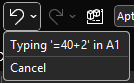
Each individual action is represented by an object that describes this action, and presumably encapsulates information about the initial state of its target. So if A1 says 123 and we type ABC and hit undo, A1 still says 123 and if we hit redo, it says ABC again. Clearly there’s a type of “last in, first out” thing going on here: that’s why it’s called a stack – because you pile things on top and only ever take whichever is the first one on top.

We can implement similar stack behavior with a regular VBA.Collection, by adding items normally but only ever reading/removing (“popping”) the item at the last index.

But that’s just the basic mechanics. How do we abstract anything we could do to a worksheet? Well, we probably don’t need to cover everything, or we can have more or less atomic commands depending on our needs – but the idea is that we need something that’s undoable.

In this article we’re going to create a set of classes that lets us do just that.

The entire source code related to this article can be found in the Examples repository.

Abstractions

If we can identify what we need out of an undoable command, then we can formalize it in an IUndoable interface: we know we need a Description, and surely Undo and Redo methods would be appropriate.

'@Interface
Option Explicit
'@Description("Undoes a previously performed action")
Public Sub Undo()
End Sub
'@Description("Redoes a previously undone action")
Public Sub Redo()
End Sub
'@Description("Describes the undoable action")
Public Property Get Description() As String
End Property

Commands and Context

We’ve talked about commands before – we’re going to take a page from the command pattern and have an ICommand interface like this:

'@Interface
Option Explicit
'@Description("Returns True if the command can be executed given the provided context")
Public Function CanExecute(ByVal Context As Object) As Boolean
End Function
'@Description("Executes an action given a context")
Public Sub Execute(ByVal Context As Object)
End Sub

This is pretty much the exact same abstraction we’ve seen before; how an undoable command differs is by how often it gets instantiated. If we don’t need a command to remember whether it ran and/or what context in was executed with, then we can create a single instance and reuse that instance whenever we need to run that command. But commands that implement IUndoable do know all these things, which means each instance can actually do the same thing but in a different context, and so we will need to create a new instance every time we run it.

The Context parameter is declared using the generic object type, because it’s the most specific we can get at that abstraction level without painting ourselves into a corner. Implementations will have to cast the parameter to a more specific type as needed. The role of this parameter is to encapsulate everything the command needs to do its thing, so let’s say we were writing a WriteRangeFormulaCommand; the context would need to give it a target Range and a formula String.

Similar to a ViewModel, the context class for a particular command is mostly specific to that command, and each context class can conceivably have little in common with any other such class. But we can still make them implement a common validation behavior, and so we can have an ICommandContext interface like this:

'@Interface
Option Explicit
'@Description("True if the model is valid in its current state")
Public Function IsValid() As Boolean
End Function

In the case of WriteRangeFormulaContext, the implementation could then look like this:

'@ModuleDescription("Encapsulates the model for a WriteToRangeFormulaCommand")
Option Explicit
Implements ICommandContext
Private Type TContext
    Target As Excel.Range
    Formula As String
End Type
Private This As TContext
'@Description("The target Range")
Public Property Get Target() As Excel.Range
    Set Target = This.Target
End Property
Public Property Set Target(ByVal RHS As Excel.Range)
    Set This.Target = RHS
End Property
'@Description("The formula or value to be written to the target")
Public Property Get Formula() As String
    Formula = This.Formula
End Property
Public Property Let Formula(ByVal RHS As String)
    This.Formula = RHS
End Property
Private Function ICommandContext_IsValid() As Boolean
    If Not This.Target Is Nothing Then
        If This.Target.Areas.Count = 1 Then
            ICommandContext_IsValid = True
        End If
    End If
End Function

Rubberduck’s Encapsulate Field refactoring is once again being used to automatically expand the members of This into all these public properties, so granted it’s quite a bit of boilerplate code, but you don’t really need to actually write much of it: list what you need in the private type, declare an instance-level private field of that type, parse/refresh, and right-click the private field and select Rubberduck/Refactor/Encapsulate Field – and there’s likely nothing left to configure so just ok the dialog and poof the entire model class writes itself.

Implementation

So we add a WriteRangeFormulaCommand class and make it implement both ICommand and IUndoable. Why not have the undoable members in the command interface? Because interfaces should be clear and segregated, and only have members that are necessarily present in every implementation. If we wanted to implement a command that can’t be undone, we could, by simply omitting to implement IUndoable.

The encapsulated state of an undoable command is pretty straightforward: we have a reference to the context, something to hold the initial state, and then DidRun and DidUndo flags that the command can use to know what state it’s in and what can be done with it:

  • If it wasn’t executed, DidRun is false
  • If it was executed but not undone, DidUndo is false
  • If it was undone, DidRun is necessarily true, and so is DidUndo
  • If DidRun is true, we cannot execute the command again
  • If DidUndo is true, we cannot undo again
  • If DidRun is false, we cannot undo either
  • Redo sets DidRun to false and then re-executes the command

Here’s the full implementation

'@ModuleDescription("An undoable command that writes to the Formula2 property of a provided Range target")
Option Explicit
Implements ICommand
Implements IUndoable
Private Type TState
    InitialFormulas As Variant
    Context As WriteToRangeFormulaContext
    DidRun As Boolean
    DidUndo As Boolean
End Type
Private This As TState
Private Function ICommand_CanExecute(ByVal Context As Object) As Boolean
    ICommand_CanExecute = CanExecuteInternal(Context)
End Function
Private Sub ICommand_Execute(ByVal Context As Object)
    ExecuteInternal Context
End Sub
Private Property Get IUndoable_Description() As String
    IUndoable_Description = GetDescriptionInternal
End Property
Private Sub IUndoable_Redo()
    RedoInternal
End Sub
Private Sub IUndoable_Undo()
    UndoInternal
End Sub
Private Function GetDescriptionInternal() As String
    Dim FormulaText As String
    If Len(This.Context.Formula) > 20 Then
        FormulaText = "formula"
    Else
        FormulaText = "'" & This.Context.Formula & "'"
    End If
    GetDescriptionInternal = "Write " & FormulaText & " to " & This.Context.Target.AddressLocal(RowAbsolute:=False, ColumnAbsolute:=False)
End Function
Private Function CanExecuteInternal(ByVal Context As Object) As Boolean
    On Error GoTo OnInvalidContext
    
    GuardInvalidContext Context
    CanExecuteInternal = Not This.DidRun
    
    Exit Function
OnInvalidContext:
    CanExecuteInternal = False
End Function
Private Sub ExecuteInternal(ByVal Context As WriteToRangeFormulaContext)
    
    GuardInvalidContext Context
    SetUndoState Context
    
    Debug.Print "> Executing action: " & GetDescriptionInternal
    
    Context.Target.Formula2 = Context.Formula
    This.DidRun = True
    
End Sub
Private Sub GuardInvalidContext(ByVal Context As Object)
    If Not TypeOf Context Is ICommandContext Then Err.Raise 5, TypeName(Me), "An invalid context type was provided."
    Dim SafeContext As ICommandContext
    Set SafeContext = Context
    If Not SafeContext.IsValid And Not TypeOf Context Is WriteToRangeFormulaContext Then Err.Raise 5, TypeName(Me), "An invalid context was provided."
End Sub
Private Sub SetUndoState(ByVal Context As WriteToRangeFormulaContext)
    Set This.Context = Context
    This.InitialFormulas = Context.Target.Formula2
End Sub
Private Sub UndoInternal()
    If Not This.DidRun Then Err.Raise 5, TypeName(Me), "Cannot undo what has not been done."
    If This.DidUndo Then Err.Raise 5, TypeName(Me), "Operation was already undone."
    
    Debug.Print "> Undoing action: " & GetDescriptionInternal
    
    This.Context.Target.Formula2 = This.InitialFormulas
    This.DidUndo = True
End Sub
Private Sub RedoInternal()
    If Not This.DidUndo Then Err.Raise 5, TypeName(Me), "Cannot redo what was never undone."
    ExecuteInternal This.Context
    This.DidUndo = False
End Sub

Quite a lot of this code would be identical in any other undoable command: only ExecuteInternal and UndoInternal methods would have to be different, and even then, only the part that actually performs or reverts the undoable action. Oh, and the GetDescriptionInternal string would obviously describe another command differently – here we say “Write (formula) to (target address)”, but another command might say “Set number format for (target address)” or “Format (edge) border of (target address)”. These descriptions can then be used in UI components to depict the undo/redo stack contents.

Management

There needs to be an object that is responsible for managing the undo and redo stacks, exposing simple methods to Push and Pop items, a way to Clear everything, and perhaps a method to get an array with all the command descriptions if you want to display them somewhere. The popping logic should push the retrieved item into the redo stack, and redoing an action should push it back into the undo stack.

Undo/Redo Mechanics

Enter UndoManager, which we’ll importantly be invoking from a predeclared instance to ensure we don’t have multiple undo/redo stacks around – any non-default instance usage would raise an error:

'@PredeclaredId
Option Explicit
Private UndoStack As Collection
Private RedoStack As Collection
Public Sub Clear()
    Do While UndoStack.Count > 0
        UndoStack.Remove 1
    Loop
    Do While RedoStack.Count > 0
        RedoStack.Remove 1
    Loop
End Sub
Public Sub Push(ByVal Action As IUndoable)
    ThrowOnInvalidInstance
    UndoStack.Add Action
End Sub
Public Function PopUndoStack() As IUndoable
    ThrowOnInvalidInstance
    
    Dim Item As IUndoable
    Set Item = UndoStack.Item(UndoStack.Count)
    
    UndoStack.Remove UndoStack.Count
    RedoStack.Add Item
    
    Set PopUndoStack = Item
End Function
Public Function PopRedoStack() As IUndoable
    ThrowOnInvalidInstance
    
    Dim Item As IUndoable
    Set Item = RedoStack.Item(RedoStack.Count)
    
    RedoStack.Remove RedoStack.Count
    UndoStack.Add Item
    
    Set PopRedoStack = Item
End Function
Public Property Get CanUndo() As Boolean
    CanUndo = UndoStack.Count > 0
End Property
Public Property Get CanRedo() As Boolean
    CanRedo = RedoStack.Count > 0
End Property
Public Property Get UndoState() As Variant
    If Not CanUndo Then Exit Sub
    ReDim Items(1 To UndoStack.Count) As String
    Dim StackIndex As Long
    For StackIndex = 1 To UndoStack.Count
        Dim Item As IUndoable
        Set Item = UndoStack.Item(StackIndex)
        Items(StackIndex) = StackIndex & vbTab & Item.Description
    Next
    UndoState = Items
End Property
Public Property Get RedoState() As Variant
    If Not CanRedo Then Exit Property
    ReDim Items(1 To RedoStack.Count) As String
    Dim StackIndex As Long
    For StackIndex = 1 To RedoStack.Count
        Dim Item As IUndoable
        Set Item = RedoStack.Item(StackIndex)
        Items(StackIndex) = StackIndex & vbTab & Item.Description
    Next
    RedoState = Items
End Property
Private Sub ThrowOnInvalidInstance()
    If Not Me Is UndoManager Then Err.Raise 5, TypeName(Me), "Instance is invalid"
End Sub
Private Sub Class_Initialize()
    Set UndoStack = New Collection
    Set RedoStack = New Collection
End Sub
Private Sub Class_Terminate()
    Set UndoStack = Nothing
    Set RedoStack = Nothing
End Sub

A Friendly API

At this point we could go ahead and consume this API already, but things would quickly get very repetitive, so let’s make a CommandManager predeclared object that we can use to simplify how VBA code can work with undoable commands. I’m not going to bother with dependency injection here, and simply accept the tight coupling with the UndoManager class, which we’re simply going to wrap here:

'@PredeclaredId
Option Explicit
Public Sub WriteToFormula(ByVal Target As Range, ByVal Formula As String)
    Dim Command As ICommand
    Set Command = New WriteToRangeFormulaCommand
    
    Dim Context As WriteToRangeFormulaContext
    Set Context = New WriteToRangeFormulaContext
    
    Set Context.Target = Target
    Context.Formula = Formula
    
    RunCommand Command, Context
End Sub
Public Sub SetNumberFormat(ByVal Target As Range, ByVal FormatString As String)
    Dim Command As ICommand
    Set Command = New SetNumberFormatCommand
    
    Dim Context As SetNumberFormatContext
    Set Context = New SetNumberFormatContext
    
    Set Context.Target = Target
    Context.FormatString = FormatString
    
    RunCommand Command, Context
End Sub
'TODO expose new commands here
Public Sub UndoAction()
    If UndoManager.CanUndo Then UndoManager.PopUndoStack.Undo
End Sub
Public Sub UndoAll()
    Do While UndoManager.CanUndo
        UndoManager.PopUndoStack.Undo
    Loop
End Sub
Public Sub RedoAction()
    If UndoManager.CanRedo Then UndoManager.PopRedoStack.Redo
End Sub
Public Sub RedoAll()
    Do While UndoManager.CanRedo
        UndoManager.PopRedoStack.Redo
    Loop
End Sub
Public Property Get CanUndo() As Boolean
    CanUndo = UndoManager.CanUndo
End Property
Public Property Get CanRedo() As Boolean
    CanRedo = UndoManager.CanRedo
End Property
Private Sub RunCommand(ByVal Command As ICommand, ByVal Context As ICommandContext)
    If Command.CanExecute(Context) Then
        Command.Execute Context
        StackUndoable Command
    Else
        Debug.Print "Command cannot be executed in this context."
    End If
End Sub
Private Sub ThrowOnInvalidInstance()
    If Not Me Is CommandManager Then Err.Raise 5, TypeName(Me), "Instance is invalid"
End Sub
Private Sub StackUndoable(ByVal Command As Object)
    If TypeOf Command Is IUndoable Then
        Dim Undoable As IUndoable
        Set Undoable = Command
        UndoManager.Push Undoable
    End If
End Sub

Now that we have a way to transparently create and run and stack commands, all the complexity is hidden away behind simple methods; the calling code doesn’t even need to know there are commands and context classes involved, and it doesn’t even need to know about the UndoManager either.

Beyond

We could extend this with some FormatRangeFontCommand that could work with a context that encapsulates information about what we’re formatting as a single undoable operation, and how we’re formatting it. For example we could have properties like FontName, FontSize, FontBold, and so on, and as long as the command tracks the initial state of everything we’re going to be able to undo it all.

I actually extended it with a FormatRangeBorderCommand, but removed it because it isn’t really an undoable operation (I could probably have left it in without Implements IUndoable)… because unformatting borders in Excel is apparently much harder than formatting them: you format the bottom border of a target range, and then undo it by setting the bottom border line style and width to the original values… and the border remains there as if xlLineStyleNone had no effect whatsoever. Offsetting or extending the target to compensate (pretty sure it would work if the target was extended to the row underneath and it’s the interior-horizontal border that we then removed) would be playing with fire, so I just let it go instead of complexifying the example with edge-case handling.

It doesn’t shoot down the idea, but it does make a good reminder of the caveat that this isn’t a native undo operation: we’re actually just doing more things, except these new things bring the sheet back to the state it was before – at least that’s the intent.

An entirely undoable macro could look something like this:

Public Sub DoSomething()
    With CommandManager
        .WriteToFormula Sheet1.Range("A1"), "Hello"
        .WriteToFormula Sheet1.Range("B1"), "World!"
        .WriteToFormula Sheet1.Range("C1:C10"), "=RANDBETWEEN(0, 255)"
        .WriteToFormula Sheet1.Range("D1:D10"), "=SUM($C$1:$C1)"
        .SetNumberFormat Sheet1.Range("D1:D10"), "$#,##0.00"
    End With
End Sub

Thoughts?

Pre-Release: 2.5.92.x

I know it’s been forever, trust me… I know. But life happens as they say, and here we are a whole year and over 20,000 downloads later with some movement at last in the Rubberduck repository.

Also… Rubberduck is now officially a whole 10 years old! It’s completely incredible how far we’ve pushed this project, and I’m very proud of everything we did, undid, redid. The number of times we’ve collectively crashed the VBIDE together must overflow an Integer by now!

Development on the project started late in 2014, but the website and blog only did in early 2015, with the initial release of what was then not much more than an extension of a thought experiment.

The “official” 2.5.92 release will come later once it’s been out in the wild a little as a pre-release, but the announcement will refer to this present article for what’s new.

The broken website did not like having the new tag records inserted for some reason, but the fallback links point to the right place so it’s still relatively easy to find the installer download; you’ll find the executable listed under the assets of the latest release/tag on GitHub:

VersionDirect link
v2.5.91https://github.com/rubberduck-vba/Rubberduck/releases/download/v2.5.91/Rubberduck.Setup.2.5.9.6316.exe
v2.5.92.6346https://github.com/rubberduck-vba/Rubberduck/releases/download/Prerelease-v2.5.92.6346/Rubberduck.Setup.2.5.92.6346-pre.exe

New Inspections

A handful of new inspections are being introduced once again, this time around Option Base 1 and a little pet peeve of mine with Excel-specific code.

Parameterless Cells

As you know, in the Excel library Range.Cells is a parameterized get-only property that accepts a row or column index, or both, …or neither. Except when it’s not parameterized, it’ll just return exactly the parent Range object reference, making it an entirely superfluous member call. This new Excel-specific inspection will flag these parameterless calls. A quickfix could be implemented to automatically remove these calls, but flagging them as redundant is a good first step:

Public Sub DoSomething()
    Debug.Print Sheet1.Range("A1").Cells.Address '<<< inspection result here
End Sub

UPDATE 2025-02-01: Properly implementing this inspection requires more careful consideration that make it difficult to avoid false positives in the few specific situations where a parameterless Cells call does, actually, return different references depending on what other Range members were called before – this kind of tracking isn’t quite possible with v2.x, unfortunately. So this inspection isn’t making it to release, it’s been removed already.

Inconsistent Array Base and InconsistentParamArrayBase

When Option Base 1 is specified, implicitly sized arrays begin at index 1 instead of the more typical 0. However, ParamArray arrays will always be zero-based regardless of Option Base. Similarly, explicitly qualified VBA.Array function calls will also systematically yield a zero-based array. This new inspection flags these parameters and function calls as having a base that is inconsistent with the Option Base setting of the module. There’s no fix for this one either, it’s just a hint that could potentially help detect off-by-one errors.

Option Base 1
Public Sub DoSomething()
    Dim Values As Variant    
    Values = Array(42)
    Debug.Print LBound(Values) '<~ 1 as per Option Base
    
    Values = VBA.Array(42) '<<< inspection result here
    Debug.Print LBound(Values) '<~ not 1
End Sub

Another example:

Option Base 1
Public Sub DoSomething(ParamArray Values) '<<< inspection result here
    Debug.Print LBound(Values) '<~ not 1
End Sub

Rebalanced Inspection Defaults

For a while now, something had been bugging me about the inspection types and default severities: things tended to stick to the default fallbacks over time, and the categorization of a number of inspections felt wrong and overall unbalanced. Because inspection types are for legacy reasons part of the inspection configuration, if yours isn’t the default configuration you will not see an effect until you either reset everything to defaults, or manually edit the configuration file to remove everything about inspections.

Here’s the breakdown of how things were shuffled around with inspection types:

Inspection Typev2.5.91v2.5.92
Code Quality7360
Language Opportunities2321
Naming and Conventions1928
Rubberduck Opportunities312
Total118121

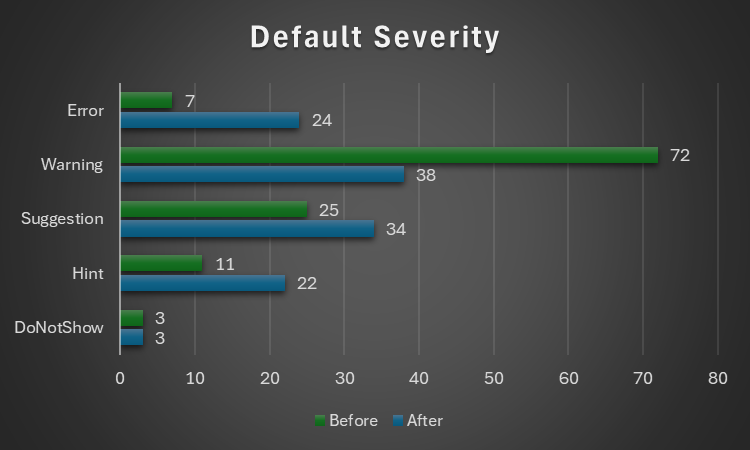
..and with the default severity levels:

Default Severityv2.5.91v2.5.92
DoNotShow33
Hint1122
Suggestion2534
Warning7238
Error724
Total118121

Notably, everything around annotations is now under Rubberduck Opportunities, and default severity levels are much more sensible; the 3 inspections disabled by default remain disabled:

  • RedundantByRef mirrors ImplicitByRef; both are valid takes, just different conventions and the more explicit one was made the default, but you can reconfigure them to match your style by enabling one and disabling the other.
  • StepIsNotSpecified mirrors RedundantStepOne; again both valid stances, this time with the less noisy one as the default configuration.
  • ShadowedDeclaration was disabled for performance reasons, if I recall correctly. Or it’s something about some difficult false negative situations making it somewhat too unreliable or experimental to ship enabled by default.

This clean-up touched every single inspection, and in the process the way to localize the resources has been standardized, which should fix the annoying partly-localized labels in some inspection results.

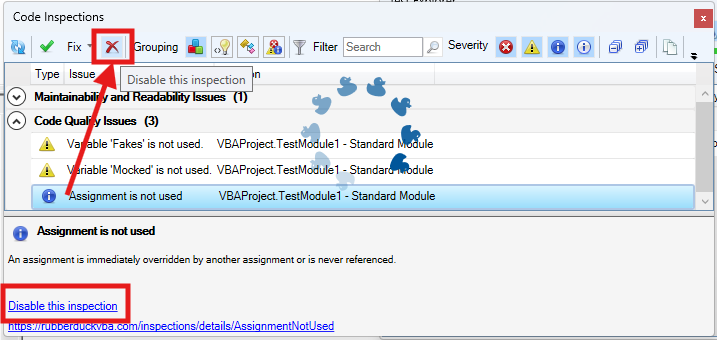
The inspection results toolwindow gets a new disable this inspection button right next to the Fix menu, which should make it easier to disable an inspection altogether with a single click, by selecting any of its results in the grid.

The “disable inspection” command remains available as a link/button in the bottom panel, but now also as a more prominently visible button on the main toolbar. Note that there is no confirmation prompt for this action for now.

Unit Testing

This is a very, very exciting release for the unit testing feature!

Performance Enhancements

Keeping the Test Explorer UI updated with a constantly changing source collection was taking a serious toll on the UI thread, incidentally the only one available for running VBA code. Thanks to a quick PR by contributor tommy9, the explorer now leverages WPF features that improve the situation.

Projects with a lot of tests can still significantly speed up their execution by hiding the toolwindow and selecting Run all tests from the Rubberduck menu. If the main thread isn’t busy drawing a UI element, it’s free to run the instructions of a test procedure.

Moq+VBA

Seven long years after the initial pull request was opened, it’s finally merged and ready to start a little revolution in the VBA unit testing world.

There are important limitations: user code cannot be mocked after it’s been modified, and the setup of ByRef parameters may not always work correctly, but the bulk of it is close enough (and has been for a long time) to be release-worthy. Part of what took so long was that we wanted to ship the full feature working exactly as intended, but there are some serious technical roadblocks and between entirely dropping a 7 years old pull request and merging it anyway, … I’m going with the merge. Perfect is the enemy of good, they say.

What’s happening here is nothing short of pure wizardry: we’re turning arbitrary COM objects into .net ones, and then we translate configuration calls written in VBA into .net expressions that literally get compiled and invoked on the fly to call the non-generic methods offered by Moq 4.8 (getting a bit old, but we’ve never had anything like this in VBA).

In other words, unit testing with Rubberduck now empowers you with quite a large part of what only becomes possible with a real mocking framework, which this is.

The mocking API is currently documented in the wiki, but here’s the crux of it… it’s a game changer:

    'arrange
    Dim Mock As Rubberduck.ComMock
    Set Mock = Mocks.Mock("Excel.Application") 'here we create a new mock using the Excel.Application progid
    'then we configure our mock as per our needs...
    Mock.SetupWithReturns "Name", "Mocked-Excel"
    Mock.SetupWithCallback "CalculateFull", AddressOf OnAppCalculate
    Dim Mocked As Excel.Application
    Set Mocked = Mock.Object 'ComMock.Object represents the mocked object and always implements the COM interface it's mocking
    'act
    'just making sure the mock works 🙂
    Debug.Print Mocked.Name
    Mocked.CalculateFull
    'assert
    'use the ComMock.Verify method to fail the test if a method that was setup was not invoked as per the test's specifications:
    Mock.Verify "CalculateFull", Mocks.Times.AtLeastOnce


There’s only a handful of simple objects to work with, and the API is clean, unambiguous, intuitive. The example above illustrates the enormous power that’s now in your hands by mocking the Excel.Application interface.

The COM mock lets you access the proxy object to pass it around as a surrogate implementation for a dependency that would otherwise compromise the “unit” part of it being a “unit test”; it’s a class type that’s spawned into existence from its definition, for which you can setup any member call in a test. Here we make the `Name` property return a different value just because we can, and when the macro invokes the `CalculateFull` method against this mock instance, rather than awaiting a full application-level compute you can simply verify that the method was invoked, or run a callback procedure (elegantly passing it to the API with the `AddressOf` operator) that can be parameterized if you need to accordingly alter some state.

I’ll write a whole article dedicated to this API soon, but together with the Fakes API, this really takes the Rubberduck unit testing feature to the next level (code coverage would be the next one). As long as you can identify the dependencies in your code (and come up with a way to inject them from the caller), you can now write a test that abstracts them away.

Other Tweaks

The Unassigned variable usage inspection will now honor the out prefix by convention, meaning it will no longer issue false positives when a variable is assigned by another procedure via a ByRef argument, as long as it’s named accordingly with an “out” prefix.

The About box will now mention “Win11” for Windows builds above 22000, even though the major version says 10. This was likely related to Rubberduck using an ancient .net Framework API to retrieve this OS version information.

Renaming an enum member in a way that requires the constant to be qualified, will now correctly use the enum type name rather than the name of the containing module, which was an edge case that could cause headaches and break the code.


What about v3?

If things had gone smoothly, you would know by now. They obviously haven’t, and not much has moved on that front since last May or so. I’m not abandoning the project, but building an entire editor client and a language server is honestly much more than I can chew at the moment, for multiple reasons… twinBASIC is coming, and while a commercial offering, it’s a VB6/VBA language server and compiler, and it reckons the whole editor part is already a solved problem. Rubberduck 3.0 was going to reinvent that wheel, which would have been a huge distraction.

So RD3 is going to be re-scoped a bit: the planned VBIDE integration / add-in part remains of course, but instead of making an entire editor from scratch, we’ll integrate into an existing, modern one that’s already an extensible LSP (Language Server Protocol) client, much like Visual Studio Code (but no, it’s not going to be VS Code). This instantly knocks off (well, removes outright) a gigantic, milestone.

With this v2.x release, the backlog of pending pull requests is finally cleared. 950+ open issues remain in the Rubberduck repository, but very few are actual unresolved bugs or realistically implementable feature ideas. Expect additional pull requests for missing translations, minor fixes and UI/UX enhancements, but the 2.x life cycle is now essentially completed… and it was about time: the technology used for building Rubberduck has evolved a lot in the last decade, with much of it either deprecated, or on the brink of falling out of official long-term support from Microsoft, which is making it harder and harder to easily and successfully build Rubberduck, hoping with fingers crossed that nothing breaks at every dependency update.

I bet VBA will outlive .NET Framework 4.8.1 LTS, which is non-ironically very funny to me… but for Rubberduck to keep moving forward, making the move from the now ancient .NET Framework over to current technology is inevitable – and development on v3 has already knocked that critical milestone, too.


Afterthoughts

I want to stop spreading too thin and actually finish the website now (as you can see, …the thing is falling apart!), and then with Rubberduck 2.x in its current state (more or less), I can finally draw a line and know exactly what v3.0 needs to be. My priorities have shifted quite much since 2021 for many reasons, and Rubberduck and the blog and my online presence in general basically had to hit the brakes. Life happens… doesn’t it.

I’ll always write code as a hobby, as I’ve done ever since I found out about programming. But I also played (badly) some guitar as a teen, and carried a few harmonicas with me to the Microsoft MVP Global Summit in 2018 and 2019 (the two I attended before they went virtual during the pandemic); these days I feel like I could write about the music theory I’ve learned since, or perhaps how to configure the reed gaps on a 10-hole diatonic, standard Richter-tuned harmonica to make it easy to play the hidden overblow notes. I haven’t been paid to maintain a line of VBA code for a very long time now, and I’ll always love it but I can’t say it’s my GoTo language anymore, but it’s all right – Rubberduck isn’t written in VBA anyway. But it’s becoming hard to find inspiration to write about some random VBA things, especially since I’ve stopped participating on Stack Overflow. I stopped, because they basically made an agreement with OpenAI and essentially stole (with a unilateral move in violation of the agreed-upon license) the volunteer work and helpful knowledge-dumps of tens of thousands of people (myself included) to train a… chatbot and make billions off of these people’s work, and then take art and reduce it a prompt.

I mean I get it, it’s fun. But it’s a very steep cost just for something that’s just innocent fun. This is the first and last AI-generated image you’ll ever see from me on this blog.

Perhaps I’m just turning into an old man screaming at a cloud (brought to you by AWS!), but… look, it doesn’t matter that you can prompt a machine to play some harmonica for you: you’ll never, ever, ever experience any AI-generated slop like when you’re actually playing the blues and counting that I-IV-V progression over these 12 bars. Same on guitar. Same on drums. Same with code.

Parentheses

If you’re confused about parentheses in VBA, you’re probably missing key parts of how the language works. Let’s fix this.

Part of what makes parentheses confusing is the many different things they’re used for, which sometimes make them ambiguous.

Signatures

Every procedure declaration includes parentheses, even without parameters. In this context, the parentheses delimit the parameters list, which is of course allowed to be empty.

Expressions

If we made a grammar that defines the VBA language rules, we would have to come up with all kinds of operations: And, Or, Not, and XOr “logical” operators, but also all the arithmetic operators (+, -, /, \, *, ^), …and of course parenthesized expressions, a recursive grammar rule that is defined basically as LPAREN expression RPAREN, meaning there’s a ( left parenthesis followed by any expression (including another parenthesized expression), followed by a ) right parenthesis token.

Whenever VBA doesn’t understand a pair of parentheses as anything more specific than a parenthesized expression, that’s what the parentheses mean: an expression to be evaluated. We’ll get back to exactly why this is super important.

Subscripts

What you and I call an index, VBA likes to call a subscript, as in error 9 “subscript out of bounds”. If you have an array (with a single dimension) named Things and you want to access the n-th item you would write Things(n) and that would be a subscript expression.

The funny thing is that the grammar rules alone aren’t enough to look at a line of code and know whether you’re looking at one, because there’s another kind of expression that Things(n) could match, if the grammar had the necessary context…

Member Calls

I’m lumping together some grammatically distinct types of calls here, but they all involve an implicit Call keyword, and they are full-fledged statements, meaning they can legally stand on their own in a line of code.

So yeah this is why you want Sub and Function procedure names to begin with a verb: because a call invoking a Thing function given a singular argument is otherwise completely identical to a Thing array retrieval at the parameterized index/subscript. Using the Call keyword also resolves this ambiguity, albeit in an arguably noisy way.

But when does a member call require parentheses, you ask?

  • Does it have any required parameters?
  • Is it a Property Get or Function procedure?
  • Are you doing anything with the returned value?

If the answer is YES to these three questions, then you need parentheses and they delimit the arguments list: the VBE will go out of its way to remove any spaces between it and the name of the member being invoked.

When things go wrong

Ignore the space that the VBE is stubbornly inserting between the name of a procedure and the intended list of arguments, and things are about to go off the rails. It might look like this:

MsgBox (“Hello”)

You think you’ve written a member call to the MsgBox library function and given it a single string argument.

But you’ve written a parenthesized expression that VBA will have to evaluate before it can pass its evaluated result to the function. It doesn’t even feel wrong at all, because it compiles and it runs fine.

  • Does it have any required parameters? It does!
  • Is it a Property Get or Function procedure? Yes, it’s a function! It returns a VbMsgBoxResult value that represents how the message was dismissed.
  • Are you doing anything with the returned value? Oh. No we’re just showing a message and we don’t care how the user closes it.

Then you don’t want the parentheses. But let’s say you leave it as it is, and later decide to pass an additional Caption argument for the title for the message box, because it says “Microsoft Excel” and you would rather it say something else. So you just append it to the argument list, right?

MsgBox (“Hello”, “Title goes here”)

This is where VBA gives up and throws a compile error, because what it’s reading as a parenthesized expression is not something it knows how to evaluate, because the comma grammatically doesn’t fit in there – it would understand if that comma were a & string concatenation operator, but then the parentheses would still be misleading, and we’d still only have a single argument, and there doesn’t seem to be any way to legally pass a second one.

Unless we drop the parentheses, or capture the result somehow:

MsgBox “Hello”, “Title goes here”

Result = MsgBox(“Hello”, “Title goes here”)

Notice the space is removed if we capture the result: nothing can be done to add it back, and that’s the VBE telling us it understands the comma-separated argument list as a list of arguments rather than an expression to be evaluated.

And that will compile and run, and produce the expected outcome.

ByRef Bypass

A side-effect of passing a parenthesized expression, is that your argument is the result of that expression – not the local variable that’s parenthesized. So if you’re passing it to a procedure that receives it as a ByRef parameter, you might be inadvertently breaking the intended behavior, for example:

Sub Increment(ByRef Value As Long)
  Value = Value + 42
  Debug.Print Value
End Sub

Sub Test()
  Increment 10 'prints 52

  Dim A As Long
  A = 10
  Increment A 'prints 52
  Debug.Print A 'prints 52

  Dim B As Long
  B = 10
  Increment (B) 'prints 52
  Debug.Print B 'prints 10. Expected?
End Sub

When we pass a literal expression, its value is what’s passed to the procedure.

When we pass a variable, the procedure receives a pointer to that variable (hence by reference) and the caller gets to “see” any changes. Because ByRef is the implicit default, this may or may not be intentional.

When we pass a parenthesized expression – even if all it does is evaluate a local variable – what happens is exactly as if we gave it a literal: it’s the result that’s passed to the procedure by reference, but nothing on the caller’s side has a hold on that reference and the code behaves exactly as if we somehow managed to pass a ByVal argument to a ByRef parameter.

Confused about ByRef vs ByVal? You’re not alone, but that’s a whole other discussion for another time.

There’s one more thing to cover here.

Objects

When we (deliberately or not) parenthesize a string or number literal value, we change the semantics in subtle ways that usually ultimately don’t really matter until we want consistency in our coding style.

But it’s a whole different ballgame when it’s an object reference that you’re trying to pass around, because of a language feature they called let-coercion, where an object is coerced into a value – and VBA does this by invoking the object’s default member, recursively as needed, until a non-object value is retrieved… or more likely, until an object is encountered that does not have a default member to invoke. And then it’s a run-time error, of course. Exactly which one depends on a number of things.

Say you want to invoke a procedure that accepts a Range parameter. If you use a parenthesized expression to do this, what the procedure actually ends up getting might be a cell’s value, or a 2D array containing the values of all the cells in that Range object – because Range.[_Default] (a hidden default member!) will return exactly that, and then the procedure that expected a Range object can’t be invoked because there’s a type mismatch at the call site.

Sub DoSomething(ByVal Target As Range)
  ...
End Sub

'let-coerced Range: type mismatch
DoSomething (ActiveSheet.Range("A1"))

If we do this with an object that doesn’t have a default member, it cannot be let-coerced at all so VBA raises run-time error 438 object doesn’t support this property or method, which is a rather cryptic error message if you don’t know what’s going on, but somewhat makes sense in the context of an object being coerced into a value through an implicit default member call, when that member doesn’t exist. If you ever made a late-bound member call against a typo, you’ve seen this error before.

Let-coercion can also inadvertently happen against a null reference, aka Nothing. Let’s say you’re passing ActiveSheet to a procedure but all workbooks are closed and no worksheet is active: if you pass the ActiveSheet reference normally, the procedure gets Nothing and it can work with that (gracefully fail, I guess), but if it’s surrounded with parentheses then the implicit default member call will fail with error 91 and the procedure never even gets invoked.

Rule of thumb, you pretty much never want any such implicit voodoo going on in your code, so you generally avoid any let-coercion, therefore you never surround an object argument with parentheses!


State as a Service

Say you have a worksheet that contains a table with various settings, or options to run some macro with. Whatever the macro does, whatever it uses these values for, it must somehow solve this problem: how to get these values out of the worksheet and into the program?

We have a ListObject to play with, and since the table is in a specific worksheet, that’s the worksheet module we’re going to be editing. Since the very existence of that table matters for the rest of whatever this macro ends up doing, we’re going to make it clear it’s not an accident by making it a property of the worksheet (class) module – something like this:

Private Const TableName As String = "Table1"

Public Property Get SettingsTable() As ListObject
  Static Value As ListObject
  If Value Is Nothing Then
    On Error Resume Next
      Set Value = Me.ListObjects(TableName)
    On Error GoTo 0
  End If
  Set SettingsTable = Value
End Property

Property Get procedures usually do not raise an error – here if the table doesn’t exist the property will return Nothing, which should cause the calling code to blow up with error 91, and this would be reasonably expected behavior in this case. The Static local stands in for a module-scoped variable declaration that would be needed if the property had a setter procedure; because it’s only needed in one place, we can declare it locally and retain the module-scoped behavior with the Static keyword.

“Static” in VBA basically means “shared”, and “Shared” in VB.NET means what “static” means in essentially every other language with such semantics. Static as a scope modifier in .NET means a member belongs to the type (as opposed to an instance of the type in question), but in Classic-VB it is used for declaring local variables that retain their value between procedure calls, and if used as a modifier at procedure level it makes all locals behave as such… which [very likely] isn’t a good idea.

So we have now given ourselves access to the table, and we can just do Sheet1.SettingsTable to access it from anywhere.

But what if we don’t want that? If we know the settings each have a unique name and have a value that might be a String, a Double, a Date, or a Boolean. The table might just as well be empty for now, anyway.

If we don’t formalize access to the settings, then every place that needs them might be doing things differently! Imagine the chaos if sometimes an option is retrieved with Application.VLookup, elsewhere with a loop over SettingsTable.Rows, and then another one could be getting the value with an offset from the result of SettingsTable.DataBodyRange.Find, and there’s another couple of different but not always equivalently dangerous or misguided ways to go about retrieving a value from that table, and there’s no need to have all of them around.

We could write a function that accepts the name of a setting and returns a Variant holding the associated value if it exists, but what if we need to get the value multiple times, we’re going to read it off the worksheet every time?

Writing to a Range is perhaps the most expensive thing a macro can do, but reading anything from one comes close. In fact, a macro that performs well is usually a macro that limits its interactions with worksheets and the …entire Excel object model.

What we want is a method that iterates the table rows once, yielding an OptionValue class instance for each setting value. So we add this new class module and define an OptionValue class with a Name (String) and a Value (Variant) property.

But then if we call that method every time we want to get a setting value, things are going to be much worse than if we just used Application.VLookup every time, so what gives?

Grabbing every row of that table and turning them into as many OptionValue instances is an action, it wants to be a verb. Things we do with any kind of state are very often well described with a method’s name that starts with a verb, and that’s great already (especially if the rest of the name is actually somewhat descriptive), but a free-floating verb is up for grabs by anyone.

So we’re going to encapsulate it by making that method a member of a class for which SettingsService might be a good name: it’s a service that has the means to abstract away the worksheet and only expose OptionValue objects, and with it the rest of the code no longer needs to deal with the nitty-gritty details of how these objects come into existence, or how long they’ve been around.

Because we can write this class in such a way that we read the settings once from the worksheet (say, in the Initialize handler of the class itself), cache them in a private keyed collection (or private dictionary), and as long as our instance is alive we can return the cached option values whenever someone asks for them, and then they’ll be getting them without needing to hit the worksheet.

By adding an indexed property, we can even have a default member that makes sense, and the rest of the code can read its configuration like this:

Dim Settings As SettingsService
Set Settings = New SettingsService

If Settings("SomeSetting") Then
  Debug.Print "SomeSetting is ON"
Else
  Debug.Print "SomeSetting is OFF"
End If

Settings(“SomeSetting”) stands in for so many things here, all of which would distract from what this macro is supposed to be doing, however working with Variant like this is annoying, and the use of default members is abstracting away mechanics that we’d usually rather be explicit about, so we should instead expose typed methods, so we know (we/us, but also the compiler and Rubberduck here) what actual types and members we’re dealing with:

Dim Settings As SettingsService
Set Settings = New SettingsService

If Settings.GetBoolean("SomeSetting") Then
  Debug.Print "SomeSetting is ON"
Else
  Debug.Print "SomeSetting is OFF"
End If

Where GetBoolean being a method/function rather than a property should make us feel much better about throwing errors: if the setting doesn’t exist, we blow up. If the setting exists but its Variant subtype isn’t Boolean then we probably want to blow up rather than return gibberish. If it exists and it’s of the expected data type, we return the setting value, converted to an actual Boolean.

That means SettingsService also needs GetDateGetDouble (and maybe GetInteger), and of course GetString, leaving the Variant values completely encapsulated in the service: callers don’t need to care about any of that, and that’s neat.


There is no Worksheet

The only thing that needs to do anything with SettingsSheet is the SettingsService. Nothing else needs to access it for any reason whatsoever, because we have a service that fully abstracts it away, so it might as well not be there.

And the macro should still work, assuming it knows how to deal with and recover from a missing setting value.

Settings could be moved to a flat file, another workbook, or a database, and only one method would need to change: the one that’s reading and caching the settings from the worksheet, would instead be connecting and querying a database – and would still only need to hit it once.

And none of anything else would need to change, because it’s all completely yielding that responsibility to this service.

Compare to what it would be like to change inline VLookups and Range.Find calls (wherever they are) to read from another source, and you can quickly see the benefits of having sane abstraction levels.

Code that desperately wants to control how everything is done at the lowest level of detail, is tedious and heavy. It’s hard to tell what the role of such a procedure is, because too many things are going on and the signal gets drowned in noise.

There doesn’t need to be a service class, or even an OptionValue class: any distinct procedure scope that’s clearly responsible for retrieving a valid setting value is a good step forward. But moving the state into an object makes it easier to control its lifetime, and by encapsulating behavior we clean up the calling modules the same way extracting procedure out of a larger scope cleans up that larger scope. It reduces the cognitive load and complexity by moving away code that’s concerned with the peripherals of any given macro’s purpose, and thus increases the cohesion of the macro’s module because things that aren’t directly related to what the macro is specifically responsible for, are simply elsewhere, where they belong.

Understanding Libraries

Once upon a time I was quite active on Stack Overflow, and then there was a discussion on the meta site about the various “flavors” of VBA and I won’t get into the details here, but I remember it irked me that a bunch of very meticulous, very technical and often terminally pedantic folks would be conflating the language itself with… just some of its common libraries.

VBA – the programming language – is just VBA. One could reasonably argue that the standard library can be considered a part of it, but that’s where I draw the line: there’s no “Excel VBA” or “Word VBA” or “Access VBA”… calling different member calls into different objects from different libraries a different language altogether makes no sense to me. It’s the same grammar and syntax, it’s the same runtime, and host-agnostic code will run exactly the same in every conceivable host application (and there are many more than just the handful of Microsoft Office ones!): a programming language is not defined by the libraries it binds at compile time (nor at run time for that matter), but its type system, its syntax, and its semantics define it unambiguously – and all of these are all identical in all conceivable “flavors” of VBA… because that is what makes it VBA: its language specifications.

What’s different in different hosts, is the objects you’re working with and even then, that’s limited to the default references (arguably should be an… IDE setting?) while assuming you’re not automating Excel from an Access project, for example: the objects you’re working with depend on what your code needs to do, and so everything is just plain VBA no matter how you might want your favorite host application to be special. No flavors, it’s all plain vanilla.

Library rhymes with Vocabulary

Libraries are a special type of executable file that define types and their members, and then other executables can dynamically link these types and invoke these methods, so we call them dynamic link libraries, or DLLs. They are abstractions for various APIs, and they quite literally extend the vocabulary of a program with nouns (types/classes) and verbs (methods) that do color the expression of the language, but yeah it’s just colorful vanilla. I mean your own classes and methods’ names do exactly that, too – right?

COM libraries act as servers and they use and expose a specific set of interfaces that all COM clients (COM is all about client/server) understand, so VBA can reference and use such libraries, because VBA is built on top of this technology. COM is the Component Object Model, which is a development toolkit for Microsoft Windows that was very popular in the 1990s, until the .NET Framework changed the landscape in the early 00s. The model was language-independent, but not platform-independent like today’s modern .net is, so it’s particularly impressive to see VBA code running on a Mac, but I digress. The cool part is that whenever a VBA project compiles, a COM library gets generated in-memory within the host process, and when we run VBA code, what’s actually running is the compiled library – the VBA source code does not get interpreted in the editor as such.

In fact the VBA source code in the editor is basically decompiled from the p-code tokens generated by compiling the original source code and that is why the VBE always seems to “autocorrect” when you validate a line 🤯

Browsing Libraries

The language implements the COM type system but hides pointers and invocation mechanisms (IDispatch and IUnknown interfaces), and (somewhat hidden) attributes control type and member metadata, including documentation. VBA projects can leverage all of these capabilities with or without Rubberduck, but Rubberduck does make it much easier to manipulate the hidden VB_Attribute statements.

The VBE’s Object Browser reveals everything, even hidden members (fun fact, VBA doesn’t honor the “hidden” flag for user code like it does for referenced libraries, but VB6 did). Right-click anywhere and make sure “Show hidden members” is checked, and then they’ll show up here and in name completion lists. In the search/filter section there’s a dropdown listing all loaded libraries: notice your own compiled VBA project is listed there.

Global (namespace) pollution

Everything that’s public in a library, becomes part of the global namespace once it’s loaded into a runtime environment – so what happens when two libraries define classes with identical names? Sure a good practice is to qualify library types (e.g. Excel.Application, Word.Range, etc.) so that the code is clear and works as intended, but how does it still work when we don’t? Or does it?

Turns out, the up/down arrows that let you move libraries up and down the list in the add/remove references dialog, is the answer: referenced libraries are prioritized in order, which is why the VBA standard library and the host application’s object model library are stuck at the top (in that order) while everything else is allowed to move up and down.

When VBA binds a Range declaration, if the host is Microsoft Word then an unqualified Range is always a Word.Range, but if the host is Microsoft Excel then an identical declaration would bind to Excel.Range, even if the Word and Excel libraries are referenced in both cases, because the library provided by the host application always has a higher priority than a library reference that was added afterwards. Things get more hairy when you’re in an Access project that references DAO and you want to use ADO and suddenly you’ve rewritten [DAO.]Recordset into [ADO.]Recordset just by accidentally flipping the libraries’ respective priorities.

Know Your Tools

Whenever you face a new library – be it a new host, Scripting, or regular expressions, using the Object Browser to get acquainted with the types and members can often be all the direction we need to know exactly what to look for in the documentation (or Stack Overflow), and it should be exactly what a certain “AI” chat bot pulls for you (ideally with some reference links) if you ask it the same.

The VBA standard library provides a small set of basic functions and constants that are necessarily available to any VBA project, so a  host-agnostic module can use them freely. This library is the closest thing to a framework VBA gets out of the box: the functions are mostly wrappers around Win32 API calls, making it easy to display message boxes, manipulate strings and dates, and to perform a number of basic math and trigonometry operations.

As a VBA developer, it is absolutely essential to understand what the VBA standard library does (and what it does not), because it’s easy to reinvent the wheel if you don’t know it’s already there. It’s a very small library compared to the .NET Framework, and as such it’s very much bare-bones – which means it’s good material for a backbone to build upon. Take the time it takes to play with each of the string and date functions, take an eyeball to the math functions so you know what’s there when you need it, and then explore the rest of the library and lookup the documentation for anything you don’t understand: the VBA standard library is one of your primary tools, it’s a good idea to know how to wield it.

The Excel library is much larger, but manageable if you focus on Application, Workbook, Worksheet, Range, and Name classes and their members, and learn the rest from the documentation and tutorials/examples as needed. But then there’s something sneaky the library does, that leverages these COM features we discussed earlier. Some hidden classes are taking members that would belong to the Application, members that belong to the active Workbook and Worksheet, and punts them into global scope “for your convenience”.

And that’s where everything went wrong in my opinion: these “convenient” members are a trap, and they obscure what’s going on so much that it’s often  impossible to know exactly what VBA code does without additional context, such as whether the presented code is written in a worksheet module or elsewhere (perhaps in a standard module). It is my opinion and that of many other professionals, that good code does what it says, and says what it does. And this isn’t it.

It’s in the docs!

Not going to happen in a million years, but Microsoft should break badly written Excel macros by deprecating and removing the magic ActiveSheet members from the hidden _Global interface. Ok maybe not. But ugh.

VBA is a simple language on the surface, but it’s easy to confuse some keywords with standard library functions (quick: LBound/UBound, keywords or functions?), and even some standard library functions with some in the Excel library (InputBox springs to mind). Add implicit default members to the mix and you get code that can really throw you a wrench and make you wonder what you’ve been drinking. “The same code worked perfectly just yesterday”, and “it works fine normally, but errors when I step through with the debugger” are all too common, and always directly caused by all the ever-so-convenient beginner traps.

One part of the problem is that many self-taught and learning developers do not necessarily know  not to read too much into examples in technical documentation: if you’re reading about the Worksheet.Range method, the examples aren’t there to show you how to, say,  properly declare variables, or pass inputs as parameters – and so they don’t… but that doesn’t mean your code should look exactly like the documentation examples! Macro recorder code is just the same: just because it works off implicit ActiveSheet references does not mean good VBA code should be doing that. The macro recorder can quickly teach you what types and members are involved in making a table out of a range of cells, but it’s not meant to show you how to do that beyond the context of the active sheet and the current selection, which are two things you’re actually going to want to be very explicit about in your own code. This goes on for virtually every topic under the Sun: unless you’re specifically reading something about best practices, don’t try to read naming conventions or particular ways to do things from small contrived examples that mean to depict and highlight a single other entirely different thing. Sometimes I wonder how different the world would have been if all examples were written as standalone functions that explicitly take all their inputs as parameters…

Both the VBA standard library and the Excel object model are extensively documented, but the Excel library and a lot of its examples are often making it hard to find the right place to look at when there’s a problem, because of all the implicit shenanigans: it’s not that VBA itself is making all the wrong design decisions here – but the Excel library is leveraging COM/VBA features in such a way that it remains trapped in a very 1990’s notion of what “convenient” means, for the better or worse.

🫶✌️

Typed Arrays Must Die

Haha. Yeah, no, I mean, really. Let me explain.

Variant is Awesome

A lot has been written about why Variant should be avoided whenever a more specific data type can be used instead. Indeed it makes little sense to use a Variant (explicit or not) when you could be working with a Long integer, a Date, or a String instead. That’s true for all intrinsic data types.

For object types, using a Variant in place of a specific class interface makes any call against it inherently late-bound, meaning it can only be resolved at run-time, because the actual class/interface type is not known at compile-time… and that’s why the VBE won’t be showing any member/completion list or parameter info for anything this Variant could be used for. Definitely no good, besides Object is a better option for explicit late binding.

Wait I thought you said it was awesome?

Totally. See, its nature makes it the perfect data type to return for any Excel UDF (user-defined function): when the function succeeds, it can return a different variant subtype than when the function fails, so an error-handling subroutine in a UDF can make the function return an actual Variant/Error value to the worksheet and yes, that’s awesome.

But wait, there’s more!

Arrays. Variant is awesome for arrays – because typed arrays must die.


Ok. What is a Typed Array?

It’s one of those language quirks that make VBA so… I’ll say adorable.

By “typed” I mean an array that’s declared as such, so any old “array of strings” would be it:

Option Explicit
Private DynamicallySizedArray() As String
Private FixedSizeArray(1 To 10) As String

The distinction between fixed and dynamically sized arrays is important in the language specifications, but let’s just take note of the fact that the syntax asks that we specify the array bounds right after the identifier name.

This is important, because As String(10) is a syntax error, not an array.

Same when you declare a parameter:

Private Sub DoSomething(ByRef Values() As String)
End Sub

Note the explicit ByRef modifier: arrays can only ever be passed by reference. Declaring this parameter ByVal would be a compile-time error, and this has interesting implications once we start considering whether and how these arrays can get assigned to.

Because the value parameter of a property is always passed by value (even if it says ByRef!), typed arrays are immediately problematic with property definitions:

Public Property Let SomeValues([ByVal] Values() As String)
End Property

And what if you wanted to return a typed array? It would look something like this:

Public Function GetSomeValues() As String()
End Function

Note that specifying array bounds or string length would be illegal here, and that because this is a member signature the sets of parentheses right after the identifier name denotes the parameter list and has to be included even when there are no parameters to declare.

I mean it’s for a lot of good and valid reasons, but the bottom line is, the syntax is inconsistent and confusing… and that’s just how bad it is at compile time. It gets worse.

ReDim

I need to talk about ReDim while I’m here. Somewhat recently, I was working on the RD3 type system and went on to implement ReDim for the array types, and I was surprised (not really 😅) at how much VBA defers to run-time. You’ll get a compile error for trying to ReDim a With block variable or a ParamArray parameter array value, but all these are run-time errors with the Preserve modifier specified:

  • Attempting to change the number of dimensions of the array
  • Attempting to change the lower boundary of the array
  • Attempting to change the upper boundary of a dimension that isn’t the last dimension of the array

Can’t assign to array

A fixed-size array can be assigned to if the value has the same number of dimensions, that the dimensions are the same size, and all the values are the default value for the declared type. A resizable array can be assigned to if… it has no dimensions.

This context-dependent behavior is something that either occupies mental space, or causes problems that the compiler will not detect until it’s too late (although, RD3 diagnostics might change that).


Variant/Array

Mental space is important when programming, because there’s a lot of things that need to be taken into consideration, and we don’t need the language itself to insert its own complexities in our code.

Variant can hold anything, including arrays. Simply put, we declare things As Variant and use a pluralized identifier name: ByVal Things As Variant.

Suddenly, working with arrays in VBA becomes much simpler – because a Variant/Array does behave exactly as one would expect: it’s all pointers underneath, so the difference is subtle, but by adding just one “layer” of pointer indirection by “hiding” our array behind a Variant, we can do everything we can otherwise do with an array, and we can write function signatures without thinking twice about where to put the parentheses.

Public Function GetSomeValues() As String()
End Function

Becomes:

Public Function GetSomeValues() As Variant
End Function

Because it’s behind a Variant, we’re now free to pass arrays around as we please – of course no array data actually goes anywhere, it’s the pointers we’re moving around, in a way that’s quite similar to how objects (pointers) are passed around.

So when you pass a Variant by value, you’re passing a copy of a pointer that says “your array is over here”. Exactly like an object reference, in fact.

Without the Variant wrapping around the array, when we try to pass it by value it’s the entire literal array we’d be copying, and VBA refuses to do this, and forces arrays to be passed by reference.

In other words shoving arrays into a Variant makes them get passed as references regardless of whether we’re doing this ByRef or ByVal, which is exactly what VBA wants.

Private Sub DoSomething(ByVal Values As Variant)
End Sub

It’s also what we want, because our mental concept of passing an array to a procedure works like this too: if we simply accept the fact that it’s a pointer that we’re actually passing, then the rules around ByRef/ByVal remain relatively simple and there is no need to worry about code that compiles but might blow up at run-time, because when we assign the array pointer we’re assigning to a Variant and not an array, so there is no restriction here, it “just works”.


Conclusions

Arrays are extremely useful in VBA, but using them at the abstraction level they were originally intended to be used at is full of traps and caveats that make them difficult to work with. By working with Variant instead, we’re still dealing with arrays, but we’re no longer dealing with the restrictions that are inherent to array variables.

So there, it’s not that typed arrays must die, it’s just that arrays in VBA are much less irritating when VBA doesn’t know it’s looking at one.

Rubberduck 2.5.91

Release 2.5.9 came with an unfortunate bug where an exception in the version check feature would blow everything up and fail the startup of the add-in. It was of course quickly fixed in a subsequent pre-release build, and meanwhile other enhancements have been merged, so here we are with a new release that fixes the error handling of the version check service and correctly parses empty instructions.

You can find the GitHub tag/release here: https://github.com/rubberduck-vba/Rubberduck/releases/tag/v2.5.91

Parser Fixes

One parser bug was reported through an interesting edge case that was reminiscent of good old ThunderCode, looking something like this:

If condition Then:::::::::::DoSomething

It is of course grammatically correct, which means Rubberduck should be able to ingest it. Thanks to yet another contribution by @MDoerner this version correctly parses such empty instructions, which feels like it opens up an opportunity for an inspection that flags them, and a quick fix to remove them.

This parser tweak is definitely making it to RD3!

Other Hacktoberfest contributions include:

  • Correctly replacing any Exit Sub with Exit Function statements when converting a Sub procedure into a Function.
  • Fixing an unsafe conversion from Char to Int that was causing a crash in PowerPoint 2019.
  • COM Interop / RCW handling solidifying shutdown by taking measures to ensure reading or writing a CommandBarButton’s caption or enabled state does not happen during shutdown / after the COM objects have been destroyed.
  • Allowing multiple line continuations before the dot operator in member access expressions.

Version Check Bug

That one is purely on me rushing to release without realizing that the web API call wasn’t surrounded by a try/catch block, and since it was an asynchronous operation… any uncaught exception would take down the host process, which is utterly uncool.

The fix was, obviously, to handle errors around the network I/O. Of course a simple work-around was to simply disable the version check on startup, but unless you’re familiar with Rubberduck configurations, tweaking these without being able to load Rubberduck in the VBE to bring up the settings dialog wasn’t exactly a user-friendly experience.

Note: the web API that refreshes the website and responds to version check requests is still down! I’ve manually inserted the database records for this release, so it shows up on the website.

Extract Method

There’s an off-by-one selection glitch with this refactoring that’s also getting fixed in this release, thanks to a timely contribution by @tommy9. This selection glitch was disabling the refactoring command when it shouldn’t be disabled, making it more difficult to use than it should be.


RD3 Progress

Meanwhile I’ve been giving quite a bit of love to v3, working on the new settings model and UI. I needed to get settings out of the way early on, because everything wants to access the configuration settings, including the locations of the server executables: I got to a point where hard-coding these was no longer practical, and since debug builds don’t generate the assemblies in a single “install folder”, being able to point them to local debug builds was a good excuse to get the settings model under way.

Data Driven UI

Historically in Rubberduck, adding a new setting meant adding a property to one of the setting groups, crafting a dedicated UI section for it in the settings UI, and then editing a .XML configuration file to define the defaults. All this work means adding a new setting is a whole undertaking in its own right, and that’s essentially a deterrent to liberally sprinkling configurable options any time we come across a decision and go “hey it would be nice if this was configurable!”.

RD3 treats settings at a different abstraction level: instead of having a “GeneralSettings” class with a property for each setting, we go meta and now GeneralSettings is becoming a settings group, and the individual settings are becoming record type instances, where each setting has a name, a description, a data type, default and current values, and additional metadata to identify hidden settings that should not appear in the dialog (e.g. the flag indicating whether Rubberduck prompted to import legacy indenter settings), or settings that are recommended to keep their default value (e.g. server executables’ locations).

Because there are settings of pretty much every data type, templating the settings UI before everything else means everything else gets to use already-templated controls, resulting in a consistent UI that looks and behaves the same across the entire application.

The still-WIP RD3 settings dialog showing some language client settings.

Unless it’s for a new data type that wasn’t already templated, adding a new setting in RD3 means adding a new record class for the setting, defining its default value and metadata in the same place, and then adding an instance to an existing setting group – and that’s all there is to it… well, excluding the associated string resources, each of which will need translations (most of this doesn’t exist in RD2).

Language Server Protocol

The VBE addin itself is implementing a LSP client, but its server is going to be the Rubberduck Editor process: the editor will be notifying the addin whenever it needs to synchronize source files into the VBE. In other words the editor is both a server and a client, depending on whether it’s talking to the addin or to the language server.

At this stage the addin is initializing a language client when it launches the editor, and as soon as the editor completes the LSP initialization handshake with the addin, it starts the language server process and initializes its own language client.

While both the addin and the editor implement LSP initialization, the two processes have vastly different responsibilities: the addin doesn’t deal with documents, and doesn’t care about semantic tokens or diagnostics: its primary responsibility is to get the code files into and out of the hosted VBA project, and provide an insulation layer between COM and the rest of Rubberduck. The editor however, is going to implement most of the LSP-defined features.

All Json-RPC communications are happening across process standard I/O for now, but this isn’t viable because when the editor talks to the addin, it needs to do so in a channel that’s separate from when it talks to the language server (things could get really funky otherwise). Named pipes will solve this, but in order to keep things moving forward I’ve opted to leave the addin behind (it’s almost completed!) and build the editor as a standalone application (which greatly simplifies debugging). We’ll get the named pipes working to implement the synchronization with the VBE, but the VBE is otherwise not needed for now, so standard I/O it is, and we’ll look into named pipes when they’re needed.

Project Templates

As I was piecing together everything I needed to serialize the .rdproj file and initialize a workspace, I came across the need to create a blank project that references the VBA library… and as I was hard-coding this sensible default I realized I could just copy an existing project file instead of hard-coding it, and things snowballed from there a bit, and so RD3 will come with a default empty project that references the VBA library, but also templates for various Microsoft Office hosts, and then why not have a template for a host-agnostic MVP project!

In Visual Studio when you start a new ASP.NET MVC project, you get a bare-bones working application that’s already somewhat organized, with the source files under specialized folders; the RD3 Rubberduck Editor will be able to do the same.

Creating a new project in the Rubberduck Editor lets you pick a project template and not start from scratch every time.
Templates are just special folders with folders and code files; all the folders under the Templates folder are considered project templates!

Project/workspace files solve the problem of “remembering” which files were opened, so it should be easy to restore them – the same feature is how template projects will open in the editor with the README.md document tab opened.

Folders

Making VBA code as git-friendly as possible is, I believe, one of the best ways to ensure VBA lives on; being able to organize a VBA project into actual folders is an important part of this, but the lack of namespaces makes it a challenge… that’s solved with the .rdproj file. Indeed, it makes a way to ensure no RD3 project can have two source files that result in importing a module into the VBE… and then overwriting it when importing the next source file.

Taking RD2 @Folder annotations as a baseline, the relationship between modules and folders is reversed in RD3: RD2 folders were just a representation of where modules fit in a tree, folders could only exist if there was a module to define it. Now that we’re moving to the file system, a project can have empty folders, and modules don’t (can’t) have a say on what folder they live under.

This poses a compatibility problem with RD2 projects, that we’re going to address by acknowledging the RD2 annotations and migrating the project to the RD3 paradigm by creating actual folders under the project workspace, and moving the source files there; the @Folder annotation comments should then be removed. This functionality is not implemented yet despite the “new project” command being completed, because it’s the language server that will tell the editor about this when it starts issuing diagnostics… and we’re not there yet.

Forward

Rubberduck 3.0 can now create a new project, load an existing one, and save workspace changes to the file system. Loading a workspace/project loads all the file contents in memory in the editor process, and that’s where we’re at: the next step is to come up with a UI to explore the files in a workspace and pick one or more to actually open in an editor tab. This workspace explorer UI is similar to the VBE’s project explorer in that it knows everything there is to know about what files are in a project, and what content is in each file… but unlike the RD2 code explorer it knows nothing about any semantics, so it doesn’t/can’t drill down to member level – it’s really all about files and folders.

Once the Workspace Explorer UI is done, I’ll be focusing on the editor shell UI again, this time to work on the docking panels and document tab system: then we’ll have the infrastructure in place to add all the toolwindows we need, and document tabs that – finally – actually display file contents… whether that’s a markdown document, a plain text file, or a VBA source file.

Opening a workspace has implications with the LSP server: when you open a project in the editor, it sends everything it knows about these files to the server process through Json-RPC communications – the server process never accesses the files directly; files “belong to” the editor process.

To be continued…

RD3 Update – October 2023

Things were moving pretty fast with the prototype, but moving on to the actual LSP-driven project hit a roadblock as far as actually achieving the cross-process JsonRPC communications. I put it aside for a while, hoping to get back to it later, and then summer arrived and real-life stuff kept me busy. Renovations in Rubberduck, renovations at home.

Wow time flies, pretty much six months have elapsed since the last status update, and now it’s Hacktoberfest again already! So what happened?

RPC Issues

For about five of those six months, not much moved forward, but ideas kept brewing all along, and the RPC issues have now been resolved.

So, where’s RD3 at?

Clean Start, Clean Exit

When the VBE loads RD3, the add-in starts a separate language server process and connects to it through the language server protocol (LSP), using the very same technology that Microsoft put in VSCode, via the OmniSharp libraries. When the add-in is unloaded from the VBE (whether manually or as the host application shuts down), the server receives both Shutdown and Exit notifications, and once they’re handled and the server actually shuts down we’ll be left with a clean exit every time.

Logging is implemented on both client and server sides, and while debugging the startup and initialization was a bit painful (can’t start the server from Visual Studio, and can’t hook up the debugger quickly enough to attach in time to see what’s going on), now that it’s done the server process can be attached after it starts, so we can hit breakpoints in the server code.

Net7

Perhaps the biggest achievement is that RD3 is now building with .net 7.0, save for a specific library that has to target Framework 4.8.1 because of its use of a number of COM-marshaling methods that don’t (yet?) exist in .net core: that’s the parts dealing with unmanaged memory and pointer magic, that allow RD2 to run unit tests, among other things.

Because everything else is under .net7, Rubberduck gets to leverage all the amazing enhancements that have been brought to the C# language and development platform in the past, uh, decade or so. RD3 will likely release under .net8, which has long-term support from Microsoft.

There’s a catch though: this means RD3 will not be able to run on old, officially unsupported versions of Windows – we’re forfeiting them, in favor of being able to leverage the many enhancements being made to the .net platform. At this stage it’s still unclear exactly what this means for VB6 support: for now the focus is integrating with the VBIDE in VBA, but nothing says VB6 support is being ditched – it was just simpler to exclude that one RD library from the solution for now.

Settings

One of the first pieces of Rubberduck written around this time back in 2014 – the settings I/O and modeling – has officially been axed at long last. Since forever, Rubberduck settings have been serialized to an XML configuration file. In RD3 that’s changing to JSON and much simplified abstractions. In RD2 the default settings live in an XML-encoded “Settings.settings” file that’s a pure nightmare to maintain; in RD3 defaults are moving back into the code itself (I know, it’s data, not code per se), with each serializable struct implementing a generic IDefaultSettingsProvider interface that mandates the presence of a “Default” member that returns a static instance of that settings struct (e.g. LanguageServerSettings.Default, returns a LanguageServerSettings instance with the hard-coded default values.

JSON settings is how pretty much everyone else does it, and there’s a reason for that: the format is much easier to read and manually edit. Plus we already have JSON involved with the RPC messages between client and server. XML was originally adopted because that was the format for Visual Studio’s own settings and configuration under .net Framework 4.x.. and today it’s JSON everywhere.

Rubberduck Editor

Last spring the prototype editor was being integrated into the VBE using essentially the same mechanics used in RD2 for the dockable toolwindows, just undocked and basically turned into just another VBIDE document window.

With the project now under .net7, it turns out we can now have actual WPF/XAML windows in Rubberduck, so there is no more need to implement the entire UI as user controls that are embedded inside a WinForms user control that gets injected into a native toolwindow.

The RD3 editor will let go of most of the native VBIDE integration, and live in a separate window – very much like the Power Query Editor in Excel. The only native UI components in RD3 are the Rubberduck menu items, which have been boiled down to just “Show Editor” and “About” commands, both of which will now bring up a fully WPF UI, rather than a WPF UI embedded in a WinForms dialog: the Rubberduck Editor will be its own application, and we’ll have full control over everything that happens inside that editor.

The downside (if it is one), is that we have to implement basic commands such as Copy and Paste, as well as toolwindows we take for granted, like Properties and Object Browser.

At this stage the editor shell is able to display tab documents bound to a ViewModel; tabs can be moved around, torn from the main window and dragged to another monitor, or docked inside the editor shell. I’m now working on figuring out how the toolwindows are going to work; I’d like something similar to Visual Studio, but the Dragablz library would need to be forked and updated with such capabilities… the “toolwindows” aren’t docking and don’t work in a way that would make sense in a code editor.

Workflow

This does impact the VBA dev workflow: in RD2 the single source of truth was the VBE. In RD3 that’s no longer the case, since the VBE isn’t going to contain the code that’s being edited. The single source of truth in RD3 is going to be moving to the Rubberduck Editor, and the editor will be working off code files exported to file system folders, dubbed “workspace folders”.

When the Debug/Run command is executed, the RDE will save all modified documents to the workspace, synchronize the host VBA project components to mirror it, and then the VBE takes over from that point on (RDE window will minimize itself) to compile and actually run/debug the project.

The host VBA project can also be synchronized any time you want, using the File/Synchronize command – and the editor will run a FileSystemWatcher on workspace folders, so it will detect any external changes/additions/deletions, and immediately notify the language server. If external changes are detected on a file that is opened in the editor, it will prompt to either reload the document, or keep the editor version if it has unsaved changes (thus discarding the external changes).

In RD2 you had to manually tell Rubberduck about changes occurring in the VBE, because automatically parsing on idle involved low-level keyboard hooks and since these hooks were already involved in auto completion and hotkeys, it was deemed too invasive, and ran against the basic premise of the parser, which is that we’re operating with legal, compilable code.

This all changes dramatically in RD3. Because the editor is fully managed, nothing happens in it without the language server receiving requests and notifications. Content changes synchronize in real-time, the editor receives responses with completion lists, syntax errors to highlight (squiggles!), or edits (e.g. auto-formatting etc.) made server-side that the editor immediately carries into the code pane as you type – exactly like how Visual Studio and VSCode and any other modern-day code editor that works with a language server.

The server works asynchronously and out of process, so long-running tasks can send progress notifications, and even partial responses – for example a completion list might only include names to render the list in the client, and the associated tooltips and commands might be sent a few milliseconds later.

Debugging

As was mentioned before, the one thing the RDE cannot do, is attach as a debugger to your running VBA code. When you debug, the RDE will minimize itself and leave the VBE in charge. Edit-and-continue poses a particular challenge: after a debug session, the RDE doesn’t know if anything was modified in the VBE, and its file system watchers cannot help because code doesn’t just magically export itself back to the workspace folders – so here’s what we’re looking at:

  • When a debug session is launched from the RDE, code gets synchronized into the VBE before it is compiled and executed;
  • If the RDE is re-focused and the VBE is back into edit mode (i.e. debug session has ended), the entire workspace gets refreshed with a new export from the VBE;
  • If the RDE is re-focused during a debug session, document tabs will be read-only and the status bar will indicate why;
  • If the host application crashes, or the debug session does not end with the RDE being brought back before the host application shuts down, then the single source of truth resides safely in the host document and the workspace will synchronize next time the RDE loads this project;
  • Any edits made to the exported workspace files during a debug session would be overwritten and lost when the session ends and the RDE is re-focused, unless source control is involved and the changes were committed – in which case the modifications can then be recovered from source control.

Breakpoints cannot be set programmatically either, so the RDE will likely not support them. Bookmarks have a similar problem, in that the VBIDE API doesn’t really let us manipulate them, however the RDE can very well have its own bookmarks system. Debugger toolwindows (immediate, locals, call stack, etc.) are also not going to be present in the Rubberduck Editor, since they’d all be useless without a debugger attached.

User Interface

Some parts of RD2 XAML markup may survive, but really the intent is to make the RDE have a consistent, pleasing, modern, intuitive, and functional user interface for all of its functionalities. Because we’re no longer confined to a WinForms/native host, key/command bindings (hotkeys) will no longer require any kind of bug-prone hooking; focus should behave much more naturally as well, and drag-and-drop is going to be a breeze with the Dragablz library. RD3 basically entails crafting an entire IDE UI from scratch, starting with the editor shell.

The RDE window features a complete menu bar (largely inspired from Visual Studio’s), an actual status bar, and the client area consists of a Dockablz layout panel hosting a Dragablz document tab container.

Some more tinkering is still needed around toolwindows, because what we get out of the box with Dragablz is not going to work for our purposes. Perhaps there’s a way to split the left and right docking areas in two so there’s a distinct drop location for toolwindows that displays them with the tabs at the bottom, but for now there’s no such thing and toolwindows are essentially just another type of document tab.

Another thing that will need attention ideally before the entire UI is done, is theming: indeed it would be sad to make our own editor from scratch without supporting light, dark, and custom themes and syntax highlighting!

Server Side

The LSP server is in place, handling server lifecycle requests and notifications. The next step is to beef up the initialization to send the server information about the project(s) loaded in the VBE, including whether it’s an unsaved new blank project or an existing one hosted in a saved document, and a URI for each library reference so the server can load them and extract all the types and their respective members.

Then we’ll need to setup the actual workspace folders and parse any code files in them – and when we’re done doing that we can send the semantic tokens to the editor to perform syntax highlighting and folding ranges, all while the server starts running diagnostics/inspections, prioritizing the documents that are opened in the editor. The client-side code for this was written in the prototyping stage, so it’s not complete but exactly how that’s going to work is already all figured out.


2023.Q4

The last quarter of 2023 is likely to see lots of progress on all fronts: with LSP in place and a working but bare-bones editor, I can see myself focusing on UI work mostly, while other contributors hop on and work on server-side processing – much of which will have to be ported from the RD2 code base and reworked to fit the new paradigms.

There is a lot of work ahead, but with the client/server communications happening, things that have been on our minds for years, are about to get very real.

The ball is rolling, and nothing will stop it.

Declaring and Using Variables in VBA

Among the very first language keywords one comes across when learning VBA, is the Dim keyword; declaring and using variables is easily the first step one takes on their journey away from the macro recorder.

About Scopes

Before we can really understand what variables do and what they’re useful for, we need to have a minimal grasp of the concept of scoping. When you record a macro, the executable instructions get written for you inside a procedure scope that’s delimited with Sub and End Sub tokens (tokens are the grammatical elements of the language, not necessarily single keywords), with the identifier name of the macro after the Sub keyword:

Sub DoSomething()
    ' executable code goes here
End Sub

Exactly none of the above code is executable, but compiling it creates an entry point that the VBA runtime can invoke and execute, because the procedure is implicitly public and as such, can be accessed from outside the “Module1” module it exists in (with or without Option Private Module). In other words the above code could tell us explicitly what the scope of the DoSomething procedure is, using the Public keyword before the Sub token:

Public Sub DoSomething()
    ' executable code goes here
End Sub

If we used Private instead, then Excel (or whatever the host application is) could not “see” it, so you would no longer find DoSomething in the list of available macros, and other modules in the same VBA project couldn’t “see” or invoke it either; a private procedure is only callable from other procedures in the same module.

Standard modules are themselves public, so you can refer to them from any other module in your project, and invoke their public members using the member access operator, the dot:

Public Sub DoStuff()
   Module1.DoSomething
End Sub

Because public members of public modules become part of a global namespace, the public members can be referred to without an explicit qualifier:

Public Sub DoStuff()
    DoSomething
End Sub

While convenient to type, it also somewhat obscures exactly what code is being invoked: without an IDE and a “navigate to definition” command, it would be pretty hard to know where that other procedure is located.

The global namespace contains not only the public identifiers from your VBA project, but also all the public identifiers from every referenced library, and they don’t need to be qualified either so that’s how you can invoke the VBA.Interaction.MsgBox function without qualifying with the library or module it’s defined in. If you write your own MsgBox function, every unqualified MsgBox call in that project is now invoking that new custom function, because VBA always prioritizes the host VBA project’s own type library over the referenced ones (every VBA project references the VBA standard library and the type library that defines the COM extension and automation model for the host application).

But that’s all going outward from a module: within a module, there are two levels of scoping: module level members can be accessed from anywhere in the module, and procedure level declarations can be accessed from anywhere inside that procedure.

Module-level declarations use Public and Private modifiers, and procedure-level ones use the Dim keyword. Dim is legal at module level too, but because Private and Public are only legal at module level (you can’t use them for procedure scope / “local” declarations), Rubberduck encourages you to use Dim for locals only.

For example a variable declared in a conditional block is allocated when the stack frame is entered regardless of the state when the condition gets evaluated, and a variable declared inside a loop body is the same variable outside that loop, and for every iteration of that loop as well: there is no “block scope” in VBA.

Non-Executable Statements

Procedures don’t only contain executable instructions: Dim statements, like statements with Private and Public modifiers, are declarative and do not do anything. You cannot place a debugger breakpoint (F9) on such statements, either. This is important to keep in mind: the smallest scope in VBA is the procedure scope, and it includes the parameters and all the local declarations of that procedure – regardless of where in the procedure body they’re declared at, so the reason to declare variables as you need them has more to do with reducing mental load and making it easier to later extract a method by moving a chunk of code into another procedure scope. Declaring all locals at the top of a procedure often results in unused variables dangling, because of the constant up-and-down, back-and-forth scrolling that inevitably happens when a procedure eventually grows; the further a variable is out of its context, the more it becomes a liability.

Const statements (to declare constant values) are also legal in local/procedure scope, and they’re identically non-executable; the same applies to Static declarations (variables that retain their value between invocations).

ReDim statements however are executable, even though they also count as a compile-time declaration – but they don’t count as a duplicate declaration, so the presence of ReDim doesn’t really justify skipping an initial Dim declaration.

Explicitness as an Option

Not only access modifiers can be implicit in VBA; the language lets you define a Variant variable on the fly, without a prior explicit declaration. If this behavior is practical for getting the job done and will indeed work perfectly fine, it’s also unnecessarily putting you at risk of typos that will only become a problem at run-time, if you’re lucky close enough to the source of the problem to hunt down and debug. By specifying Option Explicit at the top of every module, the compiler will treat implicit declarations as compile-time errors, telling you about the problem before it even becomes one.

Option Explicit has its limits though, and won’t protect you from typos in late-bound member calls, where invoking a member that doesn’t exist on a given object throws error 438 at run-time.

When to Declare a Variable

There are many reasons to declare a variable, but if you’re cleaning up macro recorder code the first thing you’ll want to do is to remove the dependency on Selection and qualify Range and Cells member calls with a proper Worksheet object.

For example before might look like this:

Sub Macro1
    Range("A10") = 42
    Sheet2.Activate
    Range("B10") = 42
End Sub

And after might look like this:

Public Sub Macro1()
    Dim Sheet As Worksheet
    Set Sheet = ActiveSheet
    Sheet.Range("A10") = 42
    Sheet2.Activate
    Sheet.Range("B10") = 42
End Sub

The two procedures do exactly the same thing, but only one of them is doing it reliably. If the Sheet2 worksheet is already active, then there’s no difference and both versions produce identical output. Otherwise, one of them writes to whatever the ActiveSheet is, activates Sheet2, and then writes to that sheet.

There’s a notion of state in the first snippet that adds to the number of things you need to track and think about in order to understand what’s going on. Using variables, exactly what sheet is active at any point during execution has no impact whatsoever on the second snippet, beyond the initial assignment.

It’s that (global) state that’s behind erratic behavior such as code working differently when you leave it alone than when you step through – especially when loops start getting involved. Managing that global state makes everything harder than necessary.

Keep your state close, and your ducky closer, they say.

Set: With or Without?

Not being explicit can make the code read ambiguously, especially when you consider that objects in VBA can have default members. In the above snippets, the value 42 reads like it’s assigned to… the object that’s returned by the Range property getter of the Worksheet class. And that’s weird, because normally you would assign to a property of an object, not the object itself. VBA understands what it needs to do here, because the Range class says “I have a default member!” and that default member is implemented in such a way that giving it the value 42 does exactly the same as if the Range.Value member was being invoked explicitly. Because that behavior is an implementation detail, it means the only way to know is to read its documentation.

The Set keyword modifies an assignment instruction and says “we’re assigning an object reference”, so VBA doesn’t try to check if there’s a default member on the left-hand side of the assignment operator, and the compiler expects an object reference on the right-hand side, …and then only throws at run-time when that isn’t the case – but because this information is all statically available at compile-time, Rubberduck can warn about such suspicious assignments.

So to assign a variable that holds a reference to a Range object, we must use the Set keyword. To assign a variable that holds the value of a Range object, we must not use the Set keyword. Declaring an explicit data type for every variable (meaning not only declaring things, but also typing them) helps prevent very preventable bugs and subtle issues that can be hard to debug.

As SomethingExplicit

Whether Public or Private, whether local or global, most variables are better off with a specific data type using an As clause:

  • Dim IsSomething
  • Dim SomeNumber As Long
  • Dim SomeAmount As Currency
  • Dim SomeValue As Double
  • Dim SomeDateTime As Date
  • Dim SomeText As String
  • Dim SomeSheet As Worksheets
  • Dim SomeCell As Range

Using an explicit data/class/interface type, especially with objects, helps keep things early-bound, meaning both the compiler and static code analysis tools (like Rubberduck) can better tell what’s going on before the code actually gets to run.

We can often chain member calls; the Worksheets collection’s indexer necessarily yields a Worksheet object, no?

Public Sub Macro1()
    ActiveWorkbook.Worksheets("Sheet1").Range("A1").Value = 42
End Sub

If you manually type this instruction, you’ll notice something awkward that should be unexpected when you type the dot operator after Worksheets(“Sheet1”), because the property returns an Object interface… which tells VBA it has members that can be invoked, but leaves no compile-time clue about any of them. That’s why the Range member call is late-bound and only resolved at run-time, and because the compiler has no idea what the members are until the code is running, it cannot populate the completion list with the members of Worksheet, and will merrily compile and attempt to invoke a Range member.

By breaking the chain and declaring variables, we restore compile-time validations:

Public Sub Macro1()
    Dim Sheet As Worksheet
    Set Sheet = ActiveWorkbook.Worksheets("Sheet2")
    Sheet.Range("A1").Value = 42
End Sub

When NOT to Declare Variables

Variables are so nice, sometimes we declare them even when we don’t need them. There are many valid reasons to use a variable, including abstracting the result of an expression behind its value. Assuming every variable is assigned and referenced somewhere, there are still certain variables that are always redundant!

Objects are sneaky little things… not only can they have a default member that gets implicitly invoked, they can also have a default instance that lives in the global scope and is always named after the class it’s an instance of.

Declaring a local variable to hold a copy of a reference to an object that’s already globally accessible, is always redundant! Document modules (in Excel that’s ThisWorkbook and the Worksheet modules) and UserForms always have such a default instance:

Public Sub Macro1()
    Dim WB As Workbook
    Set WB = ThisWorkbook 'redundant and obscures intent!
    Dim Sheet As Worksheet
    Set Sheet = Sheet1 'redundant, just use Sheet1 directly!
End Sub

Sprinkle Generously

Variables are a simple but powerful tool in your arsenal. Using them enhances the abstraction level of your code, practices your brain to stop and think about naming things, can help prevent binding errors and remove implicit late-binding / keep your code entirely visible to the compiler and Rubberduck. Used wisely, variables can make a huge difference between messy and redundant macro-recorder code and squeaky-clean, professionally-written VBA code.

Lightweight MVVM in VBA

A little while ago already, I went and explored dynamic UI with MSForms in VBA through a lens tinted with Windows Presentation Foundation (WPF) concepts, and ended up implementing a working prototype Model-View-ViewModel (MVVM) framework for VBA… across a hundred and some modules covering everything from property and command bindings to input and model validation. I’m still planning to build an actual COM library for it one day – for now I’m entirely focused on everything around Rubberduck3.

Although… the last month or so has actually been mostly about publishing the new website and setting up the Ko-fi shop: the new website is not without issues (search links are broken, for one), but the source code ownership has been transferred to the rubberduck-vba organization on GitHub and I’m satisfied enough with it to move on.

But then there’s operating the shop. When an order comes in, there’s a worksheet (duh!) with a Sales table where I enter the invoice line items sold using a Stock Keeping Unit (SKU) code that identifies each item sold; the Inventory table picks up the sale and calculates a new Available to Sell figure.

But tracking items sold isn’t the whole picture: an Invoice table tracks the actual totals including the shipping charges and actual shipping costs (currently 24% underwater, but I’ve since adjusted the shipping charges to better reflect reality), computing the Cost of Goods Sold, and ultimately a profit margin.

So for each invoice, I know I need:

  • Invoice number and date
  • Billing/shipping information (name, address, etc.)
  • The number of units sold per SKU, with the amount paid by the customer
  • The shipping charge paid by the customer

And then I manually prepare the invoice document. Such a waste of time, right? Of course I couldn’t leave it at that – all I needed was a UserForm to enter all that, and a command that would update the merchandise planning workbook and prepare the invoice document for me.

Thing is, I wanted that form to use property bindings and some extent of MVVM, but I wasn’t going to import the 100+ modules of the old MVVM prototype code. So instead, I made a “lite” version.

The accompanying code for this article is in the Rubberduck Examples repository.

Property Bindings

Bindings and the propagation of property value changes are the core mechanics that make MVVM work, and we don’t need dozens of classes for that.

We do need INotifyPropertyChanged and IHandlePropertyChanged interfaces:

Option Explicit
Public Sub OnPropertyChanged(ByVal Source As Object, ByVal Name As String)
End Sub
Public Sub RegisterHandler(ByVal Handler As IHandlePropertyChanged)
End Sub
Option Explicit
Public Sub OnPropertyChanged(ByVal Source As Object, ByVal Name As String)
End Sub

These interfaces are important, because the bindings need to handle property changed events; the View Model needs to invoke the registered callbacks. This is used in place of actual events, because interfaces in VBA don’t expose events, and we want an abstraction around property changes, so that everything that needs to notify about property changes can do so in a standardized way.

The IHandlePropertyChanged interface is to be implemented by property binding classes, such as this TextBoxValueBinding class:

Option Explicit
Implements IHandlePropertyChanged
Private WithEvents UI As MSForms.TextBox

Private Type TBinding
    Source As Object
    SourceProperty As String
End Type

Private This As TBinding

Public Sub Initialize(ByVal Control As MSForms.TextBox, ByVal Source As Object, ByVal SourceProperty As String)
    Set UI = Control
    Set This.Source = Source
    This.SourceProperty = SourceProperty
    If TypeOf Source Is INotifyPropertyChanged Then RegisterPropertyChanges Source
End Sub

Private Sub RegisterPropertyChanges(ByVal Source As INotifyPropertyChanged)
    Source.RegisterHandler Me
End Sub

Private Sub IHandlePropertyChanged_OnPropertyChanged(ByVal Source As Object, ByVal Name As String)
    If Source Is This.Source And Name = This.SourceProperty Then
        UI.Text = VBA.Interaction.CallByName(This.Source, This.SourceProperty, VbGet)
    End If
End Sub

Private Sub UI_Change()
    VBA.Interaction.CallByName This.Source, This.SourceProperty, VbLet, UI.Value
End Sub

A binding has a source and a target object and property; the source is a ViewModel object, and the target is a MSForms control, in this case a TextBox. The binding must handle the control’s events to update the source whenever the value of the target changes. In this limited version we’re only going to handle the Change event, but if we wanted we could go further and handle KeyDown here to implement input validation. Some error handling wouldn’t hurt, either.

Because everything that involves notifying about property changes is standardized through interfaces, we can make a PropertyChangeNotification helper class to register the handlers:

Option Explicit
Private Handlers As VBA.Collection

Public Sub AddHandler(ByVal Handler As IHandlePropertyChanged)
    Handlers.Add Handler
End Sub

Public Sub Notify(ByVal Source As Object, ByVal Name As String)
    Dim Handler As IHandlePropertyChanged
    For Each Handler In Handlers
        Handler.OnPropertyChanged Source, Name
    Next
End Sub

Private Sub Class_Initialize()
    Set Handlers = New VBA.Collection
End Sub

This class is responsible for holding a reference to a collection of handlers, and a Notify method invokes the OnPropertyChange method on each registered handler.

ViewModel

The OrderHeaderModel class is the binding source, so it exposes a property representing the value of each field in the form. The Property Let procedures are all structured as follows:

  • If current encapsulated value is not equal to the new value
    • Set the current value to the new value
    • Notify of a property change

ViewModel classses need to implement INotifyPropertyChange, and the implementation simply uses an instance of the helper class above to do its thing:

Option Explicit
Implements INotifyPropertyChanged

Private Notification As New PropertyChangeNotification

'...

Private Sub OnPropertyChanged(ByVal Name As String)
    INotifyPropertyChanged_OnPropertyChanged Me, Name
End Sub

Private Sub INotifyPropertyChanged_OnPropertyChanged(ByVal Source As Object, ByVal Name As String)
    Notification.Notify Source, Name
End Sub

Private Sub INotifyPropertyChanged_RegisterHandler(ByVal Handler As IHandlePropertyChanged)
    Notification.AddHandler Handler
End Sub

The private OnPropertyChanged method further simplifies the notification by providing the Source argument, which needs to be an instance of the ViewModel, so that’s always Me. So the properties all look more or less like this:

Public Property Get OrderNumber() As Long
    OrderNumber = This.OrderNumber
End Property

Public Property Let OrderNumber(ByVal Value As Long)
    If This.OrderDate <> Value Then
        This.OrderNumber = Value
        OnPropertyChanged "OrderNumber"
    End If
End Property

The ViewModel is inherently domain-specific, so for a form that collects information about an order we’re going to be looking at properties like OrderNumber, OrderDate, BillToName, ShipToAddress, etc.; in another application, a ViewModel could be a completely different thing – it all really depends on what the thing is meant to do. But no matter what the domain is, a ViewModel will be implementing INotifyPropertyChanged as shown above.

View

Implementing the View (the form’s code-behind module) boils down to setting up all the necessary bindings, and we do this using a PropertyBindings helper module:

Option Explicit

'@Description "Binds a MSForms.Control property to a source property"
Public Function BindProperty(ByVal Control As MSForms.Control, ByVal ControlProperty As String, ByVal SourceProperty As String, ByVal Source As Object, Optional ByVal InvertBoolean As Boolean = False) As OneWayPropertyBinding
    
    Dim Binding As OneWayPropertyBinding
    Set Binding = New OneWayPropertyBinding
    
    Binding.Initialize Control, ControlProperty, Source, SourceProperty, InvertBoolean
    
    Set BindProperty = Binding

End Function

'@Description "Binds the Text/Value of a MSForms.TextBox to a source property"
Public Function BindTextBox(ByVal Control As MSForms.TextBox, ByVal SourceProperty As String, ByVal Source As Object) As TextBoxValueBinding
    
    Dim Binding As TextBoxValueBinding
    Set Binding = New TextBoxValueBinding
    
    Binding.Initialize Control, Source, SourceProperty
    
    Set BindTextBox = Binding
    
End Function

'@Description "Binds the Text of a MSForms.ComboBox to a String source property"
Public Function BindComboBox(ByVal Control As MSForms.ComboBox, ByVal SourceProperty As String, ByVal Source As Object) As ComboBoxValueBinding
    
    Dim Binding As ComboBoxValueBinding
    Set Binding = New ComboBoxValueBinding
    
    Binding.Initialize Control, Source, SourceProperty
    
    Set BindComboBox = Binding

End Function

'@Description "Binds the Value of a MSForms.CheckBox to a Boolean source property"
Public Function BindCheckBox(ByVal Control As MSForms.CheckBox, ByVal SourceProperty As String, ByVal Source As Object) As CheckBoxValueBinding
    
    Dim Binding As CheckBoxValueBinding
    Set Binding = New CheckBoxValueBinding
    
    Binding.Initialize Control, Source, SourceProperty
    
    Set BindCheckBox = Binding

End Function

As you can see each MSForms control gets its Binding class, and a OneWayPropertyBinding binds a source property to a target property without notifying for target changes (so without listening for control events) – this is useful for binding labels, ListBox/ComboBox contents, and anything else that doesn’t involve control events.

The form has a private ConfigureBindings method (invoked from the UserForm_Initialize handler) where we essentially map each one of the form controls to corresponding ViewModel properties:

Private Sub ConfigureBindings(ByVal Model As INotifyPropertyChanged)

    Const EnabledProperty As String = "Enabled"
    Const ListProperty As String = "List"
    
    This.Bindings.Add BindTextBox(Me.BillToNameBox, "BillToName", This.OrderModel)
    This.Bindings.Add BindTextBox(Me.BillToAddressLine1, "BillToLine1", This.OrderModel)
    This.Bindings.Add BindTextBox(Me.BillToAddressLine2, "BillToLine2", This.OrderModel)
    This.Bindings.Add BindTextBox(Me.BillToAddressLine3, "BillToLine3", This.OrderModel)
    This.Bindings.Add BindTextBox(Me.BillToEmailBox, "EmailAddress", This.OrderModel)
    This.Bindings.Add BindCheckBox(Me.BillToContributorBox, "IsContributor", This.OrderModel)
    
    This.Bindings.Add BindCheckBox(Me.ShipToSameBox, "ShipToBillingAddress", This.OrderModel)
    This.Bindings.Add BindTextBox(Me.ShipToNameBox, "ShipToName", This.OrderModel)
    This.Bindings.Add BindTextBox(Me.ShipToAddressLine1, "ShipToLine1", This.OrderModel)
    This.Bindings.Add BindTextBox(Me.ShipToAddressLine2, "ShipToLine2", This.OrderModel)
    This.Bindings.Add BindTextBox(Me.ShipToAddressLine3, "ShipToLine3", This.OrderModel)
    
    This.Bindings.Add BindProperty(Me.ShipToAddressLabel, EnabledProperty, "ShipToBillingAddress", This.OrderModel, InvertBoolean:=True)
    This.Bindings.Add BindProperty(Me.ShipToNameLabel, EnabledProperty, "ShipToBillingAddress", This.OrderModel, InvertBoolean:=True)
    This.Bindings.Add BindProperty(Me.ShipToNameBox, EnabledProperty, "ShipToBillingAddress", This.OrderModel, InvertBoolean:=True)
    This.Bindings.Add BindProperty(Me.ShipToAddressLine1, EnabledProperty, "ShipToBillingAddress", This.OrderModel, InvertBoolean:=True)
    This.Bindings.Add BindProperty(Me.ShipToAddressLine2, EnabledProperty, "ShipToBillingAddress", This.OrderModel, InvertBoolean:=True)
    This.Bindings.Add BindProperty(Me.ShipToAddressLine3, EnabledProperty, "ShipToBillingAddress", This.OrderModel, InvertBoolean:=True)
    
    This.Bindings.Add BindProperty(Me.ItemSkuSelectBox, ListProperty, "Value", InventorySheet.Table.ListColumns("SKU").DataBodyRange)
    This.Bindings.Add BindComboBox(Me.ItemSkuSelectBox, "SKU", This.OrderModel.NewLineItem)
    This.Bindings.Add BindTextBox(Me.ItemQuantityBox, "Quantity", This.OrderModel.NewLineItem)
    This.Bindings.Add BindTextBox(Me.ItemPriceBox, "Price", This.OrderModel.NewLineItem)
    
    This.Bindings.Add BindProperty(Me.LineItemsList, ListProperty, "LineItems", This.OrderModel)

End Sub

This rather straightforward configuration completely replaces event handlers. That’s right: the bindings take care of the control events for us, so checking the ShipToSameBox checkbox automatically disables the ShipToNameLabel, ShipToAddressLabel, ShipToAddressLine1, ShipToAddressLine2, and ShipToAddressLine3 controls on the form, and un-checking it automatically enables them, and we don’t need to explicitly handle any control events to achieve this. Small note: here the View is accessing a table in InventorySheet directly, and it shouldn’t be doing that, because what SKUs are available belongs in the Model, not the View: I should instead implement a service that accesses the worksheet for me and supplies the available SKU codes.

With the form controls effectively abstracted away by the ViewModel, we never need to directly interact with MSForms to affect the View, because the property bindings do this automatically for us. This means commands can affect just the ViewModel, and doing that will automatically keep the View in sync.

Commands

This lite version of MVVM doesn’t (yet?) have command bindings, but UI commands are still abstracted behind an ICommand interface. In my case I needed a command to add a new order line item, so I implemented it like this:

Option Explicit
Implements ICommand

Private Function ICommand_CanExecute(ByVal Parameter As Object) As Boolean
    ICommand_CanExecute = TypeOf Parameter Is OrderHeaderModel
End Function

Private Sub ICommand_Execute(ByVal Parameter As Object)
    If Not TypeOf Parameter Is OrderHeaderModel Then Err.Raise 5
    
    Dim Model As OrderHeaderModel
    Set Model = Parameter
    
    Dim Item As OrderLineItemModel
    Set Item = New OrderLineItemModel
    
    Item.SKU = Model.NewLineItem.SKU
    Item.Quantity = Model.NewLineItem.Quantity
    Item.Price = Model.NewLineItem.Price
    
    Model.AddLineItem Item
    
End Sub

This code is completely oblivious of any form or form controls: it only knows about the OrderHeaderModel and OrderLineItemModel classes, and what it needs to do with them. Why bother implementing this in a separate class, rather than in the form’s code-behind?

Without command bindings, we do need to handle command buttons’ Click event:

Private Sub AddLineItemButton_Click()
    CmdAddLineItem.Execute OrderModel
End Sub

I don’t like having logic in event handlers, so this one-liner is perfect. Without a command class the View would need to have more code, code that isn’t directly related to the View itself, and then the commands’ dependencies would become the View‘s dependencies, and that would be wrong: if I made a “Save to Database” button, I’d want the ADODB stuff anywhere but in the form’s code-behind; command classes can have their own dependencies, so pulling commands into their own classes keeps the View cohesive and focused on its purpose.

I’m finding that MVVM works best with relatively complex forms such as this one, where some fields’ enabled state might depend on some checkbox control’s value, for example. There’s something oddly satisfying typing something in a textbox and seeing another (disabled!) textbox get updated with the same content, knowing zero event handling is going on in the form.

Viability

If the full-featured MVVM framework isn’t viable in VBA, a more lightweight version of the UI paradigm certainly is: this particular VBA project doesn’t have dozens of class modules, and yet still manages to leverage what makes Model-View-ViewModel such a compelling architecture.