Rubberduck Annotations

I wrote about this unfortunately hard-to-discover feature in 2017, but a lot has happened since then, and there’s 5 times more of you now! The wiki is essentially up-to-date, but I’m not sure of its viewership. So here’s a recap of annotations in the late Rubberduck 2.4.1.x pre-release builds, that 2.5.0.x will launch with.

What we call “annotations” are special comments that look like these:

'@Folder("MyProject.Abstract")
'@ModuleDescription("An interface that describes an object responsible for something.")
'@Interface
'@Exposed

'@Description("Does something")
Public Sub DoSomething()
End Sub

Syntax

Rubberduck’s parser includes a grammar rule that captures these special comments, such that we “see” them like any other language syntax element (tokens), and can analyze them as such, too.

The syntax is rather simple, and is made to look like a procedure call – note that string arguments must be surrounded with double quotes:

'@AnnotationName arg1, arg2, "string argument"

If desired, parentheses can be used, too:

'@AnnotationName(arg1, arg2)
'@AnnotationName("string argument")

Whether you use one notation or the other is entirely up to personal preference, both are completely equivalent. As with everything else, consistency should be what matters.

There’s an inspection that flags illegal/unsupported annotations that you, if you’re using this @PseudoSyntax for other purposes, will probably want to disable: that’s done by setting its severity level to DoNotShow in the inspection settings, or by simply clicking “disable this inspection” from the inspection results toolwindow.

Keep in mind that while they are syntactically comments as far as VBA is concerned, to Rubberduck parsing the argument list of an annotation needs to follow strict rules. This parses correctly:

'@Folder "Some.Sub.Folder" @ModuleDescription "Some description" : some comment

Without the : instruction separator token, the @ModuleDescription annotation parses as a regular comment. After : though, anything goes.

There are two distinct types of annotation comments: some annotations are only valid at module level, and others are only valid at member level.

Module Annotations

Module-level annotations apply to the entire module, and must appear in that module’s declarations section. Personally, I like having them at the very top, above Option Explicit. Note that if there’s no declaration under the last annotation, and no empty line, then the placement becomes visually ambiguous – even though Rubberduck correctly understands it, avoid this:

Option Explicit
'@Description("description here")
Public Sub DoSomething() '^^^ is this the module's or the procedure's annotation?
End Sub

Let it breathe – always have an empty line between the end of the module’s declarations section (there should always at least be Option Explicit there) and the module’s body:

Option Explicit
'@Folder("MyProject") : clearly belongs to the module

'@Description("description here")
Public Sub DoSomething() '^^^ clearly belongs to the procedure
End Sub

What follows is a list of every single module-level annotation currently supported (late v2.4.1.x pre-release builds), that v2.5.0 will launch with.

@Folder

The Visual Basic Editor regroups modules in its Project Explorer toolwindow, by component type: you get a folder for your “Modules”, another folder for your “Class Modules”; if you have userforms they’re all under a “Forms” folder, and then the document modules are all lumped under some “Microsoft Excel Objects” folder (in an Excel host, anyway). While this grouping is certainly fine for tiny little automation scripts, it makes navigation wildly annoying as soon as a project starts having multiple features and responsibilities.

In a modern IDE like Visual Studio, code files can be regrouped by functionality into a completely custom folder hierarchy: you get to have a form in the same folder as the presenter class that uses it, for example. With Rubberduck’s Code Explorer toolwindow, you get to do exactly the same, and the way you do this is with @Folder annotations.

'@Folder("Root.Parent.Child")
Option Explicit

The @Folder annotation takes a single string argument representing the “virtual folder” a module should appear under, where a dot (.) denotes a sub-folder – a bit like .NET namespaces. Somewhere deep in the history of this annotation, there’s a version that’s even named @Namespace. “Folder” was preferred though, because “Namespace” was deemed too misleading for VBA/VB6, given the language doesn’t support them: all module names under a given project must still be unique. The Code Explorer toolwindow uses these annotations to build the folder hierarchy to organize module nodes under, but the folders don’t actually exist: they’re just a representation of the annotation comments in existing modules – and that is why there is no way to create a new, empty folder to drag-and-drop modules into.

It is strongly recommended to adopt a standard and consistent PascalCase naming convention for folder names: future Rubberduck versions might very well support exporting modules accordingly with these folder annotations, so these “virtual folders” might not be “virtual” forever; by using a PascalCase naming convention, you not only adopt a style that can be seamlessly carried into the .NET world; you also make your folders future-proof. Avoid spaces and special characters that wouldn’t be legal in a folder name under Windows.

The ModuleWithoutFolder inspection (under “Rubberduck Opportunities”), if enabled, will warn you of modules where this annotation is absent. By default, Rubberduck’s Code Explorer will put all modules under a single root folder named after the VBA project. While this might seem rather underwhelming, it was a deliberate decision to specifically not re-create the “by component type” grouping of the VBE and encourage our users to instead regroup modules by functionality.

@IgnoreModule

The @IgnoreModule annotation is automatically added by the “Ignore in Module” inspection quick-fix, which effectively disables a specific code inspection, but only in a specific module. This can be useful for inspections that have false positives, such as procedure not used firing results in a module that contains public parameterless procedures that are invoked from ActiveX controls on a worksheet, which Rubberduck isn’t seeing (hence the false positives), but that are otherwise useful, such that you don’t necessarily want to completely disable the inspection (i.e. set its severity level to DoNotShow).

If no arguments are specified, this annotation will make all inspections skip the module. To skip a specific inspection, you may provide its name (minus the Inspection suffix) as an argument. To ignore multiple inspections, you can separate them with commas like you would any other argument list:

'@IgnoreModule ProcedureNotUsed, ParameterNotUsed

Alternatively, this annotation may be supplied multiple times:

'@IgnoreModule ProcedureNotUsed
'@IgnoreModule ParameterNotUsed

Use the : instruction separator to terminate the argument list and add an explanatory comment as needed:

'@IgnoreModule ProcedureNotUsed : These are public macros attached to shapes on Sheet1

Note that the arguments (inspection names) are not strings: enclosing the inspection names in string literals will not work.

@TestModule

This was the very first annotation supported by Rubberduck. This annotation is only legal in standard/procedural modules, and marks a module for test discovery: the unit testing engine will only scan these modules for unit tests. This annotation does not support any parameters.

@ModuleDescription(“value”)

Given a string value, this annotation can be used to control the value of the module’s hidden VB_Description attribute, which determines the module’s “docstring” – a short description that appears in the VBE’s Object Browser, and that Rubberduck displays in its toolbar and in the Code Explorer.

Because Rubberduck can’t alter module attributes in document modules, this annotation is illegal in modules representing objects owned by the host application (i.e. “document” modules), such as Worksheet modules and ThisWorkbook.

@PredeclaredId

This annotation does not support any parameters, and can be used to control the value of the hidden VB_PredeclaredId attribute, which determines whether a class has a default instance. When a class has a default instance, its members can be invoked without an instance variable (rather, using an implicit one named after the class itself), like you did every single time you’ve ever written UserForm1.Show – but now you get to have a default instance for your own classes, and this opens up a vast array of new possibilities, most notably the ability to now write factory methods in the same class module as the class being factory-created, effectively giving you the ability to initialize new object instances with parameters, just like you would if VBA classes had parameterized constructors:

Dim something As Class1
Set something = Class1.Create("test", 42)

@Exposed

VBA classes are private by default: this means if you make a VBA project that references another, then you can’t access that class from the referencing project. By setting the class’ instancing property to PublicNotCreatable, a referencing project is now able to consume the class (but the class can only be instantiated inside the project that defines it… and that’s where factory methods shine).

This annotation visibly documents that the class’ instancing property has a non-default value (this can easily be modified in the VBE’s properties toolwindow).

@Interface

In VBA every class modules defines a public interface: every class can Implements any other class, but not all classes are created equal, and in the vast majority of the time what you want to follow the Implements keyword will be the name of an abstract interface. An abstract interface might look like this:

'@Interface
Option Explicit

Public Sub DoSomething()
End Sub

Adding this annotation to a module serves as metadata that Rubberduck uses when analyzing the code: the Code Explorer will display these modules with a dedicated “interface” icon, and an inspection will be able to flag procedures with a concrete implementation in these modules.

@NoIndent

Rubberduck’s Smart Indenter port can indent your entire VBA project in a few milliseconds, but automatically indenting a module can have undesirable consequences, such as losing hidden member attributes. Use this annotation to avoid accidentally wiping hidden attributes in a module: the indenter will skip that module when bulk-indenting the project.


Member Annotations

Member-level annotations apply to the entire procedure they’re annotating, and must be located immediately over the procedure’s declaration:

'@Description("Does something")
Public Sub DoSomething()
    '...
End Sub

As with module annotations, multiple member annotations can be specified for the same procedure – either by stacking them, or enumerating them one after the other:

'@DefaultMember
'@Description("Gets the item at the specified index")
Public Property Get Item(ByVal index As Long) As Object
    '...
End Property

Member annotations that aren’t immediately above the procedure declaration, will be flagged as illegal by the IllegalAnnotation inspection:

'@Description("Does something") : <~ annotation is illegal/misplaced

Public Sub DoSomething()
    '...
End Sub

@Description

This very useful annotation controls the value of the member’s hidden VB_Description attribute, which defines a docstring that appears in the bottom panel of the Object Browser when the member is selected – Rubberduck also displays this content in the context-sensitive (selection-dependent) label in the Rubberduck VBIDE toolbar.

Toolbar label content is dependent on the current selection in the editor and includes the value of the hidden attribute’s value.

@Ignore

Similar to @IgnoreModule, the purpose of the member-level @Ignore annotation is to get specific inspections to ignore the annotated procedure: it works identically.

@DefaultMember

Only one single member of a class can be the class’ default member. Default members should generally be avoided, but they are very useful for indexed Item properties of custom collection classes. This annotation takes no arguments.

@Enumerator

Custom collections that need to support For Each enumeration are required to have a member that returns an IUnknown, and hidden flags and attributes: this annotation clearly identifies the special member, and gets the hidden flags and attributes right every time.

'@Enumerator
Public Property Get NewEnum() As IUnknown
    Set NewEnum = encapsulatedCollection.[_NewEnum]
End Property

@ExcelHotkey

This rather specific annotation works in Excel-hosted VBA projects (as of this writing its absence may cause inspection false positives in other host applications, like Microsoft Word).

When the VBA project is hosted in Microsoft Excel, you can use this annotation to assign hotkeys using the same mechanism Excel uses to map hotkeys to recorded macros.

'@ExcelHotkey "D" : Ctrl+Shift+D will invoke this procedure in Excel
Public Sub DoSomething()
    '...
End Sub

'@ExcelHotkey "d" : Ctrl+D will invoke this procedure in Excel
Public Sub DoSomethingElse()
    '...
End Sub

Note that the annotation will work regardless of whether the argument is treated as a string literal or not – only the first character of the annotation argument is used, and its case determines whether the Shift key is involved in the hotkey combination (all hotkeys involve the Ctrl key): use an uppercase letter for a Ctrl+Shift hotkey.

@Obsolete

Code under continued maintenance is constantly evolving, and sometimes in order to avoid breaking existing call sites, a procedure might need to be replaced by a newer version, while keeping the old one around: this annotation can be used to mark the old version as obsolete with an explanatory comment, and inspections can flag all uses of the obsolete procedure:

'@Obsolete("Use DoSomethingElse instead.")
Public Sub DoSomething()
    '...
End Sub

Public Sub DoSomethingElse()
    '...
End Sub

The argument string appears in the inspection results for each use of the obsolete member.

Test Method Annotations

These annotations have been in Rubberduck for a very long time, and they are actually pretty easy to discover since they are automatically added by Rubberduck when adding test modules and test methods using the UI commands – but since Test Settings can be configured to not include setup & teardown stubs, it can be easy to forget they exist and what they do.

@TestMethod

This annotation is used in test modules to identify test methods: every test must be marked with this annotation in order to be discoverable as a test method. It is automatically added by Rubberduck’s “add test method” commands, but needs to be added manually if a test method is typed manually in the editor rather than inserted by Rubberduck.

This annotation supports a string argument that determines the test’s category, which appears in the Test Explorer toolwindow and enables grouping by category. If no category argument is specified, “Uncategorized” is used as a default:

@TestMethod("Some Category")
Private Sub TestMethod1()
'...
End Sub

The other @TestXxxxx member annotations are used for setup & teardown. If test settings have the “Test module initialization/cleanup” option selected, then @ModuleInitialize and @ModuleCleanup procedure stubs are automatically added to a new test module. If test settings have “Test method initialization/cleanup” selected, then @TestInitialize and @TestCleanup procedure stubs are automatically added a new test modules.

@TestInitialize

In test modules, this annotation marks procedures that are invoked before every single test in the module. Use that method to run setup/initialization code that needs to execute before each test. Each annotated procedure is invoked, but the order of invocation cannot be guaranteed… however there shouldn’t be a need to have more than one single such initialization method in the module.

@TestCleanup

Also used in test modules, this annotation marks methods that are invoked after every single test in that test module. Use these methods to run teardown/cleanup code that needs to run after each test. Again, each annotated procedure is invoked, but the order of invocation cannot be guaranteed – and there shouldn’t be a need to have more than one single such cleanup method in the module.

@ModuleInitialize

Similar to @TestInitialize, but for marking procedures that are invoked once for the test module, before the tests start running. Use these procedures to run setup code that needs to run before the module’s tests begin to run; each annotated procedure will be invoked, but the order of invocation cannot be guaranteed. Again, only one such initialization procedure should be needed, if any.

@ModuleCleanup

Similar to @TestCleanup, but for marking procedures that are invoked once for the test module, after all tests in the module have executed. Use these procedures to run teardown/cleanup code that needs to run after all module’s tests have completed; each annotated procedure will be invoked, but the order of invocation isn’t guaranteed. Only one such cleanup procedure should be needed, if any.


Annotations are one of Rubberduck’s most useful but unfortunately also one of its most obscure and hard-to-discover features. Fortunately, we have plans to surface them as right-click context menu commands in the 2.5.x release cycle.

Document Modules

The first time you discovered the Visual Basic Editor and visualized the VBA project in the Project Explorer, when you first met ThisWorkbook and Sheet1, document modules were the world: your baby steps in VBA were very likely in the code-behind of ThisWorkbook or Sheet1 – document modules are the gateway to VBA-land.

In the VBIDE Extensibility object model, the modules are accessed via the VBComponents property of a VBProject object, and the VBComponent.Type property has a value of vbext_ComponentType.vbext_ct_Document (an enum member value) for both ThisWorkbook and Sheet1 modules, but would be vbext_ct_StdModule for a standard module like Module1. Clearly if document modules are class modules, there’s enough “special” about them that they need to be treated differently by the VBA compiler.

Document?

VBA itself is host-agnostic: whether it’s hosted in Excel, PowerPoint, AutoCAD, Sage, Corel Draw, or any other one of over 200 licensed hosts, it’s the same VBA (there’s no such thing as “Excel VBA”, really), and it doesn’t have any intrinsic knowledge of what an Excel.Worksheet is – only the Excel library does; when your VBA project is hosted in Excel, then the Excel type library is automatically added to (and locked; you can’t remove it from) your project. Document modules are a special kind of module that the VBIDE treats as part of the VBA project, but it can’t add or remove them: If you want to add or remove a Worksheet module from a VBA project, you need to actually add or remove a worksheet from the host Excel workbook.

So, other than we can’t directly add such components to a VBA project without involving the host application’s object model, what’s special about them?

They’re in the VBA project, because the host application decided that’s what’s in a VBA project hosted in – here Excel, but each host application gets to decide whether a project includes a module to represent the host document, and under what circumstances to add or remove other types of modules, like Worksheet, or Chart.

Document modules can’t be instantiated or destroyed, so there’s no Initialize or Terminate event handler for them. However, you get to create a handler for any or every one of many convenient events that the host application fires at various times and that the authors of the object model deemed relevant to expose as programmatic extensibility points. For ThisWorkbook, this includes events like Workbook.Open and Workbook.NewSheet, for example. For Worksheet modules, that’s worksheet-specific events like Worksheet.SelectionChange or Worksheet.Change, that you can use to “hook” custom code when such or such thing happens in the host document.

ThisWorkbook

Your VBA project is hosted inside an Excel document. In the VBA project, the host document is referred to with an identifier, and that identifier is (by default anyway, and renaming it is not something I’d recommend doing) ThisWorkbook.

The Excel workbook that contains the current VBA project: that’s ThisWorkbook. When you’re in the code-behind of that module, you’re extending a Workbook object: if you type Me., the VBE’s IntelliSense/autocomplete list will display all the public members you’d find on any other Workbook object, plus any Public (explicitly or not) member. That’s what’s special about a document module: it literally inherits members from another class, as in inheritance – something VBA user code cannot do. Isn’t it fascinating that, under the hood, Visual Basic for Applications apparently has no problem with class inheritance? Something similar happens with UserForm code: the UserForm1 class inherits the members of any other UserForm, “for free”. And of course every Sheet1 inherits the members of every other Worksheet in the world.

So, procedures you write in a document module, should logically be very closely related to that particular document. And because host-agnostic logic can’t add/remove these modules, you’ll want to have as little code as possible in them – and then as a bonus, your VBA project becomes easier to keep under source control, because the code is in modules that VBE add-ins (wink wink) are able to properly import back in and synchronize to & from the file system.


What about ActiveWorkbook?

ActiveWorkbook refers to the one and only workbook that is currently active in the Excel Application instance, which may or may not be ThisWorkbook / the host document. It’s easy to confuse the two, and even easier to write code that assumes one is the other: the macro recorder does it, many documentation examples and Stack Overflow answers do it too. But reliable code is code that makes as few assumptions as possible – sooner or later, built-in assumptions are broken, and you’re faced with an apparently intermittent error 1004 that sometimes happens when you’re debugging and stepping through the code, and it happened to a user once or twice but the problem always seemed to vaporize just because you showed up at the user’s cubicle and stood there watching as nothing blew up and everything went fine. *Shrug*, right?


Accessing Worksheets

You shouldn’t be dereferencing worksheets all the time. In fact, you rarely even need to. But when you do, it’s important to do it right, and for the right reasons. The first thing you need to think of, is whether the sheet exists in ThisWorkbook at compile-time. Meaning, it’s there in the host document, you can modify it in Excel and there’s a document module for it in the VBA project.

That’s the first thing you need to think about, because if the answer to that is “yep, it’s right there and it’s called Sheet3“, then you already have your Worksheet object and there’s no need to dereference it from any Sheets or Worksheets collection!

Dim sheet As Worksheet
Set sheet = ThisWorkbook.Worksheets("Sheet1") '<~ bad if Sheet1 exists at compile-time!

Set sheet = Sheet1 '<~ bad because redundant: the variable obfuscates the target!
sheet.Range("A1").Value = 42 '<~ bad if sheet is a local variable, but good if a parameter

Sheet1.Range("A1").Value = 42 '<~ most reliable way to refer to a worksheet

The magic Sheet1 identifier comes from the (Name) property of the Sheet1 document module under ThisWorkbook in the VBA project: set that property to a valid and meaningful name for that specific worksheet, and you have a user-proof way to refer to your ConfigurationSheet, the SummarySheet, and that DataSheet. If the user decides to rename the DataSheet to “Data (OLD)” for some reason, this code is now broken:

ThisWorkbook.Worksheets("Data").Range("A1").Value = 42

Meanwhile this code will survive any user-induced sheet-name tampering:

DataSheet.Range("A1").Value = 42

Wait, is it .Sheets() or .Worksheets()?

The first thing to note, is that they aren’t language-level keywords, but member calls. If you don’t qualify them, then in the ThisWorkbook module you’ll be referring to Me.Worksheets (i.e. ThisWorkbook.Worksheets), and anywhere else in the VBA project that same code be implicitly referring to ActiveWorkbook.Worksheets: that’s why it’s important to properly qualify member calls. Worksheets is a member of a Workbook object, so you explicitly qualify it with a Workbook object.

Now, Sheets and Worksheets both return an Excel.Sheets collection object, whose default member Item returns an Object. Both are happy to take a string with a sheet name, or an integer with a sheet index. Both will be unhappy (enough to raise runtime error 9 “subscript out of range”) with an argument that refers to a sheet that’s not in the (implicitly or not) qualifying workbook object. Both will return a Sheets collection object if you give it an array of sheet names: that’s one reason why the Item member returns an Object and not a Worksheet. Another reason is that sometimes a sheet is a Chart, not a Worksheet.

Use the Worksheets collection to retrieve Worksheet items; the Sheets collection contains all sheets in the qualifying workbook, regardless of the type, so use it e.g. to retrieve the Chart object for a chart sheet. Both are equivalent, but Worksheets is semantically more specific and should be preferred over Sheets for the common Worksheet-dereferencing scenarios.


Dereferencing Workbooks

If you only need to work with ThisWorkbook, then you don’t need to worry about any of this. But as soon as your code starts opening other workbooks and manipulating sheets that are in these other workbooks, you need to either go nuts over what workbook is currently the ActiveWorkbook as you Activate workbooks and repeatedly go Workbooks("foo.xlsm").Activate…. or properly keep a reference to the objects you’re dealing with.

When you open another workbook with Application.Workbooks.Open, that Open is a function, a member of the Excel.Workbooks class that returns a Workbook object reference if it successfully opens the file.

Workbooks.Open is also side-effecting: successfully opening a workbook makes that workbook the new ActiveWorkbook, and so global state is affected by its execution.

When you then go and work off ActiveWorkbook or unqualified Worksheets(...) member calls, you are writing code that is heavily reliant on the side effects of a function, and global state in general.

The right thing to do, is to capture the function’s return value, and store the object reference in a local variable:

Dim book As Workbook
Set book = Application.Workbooks.Open(path) '<~ global-scope side effects are irrelevant!

Dim dataSheet As Worksheet
Set dataSheet = book.Worksheets("DATA")

If a workbook was opened by your VBA code, then your VBA code has no reason to not have a Workbook reference to that object.

So when is ActiveWorkbook useful then?

As an argument to a procedure that takes a Workbook parameter because it doesn’t care what workbook it’s working with, or when you need to assign a Workbook object variable (presumably a WithEvents module-scope private variable in some class module) to whatever workbook is currently active. With few specific exceptions, that’s all.

ActiveWorkbook.Whatever is just not code that you normally want to see anywhere.


Cha-cha-cha-Chaining Calls

Strive to keep the VBA compiler aware of everything that’s going on. Moreover if all the code you write is early-bound, then Rubberduck understands it as completely as it can. But implicit late binding is alas too easy to introduce, and the primary cause for it is chained member calls:

book.Worksheets("Sheet1").Range("A1").Value = 42 '<~ late bound at .Range

Everything after the Worksheets("Sheet1") call is late-bound, because as described above, Excel.Sheets.Item returns an Object, and member calls against Object can only ever be resolved at run-time.

By introducing a Worksheet variable to collect the Object, we cast it to a usable compile-time interface (that’s Worksheet), and now the VBA compiler can resume validating the .Range member call:

Dim sheet As Worksheet
Set sheet = book.Worksheets("Sheet1")
sheet.Range("A1").Value = 42 '<~ all early bound

Chained early-bound member calls are fine: the compiler will be able to validate the Range.Value member call, because the Excel.Worksheet.Range property getter returns a Range reference. If it returned Object, we would have to declare a Range local variable to capture the Excel.Range object we want to work with, like this:

Dim sheet As Worksheet
Set sheet = book.Worksheets("Sheet1") '<~ good: casts Object into Worksheet.

Dim cell As Range
Set cell = sheet.Range("A1") '<~ redundant: sheet.Range("A1") returns an early-bound Range.
cell.Value = 42 '<~ early-bound, but sheet.Range("A1").Value = 42 would also be early-bound.

Avoid declaring extraneous variables, but never hesitate to use a local variable to turn an Object into a compile-time type that gives you IntelliSense, autocompletion, and parameter quick-info: you’ll avoid accidentally running into run-time error 438 for typos Option Explicit can’t save you from. Using the compiler to validate everything it can validate, is a very good idea.

If you need to repeatedly invoke members off an early-bound object, introducing a local variable reduces the dereferencing and helps make the code feel less repetitive:

sheet.Range("A1").Value = "Rubberduck"
sheet.Range("A1").Font.Bold = True
sheet.Range("A1").Font.Size = 72
sheet.Range("A1").Font.Name = "Showcard Gothic"

By introducing a local variable, we reduce the cognitive load and no longer repeatedly dereference the same identical Range object pointer every time:

Dim cell As Range
Set cell = sheet.Range("A1")

cell.Value = "Rubberduck"
cell.Font.Bold = True
cell.Font.Size = 72
cell.Font.Name = "Showcard Gothic"

Arguably, nested With blocks could hold all the object references involved, and reduces the dereferencing to a strict minimum (.Font is only invoked once, and the reference is witheld), but it’s very debatable whether it enhances or hurts readability:

With sheet.Range("A1")
    .Value = "Rubberduck"
    With .Font
        .Bold = True
        .Size = 72
        .Name = "Showcard Gothic"
    End With
End With

Avoiding nested With blocks seems a fair compromise:

Dim cell As Range
Set cell = sheet.Range("A1")

cell.Value = "Rubberduck"
With cell.Font
    .Bold = True
    .Size = 72
    .Name = "Showcard Gothic"
End With

All this is fairly subjective, of course, and really applies to everything you ever write in VBA (not just when coding against the Excel object model), but any of it is better than this (very cleaned-up) macro-recorder code:

    Range("A1").Select
    ActiveCell.Value = "Rubberduck"
    With Selection.Font
        .Name = "Showcard Gothic"
        .Bold = True
        .Size = 72
    End With

We note the implicit ActiveSheet reference with the implicitly-qualified Range member call; we note the use of Range.Select followed by a use of ActiveCell; we note a With block holding a late-bound reference to Range.Font through the Selection object, and the compiler gets to validate absolutely nothing inside that With block.

The macro recorder doesn’t declare local variables: instead, it Selects things and then works late-bound against the Selection. That’s why it’s a bad teacher: while it’s very useful to show us what members to use to accomplish something, it does everything without leveraging any compile-time checks, and teaches to Activate the sheet you want to work with so that your unqualified Range and Cells member calls can work off the correct sheet… but now you know why, how, and when to dereference a Worksheet object into a local variable, you don’t need any Select and Activate!

“I’m not a programmer”

If you’re an accountant, a sales analyst, or in any other office position where writing VBA code helps you do your job faster, you may have uttered the words “I’m not a programmer” before, and that wouldn’t have been wrong: once the code is written, you’d tweak it every once in a while to fix a bug here or there, and then move on to do your actual job as soon as things look like they work as they should. If you’re finding that as weeks and months pass, you’re spending more and more time debugging that code, it might pay off to learn a bit more about how “actual programmers” do things, but be warned: it’s a bit of a rabbit hole – in a good way, but still, it goes as deep as you’re willing to go.

If you’re a consultant delivering advanced Excel solutions to your business clients, you may have thought, said, or written the same words, too. But you like your worksheets efficient, flexible, reliable, easy to maintain; over the years you’ve become an expert at dissecting and modeling a business problem into a fine solution that will live on and grow with the client. You are a “power user”, a professional, and it shows.

Writing code involves exactly the same identical problem-solving thought process: dissecting a problem into small steps, and modeling it into …a sequence of executable statements. When you use a SUM function in a worksheet, you assess whether the range of cells you’re adding up will need to grow over time, and you make sure it’s as simple as possible to add or insert a new row without breaking the integrity of the worksheet: you’re not just solving the problem at hand, you’re anticipating the extension points, facilitating them, making it harder to break things. You shade the background of cells intended for data entry, use borders around fields, conditional formatting, and data validation to ensure everything is obvious and remains consistent; you source data validation lists from named ranges pointing to a column in a table, so that adding new possible valid entries is easy as pie and requires no other step than… adding the new possible valid entries in the table. Next to another table that requires a particular sort order because it’s being used by dynamic named ranges that source data validation lists for co-dependent dropdowns, you might put up a very obvious formatted shape with an inner text that explains why that table needs to be sorted by this column then that column, and what happens to the associated validation dropdowns when the sort is broken.

See, you are a programmer. Worksheets are programs – even more intensely so with the amazing new features coming to Excel: dynamic arrays are changing the entire paradigm and turning the very thinking of worksheet functions into something that really isn’t very far from the mindset you’d have in functional programming.

So why is it that VBA code is so often seen as merely a sequence of executable statements then? Why is it that “it works, therefore it’s good enough” is so often where the bar is? You could have made that data validation list work off a standard range of cells in some (hidden?) column somewhere off-screen, and that would have worked too… but “well, it works” isn’t where the bar should be at, and you know it.

Depending on what the code needs to do, VBA code can become much more than just a macro once you start not just solving the problem at hand, but also anticipating the extension points, facilitating them, making it easier to maintain, and harder to break things. If writing code is part of what you do for a living, then you might as well write good code. Good code isn’t just code that works. It’s code that adheres to a number of language-agnostic principles and modern-day guidelines that even plain procedural code should follow. It’s code that Joe from accounting probably couldn’t have written by themselves, but that they could likely read and understand (at least at the higher abstraction levels), and if they know enough VBA to be dangerous, they could likely even maintain and extend it!

I’m not saying every piece of VBA code needs OOP and dependency injection and inversion of control and 20 class modules with 1 method each ought to get involved in sorting a ListObject. Just that maybe, VBA code would be a little less dreadful to the eventual IT staff inheriting it, if instead of saying “I’m not a programmer”, we cared about the quality of our code in the exact same way we care about the quality of our worksheets and dashboards, or Access databases and reports, or whatever it is that we’re doing.

The Macro Recorder Curse

The macro recorder is a wonderful thing. It’s one of the tools at your disposal to assist you in your journey, a good way to observe code that does exactly what you just did, and learn what parts of the object model to use for doing what. The problems begin when you see macro recorder code constantly invoking Range.Select and Worksheet.Activate, working against the Selection object, generating dozens of repetitive statements and redundant code that can easily trick a neophyte into thinking “so that’s how it’s done!” – the macro recorder is a great way to familiarize with a number of APIs, …and that’s all it needs to be.

There are very few ways to write more inefficient and bug-prone code, than to use the macro recorder’s output as a model of how VBA code should be written. How to avoid Select and Activate has to be the single most linked-to post in the VBA tag on Stack Overflow, yet an untold number of young souls remain to be saved from the curse of the macro recorder.

Of course, we have all the tools we need to defeat that curse. I’m not going to repeat everything in that very good SO thread, but the crux of it boils down to, in my opinion, a few simple things.

Early Binding and Guard Clauses

From an automation standpoint, Selection is an interesting object. In the Excel object model, Selection is a Shape that’s selected, the Chart you just clicked on, the Range of cells you navigate to. If the current selection is relevant to your code, consider making it an input with an explicit object type: the selection you’re expecting very likely has a very specific type, like a Range. Simple example:

Public Sub MyMacro()
    Selection.Value = 42 'multiple possible errors
End Sub

If Selection is pulled from that code and taken in as a Range parameter instead, we eliminate all ambiguities and restore the natural balance of the universe by coding against the Range interface rather than against Object – which means compile-time validation and IntelliSense:

Public Sub MyMacro()
    If Not TypeOf Selection Is Excel.Range Then Exit Sub '<~ that's a *guard clause*
    DoSomething Selection
End Sub

Private Sub DoSomething(ByVal target As Range)
    target.Value = 42
End Sub

Note the similarities between MyMacro in the first snippet, and DoSomething in the second one – it’s what they do differently that makes… all the difference. Now the procedure can work with any Range object, whether it’s actually selected or not.

Working with Selection is never really needed: what you can do against Selection you can do with any Range if what you mean to work with is a Range, or any Chart if what you mean to work with is a Chart.

It might look like it’s more code, more complicated to write – it might even be. But binding these types at compile-time makes things much simpler, really. When we make a member call against Object, the compiler doesn’t even care that the member exists. This involves overhead at run-time, and a non-zero chance of error 438 being raised when the member does not exist. Like Variant, Object is very flexible… too much for its own good.

A member call against Selection is inherently late-bound. Exactly like dynamic in C#, you want to break out of it, as soon as possible: if you’re expecting a Range, declare a Range and run with it, be explicit. In turn, you’ll be rewarded with VBA blowing up with a type mismatch error (13) early on, rather than with some object doesn’t support property or method error (438), possibly far removed from where the problem really stems from – the instruction that wrongly assumed a Selection could be treated like any old Range:

Public Sub MyMacro()
    Dim cell As Range
    Set cell = Selection '<~ type mismatch if Selection isn't a Range
End Sub

The macro recorder will never generate a single control flow statement. No loops, no conditionals, no variables, no structure. If you take something that’s tedious, and make a computer do it tediously for you, you may be “getting the job done”, but you’re 1) being very mean to your computer, and 2) you could easily be misusing the object model in ways that make it inefficient. The best way to tell a computer to do something 20 times isn’t to tell it 20 times to do one thing!

By simply introducing/declaring variables to hold the Worksheet and Range objects we’re working with, we eliminate the need to Select and Activate everything we touch, and Selection becomes useless, for the most part – if your macro is kicked off with a keyboard shortcut and works with whatever is selected at that time, more power to you – but that doesn’t mean your entire code needs to work with Selection, only that you need to validate what’s selected and switch to early binding as early as possible, using properly typed local variables.

Use Range.Select when you need to programmatically visually select cells in the worksheet, for the user to see that selection being made and later perhaps interacted with.

Pattern: TryParse

Error-handling in VBA can easily get hairy. The best error handling code is no error handling code at all, and by writing our code at a high enough abstraction level, we can achieve exactly that – and leave the gory details in small, specialized, lower-abstraction procedures.

I’m growing rather fond of adapting the famous TryParse Pattern to VBA code, borrowed from the .NET landscape. Not really for performance reasons (VBA doesn’t deal with exceptions or stack traces), but for the net readability and abstraction gains. The crux of it is, you write a small, specialized function that returns a Boolean and takes a ByRef parameter for the return value – like this:

Public Function TryDoSomething(ByVal arg As String, ByRef outResult As Object) As Boolean
    'only return True and set outResult to a valid reference if successful
End Function

Let the calling code decide what to do with a failure – don’t pop a MsgBox in such a function: it’s the caller’s responsibility to know what to do when you return False.

The pattern comes from methods like bool Int32.TryParse(string, out Int32) in .NET, where an exception-throwing Int32 Int32.Parse(string) equivalent method is also provided: whenever there’s a TryDoSomething method, there’s an equivalent DoSomething method that is more straightforward, but also more risky.

Applied consistently, the Try prefix tells us that the last argument is a ByRef parameter that means to hold the return value; the out prefix is Apps Hungarian (the actual original intent of “[Systems] Hungarian Notation”) that the calling code can see with IntelliSense, screaming “this argument is your result, and must be passed by reference” – even though IntelliSense isn’t showing the ByRef modifier:

This pattern is especially useful to simplify error handling and replace it with standard flow control, like If statements. For example you could have a TryFind function that takes a Range object along with something to find in that range, invokes Range.Find, and only returns True if the result isn’t Nothing:

Dim result As Range
If Not TryFind(Sheet1.Range("A:A"), "test", result) Then
    MsgBox "Range.Find yielded no results.", vbInformation
    Exit Sub
End If

result.Activate 'result is guaranteed to be usable here

It’s especially useful for things that can raise a run-time error you have no control over – like opening a workbook off a user-provided String input, opening an ADODB database connection, or anything else that might fail for any reason well out of your control, and all your code needs to know is whether it worked or not.

Public Function TryOpenConnection(ByVal connString As String, ByRef outConnection As ADODB.Connection) As Boolean
    Dim result As ADODB.Connection
    Set result = New ADODB.Connection

    On Error GoTo CleanFail
    result.Open connString

    If result.State = adOpen Then
        TryOpenConnection = True
        Set outConnection = result
    End If

CleanExit:
    Exit Function

CleanFail:
    Debug.Print "TryOpenConnection failed with error: " & Err.Description
    Set result = Nothing
    'Resume CleanExit
    'Resume
End Function

The function returns True if the connection was successfully opened, False otherwise – regardless of whether that’s because the connection string is malformed, the server wasn’t found, or the connection timed out. If the calling code only needs to care about whether or not the connection succeeded, it’s perfect:

Dim adoConnection As ADODB.Connection
If Not TryOpenConnection(connString, adoConnection) Then
    MsgBox "Could not connect to database.", vbExclamation
    Exit Function
End If

'proceed to consume the successfully open connection

Note how Exit Sub/Exit Function are leveraged, to put a quick end to the doomed procedure’s misery… and let the rest of it confidently resume with the assurance that it’s working with an open connection, without a nesting level: having the rest of the procedure in an Else block would be redundant.

The .NET guideline about offering a pair of methods TryDoSomething/DoSomething are taken from Framework Design Guidelines, an excellent book with plenty of very sane conventions – but unless you’re writing a VBA Framework “library” project, it’s almost certainly unnecessary to include the error-throwing sister method. YAGNI: You Ain’t Gonna Need It.

Cool. Can it be abused though?

Of course, and easily so: any TryDoSomethingThatCouldNeverRaiseAnError method would be weird. Keep the Try prefix for methods that make you dodge that proverbial error-handling bullet. Parameters should generally passed ByVal, and if there’s a result to return, it should be returned as a Function procedure’s return value.

If a function needs to return more than one result and you find yourself using ByRef parameters for outputs, consider reevaluating its responsibilities: there’s a chance it might be doing more than it should. Or if the return values are so closely related they could be expressed as one thing, consider extracting them into a small class.

The GridCoord class in the OOP Battleship project is a great example of this: systematically passing X and Y values together everywhere quickly gets old, and turning them into an object suddenly gives us the ability to not only pass them as one single entity, but we also get to compare it with another coordinate object for equality or intersection, or to evaluate whether that other coordinate is adjacent; the object knows how to represent itself as a String value, and the rest of the code consumes it through the read-only IGridCoord interface – all that functionality would have to be written somewhere else, if X and Y were simply two Long integer values.

Late Binding

Ever wondered why sometimes the VBE tells you what the members of an object are, how to parameterize these member calls, what these members return… and other times it doesn’t? Late binding is why.

Rubberduck’s static code analysis is currently powerful enough to issue an inspection result for code that would fail to compile with VB.NET’s Option Strict enabled. It’s not yet implemented. But in the meantime, you can still benefit from writing modern VBA code that passes the Option Strict rules (at least as far as late binding is concerned)… and essentially eliminate the possibility for error 438 to ever be raised in your code.

If you’re coding against a dynamic API, then this isn’t really applicable. But for literally everything else, it’s a must.

What is Late Binding?

A quick Twitter survey revealed that a majority (67%) of VBA developers (well, at least those following the @rubberduckvba account) associate the term “late binding” with the CreateObject function. While it’s true that CreateObject is the only way to create an instance of an object for which you don’t have a compile-time reference, it’s mostly a mechanism for creating an object through a registry lookup: the function accepts a ProgID or a GUID that corresponds to a specific class that must exist in the Windows Registry on the machine that executes the code. If the ProgID does not exist in the registry, an error is raised and no object gets created. While this is useful for providing an alternative implementation (handle the error and return another, compatible object), it is rarely used that way – and then there’s this common misconception that CreateObject can somehow magically create an object out of thin air, even if the library doesn’t exist on the target machine. If you’re reading a blog that says or insinuates something to that effect (I’ve seen a few), close that browser tab immediately – you’re being grossly mislead and there’s no telling what other lies can be on that page.

If you’re still skeptical, consider these two simple lines of code:

Dim app As Excel.Application
Set app = CreateObject("Excel.Application")

Assuming this code compiles, no late binding happening here: all CreateObject is doing, is take something very simple (Set app = New Excel.Application) and make it very complicated (locate the ProgID in the registry, lookup the parent library, load the library, find the type, create an instance, return that object).

Late binding occurs whenever a member call is made against the Object interface.

Dim app As Object
Set app = CreateObject("Excel.Application")

If we’re not in Excel and need some Excel automation, referencing the Excel type library gives us the ability to bind the Excel.Application type at compile-time, however early binding is version-specific… which means if you code against the Excel 2016 type library and one of your users is running Excel 2010, there’s a chance that this user can’t compile or run your code (even if you’re careful to not use any of the newer APIs that didn’t exist in Excel 2010) – and this is where late binding is useful: now the code works against whatever version of the library that exists on that user’s machine (still won’t magically make a Worksheet.ListObjects call succeed in, say, Excel 2003). The downside is, obviously, that you can’t declare any Worksheet or Workbook object: since the library isn’t referenced, the compiler doesn’t know about these classes, or any of the xlXYZ global constants defined in that library.

Things get hairy when you start using late binding for libraries that are essentially guaranteed to exist on every Windows machine built this century. Like Scripting, or several others – if your code can’t work without these libraries present, late-binding them isn’t going to solve any problem. Rather, it will likely cause more of them… because late-bound code will happily compile with typos and glaring misuses of a type library; you don’t get IntelliSense or parameter QuickInfo as you type, and that is basically the best way to run into run-time error 438 (member not found):

Dim d As Object
Set d = CreateObject("Scripting.Dictionary")
d.Add "value", "key" 'or is it "key", "value"?
If d.ContainsKey("key") Then 'or is it d.Exists("key")?
   '...
End If

It’s not about project references

Late binding isn’t about what libraries are referenced and what types need to be created with CreateObject though: not referencing a library forces you to late-bind everything, but late binding can (and does!) also occur, even if you don’t use anything other than the host application’s object model and the VBA standard library: every time anything returns an Object and you make a member call against that object without first casting it to a compile-time known interface, you are making a late-bound member call that will only be resolved at run-time.

Try typing the below examples, and feel the difference:

Dim lateBound As Object
Set lateBound = Application.Worksheets("Sheet1")
latebound.Range("A1").Value = 42

Dim earlyBound As Worksheet
Set earlyBound = Application.Worksheets("Sheet1")
earlyBound.Range("A1").Value = 42

Worksheets yields an Object that might be a Worksheet reference, or a Sheets collection (depending if you’ve parameterized it with a string/sheet name or with an array of sheet names). There are dozens of other methods in the Excel object model that return an Object. If you’re automating Excel from VB.NET with Option Strict turned on, late-bound member calls are outright forbidden.

VBA is more permissive, but it is our duty as VBA developers, to understand what’s happening, why it’s happening, and what we can do to make things more robust, and fail at compile-time whenever it’s possible to do so. By systematically declaring explicit types and avoiding member calls against Object, we not only accomplish exactly that – we also…

  • Learn to work with a less permissive compiler, by treating late-bound calls as if they were errors: hopping into the .NET world will be much less of a steep learning curve!
  • Learn to work better with the object model, better understand what types are returned by what methods – and what to look for and what to research when things go wrong.
  • Write code that better adheres to modern programming standards.

Late binding isn’t inherently evil: it’s a formidable and powerful tool in your arsenal. But using it when an early-bound alternative is available, is abusing the language feature.

Whenever you type a member call and the VBE isn’t telling you what the available members are, consider introducing a local variable declared with an explicit type, and keeping things compile-time validated – as a bonus, Rubberduck will be able to “see” more of your code, and inspections will yield fewer false positives and fewer false negatives!

What’s Wrong With VBA?

The Most Dreaded Language

The annual Stack Overflow Developer Survey has always ranked VBA pretty high on the “most dreaded” languages. For some reason this year VB6 and VB.NET aren’t making the list, but VBA is sitting at the very top of it, with 75.2% of respondents “dreading” VBA.

VBA is a gateway language – it was for me, anyway. It gets things done, and abstracts away boilerplate that you don’t really need to worry about in order to, well, get things done. For some, that’s good enough. As long as it works. Code is written to be executed, right? What if we wrote code for it to be read instead? Code that’s easy to understand, is easier to maintain and to extend without breaking things. Code that’s well organized, that uses small specialized and reusable components that can be tested independently, …is just objectively better code. And nothing in VBA says it can’t be exactly that.

Nothing is wrong with VBA. Obscure code with weird variable names, twisted code that’s hard to read and ever harder to follow, can be written in every single programming language yet invented or not.

VBA is a version of “classic” Visual Basic (VB5, VB6) that is hosted in another application. For a number of years Microsoft was selling a VBA Software Development Kit (SDK), and with it you could embed VBA in your own product to enable scripting against your own COM API / object model library: you could write an ERP (Enterprise Resource Planning) system, CAD software, vector graphics drawing software, anything really – and enable user extensibility through the VBA SDK. These were the golden years of Visual Basic: everyone knew VB. I happened to be in college around these years, and Programming I involved VB6. It was a gateway language back then too: “real programmers” wrote C++.

Visual Basic happened a few years after QBasic, which succeeded to BASIC. Edsger W. Dijkstra famously had this to say about BASIC:

It is practically impossible to teach good programming to students that have had a prior exposure to BASIC: as potential programmers they are mentally mutilated beyond hope of regeneration.

And yet after all these years, BASIC is still alive, through VBA and VB.NET. Bad code is on the programmer, not the language. And if you want to learn, you will learn: don’t let anyone tell you otherwise. Every single programmer alive was once a beginner, and whether you’re writing VBA, Java, C++, C#, heck even PHP, or the latest flavor-of-the-week of Javascript, remove the curly braces and semicolons and rule of thumb they could all pass one for the other if the same person wrote them all: ignore the brogrammers that think whatever language they code in is better than yours. Your mind isn’t any more mutilated than any other’s for it.

VBA is a full-fledged, mature programming language that has proven itself multiple times over the past 20 years (and more). It’s not just procedural code either: Visual Basic projects can define custom classes and spawn real COM objects; objects that can present multiple interfaces, expose and handle events, and these capabilities open doors no toy language can even begin to dream opening. “But it doesn’t do class inheritance! It’s not real object-oriented programming!” – sure there are limitations; but while class inheritance is cool, it’s also often and easily abused. Composition is preferred over inheritance for many reasons, and VBA lets you compose objects as much as you need. What makes inheritance so nice is in no small part that you get to treat all derived classes as their common base class, which gives you polymorphism: Car, Plane, and Boat can all be treated as a Vehicle, and each object might have different means to implement a Move method. VBA code can do this too, using interfaces. For the most part, VBA is only as limiting as you make it.

Among the useful things other languages do that VBA doesn’t, we notably find reflection: the ability to write code that can inspect itself – for example being able to query a VBA project’s type library to locate a particular Enum type, iterate its members, and store the member names and their underlying values in a dictionary. Reflection is made possible in .NET with a very detailed type system that VBA doesn’t have: writing some kind of reflection API for VBA isn’t impossible, but demands very intimate knowledge of how VBA user code and types work internally, and a way to access the internal pointers to these COM structures. Reflection is extremely powerful, but comes at a cost: it is generally avoided in places where performance matters.

VBA doesn’t support delegates, and doesn’t treat functions as first-class citizens: you can’t pass a function to another procedure in VBA; you pass the result of that function instead. This makes it hard to implement, for example, feature-rich data structures that can be queried and/or filtered: the querying and filtering needs to happen in-place using an explicit loop, and this makes the code more verbose than the equivalent in, say, C# or VB.NET, where such deeds would be accomplished using LINQ and other modern technology. But lambdas only appeared in Java rather recently, and their decades-long absence didn’t undermine Java’s claim to fame for all these years – .NET delegates are an incredibly useful tool to have at your disposal, but we can very well do without, albeit with a little bit more verbose code. And guess what? Fancypants LINQ code might be very elegant (if used well… it can also be a mind-wrecking nightmare), but .NET programmers tend to avoid using it in places where performance matters.

Error handling in VBA works with global runtime error state, and On Error statements that essentially set up conditional GoTo jumps. Other languages have exceptions and try/catch blocks… which essentially set up conditional GoTo jumps. Sure exceptions are great, and they can simplify error handling. But they are no silver bullet, and judging by the sheer amount of “real programmers” using them for flow control, or just plain swallowing them and moving on… bad exception handling in any language is just as bad as bad error handling in VBA.

The stigma around VBA and VB6 as a language, is also and perhaps even mostly due to the Visual Basic Editor (VBE) itself. As an IDE the VBE simply didn’t keep up, it was… pretty much abandoned. There’s a (now closed) question on Stack Overflow asking whether there are any refactoring tools for VBA. The top-voted answer was then a funny jab at the legacy editor, saying the only refactoring they know about, is search/replace (Ctrl+H). The editor itself feels like it’s actively working against writing full-blown object-oriented VBA code, or just plain old clean-reading code: all your classes are shoved under a single “Class Modules” folder, sorted alphabetically… so you resort to funky naming schemes just to visually regroup things by functionality. You might have toyed with interfaces before, but coding against them (i.e. to abstractions, not concrete types; c.f. the Dependency Inversion Principle) makes it impossible to navigate to the actual code that implements these interfaces. There’s no built-in support for unit testing, no mocking framework, no refactorings, no static code analysis, no code metrics, …and the list goes on and on.

The language does have its little annoying quirks (every language does), and some massively used type libraries (like Excel’s) do have their own little annoying quirks as well – but VBA as a language isn’t to blame for the quirkiness of some type libraries, even first-party ones developed by Microsoft.

VBA isn’t what’s wrong with VBA. The Visual Basic Editor is. If only there was a VBIDE add-in that made working with VBA more pleasant…

Code Insights with Rubberduck + Excel

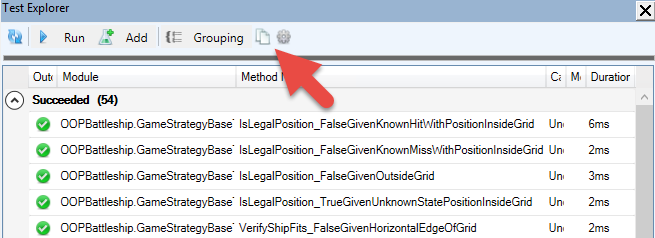
You’re writing a rather large VBA/VB6 project, and you’re starting to have a sizable amount of passing unit tests. Did you know you can copy the test results to the clipboard with a single click?

…and then paste them onto a new worksheet and turn it into a data table:

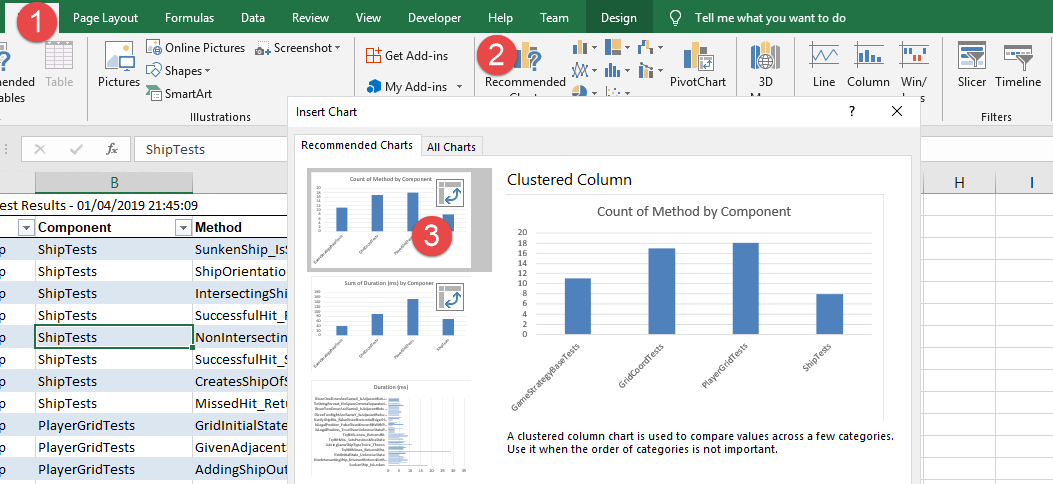
If you’re not sure what to do next, you can even let Excel give you ideas – you’ll find the Recommended Charts button under the Insert Ribbon tab:

With the count of method by component chart, we can see what test modules have more test methods; the sum of duration by component chart can show us which test modules take the longer to execute – or we could average it across test categories, or archive test results and later aggregate them… and then use this data to performance-profile problematic test scenarios.

Similarly, the “Copy to Clipboard” button from the Code Explorer can be used to export a table into Excel, and using the recommended pivot tables feature, we can get a detailed breakdown of the project – for example count of names by declaration type creates a pivot table that lists all Rubberduck declaration types, so you can easily know how many line labels your project has, or how many Declare Function imports are used:

With a little bit of filtering and creativity, we can regroup all Constant, Function, PropertyGet and Variable declarations by return type, and easily identify, say, everything that returns a Variant:

The possibilities are practically endless: the data could be timestamped and exported to some Access or SQL Server database, to feed some dashboard or report showing how a project grows over time.

How would you analyze your VBA projects? What code metrics would you like to be able to review and pivot like this? Share your ideas, or implement them, and send a pull request our way!