Unlike quite a number of Rubberduck releases, this time we’re not boasting a thousand commits though: we’re looking at well under 300 changes, but if the last you’ve seen of Rubberduck was 2.3.0 or prior, …trying this release you’ll quickly realize why we originally wanted to release it around Christmas.
So, here’s your belated Christmas gift from the Rubberduck dev team!
VBE Project References: CURED!
You may have seen the Introducing the Reference Explorer announcement post last autumn – well, the new feature is now field-tested, works beautifully, instinctively, and is ready for prime time. It’s a beauty!
The add/remove references dialog has seen a number of enhancements since its pre-release: thanks everyone for your constructive feedback!
Quickly locate any type library by name and/or description.
Pin your favorite references, and Rubberduck will keep them handy for all your VBA/VB6 projects.
You’ll never want to use the vanilla-VBE references dialog again!
If you’ve been following the Rubberduck project for quite some time, you may remember something about using annotations together with inspections and quick-fixes to document the presence of module & member attributes. You may also remember when & why the idea was dropped. Keeping in tradition with including new inspections every release… Surprise, it’s coming back!
German, French, and Czech translations have been updated, a number of bugs were fixed in a few inspections, the Code Explorer has seen a number of subtle enhancements, and WPF binding leaks are all but gone.
Code Explorer Enhancements
Adding the Reference Explorer made a perfect opportunity to revisit the Code Explorer toolwindow – our signature navigation feature. Behold, the new Code Explorer:
The new ‘Sync with code pane’ toolbar button (the left/right arrows icon) selects the treeview node closest to the current code pane selection.
There’s a new ‘Library References’ node that shows your project’s library dependencies …whether they’re in use or not:
Find all references can now be used to locate all uses of a given type library – including the built-in standard libraries! Note that rendering lots of search results in a toolwindow will require confirmation if there are too many results to display.
The project reference nodes get new icons:
Classes with a VB_PredeclaredID attribute set to True now have their own icon too (and their names now say (Predeclared) explicitly), and class modules marked with an @Interface annotation now appear with an “interface” icon, like IGameStrategy here:
Annotations & Attributes
They’re back, and this time it does work, and it’s another game changer: Rubberduck users no longer need to export any code file to modify module & member attributes!
Module & Member Annotations
At module level, the @ModuleDescription annotation can be given a string argument that controls the value of the module’s VB_Description attribute; the @Exposed annotation controls the value of the VB_Exposed attribute; the presence of a @PredeclaredId annotation signals a VB_PredeclaredId attribute with a value of True.
At member level, @Description annotations can be given a string argument that controls the value of the member’s VB_Description attribute.
Through inspections, Rubberduck is now able to warn about attributes that don’t have a corresponding annotation, and annotations that don’t have a corresponding attributes. Look for inspection results under the “Rubberduck Opportunities” category.
v2.4.x
The months to come will see further enhancements in several areas; there are several pull requests lined up already – stay tuned, and keep up with the pre-release builds by watching releases on GitHub!
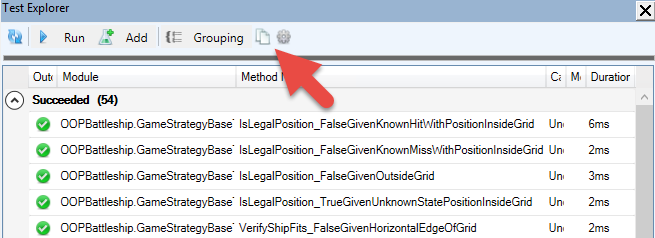
You’re writing a rather large VBA/VB6 project, and you’re starting to have a sizable amount of passing unit tests. Did you know you can copy the test results to the clipboard with a single click?
…and then paste them onto a new worksheet and turn it into a data table:
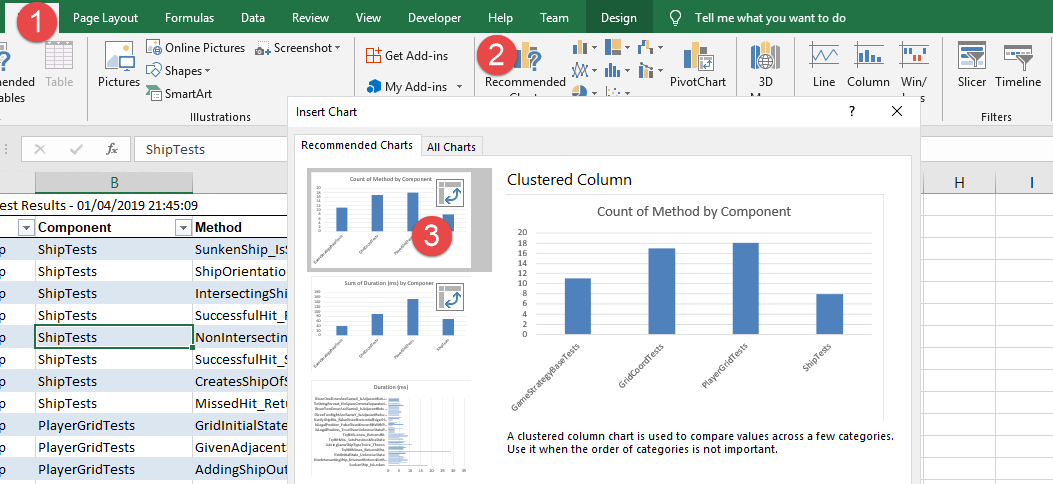
If you’re not sure what to do next, you can even let Excel give you ideas – you’ll find the Recommended Charts button under the Insert Ribbon tab:
With the count of method by component chart, we can see what test modules have more test methods; the sum of duration by component chart can show us which test modules take the longer to execute – or we could average it across test categories, or archive test results and later aggregate them… and then use this data to performance-profile problematic test scenarios.
Similarly, the “Copy to Clipboard” button from the Code Explorer can be used to export a table into Excel, and using the recommended pivot tables feature, we can get a detailed breakdown of the project – for example count of names by declaration type creates a pivot table that lists all Rubberduck declaration types, so you can easily know how many line labels your project has, or how many Declare Function imports are used:
With a little bit of filtering and creativity, we can regroup all Constant, Function, PropertyGet and Variable declarations by return type, and easily identify, say, everything that returns a Variant:
The possibilities are practically endless: the data could be timestamped and exported to some Access or SQL Server database, to feed some dashboard or report showing how a project grows over time.
How would you analyze your VBA projects? What code metrics would you like to be able to review and pivot like this? Share your ideas, or implement them, and send a pull request our way!
Back in the 2.1.x announcement post over a whole year ago, one of the bullet points about the upcoming roadmap said we were going to “make you never want to use the VBE’s Project References dialog ever again“; it took a bit longer than expected, but as far as we can tell, this feature does exactly that.
If you’ve been following the project on social media recently, you already know that the next version of Rubberduck will introduce a very exciting, unique new feature: the Reference Explorer dialog, and the addition of a references node in the Code Explorer tree.
Vanilla-VBE
Since forever, adding a reference to the active project in the VBE is a rather… vanilla experience. Functional, but somewhere between bland and tedious.
What’s wrong with it?
Regardless of what we think of the very 1998-era buttons docked on the side, the dialog works. There’s a list of available libraries (sorted alphabetically), we can browse for unlisted ones, cancel or accept changes, and the libraries that are selected when the dialog is displayed, are conveniently shown at the top of the list!
On a closer look though…
The vanilla-VBE project references dialog
The list of available libraries has the available libraries listed in alphabetical order. You can’t resize the dialog to show more, but you get first-key search. The Scripting runtime’s library name starts with “Microsoft”… which happens to also be the case for a few other libraries; this makes the extremely useful Scripting.Dictionary and Scripting.FileSystemObject classes pretty much hidden until you stumble upon a blog post or a Stack Overflow answer that introduces them.
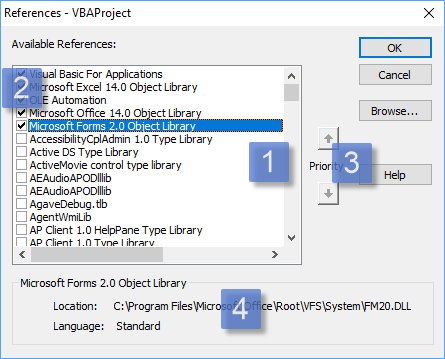
The selected libraries show up at the top of the list, in priority order. Locked libraries are stacked at the top. You use the up/down arrow buttons to move the selected library up or down, but you can’t move the locked ones.
The priority buttons are used to determine the identifier resolution order; if an identifier exists in two or more libraries, VBA/VB6 binds to the type defined in the library with the highest priority. There’s no visual cue in the list itself to identify the locked-in type libraries, so the Enabled state of these buttons is used to convey that information: you can’t move the locked-in, default references.
The bottom panel is useful… but the path gets cropped if it’s longer than the rather narrow dialog can fit, and you can’t select or copy the text. The actual library version number isn’t shown.
Visual Studio
Let’s take a look at what adding a project reference using the latest version of Microsoft Visual Studio feels like:
The Microsoft Visual Studio 2017 Reference Manager dialog
The dialog can be resized, search is no longer limited to a single character, but still limited to the beginning of the [Name]. The library info is now richer; it moved to the right side, and a panel on the left side determines the contents of the list. Other than that, besides a new [Version] column and a nice dark theme, …the mechanics are pretty much the same as they were 20 years ago: check boxes in a list. Priority is no longer relevant in .NET though – namespaces fixed that.
Rubberduck
This screenshot was taken shortly before the pull request was opened:
The Rubberduck ‘Add/Remove References’ dialog (work in process: release build may differ)
Available libraries appear in a list on the left-hand side of the dialog. Like in Visual Studio, the version number appears next to the library name, and the list is sorted alphabetically. There is no checkbox: instead, the selected library can be moved into the list of referenced libraries.
Referenced libraries appear in a list on the right-hand side of the dialog. Since there is no checkbox, the selected library can be moved back into the list of available libraries.
Priority up/down buttons appear for the selected referenced library, unless it’s locked.
Icons differentiate locked libraries, libraries that were already referenced when the dialog was shown, and libraries that were newly added. In the list of available libraries, recent and pinned libraries have an icon too.
Search works on a “contains” basis, and matches the library name, description, and path. It immediately filters the list of available libraries.
Tabs for quickly accessing type libraries recently referenced, or pinned libraries, or registered. Host-specific project types are in a separate tab, as applicable.
Bottom panel displays the full name and path of the selected type library. The text can be selected and copied into the clipboard.
Browse button allows referencing any project/library that isn’t listed anywhere. If a library can’t be loaded, it will appear in the list as a broken reference, before it’s even tentatively added to the project.
If you haven’t seen it in action yet, here’s a sneak peek:
Of course that’s just the beginning: layout is not completely final, drag-and-drop functionality remains to-do, among other enhancements.
A first iteration of this feature will likely be merged some time next week, and since this is a major, completely new feature, we’ll bump the minor version and that will be Rubberduck 2.4.0, to be released by the end of 2018…
…not too long after the imminent 2.3.1 hotfix release.
If you think this is one of the coolest things a VBE add-in could possibly do, you’re probably not alone. Share the news, and star us on GitHub!
Version 2.2.0 was released in April 2018. Well over 1,700 commits and 2,185 modified files later, Rubberduck is now more stable than ever, and well overdue for a new release. November 25th will see Rubberduck 2.3 issued – as of this writing, we’re ironing a few wrinkles, but everything looks like we’re on track to release some time this Sunday.
A tremendous amount of effort went into the core, the engine, and the brain: the number of situations causing inspection false positives is on a serious decline, and we’ve taken very important steps towards ensuring proper tear-down of every component. Rubberduck 2.3 is by far the most stable release to date, and all the invisible work lays the foundation for the very exciting things to come.
We’re all extremely proud to present the results of so many months of hard work! Here’s a non-exhaustive overview of the new features (versus 2.2.0).
Official VB6 IDE Support
As of v2.3.0 (with special thanks to @mansellan), Rubberduck officially works in Visual Studio 6.0, the glorious, the… legendary VB6 IDE.
That’s right: code inspections, code metrics, all navigation enhancements, unit testing, refactorings, …all your favorite Rubberduck features, in the Visual Basic 6.0 editor.
This is without a doubt the biggest improvement to ever come to the VB6 IDE this century, from an open-source project.
As is the case for VBA hosts, if you already have Smart Indenter installed, Rubberduck will detect the legacy 32-bit add-in and prompt to import your settings – note that configuring Rubberduck’s indenter will not affect your Smart Indenter settings.
Autocompletion Enhancements
Rubberduck now changes how typing code in the editor feels. If you ever edited VBA/VB6 code in Notepad++ (let alone VB.NET code in the latest Visual Studio), you know that the VBE shows its age when you type a " double quote or open a ( parenthesis. With Rubberduck, typing code in the VBE will now feel radically different than without, in a very good way. A new dedicated settings page makes it easy to enable/disable each feature separately, and leaves room for future customization and enhancements.
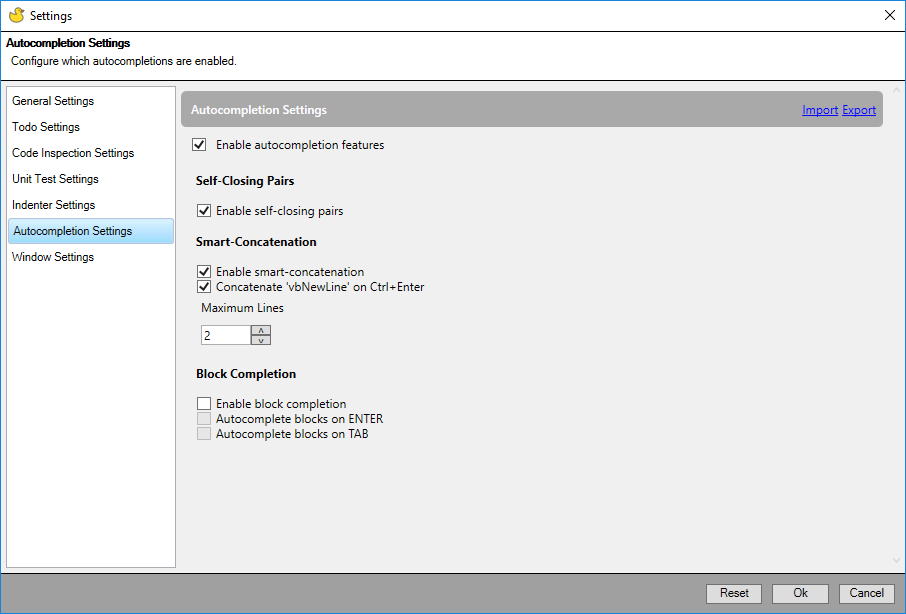
Due to its rather invasive nature, a design decision was made to ship autocompletion features disabled by default; these features must be enabled manually, in the autocompletion settings tab of Rubberduck’s “Settings” dialog:
Self-Closing Pairs
It’s hard to describe everything enabling SCP completion does. A picture is worth a thousand words, so… how about seeing them in action?
When {BACKSPACE} is pressed and the caret immediately follows any opening token, Rubberduck attempts to locate and remote the matching closing token, wherever it is on the current logical line of code – nested or not.
Smart Concatenation
When enabled, Rubberduck will step in when the {ENTER} key is pressed while the caret is inside a string literal, to automatically append ” & _” to the current line.
The feature can also be configured so that when the {CTRL} key is held down when {ENTER} is pressed, ” & vbNewLine & _” will be appended to the current line.
{BACKSPACE} cleanly reverts smart-concatenation when the caret is on the last line of the logical code line and the caret line contains nothing but the opening & closing quotes.
Block Completion
Block completion will be implemented early in the 2.3.x cycle: these settings have no effect whatsoever for now.
The vision for this feature, is to capture “trigger” keywords (e.g. For), select them; if {TAB} or {ENTER} is pressed (as configured) when the “trigger” is selected (among other conditions), then the block expands, and Rubberduck automatically highlights a placeholder expression; hitting {TAB} again selects the next placeholder, {SHIFT}+{TAB} the previous. Providing a value for the last placeholder places the caret inside the block, indented as per indenter settings.
Auto-correct
Later in the 2.3.x cycle, auto-completion will be further enhanced with an “auto-correct” feature, which will enable automatically expanding e.g. foo++ into foo = foo + 1, among other ideas… including automatic fixing of a configurable list of “frequent typos”.
New Inspections
As with every new Rubberduck release, the team implemented a number of new inspections. This release introduces an internal API for code path analysis, which allows us to start implementing the more involved inspections on our plate!
These new inspections bring the total number to 75!
AssignmentNotUsed
The first inspection to leverage code path analysis, will now flag this code:
foo = 42 ' <~ value is never used
foo = 10
Debug.Print foo
When an assignment is subsequently discarded before the stored value is accessed, Rubberduck will notify about the redundant assignment, as a code quality issue.
DuplicatedAnnotation
This inspection, spliced from the existing “illegal annotation” inspection, helps validate/sanitize Rubberduck annotations – for example, contradicting @Folder annotations:
'@Folder("Foo")
'@Folder("Bar")
ExcelUdfNameIsValidCellReference
An Excel-specific inspection that flags public functions that are visible as worksheet user-defined functions (UDF), but shadowed by a cell reference. This inspection is particularly useful with recent 64-bit versions of Microsoft Excel, where 16,384 columns effectively reserve every 3-letter combination up to “XFC”.
Public Function Foo123() As String
'FOO123 is a valid cell reference; function cannot be invoked!
End Function
This first iteration only inspects public functions in standard procedural modules.
IsMissingOnInappropriateArgument
A rather specific inspection validating usages of IsMissing, flagging instances where the function is given a non-Variant argument.
Public Sub DoSomething(Optional ByVal foo As String)
    If IsMissing(foo) Then ' condition is always false
    End If
End Sub
IsMissingWithNonArgumentParameter
Another inspection validating usages of IsMissing, flagging instances where the function is given a non-parameter argument.
Public Sub DoSomething()
    Dim foo As Variant
    If IsMissing(foo) Then ' condition is always false
    End If
End Sub
ObsoleteCallingConvention
CDecl calling convention isn’t supported on Windows; Declare statements using it should be wrapped with conditional compilation directives so as to only compile in a Mac environment.
Private Declare Sub Beep CDecl Lib "kernel32" (dwFreq As Any, dwDuration As Any)
ObsoleteMemberUsage
Rubberduck 2.3 introduces a new @Obsolete annotation, which can be used for annotating “obsolete” procedures – the inspection flags usages of procedures marked with this annotation.
OnLocalError
The Local token is redundant in On Error statements. This inspection flags usages.
Private Sub DoSomething()
    On Local Error GoTo ErrHandler
    '...
    Exit Sub
ErrHandler:
End Sub
The rationale being, runtime errors are always local; the two syntaxes look different but do exactly the same thing.
v2.3.x
There are a number of features that were intended to be developed for 2.2.x, that didn’t make it into this release – not because the ideas were dropped, but because of mere time constraints. The add/remove references dialog is one such feature. Keep an eye out on 2.3.x pre-release builds and announcements; the v2.4 announcement will recap everything that happened in 2.3.x, but every new feature will very likely see its own dedicated blog post as it is merged and pre-released.






 Rubberduck News