Say you have a worksheet that contains a table with various settings, or options to run some macro with. Whatever the macro does, whatever it uses these values for, it must somehow solve this problem: how to get these values out of the worksheet and into the program?
We have a ListObject to play with, and since the table is in a specific worksheet, that’s the worksheet module we’re going to be editing. Since the very existence of that table matters for the rest of whatever this macro ends up doing, we’re going to make it clear it’s not an accident by making it a property of the worksheet (class) module – something like this:
Private Const TableName As String = "Table1"

Public Property Get SettingsTable() As ListObject
  Static Value As ListObject
  If Value Is Nothing Then
    On Error Resume Next
      Set Value = Me.ListObjects(TableName)
    On Error GoTo 0
  End If
  Set SettingsTable = Value
End Property
Property Get procedures usually do not raise an error – here if the table doesn’t exist the property will return Nothing, which should cause the calling code to blow up with error 91, and this would be reasonably expected behavior in this case. The Static local stands in for a module-scoped variable declaration that would be needed if the property had a setter procedure; because it’s only needed in one place, we can declare it locally and retain the module-scoped behavior with the Static keyword.
“Static” in VBA basically means “shared”, and “Shared” in VB.NET means what “static” means in essentially every other language with such semantics. Static as a scope modifier in .NET means a member belongs to the type (as opposed to an instance of the type in question), but in Classic-VB it is used for declaring local variables that retain their value between procedure calls, and if used as a modifier at procedure level it makes all locals behave as such… which [very likely] isn’t a good idea.
So we have now given ourselves access to the table, and we can just do Sheet1.SettingsTable to access it from anywhere.
But what if we don’t want that? If we know the settings each have a unique name and have a value that might be a String, a Double, a Date, or a Boolean. The table might just as well be empty for now, anyway.
If we don’t formalize access to the settings, then every place that needs them might be doing things differently! Imagine the chaos if sometimes an option is retrieved with Application.VLookup, elsewhere with a loop over SettingsTable.Rows, and then another one could be getting the value with an offset from the result of SettingsTable.DataBodyRange.Find, and there’s another couple of different but not always equivalently dangerous or misguided ways to go about retrieving a value from that table, and there’s no need to have all of them around.
We could write a function that accepts the name of a setting and returns a Variant holding the associated value if it exists, but what if we need to get the value multiple times, we’re going to read it off the worksheet every time?
Writing to a Range is perhaps the most expensive thing a macro can do, but reading anything from one comes close. In fact, a macro that performs well is usually a macro that limits its interactions with worksheets and the …entire Excel object model.
What we want is a method that iterates the table rows once, yielding an OptionValue class instance for each setting value. So we add this new class module and define an OptionValue class with a Name (String) and a Value (Variant) property.
But then if we call that method every time we want to get a setting value, things are going to be much worse than if we just used Application.VLookup every time, so what gives?
Grabbing every row of that table and turning them into as many OptionValue instances is an action, it wants to be a verb. Things we do with any kind of state are very often well described with a method’s name that starts with a verb, and that’s great already (especially if the rest of the name is actually somewhat descriptive), but a free-floating verb is up for grabs by anyone.
So we’re going to encapsulate it by making that method a member of a class for which SettingsService might be a good name: it’s a service that has the means to abstract away the worksheet and only expose OptionValue objects, and with it the rest of the code no longer needs to deal with the nitty-gritty details of how these objects come into existence, or how long they’ve been around.
Because we can write this class in such a way that we read the settings once from the worksheet (say, in the Initialize handler of the class itself), cache them in a private keyed collection (or private dictionary), and as long as our instance is alive we can return the cached option values whenever someone asks for them, and then they’ll be getting them without needing to hit the worksheet.
By adding an indexed property, we can even have a default member that makes sense, and the rest of the code can read its configuration like this:
Dim Settings As SettingsService
Set Settings = New SettingsService

If Settings("SomeSetting") Then
  Debug.Print "SomeSetting is ON"
Else
  Debug.Print "SomeSetting is OFF"
End If
Settings(“SomeSetting”) stands in for so many things here, all of which would distract from what this macro is supposed to be doing, however working with Variant like this is annoying, and the use of default members is abstracting away mechanics that we’d usually rather be explicit about, so we should instead expose typed methods, so we know (we/us, but also the compiler and Rubberduck here) what actual types and members we’re dealing with:
Dim Settings As SettingsService
Set Settings = New SettingsService

If Settings.GetBoolean("SomeSetting") Then
  Debug.Print "SomeSetting is ON"
Else
  Debug.Print "SomeSetting is OFF"
End If
Where GetBoolean being a method/function rather than a property should make us feel much better about throwing errors: if the setting doesn’t exist, we blow up. If the setting exists but its Variantsubtype isn’t Boolean then we probably want to blow up rather than return gibberish. If it exists and it’s of the expected data type, we return the setting value, converted to an actual Boolean.
That means SettingsService also needs GetDate, GetDouble (and maybe GetInteger), and of course GetString, leaving the Variant values completely encapsulated in the service: callers don’t need to care about any of that, and that’s neat.
There is no Worksheet
The only thing that needs to do anything with SettingsSheet is the SettingsService. Nothing else needs to access it for any reason whatsoever, because we have a service that fully abstracts it away, so it might as well not be there.
And the macro should still work, assuming it knows how to deal with and recover from a missing setting value.
Settings could be moved to a flat file, another workbook, or a database, and only one method would need to change: the one that’s reading and caching the settings from the worksheet, would instead be connecting and querying a database – and would still only need to hit it once.
And none of anything else would need to change, because it’s all completely yielding that responsibility to this service.
Compare to what it would be like to change inline VLookups and Range.Find calls (wherever they are) to read from another source, and you can quickly see the benefits of having sane abstraction levels.
Code that desperately wants to control how everything is done at the lowest level of detail, is tedious and heavy. It’s hard to tell what the role of such a procedure is, because too many things are going on and thesignal gets drowned in noise.
There doesn’t need to be a service class, or even an OptionValue class: any distinct procedure scope that’s clearly responsible for retrieving a valid setting value is a good step forward. But moving the state into an object makes it easier to control its lifetime, and by encapsulating behavior we clean up the calling modules the same way extracting procedure out of a larger scope cleans up that larger scope. It reduces the cognitive load and complexity by moving away code that’s concerned with the peripherals of any given macro’s purpose, and thus increases the cohesion of the macro’s module because things that aren’t directly related to what the macro is specifically responsible for, are simply elsewhere, where they belong.
Perhaps the most popular function in the VBA standard library, MsgBox is likely how your first VBA “hello world” displayed its triumphant, hopeful message to a would-be user. A custom message dialog built with a UserForm would have the same purpose: the program needs to convey or receive information from the user, …or does it?
TL;DR
As a programmer it’s often useful to follow/trace execution in details, and it’s easy to think the user is also interested in this information… but when a program is overtly verbose, users tend to just OK every prompt, without paying much attention to what’s going on. Keep messages short, and use them sparingly. Treat every single one of them as interrupting the user and interfering with whatever it is that they were doing; is it that important to show this message now? Or at all?
MsgBox
As mentioned earlier, MsgBox is a function that you will find in the VBA.Interaction module. Being a function, it returns a value: a VbMsgBoxResult enum (integer) that represents the button that the user used to dismiss the dialog. The title is the name of the host application unless parameterized otherwise, and the icon and buttons can be configured in preset combinations, making it a quick and easy way to prompt the user or ask for confirmation, or to let them know something went wrong when the program crashes gracefully.
All modules in the standard library are global, so you don’t need to qualify calls to their members; that’s why and how MsgBox, VBA.MsgBox, and VBA.Interaction.MsgBox are all equivalent. Because they’re scoped functions and not language-level keywords, their calls are resolved using the standard scoping rules, so they can be shadowed by a same-name identifier in the current project. If a project defines a MsgBox function, then unqualified MsgBox calls will resolve to the project-defined function, because anything defined in the current project has a higher resolution priority than any referenced library – even if that’s the VBA standard library.
Knowing that it’s a function doesn’t mean we’ll necessarily want to systematically capture its return value – but it should eclipse any ambiguity around whether parentheses are needed or not: it’s exactly the same rules as any other function call! To be clear, that means the parentheses are needed when you are capturing the result, and they’re not when you’re not. The catch is that when they’re not needed, they’re also actively harmful when they’re present.
The deal with the parentheses
The language syntax uses parentheses to delimit argument lists. Parentheses are however also perfectly usable in any expression, including argument expressions. When you invoke a procedure, you need to know whether you’re interested in capturing a return value or not. If you’re calling a Sub procedure, then there’s no return value; Function and Property Get procedures normally have one.
If you’re NOT capturing a return value, you DO NOT use parentheses.
If you are capturing a return value, you need parentheses… unless it’s a parameterless call.
Using a function call as an argument expression or a conditional expression means you are capturing the result.
❌ result = SomeFunction arg1, arg2
✅ result = SomeFunction(arg1, arg2)
The VBE will suppress () superfluous empty parentheses, but if you’ve surrounded an argument list with parentheses that shouldn’t be there, then the VBE has added (and will stubbornly maintain) a space before the opening bracket that’s your clue that the VBE has parsed your argument list as an argument expression, and the only reason it worked is because your argument list is made up of a single argument. Indeed, since the comma isn’t an operator in any possibly recognizable expression, it would be a syntax error to try to pass a second argument without first closing the parentheses around the first one – but then while legal, it looks pretty silly to just wrap each argument with parentheses for no reason:
❌ DoSomething (arg1, arg2)
🤡 DoSomething (arg1), (arg2)
✅ DoSomething arg1, arg2
✅ Call DoSomething(arg1, arg2)
Sticking a Call keyword in front of a procedure call makes the parentheses required, because then when you think about it, it’s the procedure call itself that becomes the implicit argument list, as if we were invoking some Call procedure and giving it DoSomething as an argument. Not how it happens, but definitely how it reads if we ignore the keyword-blue syntax highlighting.
Communication Tactics
Whenever you are about to use MsgBox, ask yourself if there wouldn’t be another, less disruptive way to inform the user of what’s going on: sometimes a status message in Application.StatusBar gets the message across without requiring interaction from the user.
Because we tend to think of MsgBox as just popping a message, but every message we show has to be [ideally read and] dismissed by the user, …and that’s OK sometimes, but it’s better to avoid it if we can.
Some points to keep in mind:
They’re not going to read it.
If it’s more than one sentence, it’s probably too long.
If something went wrong, tell the user what they can do about it; don’t just show some cryptic error message with a scary icon.
They’re not going to read it.
If something completed successfully and the application is already in a visual state that makes it apparent, then it’s not needed.
They’re not going to read it.
Instead of using a MsgBox, consider:
Listing or logging operations in a dedicated worksheet/table as they occur, so detailed information is available if it’s needed, but without interrupting the user for it.
Implementing a UserForm or using a worksheet to capture execution parameters beforehand (define a model!), instead of repetitively prompting for each piece of information that’s needed.
If a macro must make a user wait, change the cursor accordingly; resetting the cursor back to normal when the macro is done, already signals completion.
If you must show a MsgBox...
They’re not going to read it.
Avoid the “?” vbQuestion icon; it was deemed a confusing icon a long time ago and is very uncommon to see in a serious application.
Write prompts as clear, concise, yes/no questions; prefer vbYesNo buttons, because OK/Cancel buttons necessarily require a more careful reading of the prompt.
They’re not going to read it.
Ask yourself if it’s really that important.
An otherwise excellent macro could always easily be turned into the most annoying thing with just a couple of misplaced MsgBox calls: communicating to the user is an important thing to do, but just because it’s something MsgBox does, doesn’t necessarily have to mean it’s something MsgBox must do.
Once upon a time I was quite active on Stack Overflow, and then there was a discussion on the meta site about the various “flavors” of VBA and I won’t get into the details here, but I remember it irked me that a bunch of very meticulous, very technical and often terminally pedantic folks would be conflating the language itself with… just some of its common libraries.
VBA – the programming language – is just VBA. One could reasonably argue that the standard library can be considered a part of it, but that’s where I draw the line: there’s no “Excel VBA” or “Word VBA” or “Access VBA”… calling different member calls into different objects from different libraries a different language altogether makes no sense to me. It’s the same grammar and syntax, it’s the same runtime, and host-agnostic code will run exactly the same in every conceivable host application (and there are many more than just the handful of Microsoft Office ones!): a programming language is not defined by the libraries it binds at compile time (nor at run time for that matter), but its type system, its syntax, and its semantics define it unambiguously – and all of these are all identical in all conceivable “flavors” of VBA… because that is what makes it VBA: its language specifications.
What’s different in different hosts, is the objects you’re working with and even then, that’s limited to the default references (arguably should be an… IDE setting?) while assuming you’re not automating Excel from an Access project, for example: the objects you’re working with depend on what your code needs to do, and so everything is just plain VBA no matter how you might want your favorite host application to be special. No flavors, it’s all plain vanilla.
Library rhymes with Vocabulary
Libraries are a special type of executable file that define types and their members, and then other executables can dynamically link these types and invoke these methods, so we call them dynamic link libraries, or DLLs. They are abstractions for various APIs, and they quite literally extend the vocabulary of a program with nouns (types/classes) and verbs (methods) that do color the expression of the language, but yeah it’s just colorful vanilla. I mean your own classes and methods’ names do exactly that, too – right?
COM libraries act as servers and they use and expose a specific set of interfaces that all COM clients (COM is all about client/server) understand, so VBA can reference and use such libraries, because VBA is built on top of this technology. COM is the Component Object Model, which is a development toolkit for Microsoft Windows that was very popular in the 1990s, until the .NET Framework changed the landscape in the early 00s. The model was language-independent, but not platform-independent like today’s modern .net is, so it’s particularly impressive to see VBA code running on a Mac, but I digress. The cool part is that whenever a VBA project compiles, a COM library gets generated in-memory within the host process, and when we run VBA code, what’s actually running is the compiled library – the VBA source code does not get interpreted in the editor as such.
In fact the VBA source code in the editor is basically decompiled from the p-code tokens generated by compiling the original source code and that is why the VBE always seems to “autocorrect”when you validate a line 🤯
Browsing Libraries
The language implements the COM type system but hides pointers and invocation mechanisms (IDispatch and IUnknown interfaces), and (somewhat hidden) attributes control type and member metadata, including documentation. VBA projects can leverage all of these capabilities with or without Rubberduck, but Rubberduck does make it much easier to manipulate the hidden VB_Attribute statements.
The VBE’s Object Browser reveals everything, even hidden members (fun fact, VBA doesn’t honor the “hidden” flag for user code like it does for referenced libraries, but VB6 did). Right-click anywhere and make sure “Show hidden members” is checked, and then they’ll show up here and in name completion lists. In the search/filter section there’s a dropdown listing all loaded libraries: notice your own compiled VBA project is listed there.
Global (namespace) pollution
Everything that’s public in a library, becomes part of the global namespace once it’s loaded into a runtime environment – so what happens when two libraries define classes with identical names? Sure a good practice is to qualify library types (e.g. Excel.Application, Word.Range, etc.) so that the code is clear and works as intended, but how does it still work when we don’t? Or does it?
Turns out, the up/down arrows that let you move libraries up and down the list in the add/remove references dialog, is the answer: referenced libraries are prioritized in order, which is why the VBA standard library and the host application’s object model library are stuck at the top (in that order) while everything else is allowed to move up and down.
When VBA binds a Range declaration, if the host is Microsoft Word then an unqualified Range is always a Word.Range, but if the host is Microsoft Excel then an identical declaration would bind to Excel.Range, even if the Word and Excel libraries are referenced in both cases, because the library provided by the host application always has a higher priority than a library reference that was added afterwards. Things get more hairy when you’re in an Access project that references DAO and you want to use ADO and suddenly you’ve rewritten [DAO.]Recordset into [ADO.]Recordset just by accidentally flipping the libraries’ respective priorities.
Know Your Tools
Whenever you face a new library – be it a new host, Scripting, or regular expressions, using the Object Browser to get acquainted with the types and members can often be all the direction we need to know exactly what to look for in the documentation (or Stack Overflow), and it should be exactly what a certain “AI” chat bot pulls for you (ideally with some reference links) if you ask it the same.
The VBA standard library provides a small set of basic functions and constants that are necessarily available to any VBA project, so a host-agnostic module can use them freely. This library is the closest thing to a framework VBA gets out of the box: the functions are mostly wrappers around Win32 API calls, making it easy to display message boxes, manipulate strings and dates, and to perform a number of basic math and trigonometry operations.
As a VBA developer, it is absolutely essential to understand what the VBA standard library does (and what it does not), because it’s easy to reinvent the wheel if you don’t know it’s already there. It’s a very small library compared to the .NET Framework, and as such it’s very much bare-bones – which means it’s good material for a backbone to build upon. Take the time it takes to play with each of the string and date functions, take an eyeball to the math functions so you know what’s there when you need it, and then explore the rest of the library and lookup the documentation for anything you don’t understand: the VBA standard library is one of your primary tools, it’s a good idea to know how to wield it.
The Excel library is much larger, but manageable if you focus on Application, Workbook, Worksheet, Range, and Name classes and their members, and learn the rest from the documentation and tutorials/examples as needed. But then there’s something sneaky the library does, that leverages these COM features we discussed earlier. Some hidden classes are taking members that would belong to the Application, members that belong to the active Workbook and Worksheet, and punts them into global scope “for your convenience”.
And that’s where everything went wrong in my opinion: these “convenient” members are a trap, and they obscure what’s going on so much that it’s often impossible to know exactly what VBA code does without additional context, such as whether the presented code is written in a worksheet module or elsewhere (perhaps in a standard module). It is my opinion and that of many other professionals, that good code does what it says, and says what it does. And this isn’t it.
It’s in the docs!
Not going to happen in a million years, but Microsoft should break badly written Excel macros by deprecating and removing the magic ActiveSheet members from the hidden _Global interface. Ok maybe not. But ugh.
VBA is a simple language on the surface, but it’s easy to confuse some keywords with standard library functions (quick: LBound/UBound, keywords or functions?), and even some standard library functions with some in the Excel library (InputBox springs to mind). Add implicit default members to the mix and you get code that can really throw you a wrench and make you wonder what you’ve been drinking. “The same code worked perfectly just yesterday”, and “it works fine normally, but errors when I step through with the debugger” are all too common, and always directly caused by all the ever-so-convenient beginner traps.
One part of the problem is that many self-taught and learning developers do not necessarily know not to read too much into examples in technical documentation: if you’re reading about the Worksheet.Range method, the examples aren’t there to show you how to, say, properly declare variables, or pass inputs as parameters – and so they don’t… but that doesn’t mean your code should look exactly like the documentation examples! Macro recorder code is just the same: just because it works off implicit ActiveSheet references does not mean good VBA code should be doing that. The macro recorder can quickly teach you what types and members are involved in making a table out of a range of cells, but it’s not meant to show you how to do that beyond the context of the active sheet and the current selection, which are two things you’re actually going to want to be very explicit about in your own code. This goes on for virtually every topic under the Sun: unless you’re specifically reading something about best practices, don’t try to read naming conventions or particular ways to do things from small contrived examples that mean to depict and highlight a single other entirely different thing. Sometimes I wonder how different the world would have been if all examples were written as standalone functions that explicitly take all their inputs as parameters…
Both the VBA standard library and the Excel object model are extensively documented, but the Excel library and a lot of its examples are often making it hard to find the right place to look at when there’s a problem, because of all the implicit shenanigans: it’s not that VBA itself is making all the wrong design decisions here – but the Excel library is leveraging COM/VBA features in such a way that it remains trapped in a very 1990’s notion of what “convenient” means, for the better or worse.
A lot has been written about why Variant should be avoided whenever a more specific data type can be used instead. Indeed it makes little sense to use a Variant (explicit or not) when you could be working with a Long integer, a Date, or a String instead. That’s true for all intrinsic data types.
For object types, using a Variant in place of a specific class interface makes any call against it inherently late-bound, meaning it can only be resolved at run-time, because the actual class/interface type is not known at compile-time… and that’s why the VBE won’t be showing any member/completion list or parameter info for anything this Variant could be used for. Definitely no good, besides Object is a better option for explicit late binding.
Wait I thought you said it was awesome?
Totally. See, its nature makes it the perfect data type to return for any Excel UDF (user-defined function): when the function succeeds, it can return a different variant subtype than when the function fails, so an error-handling subroutine in a UDF can make the function return an actual Variant/Error value to the worksheet and yes, that’s awesome.
But wait, there’s more!
Arrays. Variant is awesome for arrays – because typed arrays must die.
Ok. What is a Typed Array?
It’s one of those language quirks that make VBA so… I’ll say adorable.
By “typed” I mean an array that’s declared as such, so any old “array of strings” would be it:
Option Explicit
Private DynamicallySizedArray() As String
Private FixedSizeArray(1 To 10) As String
The distinction between fixed and dynamically sized arrays is important in the language specifications, but let’s just take note of the fact that the syntax asks that we specify the array bounds right after the identifier name.
This is important, because As String(10) is a syntax error, not an array.
Same when you declare a parameter:
Private Sub DoSomething(ByRef Values() As String)
End Sub
Note the explicit ByRef modifier: arrays can only ever be passed by reference. Declaring this parameter ByVal would be a compile-time error, and this has interesting implications once we start considering whether and how these arrays can get assigned to.
Because the value parameter of a property is always passed by value (even if it says ByRef!), typed arrays are immediately problematic with property definitions:
Public Property Let SomeValues([ByVal] Values() As String)
End Property
And what if you wanted to return a typed array? It would look something like this:
Public Function GetSomeValues() As String()
End Function
Note that specifying array bounds or string length would be illegal here, and that because this is a member signature the sets of parentheses right after the identifier name denotes the parameter list and has to be included even when there are no parameters to declare.
I mean it’s for a lot of good and valid reasons, but the bottom line is, the syntax is inconsistent and confusing… and that’s just how bad it is at compile time. It gets worse.
ReDim
I need to talk about ReDim while I’m here. Somewhat recently, I was working on the RD3 type system and went on to implement ReDim for the array types, and I was surprised (not really 😅) at how much VBA defers to run-time. You’ll get a compile error for trying to ReDim a With block variable or a ParamArray parameter array value, but all these are run-time errors with the Preserve modifier specified:
Attempting to change the number of dimensions of the array
Attempting to change the lower boundary of the array
Attempting to change the upper boundary of a dimension that isn’t the last dimension of the array
Can’t assign to array
A fixed-size array can be assigned to if the value has the same number of dimensions, that the dimensions are the same size, and all the values are the default value for the declared type. A resizable array can be assigned to if… it has no dimensions.
This context-dependent behavior is something that either occupies mental space, or causes problems that the compiler will not detect until it’s too late (although, RD3 diagnostics might change that).
Variant/Array
Mental space is important when programming, because there’s a lot of things that need to be taken into consideration, and we don’t need the language itself to insert its own complexities in our code.
Variant can hold anything, including arrays. Simply put, we declare things As Variant and use a pluralized identifier name: ByVal Things As Variant.
Suddenly, working with arrays in VBA becomes much simpler – because a Variant/Arraydoes behave exactly as one would expect: it’s all pointers underneath, so the difference is subtle, but by adding just one “layer” of pointer indirection by “hiding” our array behind a Variant, we can do everything we can otherwise do with an array, and we can write function signatures without thinking twice about where to put the parentheses.
Public Function GetSomeValues() As String()
End Function
Becomes:
Public Function GetSomeValues() As Variant
End Function
Because it’s behind a Variant, we’re now free to pass arrays around as we please – of course no array data actually goes anywhere, it’s the pointers we’re moving around, in a way that’s quite similar to how objects (pointers) are passed around.
So when you pass a Variant by value, you’re passing a copy of a pointer that says “your array is over here”. Exactly like an object reference, in fact.
Without the Variant wrapping around the array, when we try to pass it by value it’s the entire literal array we’d be copying, and VBA refuses to do this, and forces arrays to be passed by reference.
In other words shoving arrays into a Variant makes them get passed as references regardless of whether we’re doing this ByRef or ByVal, which is exactly what VBA wants.
Private Sub DoSomething(ByVal Values As Variant)
End Sub
It’s also what we want, because our mental concept of passing an array to a procedure works like this too: if we simply accept the fact that it’s a pointer that we’re actually passing, then the rules around ByRef/ByVal remain relatively simple and there is no need to worry about code that compiles but might blow up at run-time, because when we assign the array pointer we’re assigning to a Variant and not an array, so there is no restriction here, it “just works”.
Conclusions
Arrays are extremely useful in VBA, but using them at the abstraction level they were originally intended to be used at is full of traps and caveats that make them difficult to work with. By working with Variant instead, we’re still dealing with arrays, but we’re no longer dealing with the restrictions that are inherent to array variables.
So there, it’s not that typed arrays must die, it’s just that arrays in VBA are much less irritating when VBA doesn’t know it’s looking at one.
Among the very first language keywords one comes across when learning VBA, is the Dim keyword; declaring and using variables is easily the first step one takes on their journey away from the macro recorder.
About Scopes
Before we can really understand what variables do and what they’re useful for, we need to have a minimal grasp of the concept of scoping. When you record a macro, the executable instructions get written for you inside a procedure scope that’s delimited with Sub and End Sub tokens (tokens are the grammatical elements of the language, not necessarily single keywords), with the identifier name of the macro after the Sub keyword:
Sub DoSomething()
    ' executable code goes here
End Sub
Exactly none of the above code is executable, but compiling it creates an entry point that the VBA runtime can invoke and execute, because the procedure is implicitly public and as such, can be accessed from outside the “Module1” module it exists in (with or without Option Private Module). In other words the above code could tell us explicitly what the scope of the DoSomething procedure is, using the Public keyword before the Sub token:
Public Sub DoSomething()
    ' executable code goes here
End Sub
If we used Private instead, then Excel (or whatever the host application is) could not “see” it, so you would no longer find DoSomething in the list of available macros, and other modules in the same VBA project couldn’t “see” or invoke it either; a private procedure is only callable from other procedures in the same module.
Standard modules are themselves public, so you can refer to them from any other module in your project, and invoke their public members using the member access operator, the dot:
Public Sub DoStuff()
   Module1.DoSomething
End Sub
Because public members of public modules become part of a global namespace, the public members can be referred to without an explicit qualifier:
Public Sub DoStuff()
    DoSomething
End Sub
While convenient to type, it also somewhat obscures exactly what code is being invoked: without an IDE and a “navigate to definition” command, it would be pretty hard to know where that other procedure is located.
The global namespace contains not only the public identifiers from your VBA project, but also all the public identifiers from every referenced library, and they don’t need to be qualified either so that’s how you can invoke the VBA.Interaction.MsgBox function without qualifying with the library or module it’s defined in. If you write your own MsgBox function, every unqualified MsgBox call in that project is now invoking that new custom function, because VBA always prioritizes the host VBA project’s own type library over the referenced ones (every VBA project references the VBA standard library and the type library that defines the COM extension and automation model for the host application).
But that’s all going outward from a module: within a module, there are two levels of scoping: module level members can be accessed from anywhere in the module, and procedure level declarations can be accessed from anywhere inside that procedure.
Module-level declarations use Public and Private modifiers, and procedure-level ones use the Dim keyword. Dim is legal at module level too, but because Private and Public are only legal at module level (you can’t use them for procedure scope / “local” declarations), Rubberduck encourages you to use Dim for locals only.
For example a variable declared in a conditional block is allocated when the stack frame is entered regardless of the state when the condition gets evaluated, and a variable declared inside a loop body is the same variable outside that loop, and for every iteration of that loop as well: there is no “block scope” in VBA.
Non-Executable Statements
Procedures don’t only contain executable instructions: Dim statements, like statements with Private and Public modifiers, are declarative and do not do anything. You cannot place a debugger breakpoint (F9) on such statements, either. This is important to keep in mind: the smallest scope in VBA is the procedure scope, and it includes the parameters and all the local declarations of that procedure – regardless of where in the procedure body they’re declared at, so the reason to declare variables as you need them has more to do with reducing mental load and making it easier to later extract a method by moving a chunk of code into another procedure scope. Declaring all locals at the top of a procedure often results in unused variables dangling, because of the constant up-and-down, back-and-forth scrolling that inevitably happens when a procedure eventually grows; the further a variable is out of its context, the more it becomes a liability.
Const statements (to declare constant values) are also legal in local/procedure scope, and they’re identically non-executable; the same applies to Static declarations (variables that retain their value between invocations).
ReDim statements however are executable, even though they also count as a compile-time declaration – but they don’t count as a duplicate declaration, so the presence of ReDim doesn’t really justify skipping an initial Dim declaration.
Explicitness as an Option
Not only access modifiers can be implicit in VBA; the language lets you define a Variant variable on the fly, without a prior explicit declaration. If this behavior is practical for getting the job done and will indeed work perfectly fine, it’s also unnecessarily putting you at risk of typos that will only become a problem at run-time, if you’re lucky close enough to the source of the problem to hunt down and debug. By specifying Option Explicit at the top of every module, the compiler will treat implicit declarations as compile-time errors, telling you about the problem before it even becomes one.
Option Explicit has its limits though, and won’t protect you from typos in late-bound member calls, where invoking a member that doesn’t exist on a given object throws error 438 at run-time.
When to Declare a Variable
There are many reasons to declare a variable, but if you’re cleaning up macro recorder code the first thing you’ll want to do is to remove the dependency on Selection and qualifyRange and Cells member calls with a proper Worksheet object.
For example before might look like this:
Sub Macro1
    Range("A10") = 42
    Sheet2.Activate
    Range("B10") = 42
End Sub
And after might look like this:
Public Sub Macro1()
    Dim Sheet As Worksheet
    Set Sheet = ActiveSheet
    Sheet.Range("A10") = 42
    Sheet2.Activate
    Sheet.Range("B10") = 42
End Sub
The two procedures do exactly the same thing, but only one of them is doing it reliably. If the Sheet2 worksheet is already active, then there’s no difference and both versions produce identical output. Otherwise, one of them writes to whatever the ActiveSheet is, activates Sheet2, and then writes to that sheet.
There’s a notion of state in the first snippet that adds to the number of things you need to track and think about in order to understand what’s going on. Using variables, exactly what sheet is active at any point during execution has no impact whatsoever on the second snippet, beyond the initial assignment.
It’s that (global) state that’s behind erratic behavior such as code working differently when you leave it alone than when you step through – especially when loops start getting involved. Managing that global state makes everything harder than necessary.
Keep your state close, and your ducky closer, they say.
Set: With or Without?
Not being explicit can make the code read ambiguously, especially when you consider that objects in VBA can have default members. In the above snippets, the value 42 reads like it’s assigned to… the object that’s returned by the Range property getter of the Worksheet class. And that’s weird, because normally you would assign to a property of an object, not the object itself. VBA understands what it needs to do here, because the Range class says “I have a default member!” and that default member is implemented in such a way that giving it the value 42 does exactly the same as if the Range.Value member was being invoked explicitly. Because that behavior is an implementation detail, it means the only way to know is to read its documentation.
The Set keyword modifies an assignment instruction and says “we’re assigning an object reference”, so VBA doesn’t try to check if there’s a default member on the left-hand side of the assignment operator, and the compiler expects an object reference on the right-hand side, …and then only throws at run-time when that isn’t the case – but because this information is all statically available at compile-time, Rubberduck can warn about such suspicious assignments.
So to assign a variable that holds a reference to a Range object, we must use the Set keyword. To assign a variable that holds the value of a Range object, we must not use the Set keyword. Declaring an explicit data type for every variable (meaning not only declaring things, but also typing them) helps prevent very preventable bugs and subtle issues that can be hard to debug.
As SomethingExplicit
Whether Public or Private, whether local or global, most variables are better off with a specific data type using an As clause:
Dim IsSomething
Dim SomeNumber As Long
Dim SomeAmount As Currency
Dim SomeValue As Double
Dim SomeDateTime As Date
Dim SomeText As String
Dim SomeSheet As Worksheets
Dim SomeCell As Range
Using an explicit data/class/interface type, especially with objects, helps keep things early-bound, meaning both the compiler and static code analysis tools (like Rubberduck) can better tell what’s going on before the code actually gets to run.
We can often chain member calls; the Worksheets collection’s indexer necessarily yields a Worksheet object, no?
Public Sub Macro1()
    ActiveWorkbook.Worksheets("Sheet1").Range("A1").Value = 42
End Sub
If you manually type this instruction, you’ll notice something awkward that should be unexpected when you type the dot operator after Worksheets(“Sheet1”), because the property returns an Object interface… which tells VBA it has members that can be invoked, but leaves no compile-time clue about any of them. That’s why the Range member call is late-bound and only resolved at run-time, and because the compiler has no idea what the members are until the code is running, it cannot populate the completion list with the members of Worksheet, and will merrily compile and attempt to invoke a Range member.
By breaking the chain and declaring variables, we restore compile-time validations:
Public Sub Macro1()
    Dim Sheet As Worksheet
    Set Sheet = ActiveWorkbook.Worksheets("Sheet2")
    Sheet.Range("A1").Value = 42
End Sub
When NOT to Declare Variables
Variables are so nice, sometimes we declare them even when we don’t need them. There are many valid reasons to use a variable, including abstracting the result of an expression behind its value. Assuming every variable is assigned and referenced somewhere, there are still certain variables that are always redundant!
Objects are sneaky little things… not only can they have a default member that gets implicitly invoked, they can also have a default instance that lives in the global scope and is always named after the class it’s an instance of.
Declaring a local variable to hold a copy of a reference to an object that’s already globally accessible, is always redundant! Document modules (in Excel that’s ThisWorkbook and the Worksheet modules) and UserForms always have such a default instance:
Public Sub Macro1()
    Dim WB As Workbook
    Set WB = ThisWorkbook 'redundant and obscures intent!
    Dim Sheet As Worksheet
    Set Sheet = Sheet1 'redundant, just use Sheet1 directly!
End Sub
Sprinkle Generously
Variables are a simple but powerful tool in your arsenal. Using them enhances the abstraction level of your code, practices your brain to stop and think about naming things, can help prevent binding errors and remove implicit late-binding / keep your code entirely visible to the compiler and Rubberduck. Used wisely, variables can make a huge difference between messy and redundant macro-recorder code and squeaky-clean, professionally-written VBA code.
As Rubberduck started to beef up its static code analysis capabilities in late 2015, it became evident that writing VBA (or VB6) code with Rubberduck loaded up in the Visual Basic Editor (VBE) would inevitably change not only how we work in VBA, but also how we write our VBA code in the first place.
“Rubberduck is essentially providing a bridge between VBA land where people just get in and have a go and the VS land where if you don’t know a great deal about software development, you just waste your time and burn. Rubberduck will put a lot of people on a big learning curve and this will result in a lot of questions.” – AndrewM-commented on Oct 9, 2015
There’s an old issue (#823, still opened as of this writing) about having a coding style guide somewhere, that would enshrine the philosophy behind what Rubberduck is, in a way, trying to make your code-writing be/become; I think that was a great idea and I’m hoping this post captures the essence of it, at least as far as thinking code goes.
About Code Inspections
If you fire up Rubberduck on any legacy VBA project with any significant amount of code, there’s a very high probability that static code analysis generates tons of inspection results, for various mundane little things. Should your goal be to quick-fix all the things and have code that doesn’t spawn any Rubberduck inspection results?
Perhaps surprisingly, the answer is a resounding “no”.
Severity Levels
In Rubberduck each inspection has a configurable “severity level” that defaults to Warning for most inspections (it’s the default-unless-specified-otherwise for all Rubberduck inspections):
Error level indicates a potential problem you likely want to pay immediate attention to, because it could be (or cause) a bug. If inspection results rendered in the code pane, these would be red squiggly underlines.
Warning level indicates a potential issue you should be aware of.
Suggestion level is usually used for various opportunities, not necessarily problems.
Hint level is also for various non-problematic opportunities. If inspection results rendered in the code pane, these would be a subtle dotted underline with a hover text.
DoNotShow disables the inspection: not only its results won’t show, they won’t even be generated.
By default, Rubberduck is configured to run all (that’s currently over 110, counting the hidden/Easter egg ones) inspections, with a handful of cherry-picked exceptions for inspections that would be flagging the exact opposite situation that another enabled inspection is already flagging – for example we ship implicit ByRef modifier enabled (as a Hint), but redundant ByRef modifier is disabled unless you give it a severity level that’s anything other than DoNotShow. This avoids “fixing” one inspection result only to get a new one flagging the exact opposite, which would be understandably confusing for users that aren’t familiar with static code analysis tooling.
Are inspections somehow imbued with the knowledge of whether you should treat them as errors, warnings, or mere hints and suggestions? Sometimes, yes. Missing Option Explicit should make a clear consensus at Error level. On the flipside, whether an implicit default member call or the use of an empty string literal should be a Warning, a Hint, or shown at all probably depends more on how comfortable or experienced you are with VBA/VB6 as a language, or could be just a personal preference; what matters is that the static code analysis tooling is letting you know something about the code, that the code alone isn’t necessarily saying.
Philosophy
One of the very first inspection to be implemented in Rubberduck was the Option Explicit inspection. Okay, part of it was just because it was a trivial one to implement even before we had an actual parser… but the basic idea was (and still is) that nobody knows everything, and it’s with our combined knowledge that we make a mighty bunch, and that is why static code analysis in Rubberduck explains the reasoning behind each inspection result: there are quite many things Rubberduck warns of, that I had no idea about 10 or 15 years ago. That never stopped me (and won’t stop you either) from writing VBA code that worked perfectly fine (except when it didn’t), but whether we realize and accept it or not… a macro written in VBA code is a set of executable instructions, which makes it a program, which makes the act of writing it programming, which makes us programmers.
Being programmers that write and maintain VBA code does set us apart, mostly because the language isn’t going anywhere and the IDE is becoming more and more severely outdated and under-featured as years pass. Yet if the volume of VBA questions on Stack Overflow means anything, VBA is still very much alive, still very much being learned, and this is where Rubberduck and static code analysis comes in.
When I started learning about .NET and C# over a decade ago, there was this exciting new language feature they called LINQ for Language-INtegrated-Query where you could start querying object collections pretty much literally like you would a database, and it was awesome (still is!). In order to make this possible, the C# compiler and the .NET framework and runtime itself had to undergo some very interesting changes Jon Skeet covers in details, but the point is… the new syntax was a bit off-putting at first, and came with new and important implications (closures, deferred execution), and the company I worked for gave us all a ReSharper license, and that is how and when I discovered that thorough & accurate static code analysis tooling could be a formidable educational tool.
Maybe we don’t agree about Hungarian Notation, and that’s fine: Rubberduck wants you to be able to find it and rename it if that’s what you want to do, but you can mute that particular inspection anytime. But I believe the tool should tell you what Systems Hungarian notation is when it calls it out, and perhaps it should even explain what Apps Hungarian is and give examples, because Apps Hungarian notation absolutely is useful and meaningful (think o-for-OneBased, or src-for-Source and dst-for-Destination prefixes). But str-for-String, lng-for-Long, o-for-Object is different, in a bad kind of way.
Rubberduck flags obsolete code constructs and keywords, too. Global declarations, On Local Error statements, explicit Call statements, While...Wend loops, all have no reason to exist in brand new, freshly-written VBA code, and quick-fixes can easily turn them into Public declarations, On Error statements, implicit Call statements (without the Call keyword!), and Do While...Loop structures.
Rubberduck wants to push your programming towards objectively, quantitatively better code.
About Code Metrics
Rubberduck could count the number of lines in a procedure, and issue an inspection result when it’s above a certain configurable threshold. In fact, things are slowly falling into place for it to eventually happen. But we wouldn’t want you to just arbitrarily cut a procedure scope at 20 lines because an inspection said so! Rubberduck can measure line count, nesting levels, and cyclomatic complexity. These metrics can be used to identify problematic areas in a code base and methodically split up large complex problems into measurably much smaller and simpler ones.
Line Countsimply counts the number of lines. Eventually this would expand into Statements and Comments counts, perhaps with percentages; 10% comments is probably considered a good sign, for example. But no tool is going to tell you that ' increments i is a useless comment, and even the best tools would probably not tell the difference between a huge ' the following chunk of code does XYZ banner comment and an actually valuable comment. Common wisdom is to keep this line count metric down as much as possible, but one should not do this at the expense of readability.
Nesting Levels counts the number of… well, nesting levels. While nesting two For...Next loops to iterate a 2D array (or a Range of cells) down and across is probably reasonable, further nesting is probably better off made implicit through a procedure call. Rule of thumb, it’s always good idea to pull the body of a loop into its own parameterized procedure scope. Arrow-shaped code gets flattened, line count gets lower, and procedures become more specialized and have fewer reasons to fail that way.
Cyclomatic Complexity essentially calculates the number of independent execution paths in a given procedure (wikipedia). A procedure with a cyclomatic complexity above 5 is harder to follow than one with a complexity of 1 or 2, but it’s not uncommon for a “God procedure” with nested loops and conditionals to measure in the high 40s or above.
The code metrics feature will eventually get all the attention it deserves, but as with inspections the general idea is to highlight procedures that could be harder to maintain than necessary, and nudge our users towards:
Writing more, smaller, more specialized procedure scopes.
Passing parameters between procedures instead of using global variables.
Having more, smaller, more cohesive modules.
Navigating the VBE
You may or may not have noticed, but the Visual Basic Editor is nudging you in the exact opposite direction, because…
Having fewer, larger, more general-purpose procedures puts you in a scripting mindset.
Using globals instead of passing parameters around is perhaps a simpler thing to do.
Having fewer, larger, more general-purpose modules makes it simpler to share the code between projects, and arguably easier to find things in the Project Explorer.
If you’re actually writing a small script, you can and probably should absolutely do that.
But if you’re like me then you’ve been pushing VBA to do things it wasn’t really meant to do, and you’re maintaining actual applications that could just as well be written in any other language out there, but you’re doing it in VBA because [your reasons are valid, whatever they are].
And that’s kind of a problem, because the VBE seems to actively not want you to write proper object-oriented code: its navigation tooling indeed makes it very hard to work in a project with many small modules, let alone an OOP project involving explicit interfaces and high abstraction levels.
Rubberduck lifts pretty much all the IDE limitations that hinder treating a VBA project as more than just an automation script. Now you can have a project with 135 class modules, all neatly organized by functionality into folders that can contain any module type, so a UserForm can appear right next to the classes that use it, without needing to resort to any kind of ugly prefixing schemes. You can right-click on an abstract interface (or one of its members) and quickly find all classes that implement it. You get a Find symbol command that lets you quickly navigate to literally anything that has a name, anywhere in the project. Curious about the definition of a procedure, but don’t want to break your flow by navigating to it? Peek definition (currently only in pre-release builds) takes you there without leaving where you’re at.
The Peek Definition command pops a floating panel conveniently showing the source code for the user-defined module or member you’ve selected.Find all References shows all the places a given identifier is being used, and shows it in context so you can easily locate the specific usage you’re looking for – and then a double-click takes you there.The Find all Implementations command is incredibly useful in object-oriented projects that leverage polymorphism through abstract interfaces: quickly locate and navigate to any implementation of any interface (class or member).
The VBE’s Project Explorer aims to give you a bird’s eye view of your project, regrouping modules by module type which is great for a small script that can get away with a small number of components, but that makes it very hard to manage larger projects. With Rubberduck’s Code Explorer you get to drill down to member level, and regroup modules by functionality using an entirely customizable folder hierarchy:
The Code Explorer leaves the VBE’s Project Explorer in the dust, fair & square.
These navigational enhancements greatly simplify moving around a project of any size, although some of them might feel a bit overkill in a smaller project, and some of them are only useful in more advanced OOP scenarios. Still, having more than just a text-based search to look for things is very useful.
Guidelines
If there’s one single over-arching principle guiding everything else, it would have to be write code that does what it says, and says what it does. Everything else seems to stem from this. These are warmly recommended guidelines, not dogma.
Naming
Use PascalCase if you like. Use camelCase if you like. Consistency is what you want to shoot for, and in a case-insensitive language that only stores a single version of any identifier name it’s much easier and simpler to just use PascalCase everywhere and move on to more interesting things, like tabs vs spaces.
Avoid _ underscores in identifier names, especially in procedure/member names.
Causes compile errors with Implements.
Use meaningful names that can be pronounced.
Avoid disemvoweling (arbitrarily stripping vowels) and Systems Hungarian prefixing schemes.
A series of variables with a numeric suffix is a missed opportunity to use an array.
A good identifier name is descriptive enough that it doesn’t need an explainer comment.
Use a descriptive name that begins with a verb for Sub and Function procedures.
Use a descriptive name (a noun) for Property procedures and modules.
For object properties, consider naming them after the object type they’re returning, like Excel.Worksheet.Range returns a Range object, or like ADODB.Recordset.Fields returns a Fields object.
Appropriately name everything the code must interact with: if a rounded rectangle shape is attached to a DoSomething macro, the default “Rounded Rectangle 1” name should be changed to “DoSomethingButton” or something that tells us about its purpose. This includes all controls on a UserForm designer, too. CommandButton12 is useless; SearchButton is much better. Consider also naming the controls that don’t necessarily interact with code, too: future code might, and the author of that future code will appreciate that the bottom panel is named BottomPanel and not Label34.
Renaming
Naming is hard enough, renaming things should be easy. With Rubberduck’s Rename refactoring (Ctrl+Shift+R) you can safely rename any identifier once, and all references to that identifier automatically get updated. Without a refactoring tool, renaming a form control can only be done from the Properties toolwindow (F4), and doing this instantly breaks any event handlers for it; renaming a variable by hand can be tedious, and renaming a single-letter variable like a or i with a local-scope find/replace (Ctrl+H) can get funny if the scope has any comments. Rubberduck knows the exact location of every reference to every identifier in your project, so if you have a module with two procedures that each declare a localThing, when you rename the local variable localThing in the first procedure, you’re not going to be affecting the localThing in the other procedure. But if you rename CommandButton1 to OkButton, then CommandButton1_Click() becomes OkButton_Click().
Parameters & Arguments
Prefer passing values as parameters instead of bumping the scope of a variable to module-level, or instead of declaring global variables.
Pass parameters ByVal whenever possible.
Arrays and User-Defined Type structures cannot and should not be passed by value.
Objects are never passed anywhere no matter the modifier: it’s only ever (ByVal: a copy of) a pointer that gets passed around – and most of the time the intent of the author is to pass that pointer by value. A pointer is simply a 32-bit or 64-bit integer value, depending on the bitness of the process; passing that pointer ByRef (explicitly or not) leaves more opportunities for programming errors.
Use an explicit ByRef modifier whenever passing parameters by reference.
Consider specifying an out prefix to name ByRef return parameters.
Consider using named arguments for out-prefixed ByRef return parameters.
Comments
Use the single quote ' character to denote a comment.
Avoid line-continuing comments; use single quotes at position 1 of each line instead.
Consider having a @ModuleDescription annotation at the top of each module.
Consider having a @Description annotation for each Public member of a module.
Remove comments that describe what an instruction does, replace with comments that explain why an instruction needs to do what it does.
Remove comments that summarize what ablock of code does; replace with a call to a new procedure with a nice descriptive name.
Avoid cluttering a module with banner comments that state the obvious. We know they’re variables, or properties, or public methods: no need for a huge green comment banner to tell us.
Avoid cluttering a procedure scope with banner comments that split up the different responsibilities of a procedure: the procedure is doing too many things, split it up and appropriately name the new procedure instead.
Variables
Declare all variables, always. Option Explicit should be enabled at all times.
Declare an explicit data type, always. If you mean As Variant, make it say As Variant.
Consider using a Variant to pass arrays between scopes, instead of typed arrays (e.g. String()).
Pluralize these identifier names: it signals a plurality of elements/items much more elegantly than Pirate Notation (arr*) does.
Avoid Public fields in class modules; encapsulate them with a Property instead.
Consider using a backing user-defined Private Typestructure for the backing fields of class properties; doing so eliminates the need for a prefixing scheme, lets a property be named exactly as per its corresponding backing field, and cleans up the locals toolwindow by grouping the fields under a single module variable.
Limit the scope of variables as much as possible. Prefer passing parameters and keeping the value in local scope over promoting the variable to a larger scope.
Declare variables where you’re using them, as you need them. You should never need to scroll anywhere to see the declaration of a variable you’re looking at.
Late Binding
Late binding has precious little to do with CreateObject and whether or not a library is referenced. In fact, late binding happens implicitly rather easily, and way too often. Strive to remain in early-bound realm all the time: when the compiler / IntelliSense doesn’t know what you’re doing, you’re on your own, and even Option Explicit can’t save you from a typo (and error 438).
Avoid making a member call against Object or Variant. If a compile-time type exists that’s usable with that object, a local variable of that data type should be assigned (Set) the Object reference and the member call made early-bound against this local variable.
Taking an object presenting one interface and assigning it to another data type is called “casting”.
Of course explicit late binding is OK (As Object, no library reference, create objects with CreateObject instead of the New operator). Late binding is very useful and has many legitimate uses, but generally not when the object type is accessible at compile-time through a library reference.
Avoid the dictionary-access (aka “bang”) operator !, it is late-bound by definition, and makes what’s actually a string literal read like a member name, and any member call chained to it is inevitably late-bound too. Rubberduck can parse and resolve these, but they’re much harder to process than standard method calls.
Explicitness
Use explicit modifiers everywhere (Public/Private, ByRef/ByVal).
Declare an explicit data type, even (especially!) if it’s Variant.
Note: some object models define a hidden default member (e.g. Range.[_Default]) that redirects to another member depending on its parameterization. In such cases it’s best to invoke that member directly; for example use Range.Value as appropriate, but the hidden [_Default] member is better off not being invoked at all, for both readability and performance reasons.
Invoke parameterized default members implicitly when they are indexers that get a particular item in an object collection, for example the Item property of a Collection. Invoking them explicitly doesn’t hurt, but could be considered rather verbose.
Call is not a keyword that needs to be in your program’s vocabulary when you use expressive, descriptive procedure names that imply an action taking place.
Consider explicitly qualifying standard module member calls with the project (and module) name, including for standard and referenced libraries, especially in VBA projects that reference multiple object models.
Structured Programming (Procedural)
One macro/script per module. Do have it in a module rather than a worksheet’s code-behind.
Public procedure first, followed by parameterized Private procedures, in decreasing abstraction level order such that the top reads like a summary and the bottom like boring, small but specific operations.
You know it’s done right when you introduce a second macro/module and get to pull the small, low-abstraction, specific operations into Public members of a utility module, and reuse them.
Don’t Repeat Yourself (DRY).
Consider passing the relevant state to another procedure when entering a block of code. Code is simpler and easier to follow when the body of a loop or a conditional block is pulled into its own scope.
Avoid using error handling to control the flow of execution: the best error handling is no error handling at all, because assumptions are checked and things are validated. For example instead of opening a file from a parameter value, first verify that the file exists instead of handling a file not found error… but still handle errors, for any exceptional situations that might occur while accessing the file.
When it’s not possible to avoid error handling, consider extracting a Boolean function that swallows the expected error and returns False on failure, to simplify the logic.
Handle errors around all file and network I/O.
Never trust user inputs to be valid or formatted as expected.
Object Oriented Programming
In VBA/VB6 we get to go further than mere scripting and apply Object-Oriented Programming principles, probably more relevantly so in VB6 and larger VBA projects. For many years it has been drilled into our heads that VBA/VB6 cannot do “real” OOP because it doesn’t support inheritance. The truth is that there is much, much more to OOP than inheritance, and if you want to learn and apply OOP principles in your VBA/VB6 code, you absolutely can, and you absolutely should, and Rubberduck will absolutely help you do that.
Adhere to standard OOP best practices, they are general, language-agnostic concepts that couldn’t care less about the capabilities of VBA/VB6:
Single Responsibility Principle – each abstraction should be responsible for one thing.
Open/Closed Principle – write code that doesn’t need to change unless the purpose of the abstraction itself needs to change.
Liskov Substitution Principle – code should run the exact same execution paths regardless of the concrete implementation of a given abstraction.
Interface Segregation Principle – keep interfaces small and specialized, avoid a design that constantly needs new members to be added to an interface.
Dependency Inversion Principle – depend on abstractions, not concrete implementations.
Leverage composition where inheritance would be needed.
You cannot have parameterized constructors, but you still can leverage property injection in factory methods to inject instance-level dependencies.
Leverage method injection to inject method-level dependencies.
Avoid New-ing dependencies in-place, it couples a class with another, which hinders testability; inject the dependencies instead.
Use the New keyword in your composition root, as close as possible to an entry point.
The Workbook_Open event handler (Excel) is a possible entry point.
Macros (Sub procedures invoked from outside the code) are also valid entry points.
Let go of the idea that a module must control every last one of its dependencies: let something else deal with creating or dereferencing these objects.
Inject an abstract factory when a dependency cannot or should not be created at the composition root, for example if you needed to connect to a database and wish to keep the connection object as short-lived and tightly-scoped as possible.
Keep the default instance of a class stateless as much as possible. Actively protect/guard against accidental misuse by throwing a run-time error as necessary.
Use standard modules instead of a utility class with a @PredeclaredId, that never gets explicitly instantiated or used as an actual object.
User Interfaces
UI code is inherently object-oriented, and thus a UserForm should be treated as the object it wants to be. The responsibilities of a user interface are simple: display and collect data to/from the user, and/or offer a way to execute commands (which typically consume or otherwise manipulate the data).
Avoid working directly with the form’s default instance. New it up instead.
Form module / code-behind should be strictly concerned with presentation concerns.
Do implement UI logic in form’s code-behind, e.g. enable this control when this command says it can be executed, or show this label when the model isn’t valid, etc.
Consider creating a model class to encapsulate the form’s state/data.
Expose a read/write property for each editable field on the form.
Expose a read-only property for data needed by the controls (e.g. the items of a ListBox).
Controls’ Change handlers manipulate the model properties.
Expose additional methods and properties as needed for data/input validation.
Consider having an IsValid property that returns True when all required values are supplied and valid, False otherwise; use this property to enable or disable the form’s Accept button.
Avoid implementing any kind of side-effecting logic in a CommandButton‘s Click handler. A CommandButton should invoke a command, right?
In procedural code the command might be a Public Sub procedure in a standard module named after the form, e.g. a SomeDialogCommands module for a SomeDialog form.
In OOP the command might be a property-injected instance of a DoSomethingCommand class; the Click handler invokes the command’s Execute method and could pass the model as a parameter.
Consider implementing a presenter object that is responsible for owning and displaying the form instance; the Model-View-Presenter UI pattern is well documented, and like everything OOP, its concepts aren’t specific to any language or platform.
Caveat: Microsoft Access Data-Bound UI
VBA projects hosted in Microsoft Access can absolutely use UserForm modules too, but without Rubberduck you need to hunt down the IDE command for it because it’s hidden. Instead, in Access you mostly create Access Forms, which (being document modules owned by the host application) have much more in common with a Worksheet module in Excel than with a UserForm.
The paradigm is different in an Access form, because of data bindings: a data-bound form is inherently coupled with the underlying database storage, and any effort to decouple the UI from the database is working directly against everything Access is trying to make easier for you.
Treating an Access form the way one would treat a worksheet UI in Excel puts you in a bit of a different mindset. Imagine the Battleship worksheet UI implemented as an Access form: the game would be updating game state records in the underlying database, and instead of having code to pull the game state into the UI there would only need to be code to re-query the game state, and the data bindings would take care of updating the actual UI – and then the game could easily become multi-player, with two clients connecting to the database and sharing the same game state.
This is very fundamentally different than how one would go about getting the data into the controls without such data bindings. Binding the UI directly to a data source is perfectly fine when that data source happens to be running in the very same process your VBA code is hosted in: Access’ Rapid Application Development (RAD) approach is perfectly valid in this context, and its global objects and global state make a nice beginner-friendly API to accomplish quite a lot, even with only a minimal understanding of the programming language (and probably a bit of Access-SQL).
If we’re talking about unbound MS-Access forms, then it’s probably worth exploring Model-View-Presenter and Model-View-Controller architectures regardless: in such exploratory OOP scenarios the above recommendations can all hold.
UI Design
I’m not going to pretend to be a guru of UI design, but over the years I’ve come to find myself consistently incorporating the same elements in my modal forms, and it has worked very well for me so here we go turning that into general guidelines.
TopPanel is a Label control with a white background that is docked at the top and tall enough to comfortably fit short instructions.
BottomPanel is also a Label control, with a dark gray background, docked at the bottom and no more than 32 pixels in height.
DialogTitle is another Label control with a bold font, overlapping the TopPanel control.
DialogInstructions is another Label control overlapping the TopPanel control.
DialogIcon is an Image control for a 16×16 or 24×24 .bmp icon aligned left, at the same Top coordinate as the DialogTitle control.
OkButton, CancelButton, CloseButton, ApplyButton would be CommandButton controls overlapping the BottomPanel control, right-aligned.
The actual client area content layout isn’t exactly free-for-all, and I doubt it’s possible to come up with a set of “rules” that can apply universally, but we can try, yeah?
Identify each field with a label; align all fields to make it look like an implicit grid.
Seek visual balance; ensure a relatively constant margin on all sides of the client area, space things out but not too much. Use Frame controls to group ComboBox options.
Avoid making a complex form with too many responsibilities and, inevitably, too many controls. Beyond a certain complexity level, consider making separate forms instead of tabs.
Use Segoe UI for a more modern font than MS Sans Serif.
Do not bold all the labels.
Have a ToolTip string for the label of every field the user must interact with. If a field is required or demands a particular format/pattern, indicate it.
Consider toggling the visibility of a 16×16 icon next to (or even inside, right-aligned) input fields, to clearly indicate any data validation errors (have a tooltip string on the image control with the validation error message, e.g. “this field is required”, or “value cannot be greater than 100”).
Name. All. The. Things.
Use background colors in input controls only to strongly signal something to the user, like a validation error that must be corrected in order to move on. Dark red text over a light pink background makes a very strong statement.
Keep a consistent color scheme/palette and style across all of your application’s UI components.
This pretty much concludes the “guidelines” section (although I’ll quite probably be adding more to it), but since discussing unit testing and testability lines up with everything above…
Unit Testing
A unit test is a small, simple procedure that is responsible for 3 things:
Arrange dependencies and set expectations.
Act, by invoking the method or function under test.
Assert that the expected result matches the actual one.
When a unit test runs, Rubberduck tracks Assert.Xxxx method calls and their outcome; if a single Assert call fails, the test fails. Such automated tests are very useful to document the requirements of a particular model class, or the behavior of a given utility function with multiple optional parameters. With enough coverage, tests can actively prevent regression bugs from being inadvertently introduced as the code is maintained and modified: if a tweak breaks a test, you know exactly what functionality you broke, and if all tests are green you know the code is still going to behave as intended.
Have a test module per unit/class you’re testing, and consider naming the test methods following a MethodUnderTest_GivenAbcThenXyz, where MethodUnderTest is the name of the method you’re testing, Abc is a particular condition, and Xyz is the outcome. For tests that expect an error, consider following a MethodUnderTest_GivenAbc_Throws naming pattern. Rubberduck will not warn about underscores in test method names, and these underscores are safe because Rubberduck test modules are standard modules, and unit test naming recommendations usually heavily favor being descriptive over being concise.
What to test?
You want to test each object’s public interface, and treat an object’s private members as implementation details. You do NOT want to test implementation details. For example if a class’ default interface only exposes a handful of Property Get members and a Create factory method that performs property-injection and a handful of properties, then there should be tests that validate that each of the parameters of the Create method correspond to an injected property. If one of the parameters isn’t allowed to be Nothing, then there should be a guard clause in the Create method for it, and a unit test that ensures a specific error is being raised when the Create method is invoked with Nothing for that parameter.
Below is one such simple example, where we have 2 properties and a method; note how tests for the private InjectDependencies function would be redundant if the public Create function is already covered – the InjectDependencies function is an implementation detail of the Create function:
'@PredeclaredId
Option Explicit
Implements IClass1
Private Type TState
    SomeValue As String
    SomeDependency As Object
End Type
Private This As TState
Public Function Create(ByVal SomeValue As String, ByVal SomeDependency As Object) As IClass1
    If SomeValue = vbNullString Then Err.Raise 5
    If SomeDependency Is Nothing Then Err.Raise 5
    Dim Result As Class1
    Set Result = New Class1
    InjectProperties Result, SomeValue, SomeDependency
    Set Create = Result
End Function
Private Sub InjectProperties(ByVal Instance As Class1, ByVal SomeValue As String, ByVal SomeDependency As Object)
    Instance.SomeValue = SomeValue
    Set Instance.SomeDependency = SomeDependency
End Sub
Public Property Get SomeValue() As String
    SomeValue = This.SomeValue
End Property
Public Property Let SomeValue(ByVal RHS As String)
    This.SomeValue = RHS
End Property
Public Property Get SomeDependency() As Object
    SomeDependency = This.SomeDependency
End Property
Public Property Set SomeDependency(ByVal RHS As Object)
    Set This.SomeDependency = RHS
End Property
Private Property Get IClass1_SomeValue() As String
    IClass1_SomeValue = This.SomeValue
End Property
Private Property Get IClass1_SomeDependency() As Object
    IClass1_SomeDependency = This.SomeDependency
End Property
Note: the property injection mechanism doesn’t need a Property Get member on the Class1 interface, however not exposing a Property Get member for a property that has a Property Let (and/or Property Set) procedure, would leave the property as write-only on the Class1 interface. Write-only properties would be flagged as a design smell, so there’s a conundrum here: either we expose a Property Get that nothing is calling (except unit tests, perhaps), or we expose a write-only property (with a comment that explains its property injection purpose). There is no right or wrong, only a consistent design matters.
If we were to write unit tests for this class, we would need at least:
One test that invokes Class1.Create with an "" empty string for the first argument and fails if error 5 isn’t raised by the procedure call.
One test that invokes Class1.Create with Nothing for the second argument and fails if error 5 isn’t raised by the procedure call.
One test that invokes Class1.Create with valid arguments and fails if the returned object is Nothing.
One test that invokes Class1.Create with valid arguments and fails if the Class1.SomeValue property doesn’t return the value of the first argument.
One test that invokes Class1.Create with valid arguments and fails if the Class1.SomeDependency property doesn’t return the very same object reference as was passed for the second argument.
One test that invokes Class1.Create with valid arguments and fails if the IClass1.SomeValue property doesn’t return the same value as Class1.SomeValue does.
One test that invokes Class1.Create with valid arguments and fails if the IClass1.SomeDependency property doesn’t return the same object reference as Class1.SomeDependency does.
Obviously that’s just a simplified example, but it does perfectly illustrate the notion that the answer to “what to test?” is simply “every single execution path”… of every public member (private members are implementation details that are invoked from the public members; if they specifically need tests, then they deserve to be their own concern-addressing class module).
What is testable?
Without the Property Get members of Class1 and/or IClass1, we wouldn’t be able to test that the Create method is property-injecting SomeValue and SomeDependency, because the object’s internal state is encapsulated (as it should be). Therefore, there’s an implicit assumption that a Property Get member for a property-injected dependency is returning the encapsulated value or reference, and nothing more: by writing tests that rely on that assumption, we are documenting it.
Now SomeDependency might be an instance of another class, and that class might have its own encapsulated state, dependencies, and testable logic. A more meaty Class1 module might have a method that invokes SomeDependency.DoSomething, and the tests for that method would have to be able to assert that SomeDependency.DoSomething has been invoked once.
If Class1 wasn’t property-injecting SomeDependency (for example if SomeDependency was being New‘d it up instead), we would not be able to write such a test, because the outcome of the test might be dependent on a method being called against that dependency.
A simple example would be Class1 newing up a FileSystemObject to iterate the files of a given folder. In such a case, FileSystemObject is a dependency, and if Class1.DoSomething is newing it up directly then every time Class1.DoSomething is called, it’s going to try and iterate the files of a given folder, because that’s what a FileSystemObject does, it hits the file system. And that’s slow. I/O (file, network, …and user) is dependent on so many things that can go wrong for so many reasons, having it interfere with tests is something you want to avoid.
The way to avoid having user, network, and file inputs and outputs interfere with the tests of any method, is to completely let go of the “need” for a method to control any of its dependencies. The method doesn’t need to create a new instance of a FileSystemObject; what it really needs is actually a much simpler any object that’s capable of returning a list of files or file names in a given folder.
So instead of this:
Public Sub DoSomething(ByVal Path As String)
    With CreateObjet("Scripting.FileSystemObject")
        ' gets the Path folder...
        ' iterates all files...
        ' ...
    End With
End Sub
We would do this:
Public Sub DoSomething(ByVal Path As String, ByVal FileProvider As IFileProvider)
    Dim Files As Variant
    Files = FileProvider.GetFiles(Path)
    ' iterates all files...
    ' ...
End Sub
Where IFileProvider would be an interface/class module that might look like this:
Option Explicit
'@Interface
'@Description "Returns an array containing the file names under the specified folder."
Public Function GetFiles(ByVal Path As String) As Variant
End Function
That interface might very well be implemented in a class module named FileProvider that uses a FileSystemObject to return the promised array.
It could also be implemented in another class module, named TestFileProvider, that uses a ParamArray parameter so that unit tests can take control of the IFileProvider dependency and inject (here by method injection) a TestFileProvider instance. The DoSomething method doesn’t need to know where the file names came from, only that it can expect an array of existing, valid file names from IFileProvider.GetFiles(String). If the DoSomething method indeed doesn’t care where the files came from, then it’s adhering to pretty much all OOP design principles, and now a test can be written that fails if DoSomething is doing something wrong – as opposed to a test that might fail if some network drive happens to be dismounted, or works locally when working from home but only with a VPN.
The hard part is obviously identifying the dependencies in the first place. If you’re refactoring a procedural VBA macro, you must determine what the inputs and outputs are, what objects hold the state that’s being altered, and devise a way to abstract them away and inject these dependencies from the calling code – whether that caller is the original entry point macro procedure, or a new unit test.
Mocking
In the above example, the TestFileProvider implementation of the IFileProvider dependency is essentially a test stub: you actually write a separate implementation for the sole purpose of being able to run the code with fake dependencies that don’t incur any file, network, or user I/O. Reusing these stubs in “test” macros that wire up the UI by injecting the test stubs instead of the actual implementations, should result in the application running normally… without hitting any file system or network.
With mocks, you don’t need to write a “test” implementation. Instead, you configure an object provided by a mocking framework to behave as the method/test needs, and the framework implements the mocked interface with an object that can be injected, that verifiably behaves as configured.
Sounds like magic? A lot of it actually is, from a VBA/VB6 standpoint. Many tests in Rubberduck leverage a very popular mocking framework called Moq. What we’re going to be releasing as an experimental feature is not only a COM-visible wrapper around Moq. The fun part is that the Moq methods we need to use are generic methods that take lambda expressions as parameters, so our wrapper needs to expose an API VBA code can use, and then “translate” it into member calls into the Moq API, but because they’re generic methods and the mocked interface is a COM object, we essentially build a .NET type on the fly to match the mocked VBA/COM interface, so that’s what Moq actually mocks: a .NET interface type Rubberduck makes up at run-time from any COM object. Moq uses Castle Windsor under the hood to spawn instances of proxy types – made-up actual objects that actually implement one or more interfaces. Castle Windsor is excellent at what it does; we use CW to automate dependency injection in Rubberduck (a technique dubbed Inversion of Control, where a single container object is responsible for creating all instances of all objects in the application in the composition root; that’s what’s going on while Rubberduck’s splash screen is being displayed).
There is a problem though: CW seems to be caching types with the reasonable but still implicit assumption that the type isn’t going to change at run-time. In our case however, this means mocking a VBA interface once and then modifying that interface (e.g. adding, removing, or reordering members, or changing a member signature in any way) and re-running the test would still be mocking the old interface, as long as the host process lives. This isn’t a problem for mocking a Range or a Worksheet dependency, but VBA user code is being punished here.
Verifiable Invocations
Going back to the IFileProvider example, the GetFiles method could be configured to return a hard-coded array of bogus test strings, and a test could be made to turn green when IFileProvider.GetFiles is invoked with the same specific Path parameter value that was given to Class1.DoSomething. If you were stubbing IFileProvider, you would perhaps increment a counter every time IFileProvider_GetFiles is invoked, and expose that counter with a property that the test could Assert is equal to an expected value. With Moq, you can make a test fail by invoking a Verify method on the mock itself, that verifies whether the specified method was invoked as configured.
A best practice with mocking would be to only setup the minimal amount of members to make the test work, because of the performance overhead: if a mocked interface has 5 methods and 3 properties but the method under test only needs 2 of these methods and 1 of these properties, then it should only setup these. Verification makes mocking a very valuable tool to test behavior that relies on side-effects and state changes.
The best part is that because VBA is COM, then everything is an interface, so if you don’t have an IFileProvider interface but you’re still passing a FileProvider object as a dependency, then you can mock the FileProvider directly and don’t need to introduce any extra “just-for-testing” IFileProvider interface if you don’t already have one.
I’m going to stop here and just publish, otherwise I’ll be editing this post forever. So much is missing…
The first time you discovered the Visual Basic Editor and visualized the VBA project in the Project Explorer, when you first met ThisWorkbook and Sheet1, document modules were the world: your baby steps in VBA were very likely in the code-behind of ThisWorkbook or Sheet1 – document modules are the gateway to VBA-land.
In the VBIDE Extensibility object model, the modules are accessed via the VBComponents property of a VBProject object, and the VBComponent.Type property has a value of vbext_ComponentType.vbext_ct_Document (an enum member value) for both ThisWorkbook and Sheet1 modules, but would be vbext_ct_StdModule for a standard module like Module1. Clearly if document modules are class modules, there’s enough “special” about them that they need to be treated differently by the VBA compiler.
Document?
VBA itself is host-agnostic: whether it’s hosted in Excel, PowerPoint, AutoCAD, Sage, Corel Draw, or any other one of over 200 licensed hosts, it’s the same VBA (there’s no such thing as “Excel VBA”, really), and it doesn’t have any intrinsic knowledge of what an Excel.Worksheet is – only the Excel library does; when your VBA project is hosted in Excel, then the Excel type library is automatically added to (and locked; you can’t remove it from) your project. Document modules are a special kind of module that the VBIDE treats as part of the VBA project, but it can’t add or remove them: If you want to add or remove a Worksheet module from a VBA project, you need to actually add or remove a worksheet from the host Excel workbook.
So, other than we can’t directly add such components to a VBA project without involving the host application’s object model, what’s special about them?
They’re in the VBA project, because the host application decided that’s what’s in a VBA project hosted in – here Excel, but each host application gets to decide whether a project includes a module to represent the host document, and under what circumstances to add or remove other types of modules, like Worksheet, or Chart.
Document modules can’t be instantiated or destroyed, so there’s no Initialize or Terminate event handler for them. However, you get to create a handler for any or every one of many convenient events that the host application fires at various times and that the authors of the object model deemed relevant to expose as programmatic extensibility points. For ThisWorkbook, this includes events like Workbook.Open and Workbook.NewSheet, for example. For Worksheet modules, that’s worksheet-specific events like Worksheet.SelectionChange or Worksheet.Change, that you can use to “hook” custom code when such or such thing happens in the host document.
ThisWorkbook
Your VBA project is hosted inside an Excel document. In the VBA project, the host document is referred to with an identifier, and that identifier is (by default anyway, and renaming it is not something I’d recommend doing) ThisWorkbook.
The Excel workbook that contains the current VBA project: that’s ThisWorkbook. When you’re in the code-behind of that module, you’re extending a Workbook object: if you type Me., the VBE’s IntelliSense/autocomplete list will display all the public members you’d find on any other Workbook object, plus any Public (explicitly or not) member. That’s what’s special about a document module: it literally inherits members from another class, as in inheritance – something VBA user code cannot do. Isn’t it fascinating that, under the hood, Visual Basic for Applications apparently has no problem with class inheritance? Something similar happens with UserForm code: the UserForm1 class inherits the members of any other UserForm, “for free”. And of course every Sheet1inherits the members of every other Worksheet in the world.
So, procedures you write in a document module, should logically be very closely related to that particular document. And because host-agnostic logic can’t add/remove these modules, you’ll want to have as little code as possible in them – and then as a bonus, your VBA project becomes easier to keep under source control, because the code is in modules that VBE add-ins (wink wink) are able to properly import back in and synchronize to & from the file system.
What about ActiveWorkbook?
ActiveWorkbook refers to the one and only workbook that is currently active in the Excel Application instance, which may or may not be ThisWorkbook / the host document. It’s easy to confuse the two, and even easier to write code that assumes one is the other: the macro recorder does it, many documentation examples and Stack Overflow answers do it too. But reliable code is code that makes as few assumptions as possible – sooner or later, built-in assumptions are broken, and you’re faced with an apparently intermittent error 1004 that sometimes happens when you’re debugging and stepping through the code, and it happened to a user once or twice but the problem always seemed to vaporize just because you showed up at the user’s cubicle and stood there watching as nothing blew up and everything went fine. *Shrug*, right?
Accessing Worksheets
You shouldn’t be dereferencing worksheets all the time. In fact, you rarely even need to. But when you do, it’s important to do it right, and for the right reasons. The first thing you need to think of, is whether the sheet exists in ThisWorkbook at compile-time. Meaning, it’s there in the host document, you can modify it in Excel and there’s a document module for it in the VBA project.
That’s the first thing you need to think about, because if the answer to that is “yep, it’s right there and it’s called Sheet3“, then you already have your Worksheet object and there’s no need to dereference it from any Sheets or Worksheets collection!
Dim sheet As Worksheet
Set sheet = ThisWorkbook.Worksheets("Sheet1") '<~ bad if Sheet1 exists at compile-time!

Set sheet = Sheet1 '<~ bad because redundant: the variable obfuscates the target!
sheet.Range("A1").Value = 42 '<~ bad if sheet is a local variable, but good if a parameter

Sheet1.Range("A1").Value = 42 '<~ most reliable way to refer to a worksheet
The magic Sheet1 identifier comes from the (Name) property of the Sheet1 document module under ThisWorkbook in the VBA project: set that property to a valid and meaningful name for that specific worksheet, and you have a user-proof way to refer to your ConfigurationSheet, the SummarySheet, and that DataSheet. If the user decides to rename the DataSheet to “Data (OLD)” for some reason, this code is now broken:
Meanwhile this code will survive any user-induced sheet-name tampering:
DataSheet.Range("A1").Value = 42
Wait, is it .Sheets() or .Worksheets()?
The first thing to note, is that they aren’t language-level keywords, but member calls. If you don’t qualify them, then in the ThisWorkbook module you’ll be referring to Me.Worksheets (i.e. ThisWorkbook.Worksheets), and anywhere else in the VBA project that same code be implicitly referring to ActiveWorkbook.Worksheets: that’s why it’s important to properly qualify member calls. Worksheets is a member of a Workbook object, so you explicitly qualify it with a Workbook object.
Now, Sheets and Worksheets both return an Excel.Sheets collection object, whose default member Item returns an Object. Both are happy to take a string with a sheet name, or an integer with a sheet index. Both will be unhappy (enough to raise runtime error 9 “subscript out of range”) with an argument that refers to a sheet that’s not in the (implicitly or not) qualifying workbook object. Both will return a Sheets collection object if you give it an array of sheet names: that’s one reason why the Item member returns an Object and not a Worksheet. Another reason is that sometimes a sheet is a Chart, not a Worksheet.
Use the Worksheets collection to retrieve Worksheet items; the Sheets collection contains all sheets in the qualifying workbook, regardless of the type, so use it e.g. to retrieve the Chart object for a chart sheet. Both are equivalent, but Worksheets is semantically more specific and should be preferred over Sheets for the common Worksheet-dereferencing scenarios.
Dereferencing Workbooks
If you only need to work with ThisWorkbook, then you don’t need to worry about any of this. But as soon as your code starts opening other workbooks and manipulating sheets that are in these other workbooks, you need to either go nuts over what workbook is currently the ActiveWorkbook as you Activate workbooks and repeatedly go Workbooks("foo.xlsm").Activate…. or properly keep a reference to the objects you’re dealing with.
When you open another workbook with Application.Workbooks.Open, that Open is a function, a member of the Excel.Workbooks class that returns a Workbook object reference if it successfully opens the file.
Workbooks.Open is also side-effecting: successfully opening a workbook makes that workbook the new ActiveWorkbook, and so global state is affected by its execution.
When you then go and work off ActiveWorkbook or unqualified Worksheets(...) member calls, you are writing code that is heavily reliant on the side effects of a function, and global state in general.
The right thing to do, is to capture the function’s return value, and store the object reference in a local variable:
Dim book As Workbook
Set book = Application.Workbooks.Open(path) '<~ global-scope side effects are irrelevant!

Dim dataSheet As Worksheet
Set dataSheet = book.Worksheets("DATA")
If a workbook was opened by your VBA code, then your VBA code has no reason to not have a Workbook reference to that object.
So when is ActiveWorkbook useful then?
As an argument to a procedure that takes a Workbook parameter because it doesn’t care what workbook it’s working with, or when you need to assign a Workbook object variable (presumably a WithEvents module-scope private variable in some class module) to whatever workbook is currently active. With few specific exceptions, that’s all.
ActiveWorkbook.Whatever is just not code that you normally want to see anywhere.
Cha-cha-cha-Chaining Calls
Strive to keep the VBA compiler aware of everything that’s going on. Moreover if all the code you write is early-bound, then Rubberduck understands it as completely as it can. But implicit late binding is alas too easy to introduce, and the primary cause for it is chained member calls:
book.Worksheets("Sheet1").Range("A1").Value = 42 '<~ late bound at .Range
Everything after the Worksheets("Sheet1") call is late-bound, because as described above, Excel.Sheets.Item returns an Object, and member calls against Object can only ever be resolved at run-time.
By introducing a Worksheet variable to collect the Object, we cast it to a usable compile-time interface (that’s Worksheet), and now the VBA compiler can resume validating the .Range member call:
Dim sheet As Worksheet
Set sheet = book.Worksheets("Sheet1")
sheet.Range("A1").Value = 42 '<~ all early bound
Chained early-bound member calls are fine: the compiler will be able to validate the Range.Value member call, because the Excel.Worksheet.Range property getter returns a Range reference. If it returned Object, we would have to declare a Range local variable to capture the Excel.Range object we want to work with, like this:
Dim sheet As Worksheet
Set sheet = book.Worksheets("Sheet1") '<~ good: casts Object into Worksheet.

Dim cell As Range
Set cell = sheet.Range("A1") '<~ redundant: sheet.Range("A1") returns an early-bound Range.
cell.Value = 42 '<~ early-bound, but sheet.Range("A1").Value = 42 would also be early-bound.
Avoid declaring extraneous variables, but never hesitate to use a local variable to turn an Object into a compile-time type that gives you IntelliSense, autocompletion, and parameter quick-info: you’ll avoid accidentally running into run-time error 438 for typos Option Explicit can’t save you from. Using the compiler to validate everything it can validate, is a very good idea.
If you need to repeatedly invoke members off an early-bound object, introducing a local variable reduces the dereferencing and helps make the code feel less repetitive:
By introducing a local variable, we reduce the cognitive load and no longer repeatedly dereference the same identical Range object pointer every time:
Dim cell As Range
Set cell = sheet.Range("A1")

cell.Value = "Rubberduck"
cell.Font.Bold = True
cell.Font.Size = 72
cell.Font.Name = "Showcard Gothic"
Arguably, nested With blocks could hold all the object references involved, and reduces the dereferencing to a strict minimum (.Font is only invoked once, and the reference is witheld), but it’s very debatable whether it enhances or hurts readability:
With sheet.Range("A1")
    .Value = "Rubberduck"
    With .Font
        .Bold = True
        .Size = 72
        .Name = "Showcard Gothic"
    End With
End With
Avoiding nestedWith blocks seems a fair compromise:
Dim cell As Range
Set cell = sheet.Range("A1")

cell.Value = "Rubberduck"
With cell.Font
    .Bold = True
    .Size = 72
    .Name = "Showcard Gothic"
End With
All this is fairly subjective, of course, and really applies to everything you ever write in VBA (not just when coding against the Excel object model), but any of it is better than this (very cleaned-up) macro-recorder code:
    Range("A1").Select
    ActiveCell.Value = "Rubberduck"
    With Selection.Font
        .Name = "Showcard Gothic"
        .Bold = True
        .Size = 72
    End With
We note the implicit ActiveSheet reference with the implicitly-qualified Range member call; we note the use of Range.Select followed by a use of ActiveCell; we note a With block holding a late-bound reference to Range.Font through the Selection object, and the compiler gets to validate absolutely nothing inside that With block.
The macro recorder doesn’t declare local variables: instead, it Selects things and then works late-bound against the Selection. That’s why it’s a bad teacher: while it’s very useful to show us what members to use to accomplish something, it does everything without leveraging any compile-time checks, and teaches to Activate the sheet you want to work with so that your unqualified Range and Cells member calls can work off the correct sheet… but now you know why, how, and when to dereference a Worksheet object into a local variable, you don’t need any Select and Activate!
Today I learned that VB.NET does in fact support Default properties. For years I was under the impression that dismissing the Set keyword meant default members couldn’t possibly exist in .NET, and I was wrong: dismissing the Set keyword meant that parameterlessdefault members couldn’t exist in .NET, but VB.NET can still implicitly invoke a Public Property Get Item(index) default member, just like its VB6 ancestor.
Rewind to their inception, and default members/properties have all the looks of a language feature that’s considered a nice convenient way to type code faster (in 20/20 hindsight, that was at the cost of readability). That’s why and how Debug.Print Application can compile, run, and output Microsoft Excel in the debug pane; it’s why and how an ADODB.Connection object and its ConnectionString properties can be impossible to tell apart… as a convenience; how a Range “is” its value(s), a TextBox “is” its text, or an OptionButton “is” True or False.
Default properties can result in a small reduction in source code-characters, but they can make your code more difficult to read. If the calling code is not familiar with your class […], when it makes a reference to the class […] name it cannot be certain whether that reference accesses the class […] itself, or a default property. This can lead to compiler errors or subtle run-time logic errors. […] Because of these disadvantages, you should consider not defining default properties. For code readability, you should also consider always referring to all properties explicitly, even default properties.
I cannot think of a single valid reason for any of these considerations to not be applicable to modern VBA, or even VB6 code. VB.NET removed the need for a disambiguating Set keyword by making a parameterless default member throw a compiler error. For contrast consider this code, and imagine the Set keyword doesn’t exist:
Dim things(9)
things(0) = New Thing
If the Thing class defines a parameterless default member, then who can tell what’s at index 0 of the things array? A Thing object reference? A SomethingElse object reference? The String representation of a Thing instance? 42?
Default members are hopefully not side-effecting magic invisible stardust code that is by definition invoked implicitly, by code that says one thing and does another, and requires looking up the documentation or the object browser definition of a type to remember what member we’re actually invoking – and even then, it can be obscured; the Excel type library is a prime example, with a hidden _Default property being the (drumroll) default property of the Range class, for example. Lastly, an implicit default member call is not 100% equivalent to an explicit one, and that tiny little difference can go as far as instantly crashing Excel.
Sounds terrible. Why would Rubberduck have a @DefaultMember annotation then?
With Rubberduck’s annotation and inspection/quick-fix system, you can easily define default members for your class modules; simply decorate the procedure with a '@DefaultMember annotation, synchronize member attributes, and done.
It’s not because you can, that you should. If you’re like me and someone gave you a knife, you’d probably at least try not to cut yourself. If you’re writing a custom collection class and you want it to be usable with the classic things(i) syntax rather than an explicit things.Item(i) member call, Rubberduck’s job is to help you do exactly that without needing to remove/export the code file, tweak it manually in Notepad++, then re-import it back into the project – that’s why the @DefaultMember annotation exists: because for the rare cases where you do want a default member, your ducky doesn’t let you down.
Currently, Rubberduck won’t complain if you make a parameterless procedure a default member. There’s an inspection idea that’s up-for-grabs to flag them though, if you’re looking for a fun contribution to an open-source project!
Clean code adheres to a number of principles. Does adhering to these principles make good code? Maybe, maybe not. But it definitely helps. One thing I find myself repeating quite a lot in my more recent Stack Overflow answers, is that code should “say what it does, and do what it says” – to me this means writing explicit code. Not just having Option Explicit specified, but avoiding the pitfalls of various “shortcuts” VBA lets us use to… cheat ourselves.
Avoid implicit member calls, write code that says what it does, and does what it says. Instead of:
Cells(i, 2) = 42
Prefer explicit qualifiers, and explicit member calls:
ActiveSheet.Cells(i, 2).Value = 42
In Excel, avoid working with ActiveSheet when you mean to work with Sheet1. Use the Worksheets collection instead of the Sheets collection when you mean to retrieve a worksheet in a workbook; sheets can contain charts and other non-worksheet sheet types.
Dim targetBook As Workbook
Set targetBook = Application.Workbooks.Open(path)

Dim targetSheet As Worksheet
Set targetSheet = targetBook.Worksheets("Sheet1")

Debug.Print targetSheet.Range("A1").Value
If the sheet we need exists in ThisWorkbook at compile-time, then we don’t need a variable for it – it already exists:
Debug.Print Sheet1.Range("A1").Value
Every sheet in your Excel VBA project has a code name that you can set to any valid VBA module identifier name (up to 31 characters), and that identifier is now accessible from anywhere in your VBA project. To change the name, modify the (Name) property in the properties toolwindow (F4).
About the Bang! operator…
Avoid the Bang! operator. How many of the people using it know that the identifier to the right of the operator is a string literal that isn’t compile-time validated? It looks like early-bound code, but it isn’t. The Bang! operator is an implicit default member call against a default member that takes a string parameter. So this:
rs.Fields!Field1 = 42
Is really this:
rs.Fields.Item("Field1").Value = 42
Now, this doesn’t mean we have to go crazy and dogmatic here – default properties are idiomatic, and not necessarily toxic… when used carefully. The Item member of a collection class is, by convention, the default member of the class:
rs.Fields("Field1").Value = 42
Note that Fields is plural, which strongly signals that ("Field1") is an indexed property accessor (it is)… and we could even infer that it returns a Field object reference. There’s an implicit default member call happening, yes, but it’s pure syntax sugar here: even if we don’t know that Fields is a class with a default Item property, we can tell that syntactically, we’re invoking something, getting an object reference back and assigning its Value property with a value.
Contrast with rs.Fields!Field1 = 42, which reads like… witchcraft, come to think of it.
As an Excel programmer I’m biased though: Access programmers probably see the Bang! operator differently. After all, it’s everywhere, in every tutorial – why would it suddenly be wrong?
Pros:
Faster to type (?).
Encourages using standard PascalCase field names and collection keys. Kinda.
Cons:
Confusing syntax for an unfamiliar reader; makes a string look like a member access. That one’s arguably on the reader/maintainer to read up, yes. Still.
No compile-time validation: what follows the ! operator is a string… And any member calls that might follow are always late-bound: Option Explicit will not save you from a typo.
If any explicit member call follows the string, it is inherently late-bound and not compile-time validated either; the editor will offer no intellisense for it.
Requires otherwise rather uncommon [square bracket] tokens around the name when the name contains spaces.
You have to put the Bang! operator in context: 25 years ago, using fully spelled-out variable names was seen as wasteful and borderline ludicrous. Code was written to be executed, not read: the faster you could type, the better. Oh, how things have changed!
Here’s a screenshot from an old, deleted Stack Overflow question about the Bang! operator in… VB.NET:
The Bang! operator is a relic of the past. There’s no reason to use it in modern code, be it in VBA, VB6… or VB.NET.
We know clean code when we see it. Clean code is a pleasure to read and maintain. Clean code makes its purpose obvious, and is easily extended or modified. I cannot recommend Robert C. Martin’s Clean Code: A Handbook of Agile Software Craftsmanship enough – to me it was an eye opener. Code examples are in Java, but the principles are mostly language-agnostic – and the realization that the vast majority of it could also be applied to VBA changed how I saw VBA code, quite radically over time.
Sometimes deeply rooted, some habits we’ve been carrying since forever – things we never even thought for a split-second could be second-guessed, things VBA programmers do, stem from how code was written back in the 1990’s.
VBA is essentially stuck in 1998. Most of its commonly agreed-upon best practices are from another era, and while developers in every single other language moved on to more modern conventions, a lot of VBA folks are (sometimes firmly) holding on to coding practices that are pretty much universally considered harmful today: this has to be part of why so many programmers dread maintaining VBA code so much.
Is Rubberduck enforcing any of this?
Rubberduck will never force you to change your coding style. If we implemented an inspection inspired by any of these guidelines, it was to make it easy to identify the code that doesn’t adhere to them – every inspection in Rubberduck can be disabled through inspection settings. You own your code, you’re in charge. Rubberduck is just there to help take action if you want to, not to boss you around.
Bad Habits
In no particular order:
Systems Hungarian
If you haven’t read Joel Spolsky’s excellent Making Wrong Code Look Wrong yet, by all means take the time now – it’s a very, very good read, and throughout the years I must have read it a dozen times, and linked to it a hundred times.
Done and bookmarked? Ok. So now you know Hungarian Notation was never intended to encode data types into variable names, and that this practice only came into existence because of an unfortunate misunderstanding. The intent was to use short prefixes to identify the kind of variable (not its data type), in the context of the application. This is Apps Hungarian – as opposed to Systems Hungarian. The former is very useful and still relevant to this day, the latter is essentially useless clutter. No modern naming best-practices encourage this unfortunate prefixing scheme – it may be a hard one to unlearn, but it’s worth it. Plus it spares the world from this …gem:
Dim oRange As Range
v-for-variant, i-for-integer, l-for-long (what one has to be the worst), s-for-string (or worse, “str”), o-for-object… all are useless prefixes that serve no purpose, obscure a variable’s name, and that’s just when they’re correct: when they’re incorrect or inconsistent, they start getting distracting and bug-inducing, on top of just being mildly annoying …or amusing. What does strString As String (the ultimate tautology!) tell you about the purpose of a parameter? That’s right, nothing at all.
Disemvoweling
In BASIC 2.0 on a Commodore-64 you had a whole 2 meaningful characters to name your variables. You could use more, but the first 2 had to be unique.
How awesome is it that things have changed! In VBA an identifier can be up to 255 characters long. Programming isn’t about writing code, at least 90% of it is about reading code. The handful of keystrokes you’re saving are turning into tenfold the amount of time wasted investigating the meaning of these cryptic variables.
Stop stripping the vowels from variable names for no reason: they’re essential to convey meaning (at least without needing to then clarify in a comment). The few spared keystrokes aren’t worth all the “fun” you’ll have re-reading that code in a year’s time.
Wall of Declarations
I was taught to begin all procedure scopes with the declarations for all the variables in that scope, supposedly to enhance readability. For years, it seemed like a good idea – until I had to debug a 700-liner legacy procedure that started with a literal wall of declarations… with half of them not used anywhere, and the whole thing taking up more than a whole screen’s height. In fact, every single time I answered (or commented on) a question on Stack Overflow and noticed a variable wasn’t used anywhere, there was a wall of declarations at the top of the procedure.
Declare variables where you’re using them. That way you’ll never need to wonder if a variable is used or not, and you’ll never waste considerable time constantly scrolling up & back down, then back up, then down, when debugging a large procedure.
Code that is easy to maintain, is code that is easy to modify, and thus easy to refactor. Having 10 lines of declarations at the top of a procedure scope isn’t working in that direction: as the code changes, the maintainer will be more inclined to keep the style that’s in place, i.e. to append to the list of declarations so as to keep all the declarations together… whereas if there’s no such list in the first place, starting one will look wrong.
Banner Comments
Procedures should be responsible for a little as possible. One thing, ideally. Whenever there’s a comment that looks like this in the body of a procedure:
'==== reticulate splines ====
It’s a missed opportunity: the procedure wants that chunk of code extracted into its own ReticulateSplines scope, taking in parameters for whatever local variables it’s using… and this ties back to the Wall of Declarations: if the variables are declared close to where they’re first used, then extracting that chunk of code and knowing what declarations to bring over to the new scope, becomes much easier… and accidentally leaving unused variables behind is in turn much harder to do now.
Banner comments literally scream “I’m doing to many things!” – don’t split procedures with banner comments. Write smaller procedures instead.
Snake_Case_Naming
Everywhere you look, in every standard type library you can include in a VBA project, everything uses a standard PascalCase naming style. By adopting a consistent PascalCase naming scheme, you make your code blend in seamlessly. But this isn’t just a personal preference thing: Snake_Casecannot be consistently applied to any object-oriented code written in VBA, because you can’t have a method named Do_Something on an interface. The compiler will simply refuse to consider InterfaceName_Do_Something as valid: because you used Snake_Case on a public member name, your code is now broken and can’t be compiled anymore. And if you drop the underscores just for interface methods, then you’re no longer using a consistent naming style, and that’s a problem when consistency is king (and it is!).


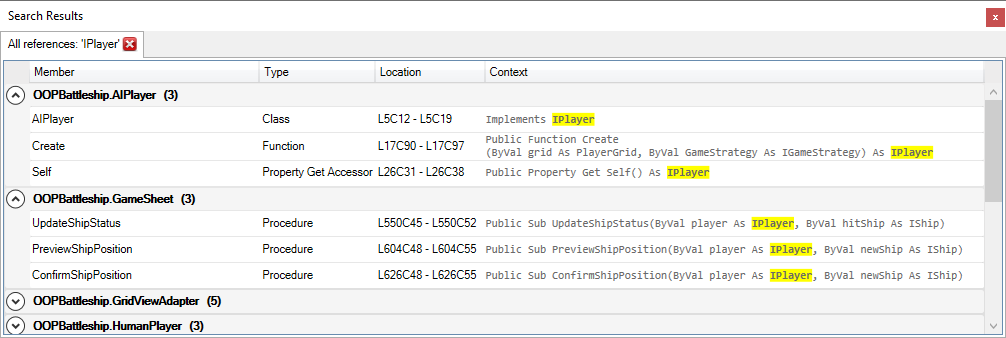


 Rubberduck News